

Download Details
- Version
- 20.1.0 (latest)
- File size
- 65.5 MB
- License
- Free
- Security scan
- VirusTotal: 69 of 69 engines say OK (0 flagged)
- SHA-256 checksum
ac486a54745168361096aca1ae8227ea004ea1e38b5b59441f93072e46ae6743- Developer
- KLCP
- Supported OS
- Windows 11, Windows 10, Windows 7, Windows 8.1
- Installers
- 64-bit (x64), 32-bit (x86), Offline
- Downloads
- 6292
- Rating
- 4.3 out of 5 · 51 reviews
- File name(s)
- K-Lite_Codec_Pack_2010_Mega.exe
 Reviewed by Mohamed Zaki
Tested on Windows 11 and 10 · · How we review
Screenshots

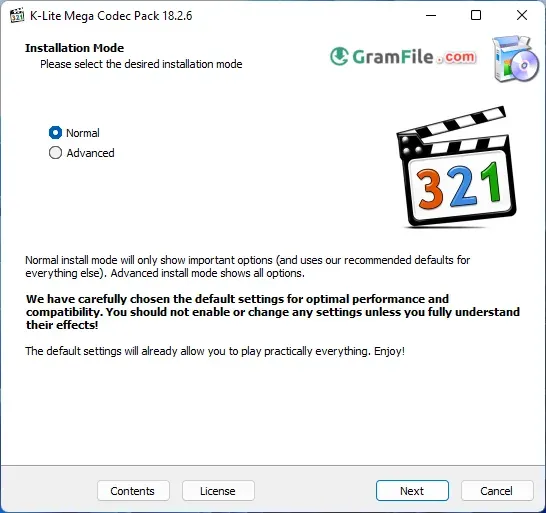
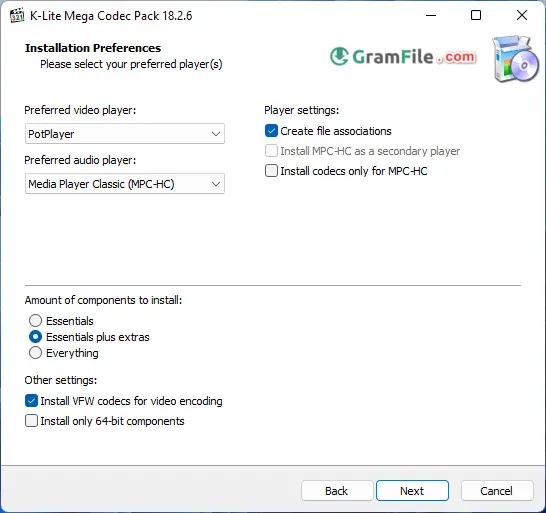

Since 2003, K-Lite Codec Pack acted like a decoder library. It translates between your system and a wide array of video and audio files, letting you play almost anything.
Unlike bulky packs, K-Lite offers a customizable installer for a clean, tailored experience. This user-oriented approach makes it a favorite for smooth Windows multimedia playback.

Before exploring K-Lite Codec Pack, understanding the role of codecs is crucial. Simply, codecs are software programs that translate digital audio and video data into a format your computer can understand and display.
Without the right codecs, your media files might remain frustratingly inaccessible. Compatible with all Windows versions, including Windows 11.
Different Editions
The K-Lite Codec Pack comes in different flavors, ranging from the lightweight “Basic” to the comprehensive “Mega.” Regardless of your choice, you gain access to a vast library of essential and often advanced codecs, ensuring smooth playback of most popular audio and video formats.
It supports everything from common MP3s and H.264 videos to less common formats like FLAC and HEVC.
Key Features:
- Highly customizable: Choose the specific codecs you need, avoiding unnecessary clutter.
- Lightweight options: Ideal for older machines or minimalists.
- Advanced features: Some versions include tools for video editing and format conversion.
- Regular updates: Ensures compatibility and security.
- Open-source and free: A cost-effective solution for everyone.
Is It Right for You?
If you frequently encounter playback issues with various media files or crave ultimate control over your codecs, the K-Lite Codec Pack is a compelling choice. However, consider these points:
- Complexity: While customizable, understanding codecs can be confusing for beginners.
- Potential conflicts: Installing codecs incorrectly can lead to playback issues.
- Alternatives: Paid options might offer additional features and user-friendliness.
How to Download & Install
Want a smooth playback of all your multimedia files? Say goodbye to choppy videos and garbled audio with the K-Lite Codec Pack, a free software savior for Windows PCs. But where to start?
Download 64 bit:
- Click on the above download button.
- Then, head to the official Codec Guide website from our download page. Choose your flavor:
- Basic: Essentials for most common formats.
- Standard: More codecs for wider compatibility.
- Full: For the tech-savvy, includes advanced features.
- Mega: Everything K-Lite offers, ideal for power users.
- Download the installer.
Install:
1. Double-click the downloaded file.
2. Follow the on-screen instructions, choosing your desired codecs and settings.
Tip: For beginners, stick with the recommended options.
3. Click “Install” and let the installer finish the process!

Enjoy:
Pop open any audio or video file, and K-Lite should handle it beautifully. No more codec hunting!
Remember:
- Download only from the official website to avoid malware.
- Choose the version that best suits your needs and technical comfort level.
- If in doubt, start with the Basic pack and add more later.
Bonus Tip: For advanced users, check out Codec Guide’s detailed comparison chart to deep-dive into each pack’s features.
Ditching the Pack: How to Uninstall K-Lite Codec Pack
K-Lite Codec Pack might have been your media solution once, but now it’s time to move on. Uninstalling it is a straightforward process. Here’s how to do it in a snap:
Using Apps and Features (Windows 10/11):
1. Open the Settings app.
2. Navigate to “Apps & features.”Find “K-Lite Codec Pack” in the list.

3. Click on it and select “Uninstall.”

Using the Uninstaller (All Windows Versions):
1. Open the Start Menu.
2. Search for “K-Lite Codec Pack” and look for the uninstaller (might be named “Uninstall K-Lite Codec Pack” or “unins000.exe”).
3. Run the uninstaller and follow the on-screen instructions.

Pros & Cons
What we liked
- Free and easy to install
- Includes a variety of codecs
- Plays almost any media
- Avoids bloatware
- Reliable since 2003
What we didn't like
- Might conflict with codecs
- Not always needed for modern Windows
- Confusing for some users
- May offer adware during installation
Conclusion
4.3out of 5 · 51 user ratings
The K-Lite Codec Pack is a powerful and versatile solution for tackling multimedia playback challenges on Windows. Its free, customizable nature makes it perfect for tech-savvy users and those seeking extensive format support.
However, if simplicity and user-friendliness are your priorities, consider exploring paid alternatives with streamlined interfaces and support.
I hope this article has provided a clear overview of the K-Lite Codec Pack. Remember, the best choice depends on your individual needs and technical expertise. Happy viewing!
FAQ
Do I need K-Lite Codec Pack on Windows 11 or Windows 10?
Only if some videos or audio files will not play. Windows already opens common MP4 and MP3 files, but formats like MKV, FLV and older AVI often fail in its default apps. K-Lite fills those gaps and adds Media Player Classic. If everything plays fine for you, skip it.
Which K-Lite edition should I choose: Basic, Standard, Full or Mega?
Standard fits most people. Basic has the codecs without a player, Full adds extra filters and diagnostic tools, and Mega adds legacy codecs for old editing software. If you are unsure, start with Standard and switch later if a rare format still fails.
Is K-Lite Codec Pack safe, and how can I check my download?
It has been made by Codec Guide since 2003, but fake installers with similar names exist. Compare the SHA-256 checksum shown on this page with your file by running Get-FileHash in PowerShell. If they differ, delete the file and download again. During setup, read each screen and decline anything you did not ask for.
Is there a separate 64-bit version of K-Lite Codec Pack?
No. One installer includes both 32-bit and 64-bit codecs, so the same file works on 64-bit Windows. Expert mode lets you install only the 64-bit codecs if you prefer.
Why does a video still not play in the Movies & TV app after I install K-Lite?
K-Lite works with DirectShow players. The Movies & TV app and the new Windows Media Player use Microsoft’s Media Foundation, so they often ignore it. Open the file in Media Player Classic Home Cinema, which comes with Standard, Full and Mega.
How do I fix a green screen, no sound or stuttering after installing K-Lite?
Open the Codec Tweak Tool from the Start menu and reset to defaults. Then test the file in Media Player Classic with hardware decoding switched off, and update your graphics driver. If nothing helps, uninstall K-Lite from Settings, restart, and reinstall Standard with the recommended options.
Found a problem with this download? Report an outdated version, broken link, suspicious installer or incorrect information.
Changelog - What's new in version 20.1.0
- Updated MPC-HC to version 2.8.4.0- Updated MPC Video Renderer to version 0.10.10.2618
 Zoom Workplace
 Nitro PDF Pro
 Sumatra PDF
 IrfanView
 WinRAR