
3uTools download for Windows 11, 10 64 bit
Download 3uTools 64 bit for Windows 11, 10 PC. A simple tool for controlling and customizing iOS devices with ease.

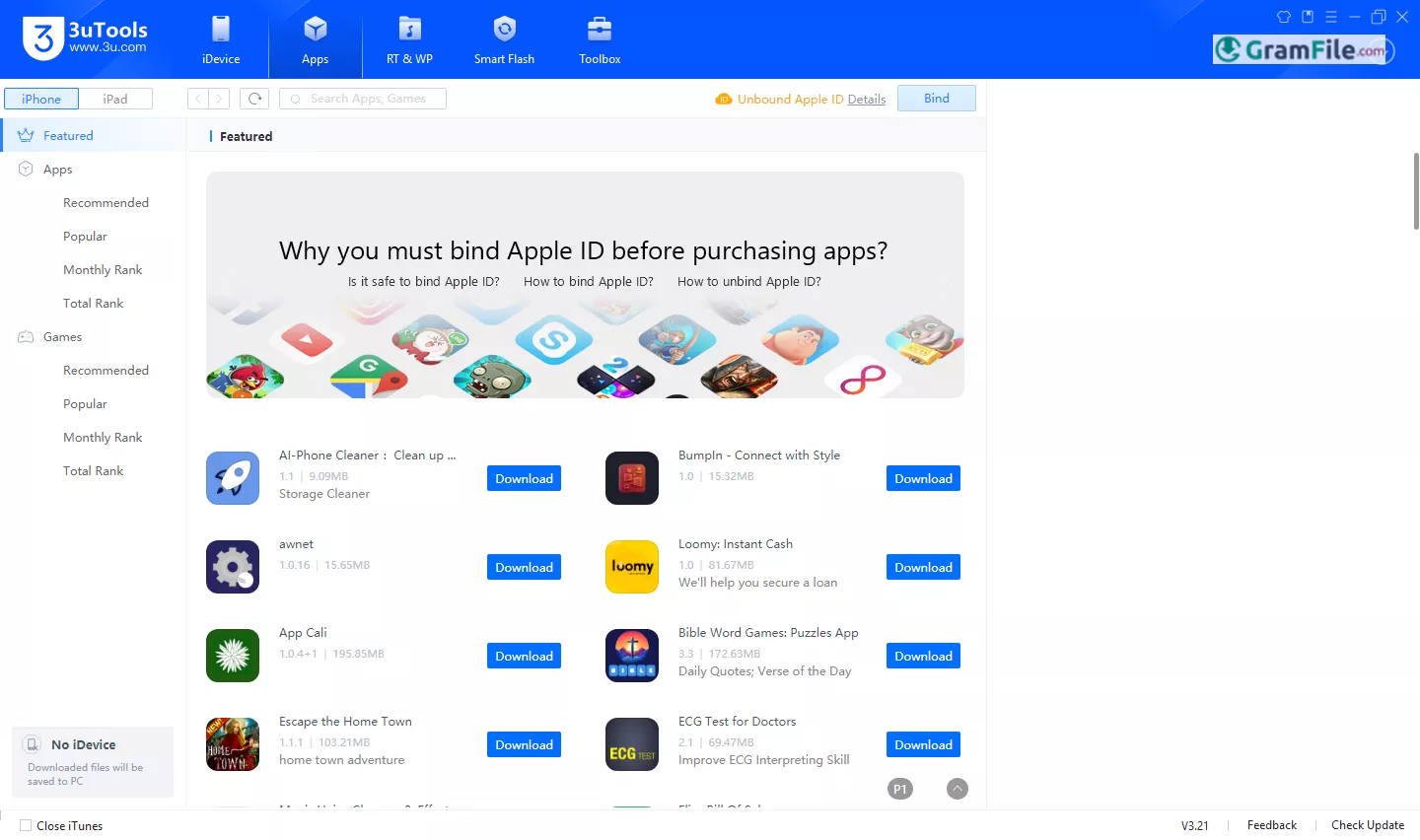
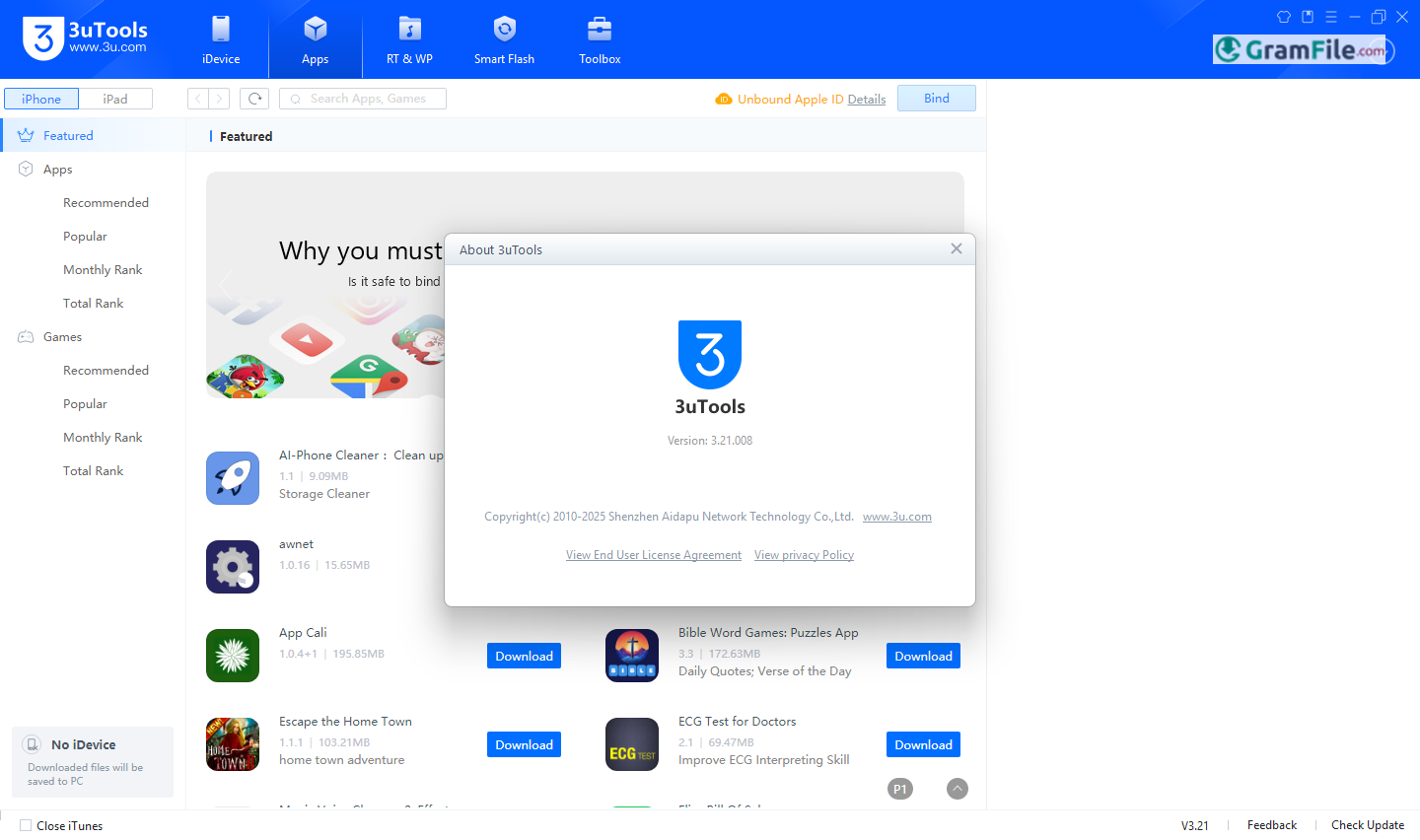
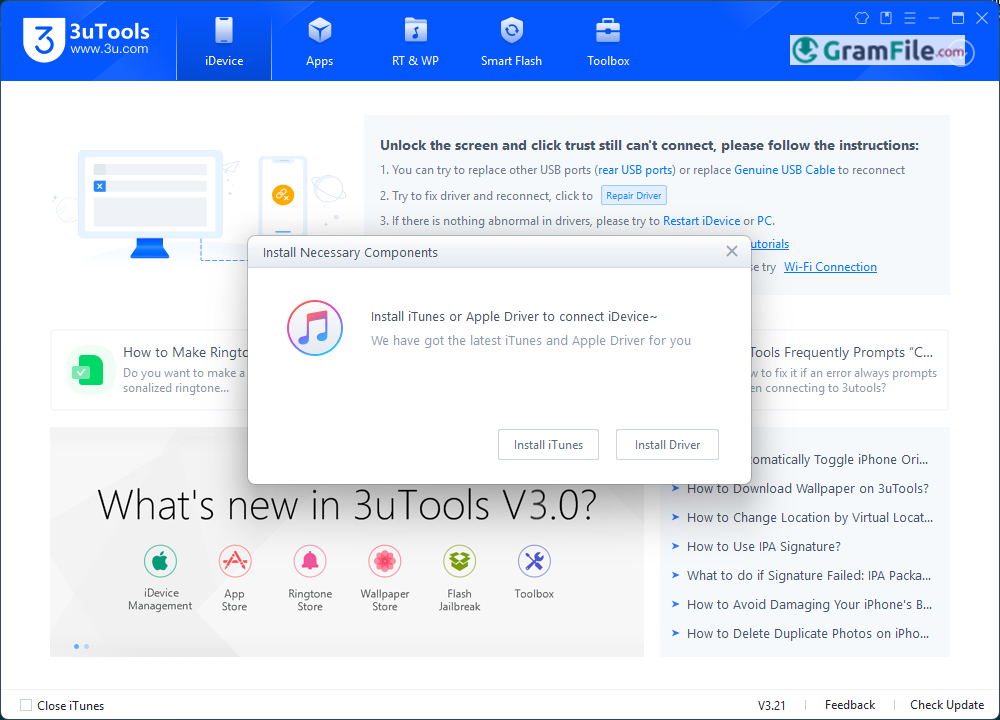
3uTools is a solid and user-friendly software designed specifically for managing iOS devices on Windows platforms.
This powerful tool offers a wide range of features, including device management, data backup, firmware updates, and jailbreaking, making it an essential utility for both casual users and tech enthusiasts.
With its intuitive interface and robust functionality, 3uTools simplifies the process of managing iPhones, iPads, and iPods, providing a seamless experience for users who rely on Windows operating systems.
The history of 3uTools dates back to its initial release as a solution to bridge the gap between iOS devices and Windows users. Over the years, it has evolved significantly, incorporating advanced features and regular updates to keep pace with the ever-changing iOS ecosystem.
Developed by a dedicated team, 3uTools has gained a reputation for its reliability, efficiency, and commitment to user satisfaction.
Its continuous improvement and adaptability have made it a go-to tool for millions of users worldwide, solidifying its position as a trusted companion for iOS device management on Windows.
3uTools Tech Review
In this review, we will explore the key features, benefits, and potential drawbacks of 3uTools, providing you with a comprehensive understanding of how it can enhance your iOS device management experience.
What is 3uTools, Exactly?
3uTools is a free, all-in-one software designed specifically for managing iOS devices on Windows.
It provides a seamless way to handle tasks like data transfer, app installation, firmware updates, jailbreaking, and device backups.
Whether you’re looking to organize your media, recover lost data, or customize your device, 3uTools offers a robust set of tools to make the process effortless.
Its intuitive interface ensures that even beginners can navigate its features with ease, while advanced users can take advantage of its more technical capabilities.
Now, let’s discuss how to download and install 3uTools on your Windows PC.
Download and Install
If you’re looking to download and install it, follow this simple, step-by-step guide to get started.
1. Click on the above Green Download Button for official and direct download. This ensures you get a legitimate copy and avoid any potential malware.
2. Locate the Installer: navigate to your “Downloads” folder and look for the installer file 3uTools_Vx_Setup_x64.exe, where Vx is the version number.
3. Double-click the “3uTools_Vx_Setup_x64.exe” file to launch the installation process.
4. If prompted by Windows User Account Control (UAC), click “Yes” to allow the installer to make changes to your device.
5. Choose the destination folder where you want to install 3uTools. The default location is usually fine, but you can change it if needed.

6. Click “Install” to begin the installation process.
7. Wait for the installation to complete.

8. Once the installation is finished, you’ll see a confirmation screen. Optionally, you can check the box to “Launch 3uTools” immediately.
9. Click “Finish” to close the installer and launch the app.

Now, How to use 3uTools ?
First, Connect Your iOS Device
- Use a USB cable to connect your iPhone, iPad, or iPod to your Windows PC.
- If prompted on your iOS device, tap “Trust This Computer” and enter your passcode (if applicable).
- 3uTools will automatically detect your device and display its information on the main interface.
Then: Start Using 3uTools
- Explore the various features of 3uTools, such as device management, data backup, firmware updates, and more.
- Familiarize yourself with the interface, which is designed to be intuitive and easy to navigate.
By following these steps, you’ll have 3uTools installed and ready to use on your Windows PC.
64-Bit Version: Optimized for Modern Systems
One of the most frequently asked questions about 3uTools is whether it supports 64-bit systems.
The answer is yes—3uTools is fully compatible with 64-bit versions of Windows, ensuring optimal performance on modern PCs.
This compatibility allows the software to run efficiently, even when handling large files or performing resource-intensive tasks like firmware flashing or data recovery.
If you’re using a 64-bit version of Windows 10 or Windows 11, you can expect smooth and reliable performance from 3uTools.
Key Features and Highlights
- Manage device storage and battery health.
- Backup and restore data easily.
- Update or downgrade iOS versions.
- One-click jailbreak for supported devices.
- Install, uninstall, or export apps.
- Transfer photos, videos, and music.
- Create custom ringtones.
- Access files with a built-in explorer.
- Check battery health and usage.
- Mirror your iOS screen to PC.
- Fix or restore iOS devices.
- Download and install IPA files.
- Set custom wallpapers.
- Save SHSH blobs for downgrades.
- Simple and intuitive interface.
- Completely free to use.
- Regularly updated for latest iOS.
- Manage multiple devices at once.
- Securely erase device data.
- All-in-one iOS management tool.
Pros & Cons
👍Pros
- Completely free to use.
- Easy firmware updates and downgrades.
- One-click jailbreak for supported devices.
- Simple backup and restore options.
- Supports all iOS devices.
👎Cons
- Jailbreak limited to specific iOS versions.
- Requires iTunes for some features.
- Occasional bugs or crashes.
- Not Apple official.
More Details
| App Name | 3uTools |
| Operating System | Windows 11 64 bit, Windows 10 64 bit |
| Category | iOS Managers |
| Total Downloads | 7783 |
| License | Free |
| Version | Latest Version |
| Updated on | February 6, 2026 |
| Publisher | 3uTools |
| List ID | 2462 |
FAQs
Is 3uTools safe?
Yes, 3uTools is safe to use. It is widely trusted by millions of users worldwide and does not contain malware or viruses when downloaded from the official website.
Does 3uTools work without iTunes?
Yes, 3uTools can function independently of iTunes, though having iTunes installed ensures better compatibility for certain tasks.
How to jailbreak with 3uTools?
3uTools provides a one-click jailbreaking feature for supported iOS versions. Simply connect your device, select the jailbreak option, and follow the on-screen instructions.
Does it work with the latest iOS?
The developers of 3uTools work to keep it updated, so it usually supports the latest iOS versions. However, there might be a short delay after a new iOS release before 3uTools catches up.
Does it work on 64-bit Windows?
Yes, it is fully compatible with 64-bit versions of Windows, including Windows 10 and above.
Can I uninstall 3uTools if I don't like it?
Yes, just like any other Windows program. You can uninstall it through the Control Panel or the Settings app.
Conclusion
3uTools is a perfect choice for users seeking a reliable, feature-rich, and free solution for managing iOS devices.
Its intuitive interface, comprehensive tools, and regular updates make it a go-to option for both beginners and advanced users.
Whether you’re backing up data, customizing your device, or performing advanced tasks like jailbreaking, 3uTools delivers a seamless and efficient experience.
Why Choose 3uTools?
3uTools stands out for several reasons:
- Free to Use: Unlike many other iOS management tools, 3uTools is completely free, with no hidden fees or subscriptions.
- User-Friendly Interface: Its clean and intuitive design makes it accessible to users of all skill levels.
- Regular Updates: The developers frequently update the software to support the latest iOS versions and devices.
- Comprehensive Support: 3uTools supports a wide range of iOS devices, including iPhones, iPads, and iPods, across multiple generations.
3uTools vs. Others
When compared to similar tools like iMazing, iTools, or iTunes, 3uTools holds its own with unique advantages:
- Cost: 3uTools is free, while many alternatives require paid licenses for full functionality.
- Ease of Use: Its straightforward interface is more beginner-friendly than tools like iMazing, which can feel overwhelming.
- Jailbreaking: 3uTools offers a one-click jailbreak feature, which is not available in most competing tools.
- No iTunes Dependency: While iTunes is often required for other tools, 3uTools can operate independently for most tasks.
However, 3uTools does have limitations, such as requiring iTunes for specific functions.
Final Verdict
3uTools is a powerful, free, and user-friendly tool that simplifies iOS device management on Windows.
Its extensive features, regular updates, and ease of use make it a top choice for anyone looking to manage their iPhone, iPad, or iPod efficiently.
While it may not replace every function of iTunes or paid alternatives, it comes incredibly close—and often surpasses them in convenience and accessibility.
If you’re a Windows user managing iOS devices, 3uTools is undoubtedly worth trying. It’s a tool that delivers exceptional value without costing a dime, making it a must-have in your software toolkit.


