

Windows 11, 10 and 8.1 ISO download
Windows 11 needs TPM 2.0, Secure Boot and a 64-bit CPU. If your PC fails those checks, Windows 10 and 8.1 still install, but Microsoft has ended regular security updates for both.
-
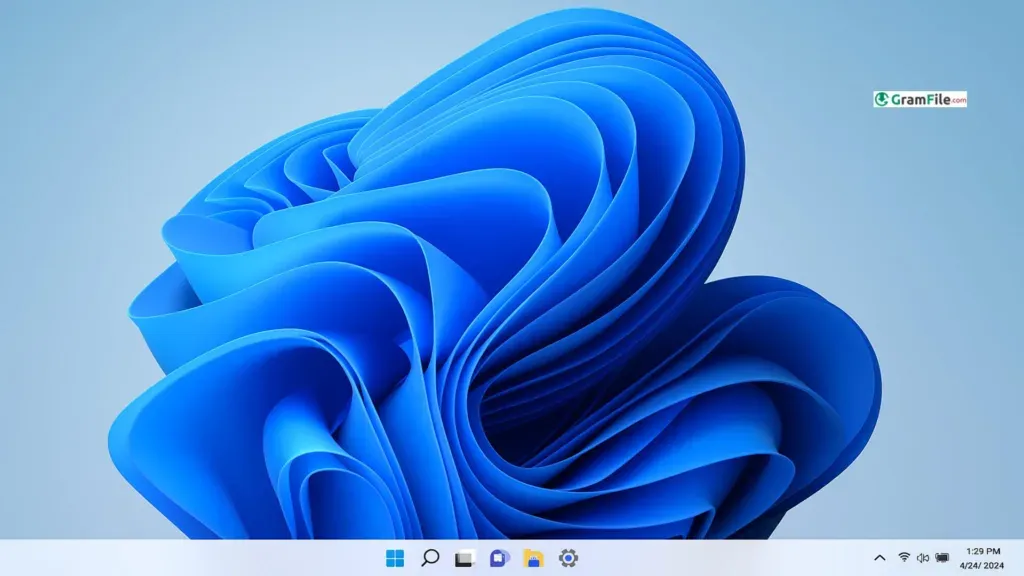
 Windows 11
64-bit, ARM64 · 8.42 GB
Windows 11
64-bit, ARM64 · 8.42 GB
A simple and smooth system that makes your PC feel modern and attractive.
★ 4.9Free Trial -

 Windows 10
64-bit, 32-bit, ARM64 · 6.51 GB
Windows 10
64-bit, 32-bit, ARM64 · 6.51 GB
A smart and stable operating system made for everyone.
★ 4.7Free -
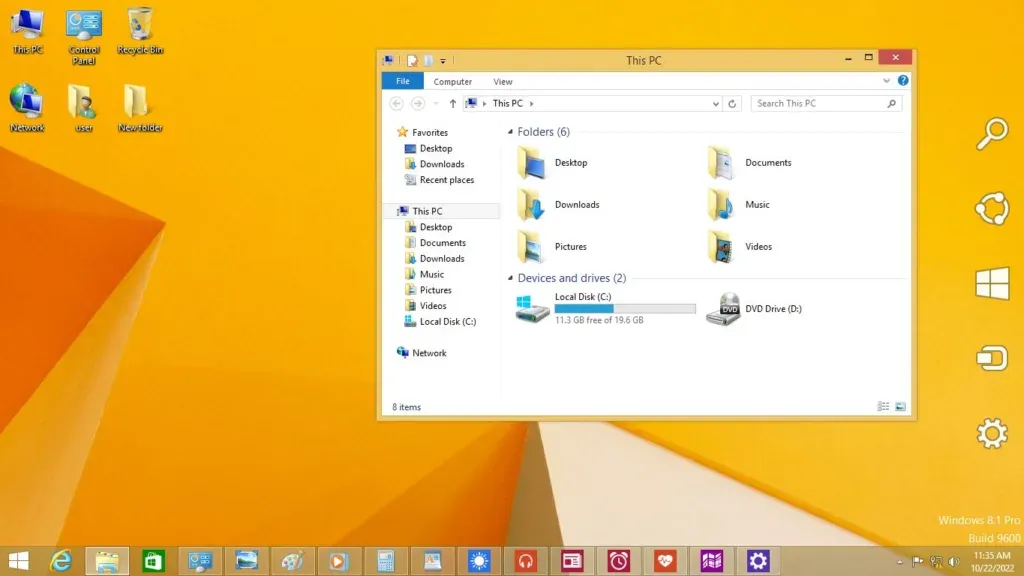
 Windows 8.1
64-bit, 32-bit · 4.02 GB
Windows 8.1
64-bit, 32-bit · 4.02 GB
A transitional Microsoft OS that blended touch-screen tiles with a classic desktop.
★ 4.3Free Trial


Windows 7 editions ISO download
Pick the edition that matches your product key. Windows 7 stopped receiving updates in January 2020, so keep it offline or inside a virtual machine.
-
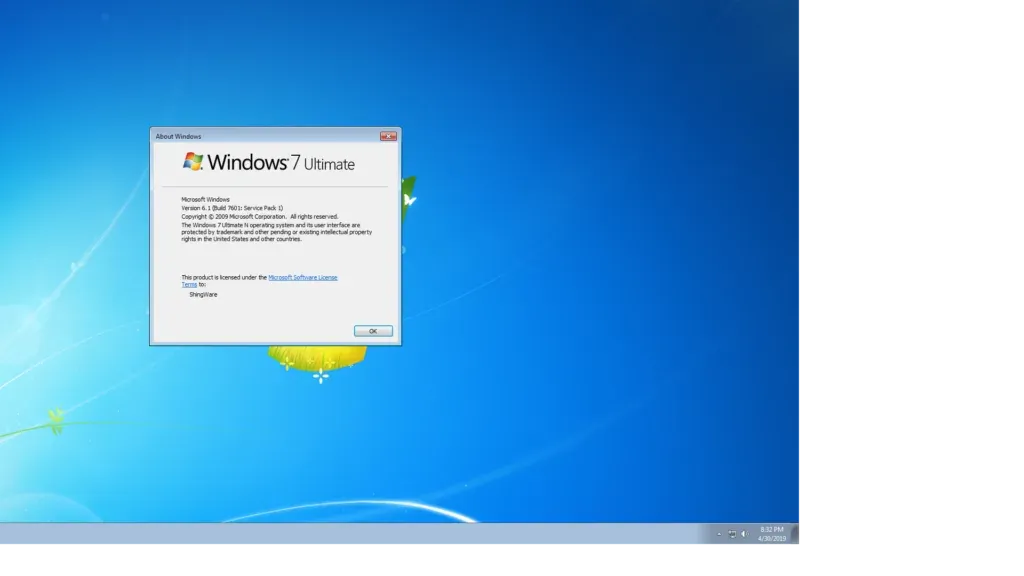
 Windows 7 Ultimate
64-bit, 32-bit · 5.47 GB
Windows 7 Ultimate
64-bit, 32-bit · 5.47 GB
The powerful, user-friendly, feature-complete Microsoft operating system.
★ 4.6Free Trial -
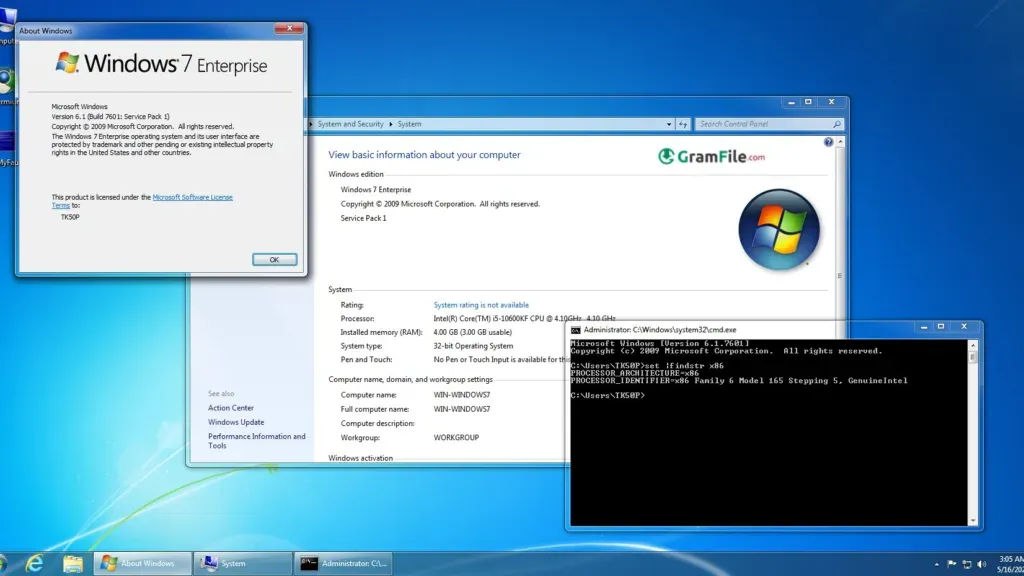
 Windows 7 Enterprise
64-bit, 32-bit · 2.96 GB
Windows 7 Enterprise
64-bit, 32-bit · 2.96 GB
A secure business-focused Windows system for advanced enterprise needs.
★ 4.6Free Trial -
 Windows 7 Professional
64-bit, 32-bit · 5.49 GB
Windows 7 Professional
64-bit, 32-bit · 5.49 GB
A stable and dependable operating system for professionals.
★ 4.8Free Trial -
 Windows 7 Home Premium
64-bit, 32-bit · 5.68 GB
Windows 7 Home Premium
64-bit, 32-bit · 5.68 GB
A clean, fast, and friendly Windows for everyday home use.
★ 4.6Free Trial -
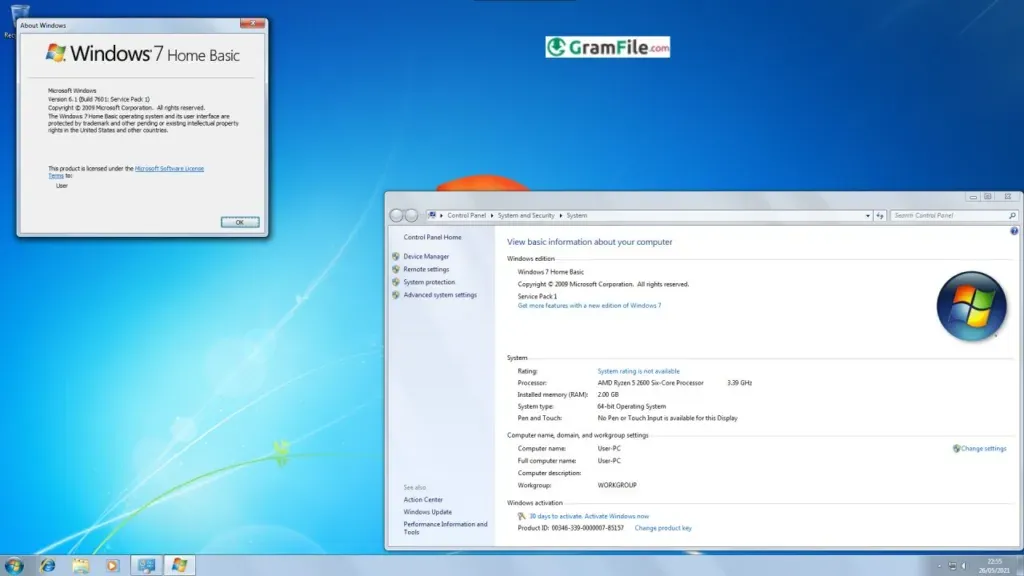
 Windows 7 Home Basic
64-bit, 32-bit · 3.09 GB
Windows 7 Home Basic
64-bit, 32-bit · 3.09 GB
A lightweight Windows 7 edition for essential everyday computing.
★ 4.5Free Trial -
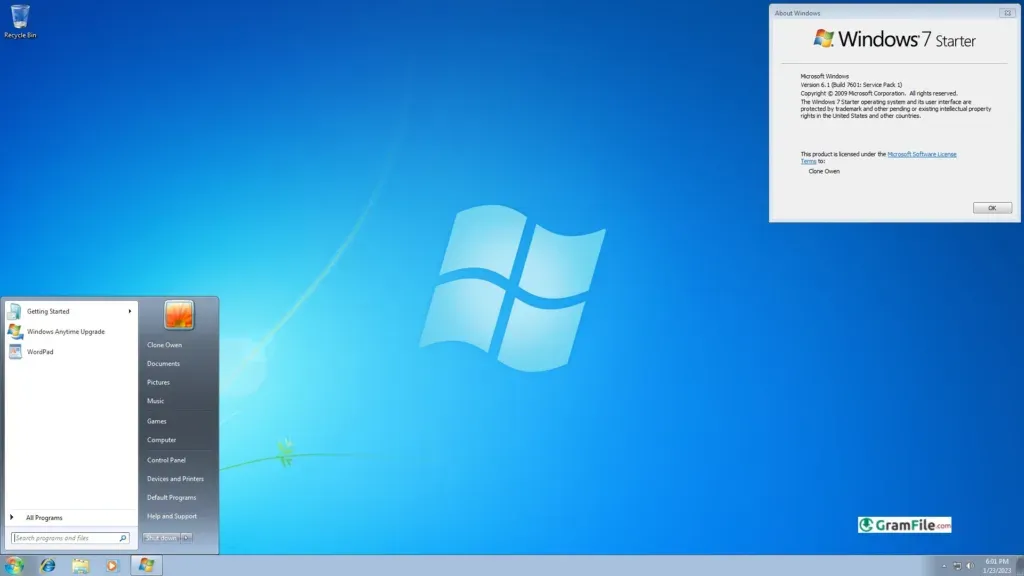
 Windows 7 Starter
32-bit · 2.38 GB
Windows 7 Starter
32-bit · 2.38 GB
A lightweight Windows version made for basic everyday tasks.
★ 4Free Trial


Classic Windows ISO downloads
Vista, XP, 2000, ME, 98 and 95 for retro gaming, old hardware and compatibility testing. Run them in a virtual machine, never as your daily system online.
-
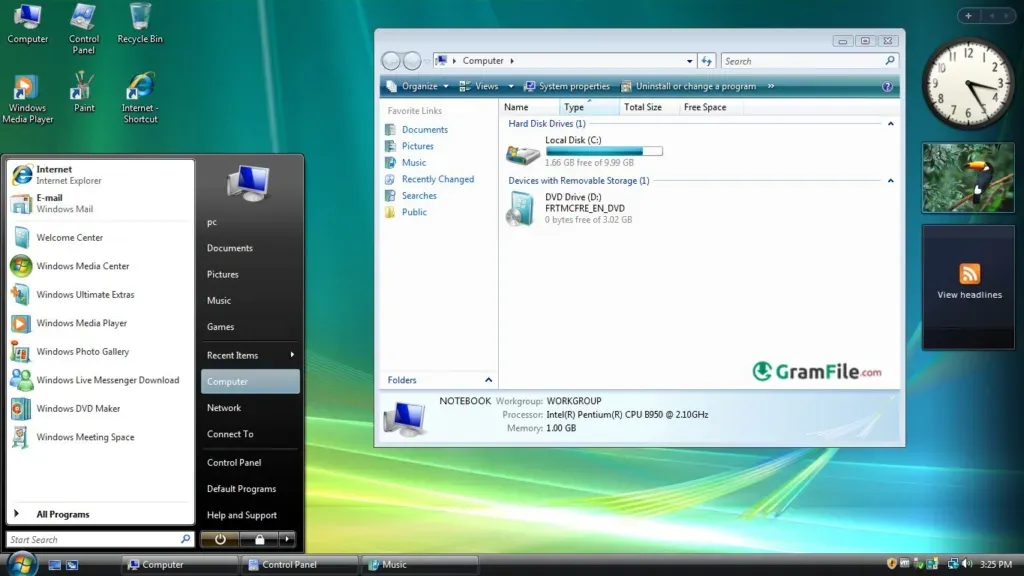
 Windows Vista
64-bit, 32-bit · 3.59 GB
Windows Vista
64-bit, 32-bit · 3.59 GB
A desktop operating system by Microsoft, launched in 2007.
★ 4.1Free Trial -
 Windows XP
64-bit, 32-bit · 589.1 MB
Windows XP
64-bit, 32-bit · 589.1 MB
A fast, stable, and user-friendly classic system.
★ 4.4Free Trial -
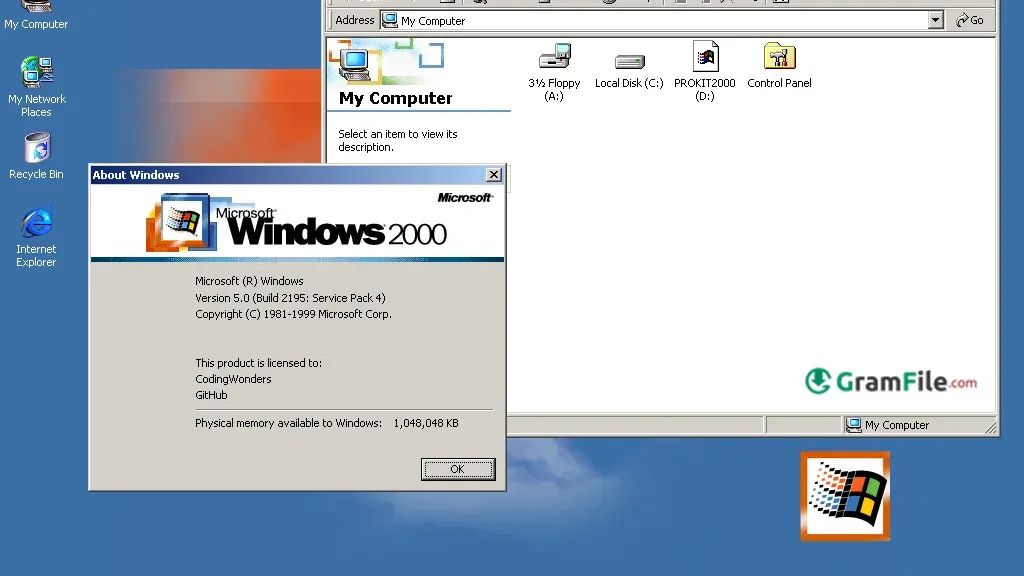
 Windows 2000
16/32-bit · 368.9 MB
Windows 2000
16/32-bit · 368.9 MB
A stable business-focused operating system.
★ 4Free Trial -
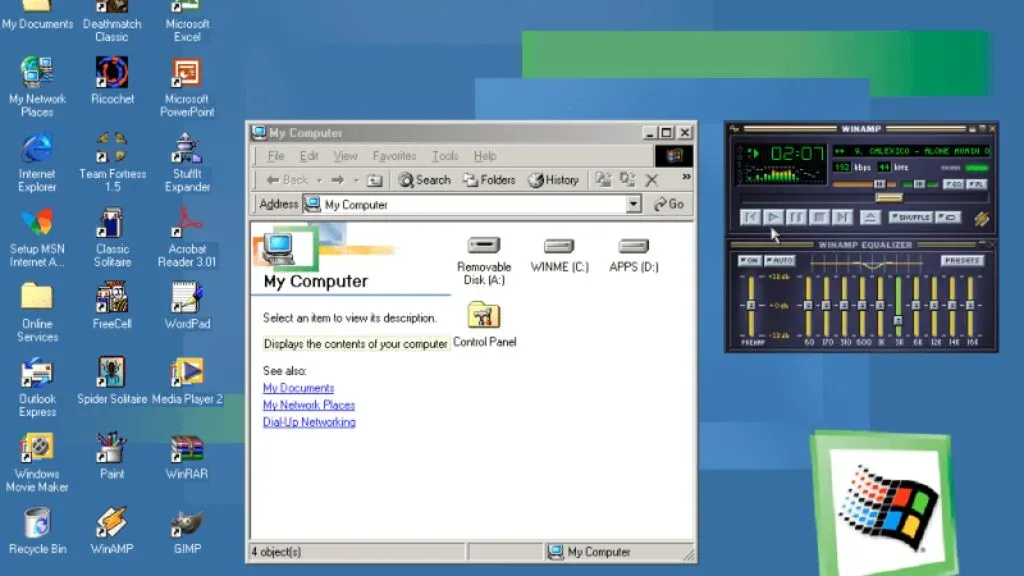
 Windows ME
16/32-bit · 643.84 MB
Windows ME
16/32-bit · 643.84 MB
A consumer-focused operating system from Microsoft.
★ 4.1Free Trial -
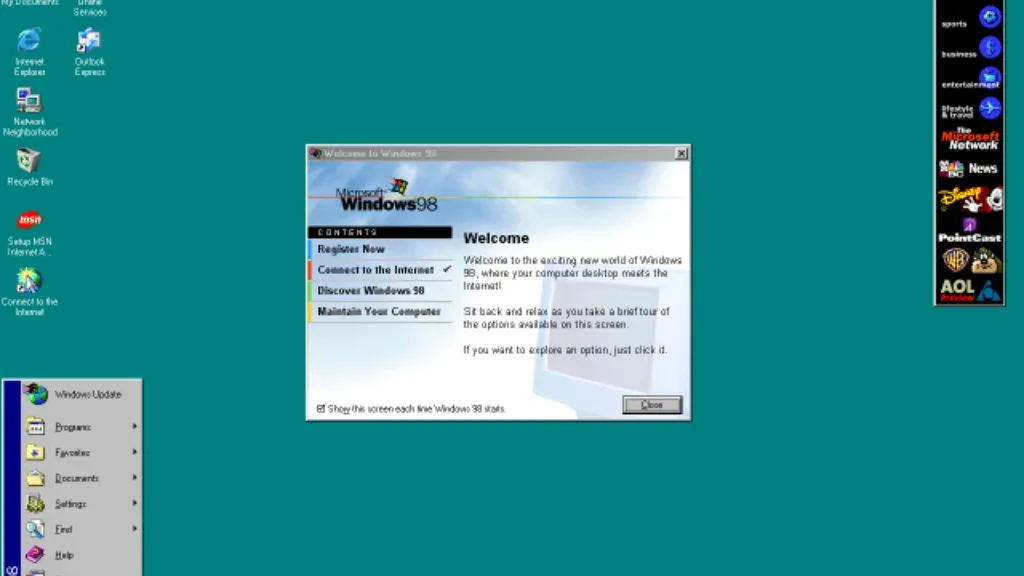
 Windows 98
16/32-bit · 625.22 MB
Windows 98
16/32-bit · 625.22 MB
A classic operating system built for simple and reliable computing.
★ 4.1Free Trial -
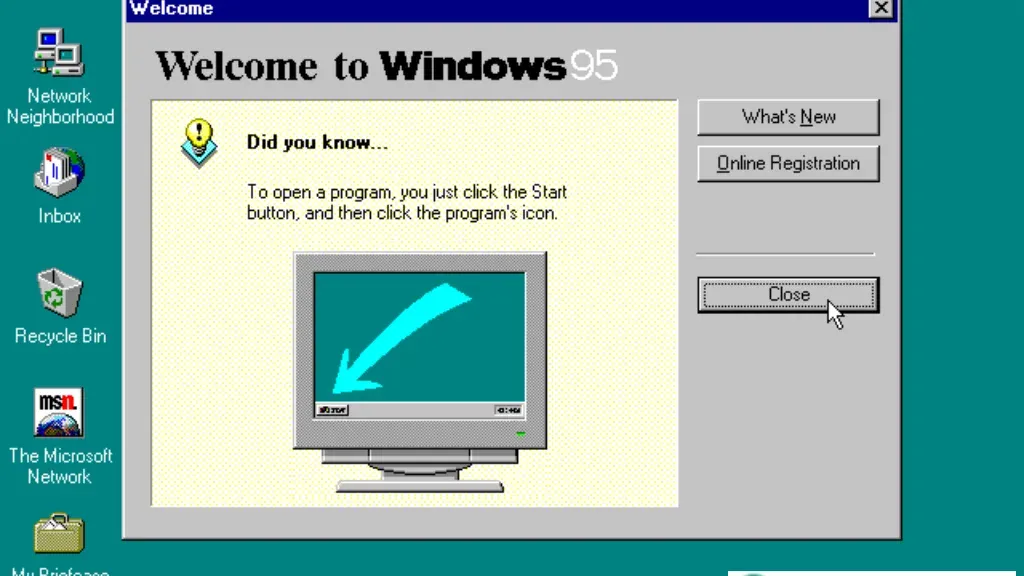
 Windows 95
16/32-bit · 598.28 Mb
Windows 95
16/32-bit · 598.28 Mb
Win 95 brought the graphical operating system to the modern home PC.
★ 4.2Free Trial


Linux and other OS ISOs
-
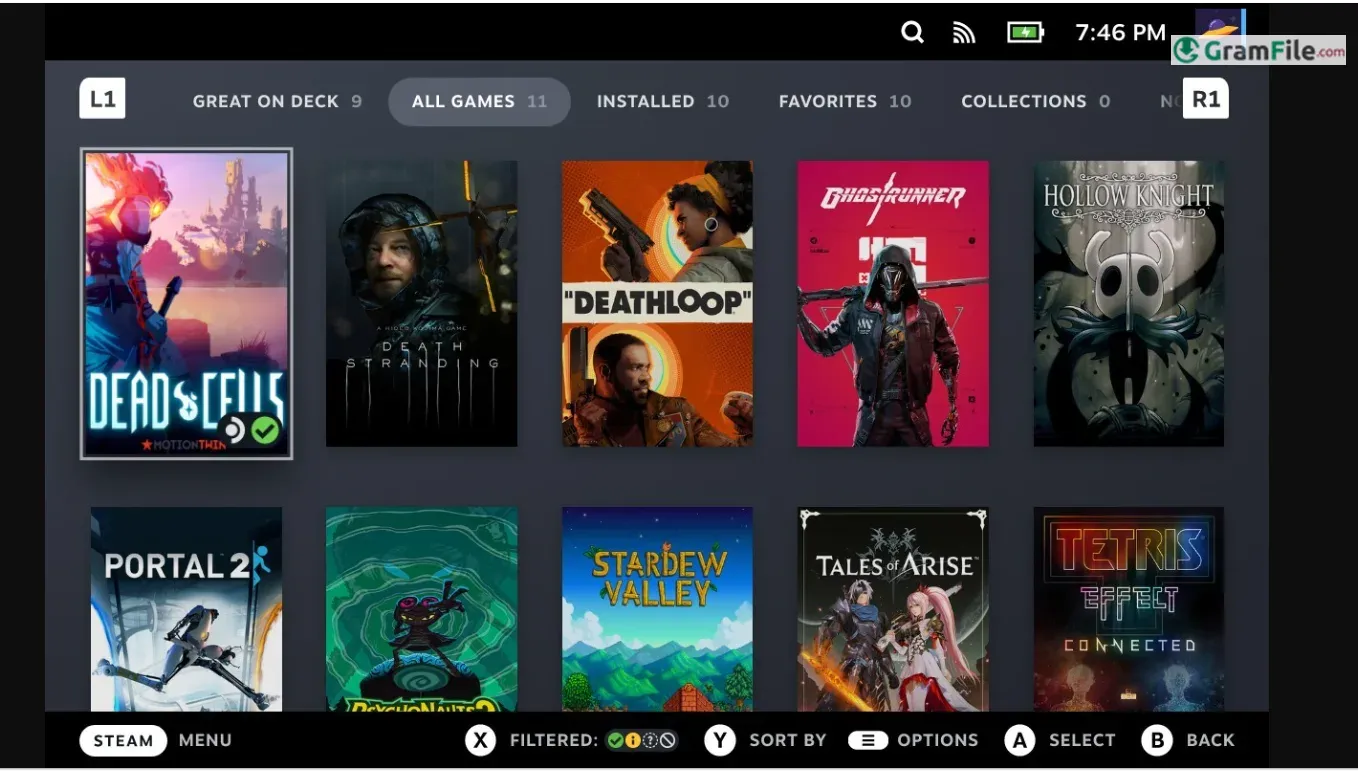
 SteamOS
Linux-based · 64-bit
SteamOS
Linux-based · 64-bit
Valve's free Linux gaming OS - now installable on PCs.
★ 4.3Free

Which Windows ISO should you download?
Short version: install Windows 11 if your PC supports it, Windows 10 if it does not, and keep anything older inside a virtual machine.
| Version | Best for | Architecture | Microsoft support |
|---|---|---|---|
| Windows 11 | Newer PCs with TPM 2.0 and Secure Boot | 64-bit, ARM64 | Supported |
| Windows 10 | PCs that fail the Windows 11 checks | 32-bit, 64-bit | Ended October 14, 2025 |
| Windows 8.1 | Older hardware and test VMs | 32-bit, 64-bit | Ended January 10, 2023 |
| Windows 7 | Legacy apps, offline use, VMs | 32-bit, 64-bit | Ended January 14, 2020 |
| XP and older | Retro games, old drivers, VMs | mainly 32-bit | XP ended April 8, 2014 |
How to use an ISO file
An ISO is a disc image of an installer. These four steps get it onto a PC.
Check the hash
Run CertUtil -hashfile on Windows or sha256sum on Linux and macOS, then compare the result with the value on the download page.
Make a bootable USB
Write the ISO to an 8 GB or larger drive with Rufus, Balena Etcher or Ventoy.
Boot from the USB
Restart and press F2, F12, Del or Esc to open the boot menu, then choose the USB drive.
Install or test in a VM
Follow the setup wizard on real hardware, or attach the ISO to VirtualBox or VMware to try it without touching your PC.
About GramFile OS ISO downloads
GramFile has listed software since 2018. A tampered disc image can ruin a clean install, so every ISO gets a checksum check before it goes live. Windows installation media comes from official Microsoft releases or verified archival sources, and each page shows the version, architecture, file size and SHA-256 hash so you can check the file yourself.
Reviewers test images on a PC and in a virtual machine, and we update entries regularly to keep files available and checksums accurate. We run no download manager, take no paid placements and bundle nothing. Read our editorial policy and review process, or set up a Windows virtual machine before you install on real hardware.
Frequently asked questions
What is an ISO file and how do I use it?
An ISO file is a single-file copy of an installation disc. Write it to a USB drive with Rufus or Balena Etcher, then boot your PC from the drive. You can also attach it to VirtualBox, VMware, Hyper-V or Parallels and skip the USB stick.
Are the ISO files on GramFile free and safe?
The downloads are free, and every file is checked against its SHA-256 hash before we list it. There is no bundled adware, no download manager and no modified installer. Windows itself still needs a valid license to activate.
Which Windows version should I download?
Windows 11 if your PC has TPM 2.0, Secure Boot and a 64-bit CPU. Windows 10 if it fails those checks. Windows 8.1, 7 and older only for legacy software, retro gaming or a virtual machine, because Microsoft no longer patches them.
Should I download the 32-bit or 64-bit ISO?
Pick 64-bit for any PC with 4 GB of RAM or more, which covers nearly everything built in the last decade. Use 32-bit only for old hardware with a 32-bit processor. Windows 11 ships as 64-bit and ARM64 only.
Do I need a product key to install Windows from an ISO?
No, you can skip the key during setup and enter it later. Until you activate, Windows shows a watermark and locks some personalization settings. Use the key or digital license that matches the edition you installed.
Can I run these ISO files in a virtual machine?
Yes. Create a new VM, attach the ISO as boot media and follow the setup wizard. It is the safest way to try a new OS or run an unsupported one such as Windows 7 or XP, because nothing touches your main system.
How do I verify an ISO checksum after downloading?
Compare your file's hash with the SHA-256 value on its download page. On Windows, run CertUtil -hashfile yourfile.iso SHA256 in Command Prompt. On Linux or macOS, run sha256sum yourfile.iso. A match means the file is complete and unmodified.
What is the best tool to make a bootable USB from an ISO?
Rufus is the usual pick on Windows and handles both UEFI and legacy BIOS. Balena Etcher works on Windows, macOS and Linux. Ventoy lets one USB drive hold several ISOs and boots whichever you choose.
Found a problem with an ISO? Report a dead link, wrong checksum or incorrect information.