
Download Details
- Version
- 9.9.3 (latest)
- File size
- 5.9 MB
- License
- Free
- SHA-256 checksum
aeb4f4ab81c71f9b41ce65de841162260ff64c1ec07a758a459cac925bd0fcf6- Developer
- Crystal Dew World
- Supported OS
- Windows 11, Windows 10, Windows 7, Windows 8.1
- Installers
- 64-bit (x64), 32-bit (x86), ARM (Arm64), Offline
- Downloads
- 1211
- Rating
- 4.8 out of 5 · 17 reviews
- File name(s)
- CrystalDiskInfo9_9_3.exe
Screenshots
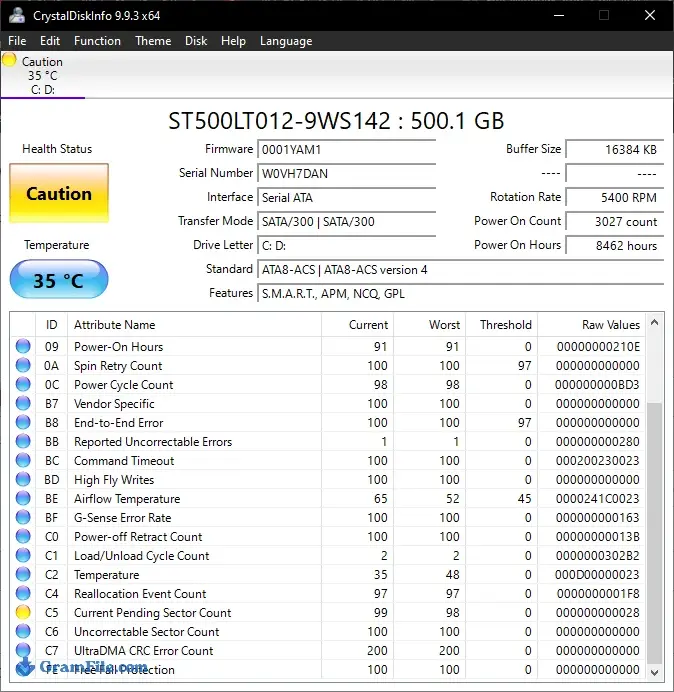
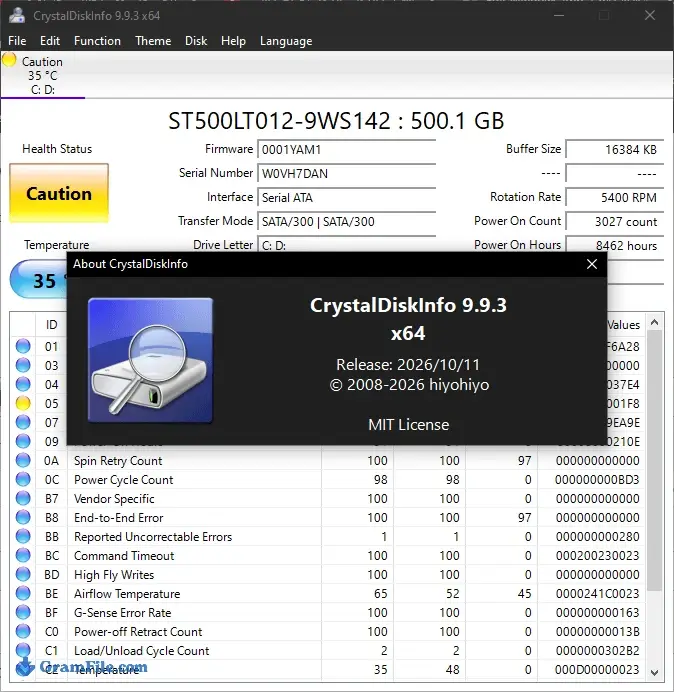
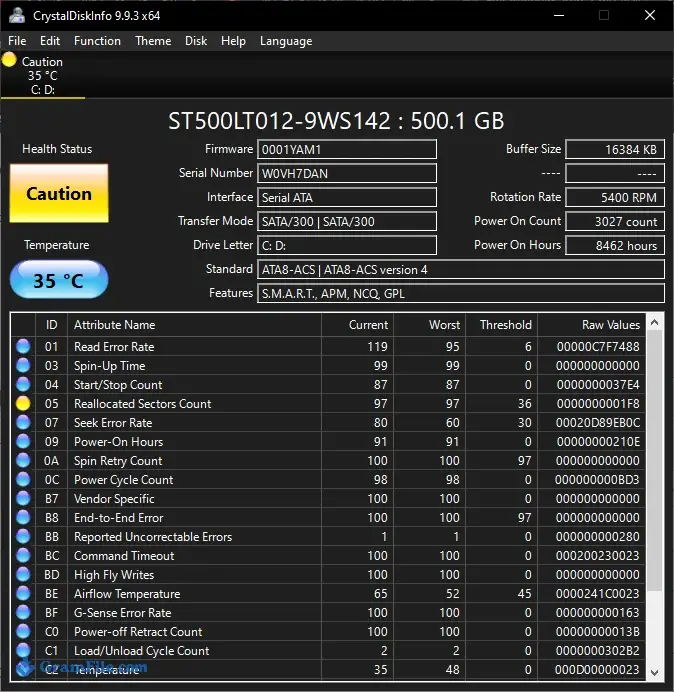
CrystalDiskInfo reads the S.M.A.R.T. log that every modern hard drive and SSD keeps about itself and shows it as a color-coded health status, a temperature and a usage history.
It suits any Windows user, from someone checking a new NVMe drive to someone nursing an old laptop HDD. The installer is 5.9 MB and the program is free and open source.
It will not repair a drive or measure speed, so it works best next to a backup habit. Download it if you have never looked at your drives’ health, because Windows shows only a sliver of that data.
What is CrystalDiskInfo?
CrystalDiskInfo is a small Windows utility from Crystal Dew World that reads the S.M.A.R.T. data stored on your hard drives and SSDs and puts it in a window you can understand.
S.M.A.R.T. is the self-monitoring log a drive writes about itself: error counts, temperature, hours powered on, wear. The drive keeps that log whether or not anyone looks at it. CrystalDiskInfo opens it.
Drive health status at a glance
Each drive gets a button along the top of the window showing its status and temperature.
The status is one word with a color: Good in blue, Caution in yellow, Bad in red, and Unknown in gray when the drive does not report enough. Click a drive and the full details appear below.
Caution is the one people ask about. It means at least one monitored value has crossed a warning threshold.
The drive still works, and plenty of drives sit at Caution for months, but the developer’s advice is to back up first and investigate second. Treat Bad the same way, with more urgency.
SSD health percentage and NVMe support
Many SSDs show a health percentage next to the status, such as Good 99%. It is built from values like remaining life, percentage used and spare capacity, and which ones count depends on the drive maker.
For a lot of SSDs, Caution appears once remaining life drops to 10% or less. Hard drives usually show Good with no percentage, because there is no wear figure to calculate one from.
CrystalDiskInfo reads NVMe drives as well as SATA SSDs and hard drives, and it lists total host writes where the drive reports them.
That figure is handy when you want to know how much a second-hand SSD has already been used.
Temperature readings and alerts
Temperature sits on each drive button, so a hot NVMe stick under a heatsink-less laptop shell is easy to spot. The more useful part is the alerting.
Switch on Resident and Startup from the Function menu and the program lives in the system tray, rechecking your drives and warning you when status or temperature changes.
Alerts can be a sound or an email, and the email option needs .NET Framework 4.8 or later.
S.M.A.R.T. attributes and raw values
Below the summary is the attribute table, with columns for ID, attribute name, current, worst, threshold and raw values. The raw column holds the actual counters.
On a hard drive, the lines worth watching are 05 (reallocated sector count), C5 (current pending sector count) and C6 (uncorrectable sector count). A small nonzero number is not an emergency. One that keeps climbing is.
If you ever ask a forum or a manufacturer for help, use Edit then Copy, or take a screenshot of the window, so they see the same numbers you do.
Graphs, themes and languages
The graph view plots S.M.A.R.T. values over time, which makes slow drift easier to see than a table of numbers.
You can switch themes, including a dark one, and the app ships with many language files. The 9.9.3 release updated the Traditional Chinese translation.
External drives and RAID
CrystalDiskInfo supports some USB drives and Intel and AMD RAID setups, but external support depends on the enclosure’s bridge chip.
Some chips do not pass S.M.A.R.T. commands through, so the drive never appears. A drive missing from the list does not mean it is healthy.
Version 9.9.3 fixed the transfer mode display for JMicron external controllers and improved support for SanDisk SSDs.
What CrystalDiskInfo does not do
It does not repair bad sectors, update firmware or benchmark speed. For speed tests, the same developer makes CrystalDiskMark.
It also cannot give you a failure date. S.M.A.R.T. reports condition, and some drives fail suddenly while showing Good. A green status is a reason to relax a little, not a reason to skip backups.
How to Download & Install
Click the download button at the top of this page to get CrystalDiskInfo.xxx.exe, where xxx is the version number.
Open the download page and pick the installer that matches your PC.
Optional: in PowerShell, run Get-FileHash .\CrystalDiskInfo9_9_3.exe and compare the result with the SHA-256 checksum listed under Download Details.
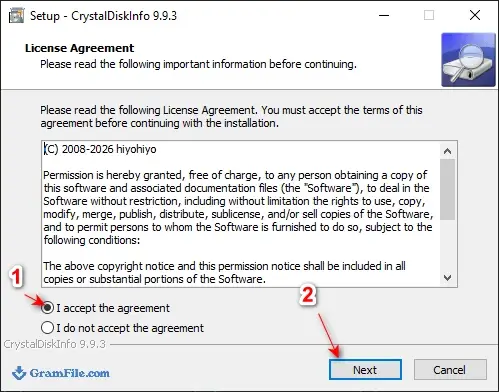
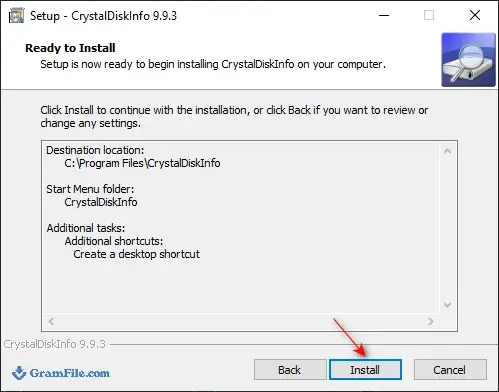
Run the installer, accept the agreement.
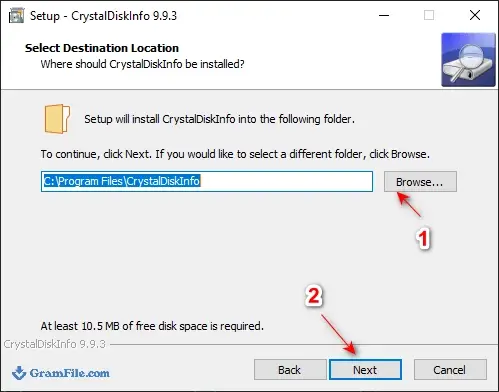
Then, choose the destination folder.
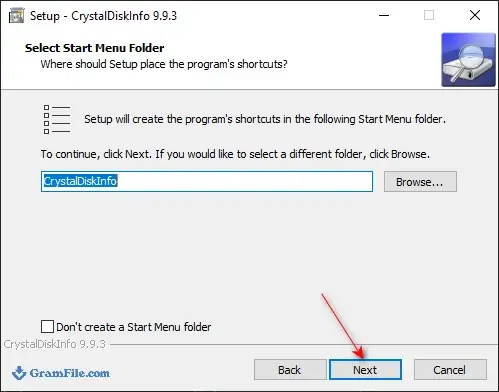
Choose Start Menu folder.
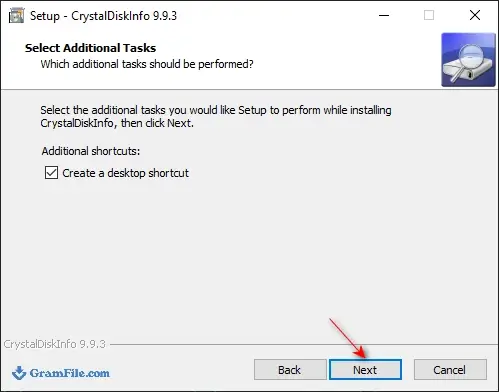
Click Next
Then Install
Then Finish.
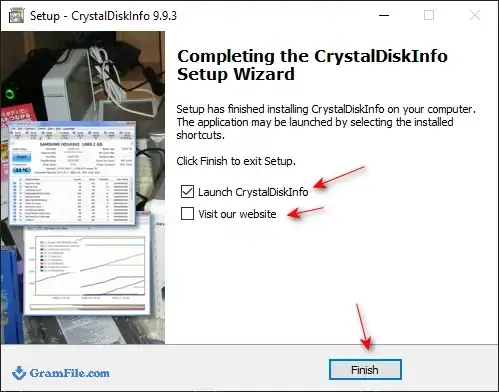
Open CrystalDiskInfo. Windows may ask for administrator permission, which the app needs to read drive data.
Installer types
GramFile lists four builds: 64-bit (x64) for most current PCs, 32-bit (x86) for older 32-bit Windows, ARM (Arm64) for Windows on Arm laptops, and an offline installer for machines without a connection.
If you would rather not install anything, the developer also publishes a portable ZIP on the Crystal Dew World site.
There are themed editions too (Shizuku, Kurei Kei and Aoi) that add character artwork. The Standard edition is the plain one.
System requirements
- Windows 11, 10, 8.1 or 7 (the developer also lists Vista, XP and several Windows Server versions)
- x86, x64 or ARM64 processor
- .NET Framework 4.8 or later if you want the latest email notification feature
- About 6 MB for the download
License and activation
CrystalDiskInfo is free, open source software released under the MIT license. There is no serial number, no trial period and nothing to activate.
How to update CrystalDiskInfo
The simplest route is to check the version on this page against the one you have installed, then download the newer installer and run it over the old copy.
If you use the portable ZIP, extract the new version to a fresh folder and delete the old one when you are happy with it.
Pros & Cons
What we liked
- Free and open source
- Small download, no activation
- Clear color-coded health status
- Reads SATA, NVMe and some USB drives
- Tray alerts for health and temperature
- Full raw S.M.A.R.T. table
What we didn't like
- Windows only
- No repair or benchmarking tools
- Some USB enclosures show nothing
Conclusion
4.8out of 5 · 17 user ratings
CrystalDiskInfo answers one question fast: is this drive okay right now? Install it, run it once, and set it to start with Windows so it can warn you before a drive gets worse.
If you want surface scans, HDDScan fills that gap. If you want more detailed reporting and alerting, Hard Disk Sentinel goes further, at a price.
If you work from the command line or on servers, smartmontools is the better fit.
| App | Best for | Price | Platform | Standout feature |
|---|---|---|---|---|
| CrystalDiskInfo | Quick health checks on Windows | Free | Windows | Color-coded status with SSD and NVMe support |
| Hard Disk Sentinel | Detailed reports and alerts | Paid, trial available | Windows, Linux | Separate health and performance scores |
| smartmontools | Scripting and servers | Free | Windows, Linux, macOS | smartctl command line and smartd background monitoring |
| HDDScan | Surface testing | Free | Windows | Surface tests alongside S.M.A.R.T. and temperature |
FAQ
Is CrystalDiskInfo safe to download?
Yes, CrystalDiskInfo is safe when the file is the genuine installer from Crystal Dew World, and the program is open source. After downloading, run Get-FileHash on the file in PowerShell and compare the result with the SHA-256 checksum on the GramFile page.
Is CrystalDiskInfo free?
Yes, CrystalDiskInfo is completely free. There is no paid tier, license key or trial period, and the source code is public.
What does Caution mean in CrystalDiskInfo?
Caution means at least one S.M.A.R.T. value has crossed a warning threshold. The drive still works, but back up your important files first and then investigate. On many SSDs the status appears when remaining life falls to 10% or less.
Can CrystalDiskInfo predict when a drive will fail?
No, CrystalDiskInfo reports a drive’s current condition and cannot give a failure date. Some drives show Good until the day they die, and others sit at Caution for months. Keep backups whatever the status says.
Does CrystalDiskInfo work with NVMe SSDs?
Yes, CrystalDiskInfo reads NVMe drives as well as SATA SSDs and hard drives. It shows health status, temperature, power on hours and, where the drive reports it, total host writes. What you see for a specific model depends on what that drive exposes.
How do I check SSD health in Windows 11 with CrystalDiskInfo?
Install and open CrystalDiskInfo, then click your SSD in the row of drives at the top. The health status, often with a percentage, and the temperature appear on the left. Allow the administrator prompt if Windows shows one.
Is there a portable version of CrystalDiskInfo?
Yes, the developer publishes a portable ZIP that runs without installing. Extract it to any folder or USB stick and open the DiskInfo program file inside.
Why is my drive not showing in CrystalDiskInfo?
The usual cause is a USB enclosure or controller that does not pass S.M.A.R.T. commands through to the drive. Try a different enclosure or connect the drive internally. A drive that does not appear is not necessarily healthy.
Found a problem with this download? Report an outdated version, broken link, suspicious installer or incorrect information.
Changelog - What's new in version 9.9.3
- Fixed: Transfer Mode Display for JMicron External Controllers- Improved: SanDisk SSD SSD support
- Updated: Language files (Traditional Chinese)
 Zoom Workplace
 Nitro PDF Pro
 Sumatra PDF
 IrfanView
 K-Lite Codec Pack
 WinRAR