


Fortnite for Windows is a free-to-play phenomenon that blends frenetic shooter action with creative world-building.
Developed by Epic Games, this juggernaut has become a cultural touchstone since its 2017 debut. Beyond the core “Battle Royale” mode where players fight to be the last one standing, Fortnite offers a constantly evolving sandbox.
Players can team up to tackle challenges, explore vast, destructible environments, or even create their own games using intuitive tools.
With millions of players worldwide and a steady stream of updates featuring concerts, live events, and creator-made experiences, Fortnite for Windows is more than just a game; it’s a thriving online community.
This review explores the PC version, discovering its key features, technical aspects, optimization tips, and the ever-important question: how to play and win.
Fortnite Battle Royale
The crown jewel. One hundred players parachute onto a shrinking island, scavenging weapons, building elaborate structures, and battling it out to be the last one standing. This fast-paced, strategic mode offers endless replayability with its ever-changing map, surprise events, and a variety of in-match objectives.
How Big is Fortnite on PC?
The base download for Fortnite on PC is around 30 GB. However, with each update, additional content is added, so the size can fluctuate slightly.
Epic Games also offers the option to install just the specific modes you want to play (Battle Royale, Creative, or Save the World), which can help with storage management on lower-end machines.
Fortnite Trackers
Fortnite has spawned a thriving ecosystem of third-party trackers. These websites and apps provide players with detailed statistics on their performance, wins, kills, and weapon usage. Popular options include Fortnite Tracker Network (https://fortnitetracker.com/) and FN.gg (https://fortnite.gg/stats).
Best Fortnite Settings for Performance PC
For those with powerful machines, maximizing frame rates and visual fidelity is key. Here are some recommended settings:
- Display Mode: Fullscreen
- Resolution: Match your monitor’s native resolution
- 3D Resolution: 100%
- Anti-Aliasing: Off (improves performance)
- Shadows: Off (improves performance)
- Effects: Low (improves performance)
- Texture Quality: High or Epic
- View Distance: High
- Frame Rate: Unlimited
Best Fortnite Settings for Low-End PC
Optimizing Fortnite for lower-end machines requires tweaking settings to prioritize performance over visuals. Here’s what to adjust:
- Display Mode: Fullscreen
- Resolution: Reduce resolution if necessary (e.g., 1600×900 or 1280×720)
- 3D Resolution: 75% or lower
- Anti-Aliasing: Off
- Shadows: Off
- Effects: Low
- Texture Quality: Low
- View Distance: Low
- Frame Rate: 60 (or lower if needed)
Additional Tips
- Practice Makes Perfect: Like any competitive game, success in Fortnite takes dedication and practice. Don’t get discouraged by initial setbacks.
- Watch Pro Players: Learn from the best! Watching professional streamers and players can provide valuable insights into strategy, building techniques, and gameplay mechanics.
- Customize Your Controls: Fortnite offers extensive control customization options. Experiment and find a control scheme that feels comfortable and intuitive.
- Join the Community: Fortnite boasts a massive and welcoming community. Utilize online forums, social media groups, and
A Bullet-Point Breakdown (Key Features)
- Battle Royale: 100-player free-for-all with strategic building and ever-changing maps.
- Zero Build: Pure gunplay twist on Battle Royale, emphasizing movement and cover.
- Creative Mode: Unleash your creativity with unlimited resources and building tools.
- Save the World: Team up with friends to fight off hordes of husks (zombies) in a PvE campaign.
- Social Features: Squad up with friends, voice chat, spectate matches, and complete challenges together.
How to Download & Install
1. Download the Epic Games Launcher: Head over to the Epic Games Store https://store.epicgames.com/en-US/ and download the launcher.

2. Create an Epic Games Account: If you don’t have one already, create a free account.
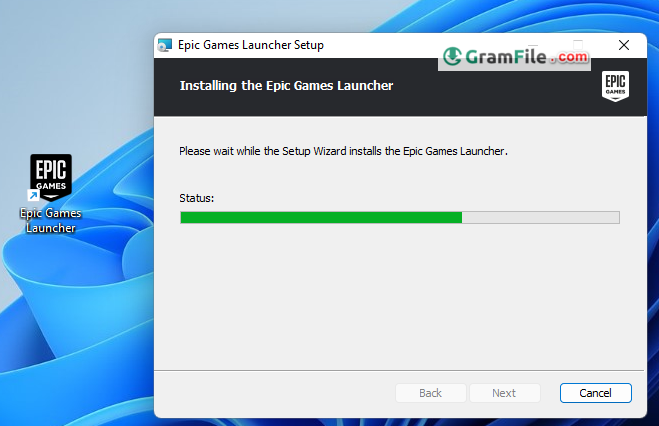
3. Search for Fortnite: Within the launcher, search for “Fortnite” and click “Get” to initiate the download.

4. Install: Once downloaded, the launcher will automatically install the game.
5. Launch Fortnite: Click “Launch” to jump into the world of Fortnite!
System Requirements
Here are the system requirements for running Fortnite on Windows:
Recommended System Requirements:
- Video Card: Nvidia GTX 960, AMD R9 280, or equivalent DX11 GPU.
- Video Memory: 2 GB VRAM.
- Processor: Core i5-7300U 3.5 GHz, AMD Ryzen 3 3300U, or equivalent.
- Memory: 16 GB RAM or higher.
- Hard Drive: NVMe Solid State Drive.
- Operating System: Windows 10 64-bit or above
Minimum System Requirements:
- Video Card: Intel HD 4000 on PC; AMD Radeon Vega 8.
- Processor: Core i3-3225 3.3 GHz.
- Memory: 8 GB RAM.
- Operating System: Windows 10 64-bit or above.
Epic Quality Presets Specifications:
- Video Card: Nvidia RTX 3070, AMD Radeon RX 6700 XT, or equivalent GPU.
- Video Memory: 8 GB VRAM or higher.
- Processor: Intel Core i7-8700, AMD Ryzen 7 3700x or equivalent.
- Memory: 16 GB RAM or higher.
- Hard Drive: NVMe Solid State Drive.
- Operating System: Windows 10 64-bit or above.
Keep in mind that if you just meet the minimum system requirements, Fortnite will run on your machine, but probably not on the highest settings. Reducing the graphics settings in Fortnite and disabling background apps can help improve performance.
To verify if your PC meets the system requirements:
- On Windows, click Start, type “System Information,” and press Enter. Check the System Summary to view your operating system, processor, and memory.
- Expand the Components list and review your video card(s) to ensure they meet the minimum requirements.
- On Mac, click the Apple icon in the top left corner, select “About this Mac,” and compare your macOS version, processor, memory, and graphics to the Fortnite system requirements.
For more details, you can refer to the official Fortnite Support article.