

Download Details
- Version
- 18.6-5 (latest)
- File size
- 395.74 MB
- License
- Free
- Security scan
- VirusTotal: 67 of 67 engines say OK (0 flagged)
- SHA-256 checksum
227e2bc08091b4c2b8338c7d61b11d057f895711480b006f90bfcfcd2410a58a- Developer
- PostgreSQL Global Development Group
- Supported OS
- Windows 11, Windows 10
- Installers
- 64-bit (x64), Offline
- Downloads
- 16245
- Rating
- 4.7 out of 5 · 148 reviews
- File name(s)
- postgresql-18.6-5-windows-x64.exe
 Reviewed by Eman Sakr
Tested on Windows 11 and 10 · · How we review
Screenshots
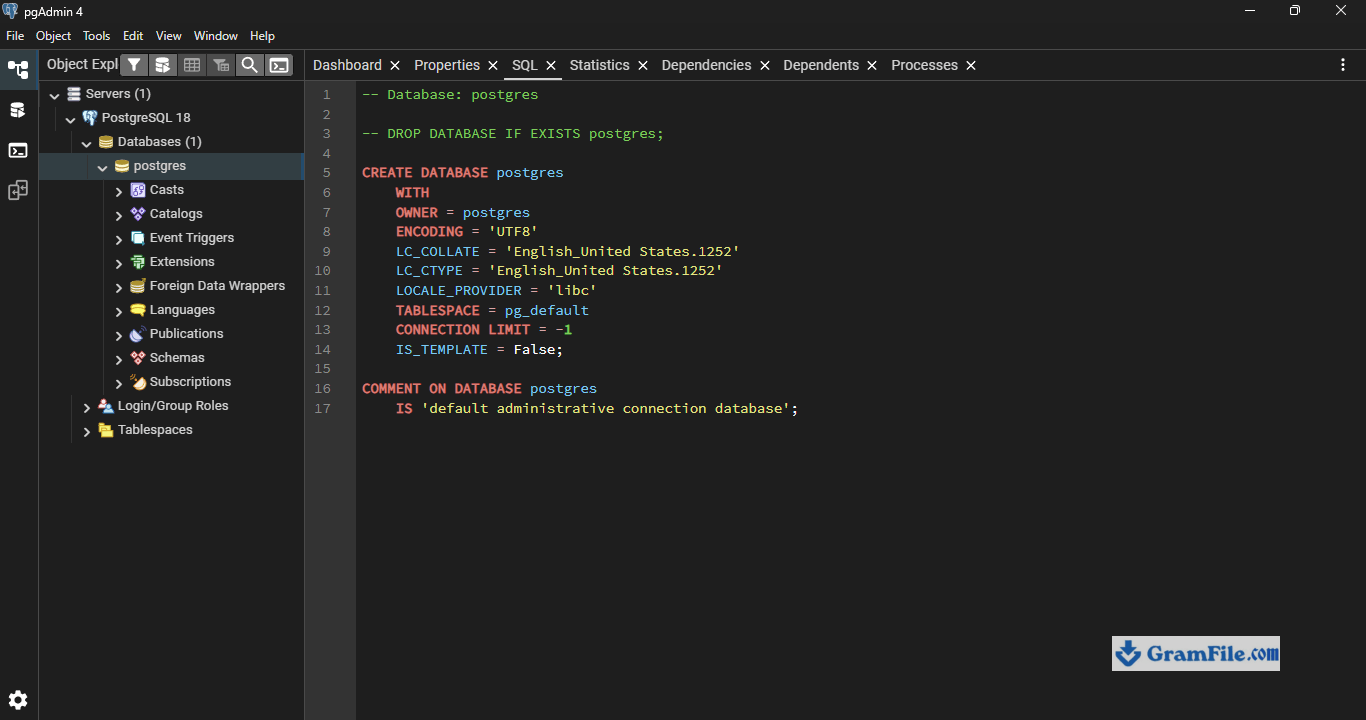
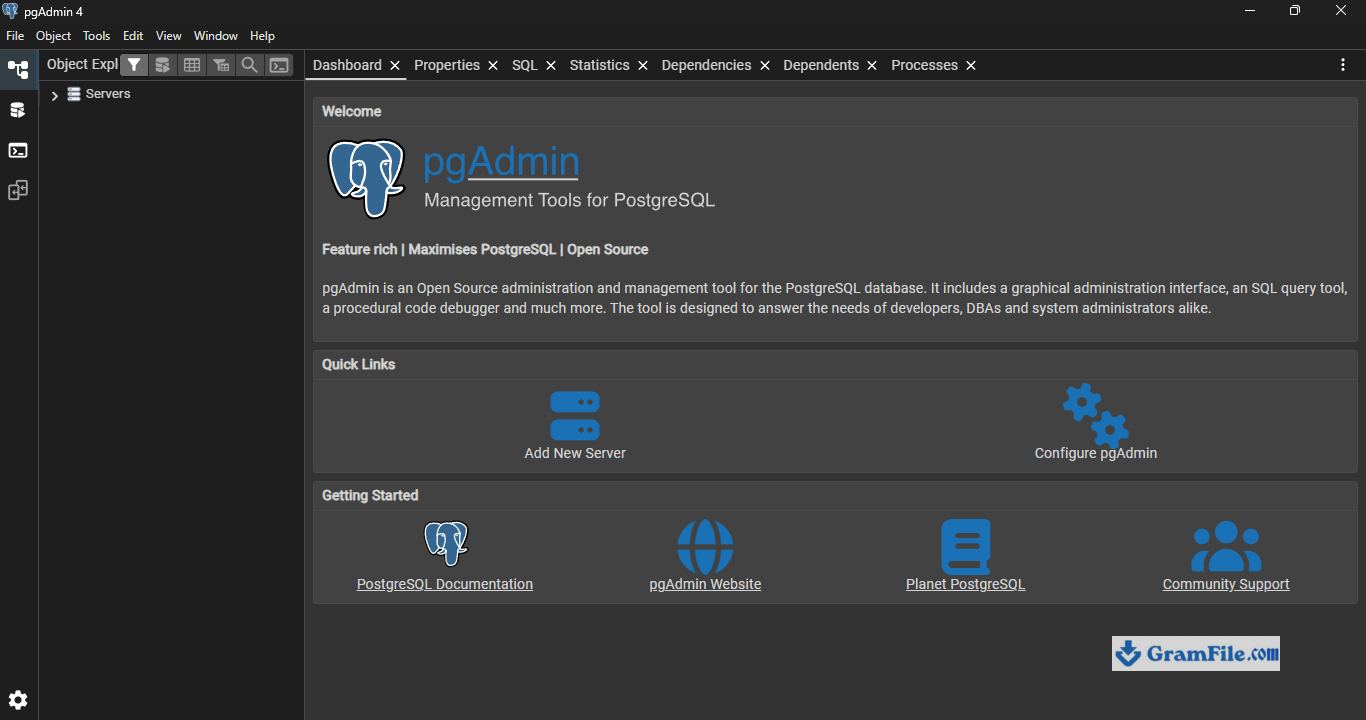
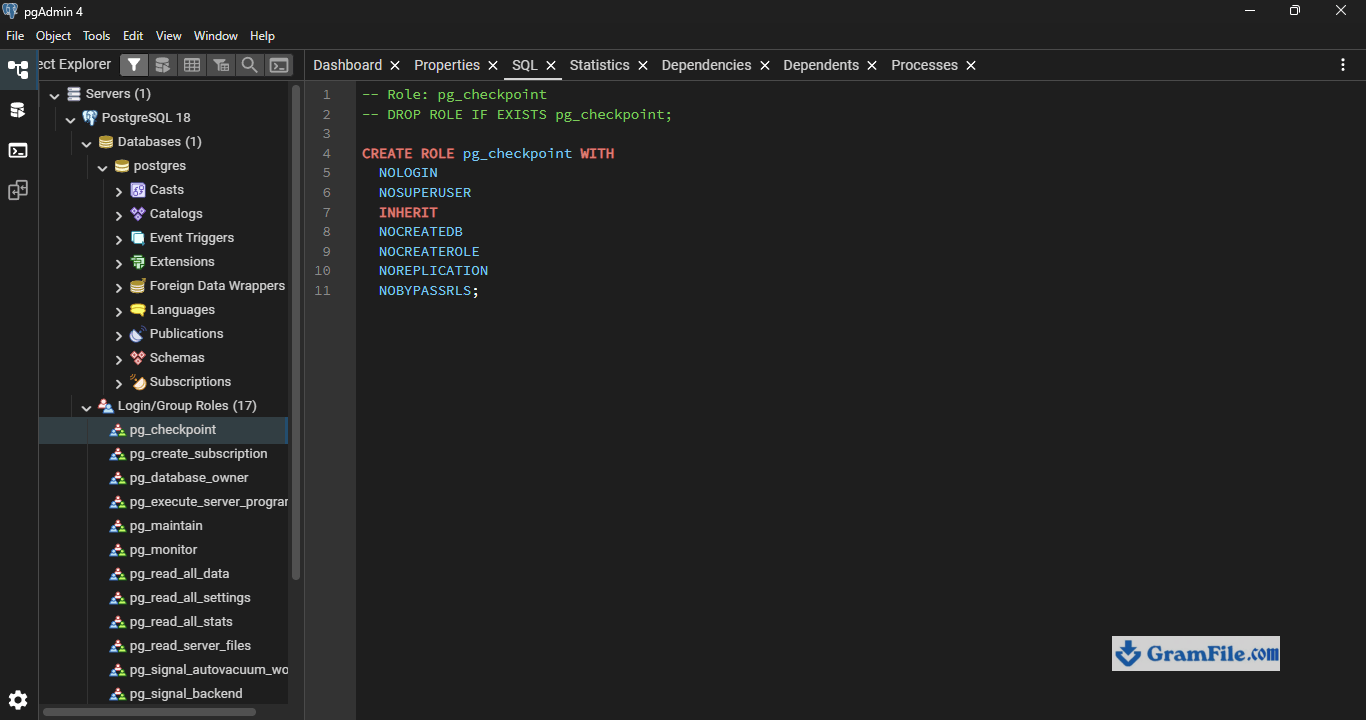
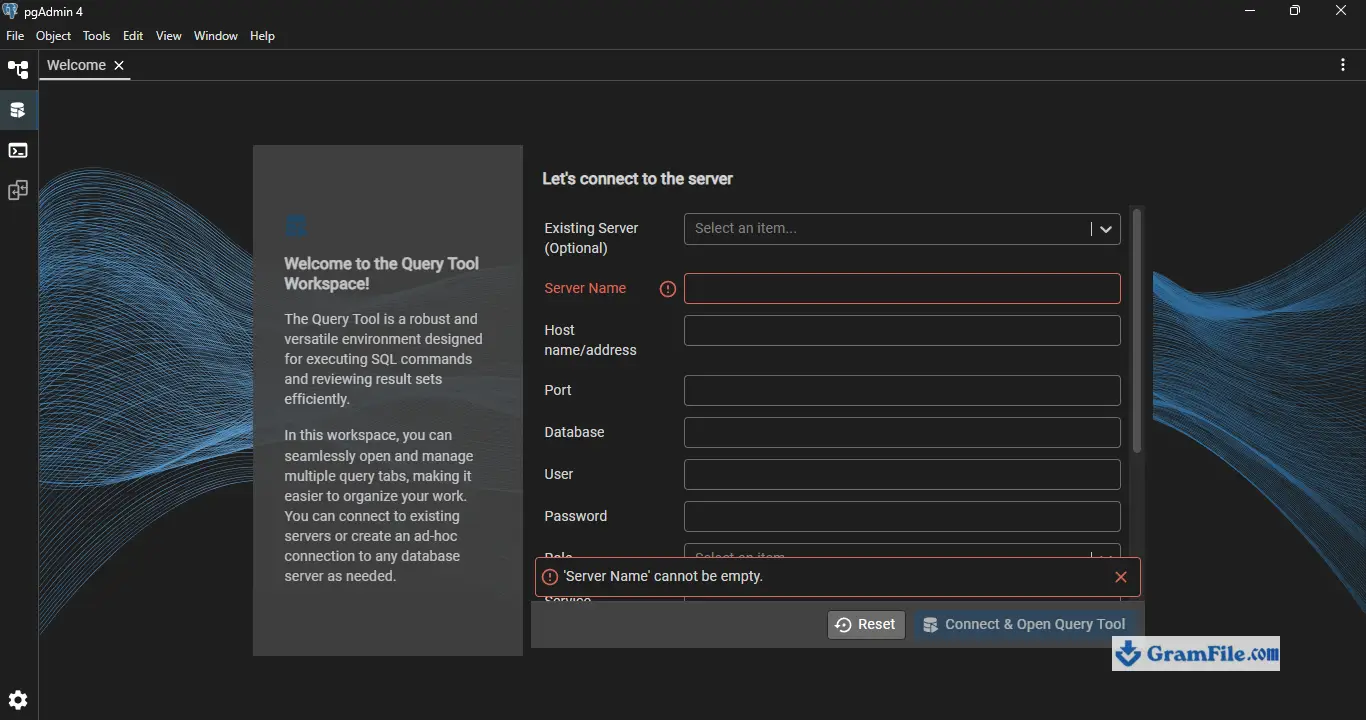
PostgreSQL is a free, open-source relational database that quietly runs behind a huge chunk of the internet, and yes, it installs cleanly on Windows.
It’s for developers, students, and small teams who want a real production-grade database without paying Oracle or Microsoft a cent.
Is it worth downloading? If you’re writing anything past a hobby app, honestly yes. What sets it apart from MySQL or SQL Server Express is how far you can push it before you outgrow it – JSON support, full-text search, custom data types, and no artificial size caps.
We verified this build ourselves before listing it: SHA-256 checked, zero bundleware, nothing sneaking a toolbar into your install.
What is PostgreSQL?
PostgreSQL, often just called Postgres, is an open-source object-relational database management system that’s been actively developed for over 35 years.
It started as an academic project at UC Berkeley and grew into one of the most trusted databases in production use today, running everything from startup side projects to systems at companies like Apple and Instagram.
On Windows, the official EDB installer packages the database server itself alongside pgAdmin 4 (a GUI for managing everything visually) and the command-line tools you’ll eventually want anyway, like psql, pg_dump, and pg_restore.
Core Database Features
At its heart, PostgreSQL is a relational database, meaning your data lives in tables with defined relationships between them – the same model behind MySQL and SQL Server.
But Postgres goes further than a typical SQL database. It supports native JSON and JSONB columns, so you can store and query document-style data without bolting on a separate NoSQL system.
It handles arrays, custom types, and geometric data types out of the box. Full-text search is built in, not an add-on.
And its transaction handling (full ACID compliance) means your data stays consistent even when things go wrong mid-write.
Performance and Reliability on Windows
Windows users sometimes assume Postgres is a “Linux thing,” and historically that reputation had some truth to it.
That’s changed. The Windows build runs as a proper background service, handles concurrent connections well, and the more recent versions (18.x) closed a lot of the performance gap that used to exist between native Linux installs and Windows.
For local development or small-to-mid production workloads, you won’t notice a meaningful difference running it on Windows 11 versus a Linux server, aside from the obvious admin differences.
Extensibility
This is where Postgres genuinely pulls ahead of most competitors. You can install extensions like PostGIS for geospatial data, TimescaleDB for time-series workloads, or pgvector if you’re building anything involving embeddings and similarity search.
None of this requires switching databases or duct-taping a separate service together – it’s the same Postgres instance, just extended.
Security
PostgreSQL supports role-based access control, SSL connections, and row-level security policies that let you restrict exactly which rows a given user can see or touch.
For anyone handling sensitive data, that granularity matters more than it sounds like on paper.
pgAdmin: The GUI Side
If you’d rather not live in a terminal, pgAdmin 4 comes bundled with the Windows installer.
It gives you a visual query tool, a schema browser, and dashboards for monitoring server activity.
It’s not the prettiest tool in the world, but it’s functional, free, and it saves you from memorizing psql commands for basic tasks.
Logging into pgAdmin happens in two steps, and people mix them up constantly.
- First, pgAdmin itself asks for a master password the first time you open it – that’s just to lock the app on your machine, you set it yourself during first launch.
- Second, once you’re in and you click on your PostgreSQL server in the left sidebar, it asks for the database password – that’s the superuser password you set back in step 6 of the installer.
Two different passwords, two different purposes. Forgetting which one goes where is the most common “I can’t log in” complaint on forums.
pgAdmin online, meaning access through a browser instead of the desktop app, is also possible. pgAdmin actually ships as a web application under the hood – the desktop version is really just that web app wrapped in its own window.
If you want true browser access (say, to manage a server from another machine on your network), you can run pgAdmin in server mode and hit it from any browser at the address you configure, no separate download needed. It’s the same tool, just a different entry point.
Running PostgreSQL in Docker on Windows
Not everyone wants the full Windows installer, and that’s fair – if you’re already living in containers, running PostgreSQL in Docker is arguably cleaner.
You’ll need Docker Desktop installed first, which on Windows 11 runs on top of WSL2.
Docker vs. the native installer
Docker is the better call if you want multiple PostgreSQL versions running side by side without conflicts, if your team already deploys everything as containers, or if you like being able to wipe a broken database and start fresh in seconds.
The native Windows installer from GramFile is the simpler call if you just want a database running in the background for a normal project and don’t want to deal with WSL2 or Docker Desktop at all.
Neither is “wrong” – it depends on where the project is headed.
How to Download & Install
Direct download from GramFile: Click on the download button at top of this page.
Every file on GramFile gets a manual review and a SHA-256 checksum before it goes live. No paid placements, no “recommended” bloatware riding along in the installer. What you download is what PostgreSQL’s team actually built.
System Requirements
- Windows 11 or Windows 10, 64-bit only
- 1 GHz processor or better (basically any machine from the last decade)
- 2 GB RAM minimum, 4 GB+ if you’re running pgAdmin alongside it
- About 1 GB free disk space for the base install, more for your actual data
- Administrator access, since the installer sets up a Windows service
License & Cost
PostgreSQL ships under the PostgreSQL License, a permissive open-source license close to MIT or BSD.
There’s no activation key, no trial period, no “Pro” tier waiting behind a paywall. You can use it commercially, modify it, redistribute it, and never owe anyone a license fee.
How to Update
PostgreSQL doesn’t auto-update itself in the background like a browser. When a new minor version drops (bug fixes and security patches), download the matching installer from GramFile and run it – it’ll patch your existing installation in place.
Major version jumps (say, 18 to 19) need a bit more care: back up your databases with pg_dump first, then either run the installer for the new version alongside the old one or use pg_upgrade if you want to keep everything in one spot.
Step-by-Step Installation
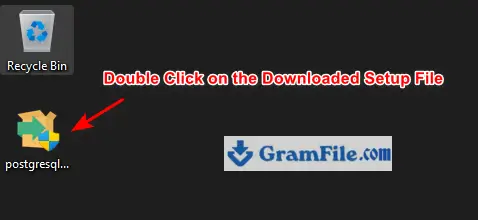
1. Double-click the installer you downloaded from GramFile.
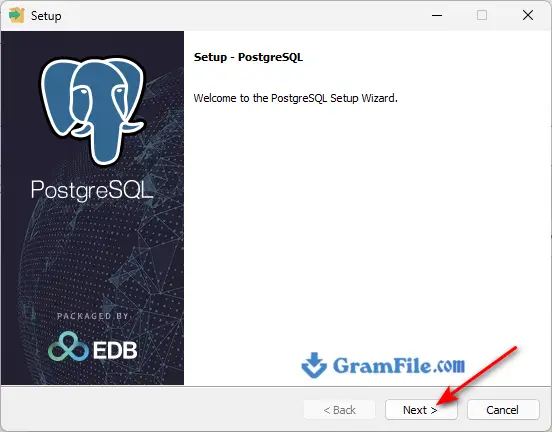
2. Click Next on the welcome screen.
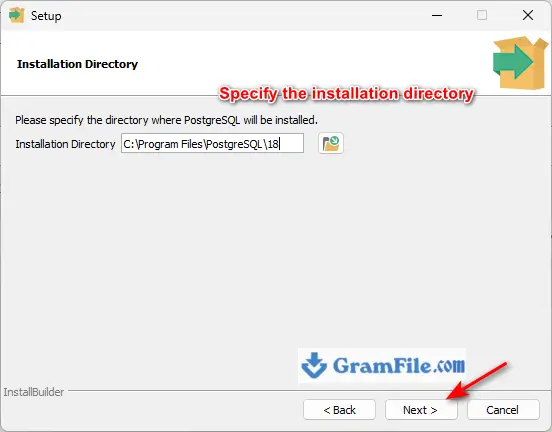
3. Specify the installation directory (the default is usually fine unless you have a reason to change it).
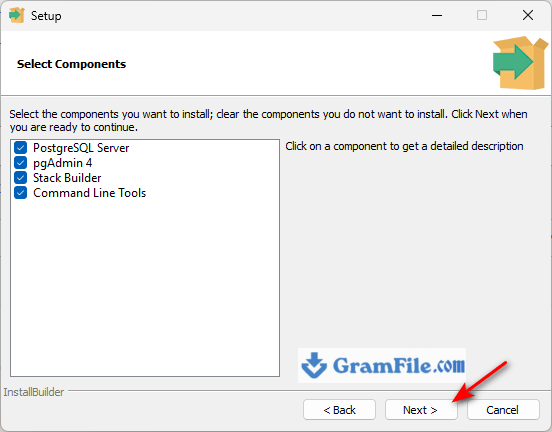
4. Select components – Server, pgAdmin 4, Stack Builder, Command Line Tools. Leave all four checked unless you know you don’t need one.
5. Select the directory where PostgreSQL will store its data files.
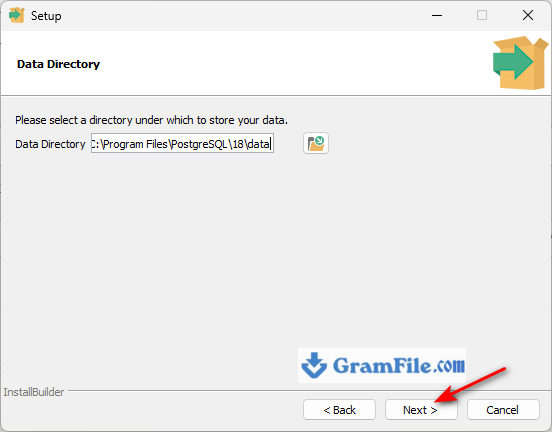
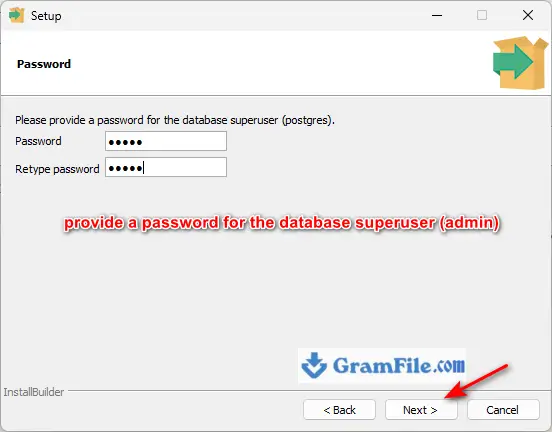
6. Set a password for the database superuser account (this is your admin login – write it down somewhere safe, people forget this password constantly).
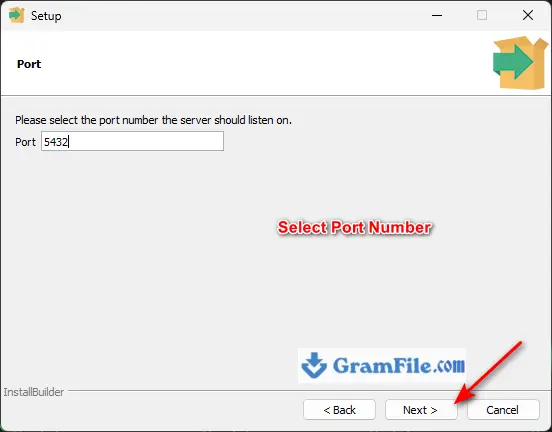
7. Choose the port number. Stick with the default, 5432, unless something else on your machine is already using it.
8. Choose your locale/language for the database cluster.
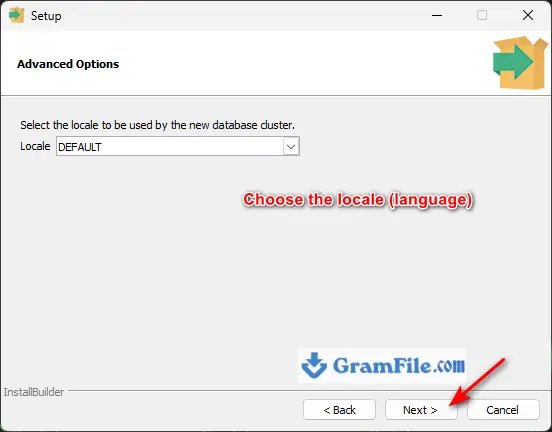
9. Click Next to confirm your choices.
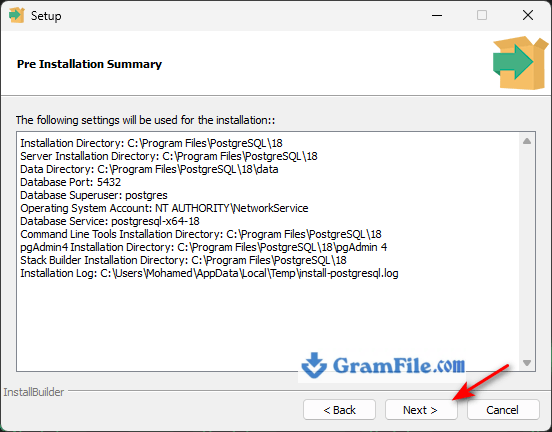
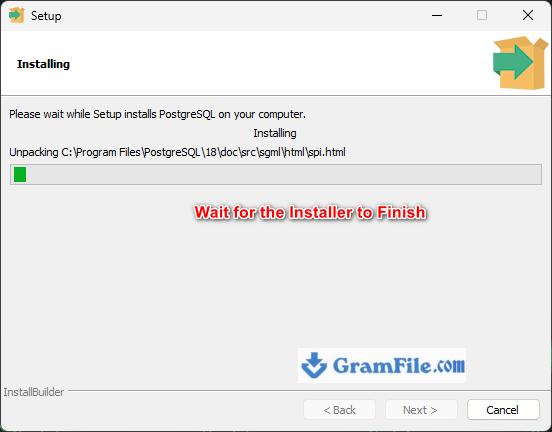
10. Wait for the installer to finish. This takes a couple of minutes on most machines.
11. Once it’s done, you’ll get the option to launch Stack Builder for extra tools like PostGIS – skip it if you’re not sure you need it, you can always run it later.
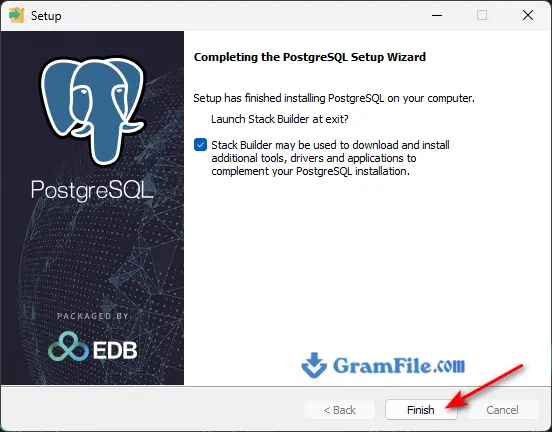
That’s it. PostgreSQL registers itself as a Windows service, so it starts automatically every time you boot, no manual launching required.
Pros & Cons
What we liked
- Completely free, no license fees ever
- Handles JSON and relational data together
- Extremely extensible with plugins like PostGIS
- Strong data integrity and ACID compliance
- Active development, frequent security patches
- Scales from laptop projects to production
What we didn't like
- Steeper learning curve than MySQL
- pgAdmin’s interface feels dated
- No official auto-update mechanism
Conclusion
4.7out of 5 · 148 user ratings
PostgreSQL isn’t the flashiest database out there, but it’s one of the few that scales with you instead of forcing a migration once your project gets serious.
If you’re on Windows 11, 10 and want something free that won’t box you in later, this is a safe bet.
PostgreSQL vs Others
| App | Best For | Price | Platform | Standout Feature |
|---|---|---|---|---|
| PostgreSQL | Developers who want room to grow | Free | Windows, macOS, Linux | JSON + relational data in one engine |
| MySQL | Simple web apps, WordPress-style stacks | Free (paid tiers for enterprise) | Windows, macOS, Linux | Huge community, easy hosting support |
| SQL Server Express | Windows-only shops already using .NET | Free (limited edition) | Windows only | Deep integration with Microsoft tools |
| SQLite | Small local apps, embedded use | Free | Windows, macOS, Linux | Zero-config, single-file database |
If you’re picking a database for a weekend project and never plan to touch it again, sure, grab SQLite and move on.
But if there’s any chance this thing grows – more users, more data, a feature that needs proper JSON handling or geospatial queries down the line – starting with PostgreSQL means you never have to have that painful “we need to migrate databases” conversation later.
That’s the real value here: it’s free today and it’s still the right choice in three years.
FAQ
Is PostgreSQL free for Windows 11?
Yes, PostgreSQL is completely free for Windows 11 under the permissive PostgreSQL License. There are no license fees, no paid tiers, and no restrictions on commercial use.
What is the difference between PostgreSQL and MySQL?
PostgreSQL supports more advanced data types (native JSON, arrays, custom types) and stricter standards compliance, while MySQL is generally simpler to set up and slightly faster for basic read-heavy web apps. Most developers pick PostgreSQL when they expect the project to grow in complexity.
Does PostgreSQL work on Windows 11?
Yes, PostgreSQL runs natively on 64-bit Windows 11 through the official EDB installer, which sets it up as a background Windows service that starts automatically on boot.
What port does PostgreSQL use by default?
PostgreSQL uses port 5432 by default. You can change this during installation if another service is already using that port.
How do I reset the PostgreSQL superuser password?
You can reset the PostgreSQL superuser password by editing the pg_hba.conf file to temporarily allow trust authentication, restarting the service, then running ALTER USER postgres WITH PASSWORD ‘newpassword’ from psql before reverting the config change.
Do I need pgAdmin to use PostgreSQL?
No, pgAdmin is optional. PostgreSQL runs fully through the command-line tool psql, but pgAdmin is included in the Windows installer for anyone who prefers a visual interface.
How much RAM does PostgreSQL need on Windows?
PostgreSQL runs on as little as 2 GB of RAM for light development use, though 4 GB or more is recommended if you’re also running pgAdmin or handling larger datasets.
Can I upgrade PostgreSQL without losing my data?
Yes, back up your databases with pg_dump before upgrading, then either run the new version’s installer alongside the old one or use pg_upgrade to migrate your data directly to the new major version.
Found a problem with this download? Report an outdated version, broken link, suspicious installer or incorrect information.
 Zoom Workplace
 Nitro PDF Pro
 Sumatra PDF
 IrfanView
 K-Lite Codec Pack
 WinRAR