
Download Details
- Version
- 0.2.0 (latest)
- File size
- 90.32 MB
- License
- Free
- SHA-256 checksum
88f4b958d45b87601b3dbc97c089712a3cedc7820744f980379055de604b5766- Developer
- ntdevlabs
- Supported OS
- Windows 11, Windows 10
- Installers
- 64-bit (x64), 32-bit (x86), ARM (Arm64), Offline
- Downloads
- 12053
- Rating
- 4.5 out of 5 · 26 reviews
- File name(s)
- Tiny11Builder-0.2.0-win-x64.zip, Tiny11Builder-0.2.0-win-arm64.zip
 Reviewed by Ahmed Madbouli
Tested on Windows 11 and 10 · · How we review
Screenshots
Tiny11 Builder is a free, open-source tool from ntdevlabs. It takes an official Microsoft Windows 11 ISO and strips out the things most people never asked for.
Edge, Copilot, OneDrive and a pile of preinstalled apps are gone before you boot the new install.
It fits testers, owners of older PCs and anyone already planning to reinstall Windows.
It is worth a download if a clean install is on the table. It will not touch the Windows you are running right now.
What is Tiny11 Builder?
Tiny11 Builder is a free tool that edits a Windows 11 ISO before you install it. It removes a long list of built-in apps and background components, then saves the result as a new, smaller ISO.
It began as a script and now also comes as a WinUI app, so you can build without typing commands. It works with different Windows 11 releases, languages and architectures.
Why building your own ISO beats grabbing a prebuilt one
The builder starts from a Microsoft ISO, either one you supply or the official one the app can download. The project sticks to Microsoft tools such as DISM and oscdimg instead of pulling in outside utilities.
Prebuilt Tiny11 images on mirrors and forums are much harder to vouch for. If you care about what lands on your PC, build it locally.
What gets removed from the image
The standard preset clears out much of what ships with a fresh Windows 11 install:
- Edge and OneDrive
- Copilot and the new Outlook app
- Mail and Calendar, Maps, Sound Recorder and Feedback Hub
- Your Phone, Media Player, Quick Assist and Internet Explorer leftovers
A few Edge remnants can still show up in Settings. Widgets stop working without Edge too, so add the WebView2 runtime if you want them back.
Tiny11 or Tiny11 Core: updates or the smallest size
Regular Tiny11 keeps Windows Update, Defender and the recovery tools. The installed system can still take updates, languages and features later.
Core goes much further. It drops the component store and Windows Update, and you cannot add features back afterwards, so treat it as a throwaway image for virtual machines and testing.
Tip: for a daily PC, pick the regular mode and keep Core for experiments.
Custom recipes and offline updates in the WinUI app
Custom mode lets you tick exactly what to remove, down to single files, drivers and fonts. You can also load a recipe from a JSON file and reuse it on the next build.
Offline updates work too. CAB and MSU packages that you provide get merged into the image before the removals run.
Making your first ISO, one step at a time
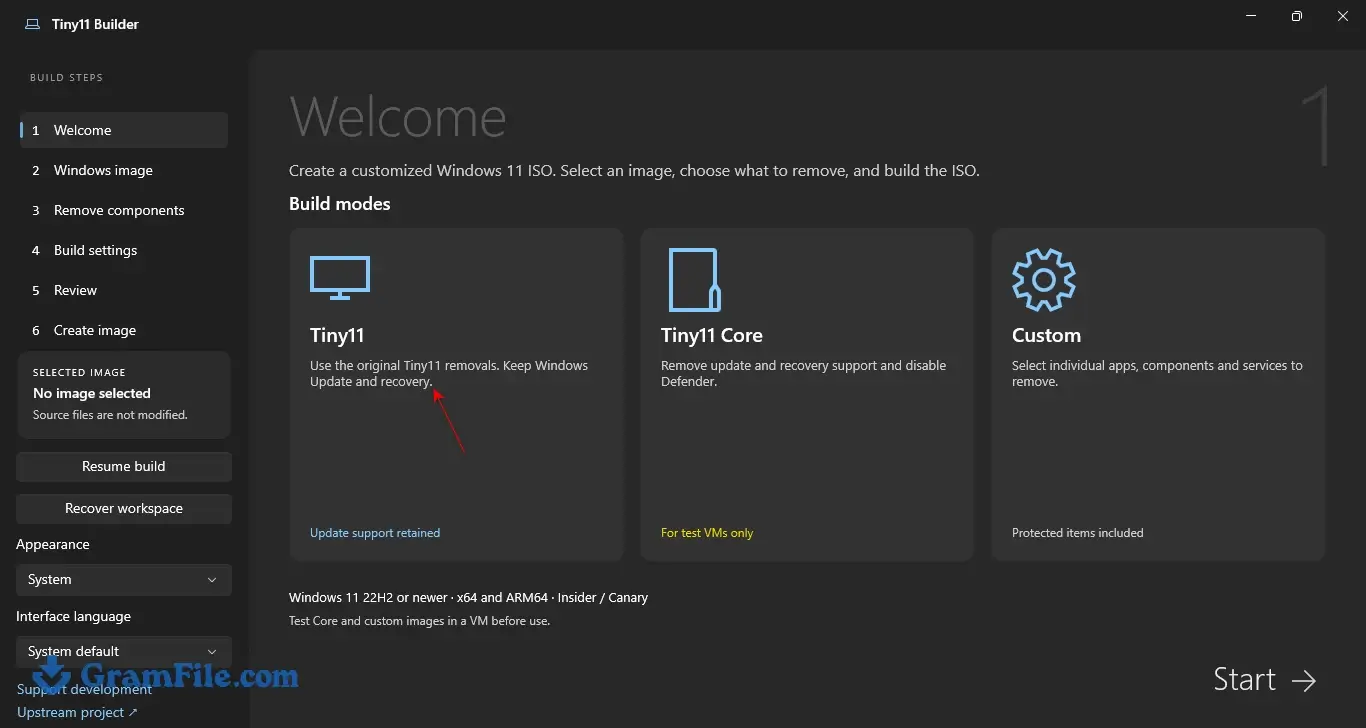
Step 1: Extract the Tiny11 Builder archive, open the builder as administrator and start on the build modes screen with Tiny11 selected.
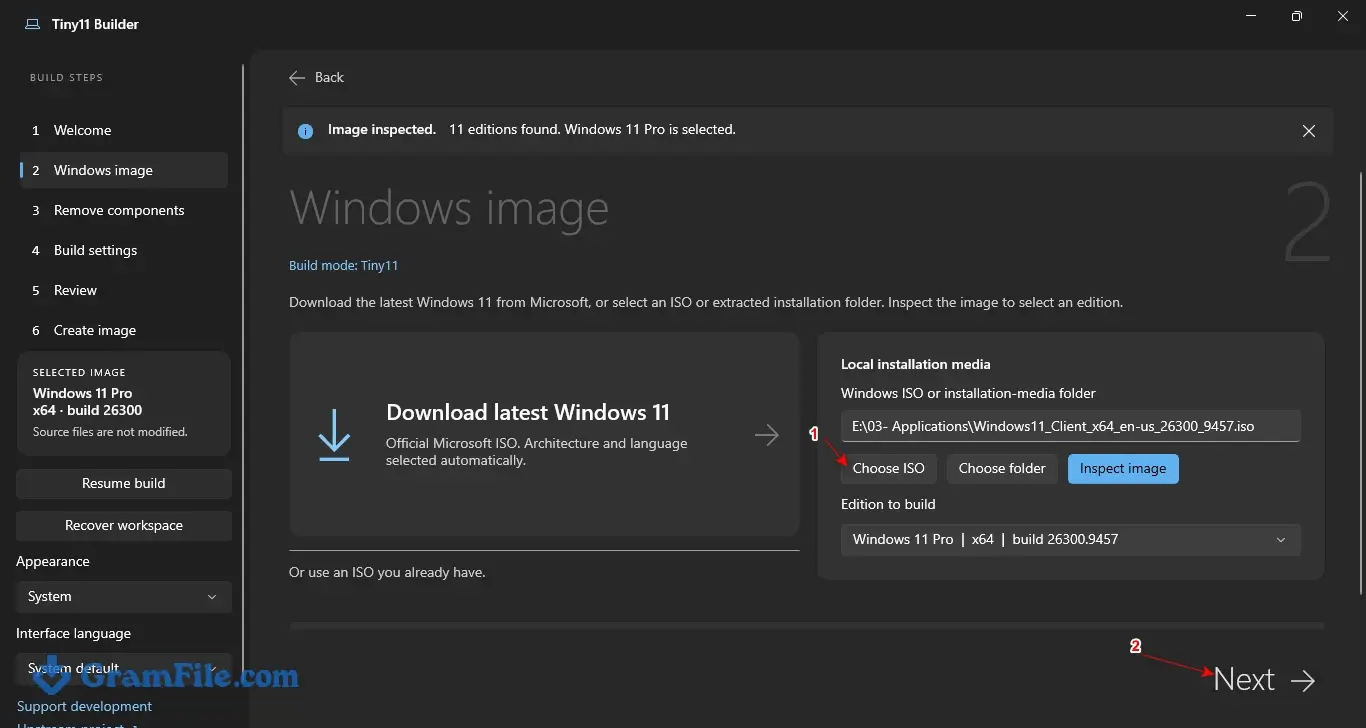
Step 2: Choose your source: download the official Microsoft ISO or pick local installation media you already have, then click Next.
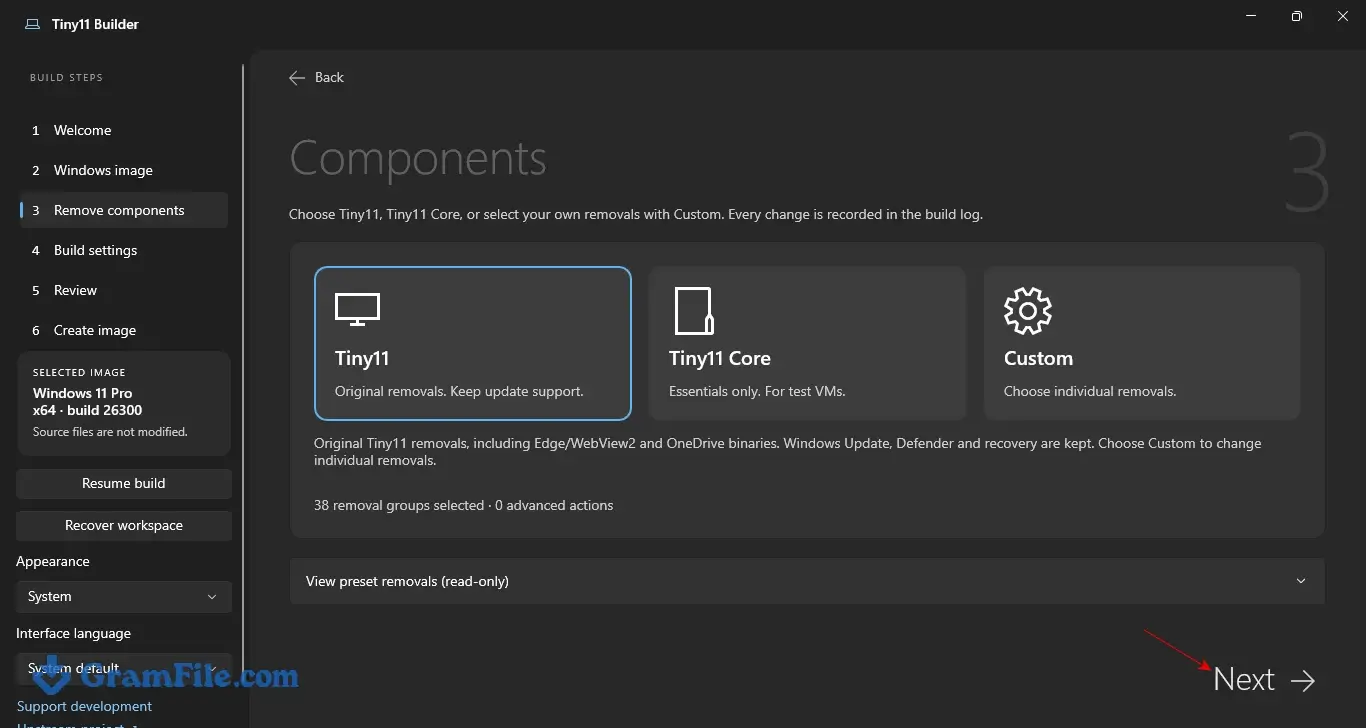
Step 3: Confirm Tiny11 mode, or switch to Tiny11 Core or Custom if you want a different result, then click Next.
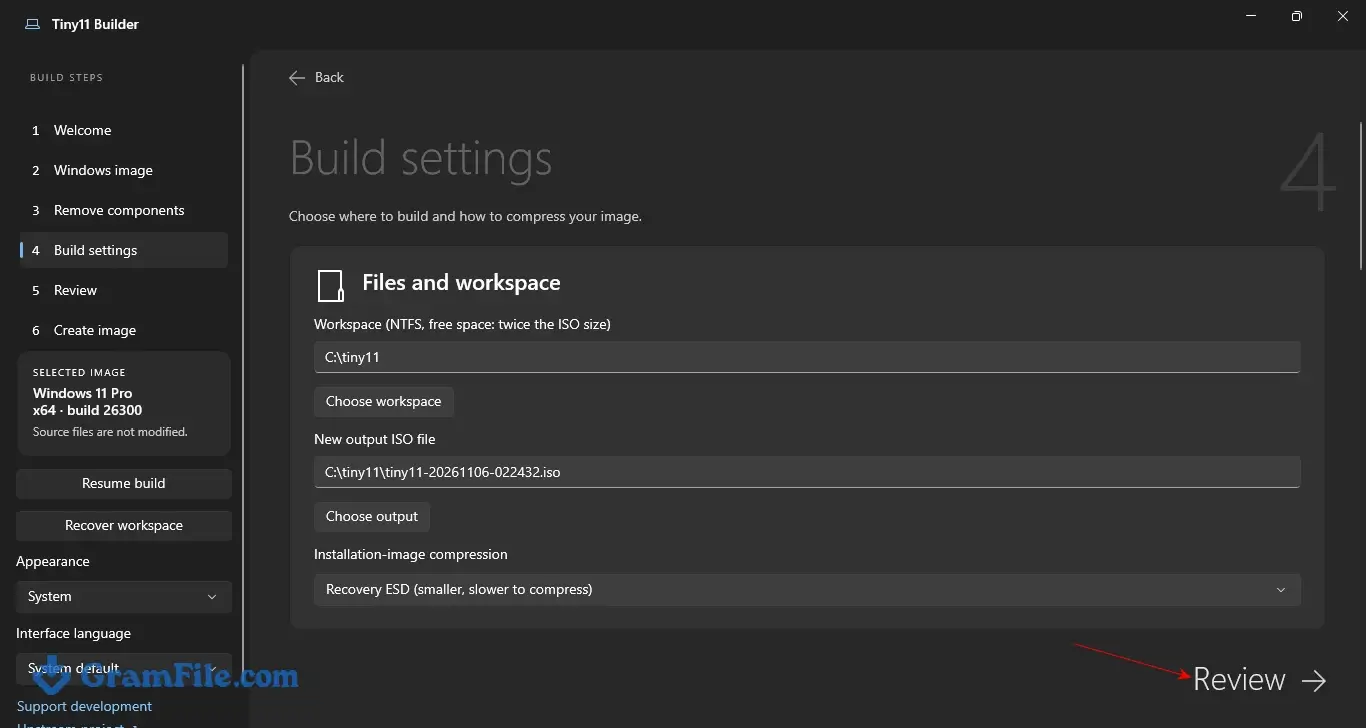
Step 4: Go through the build settings, including the Windows edition, and click Review.
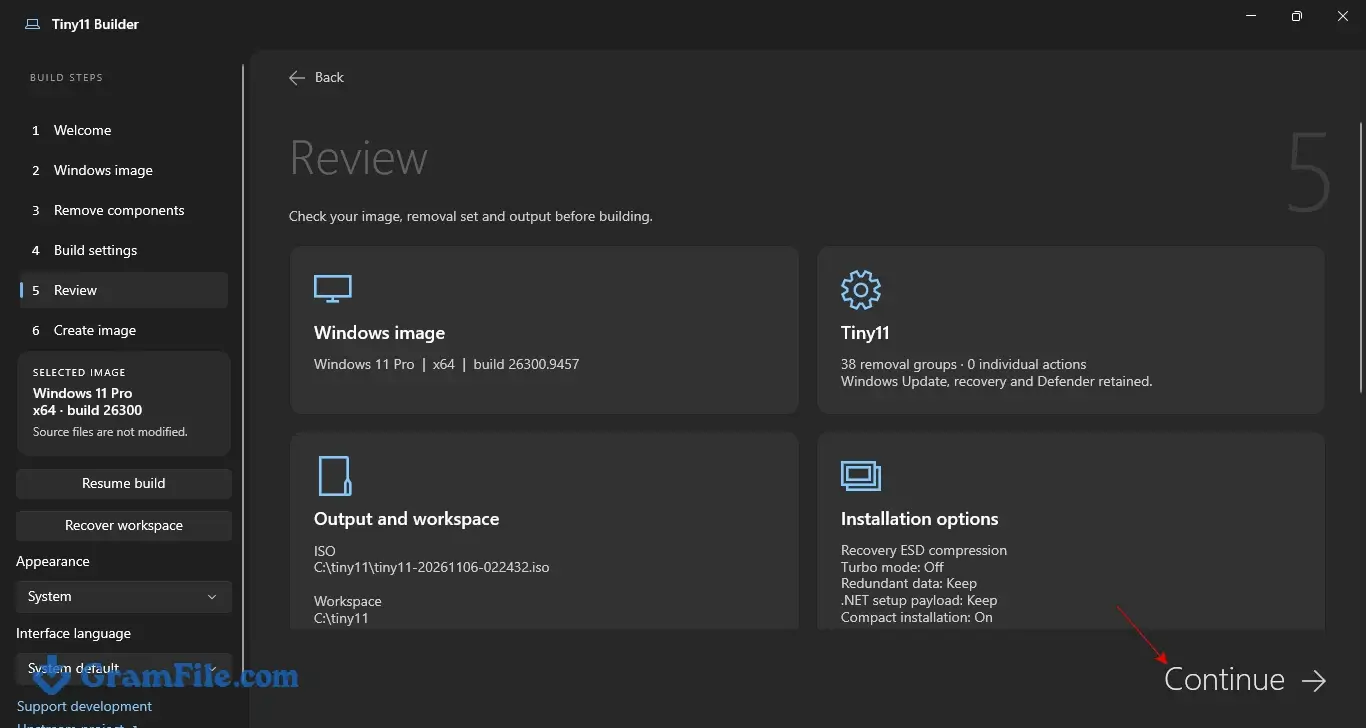
Step 5: Read the review screen to see what the build will change, then click Continue.
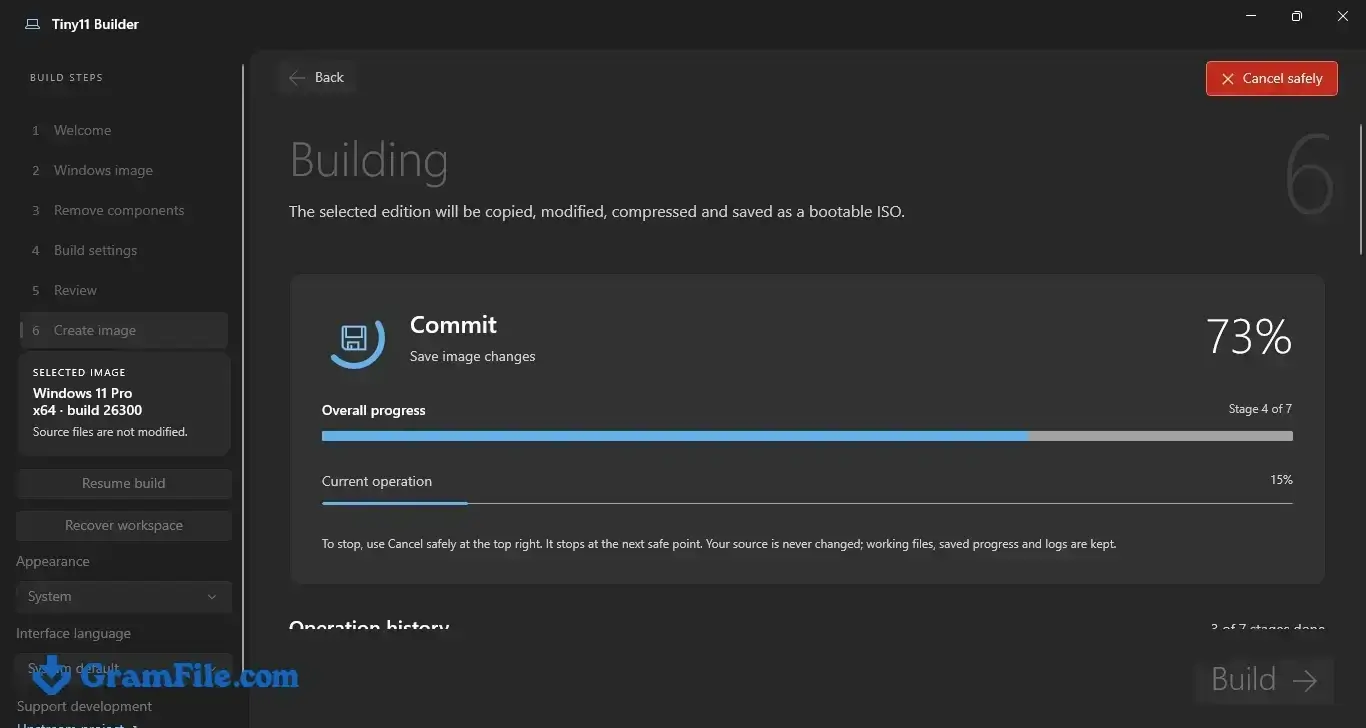
Step 6: The build starts and a progress screen takes over. Keep the PC awake until it finishes.
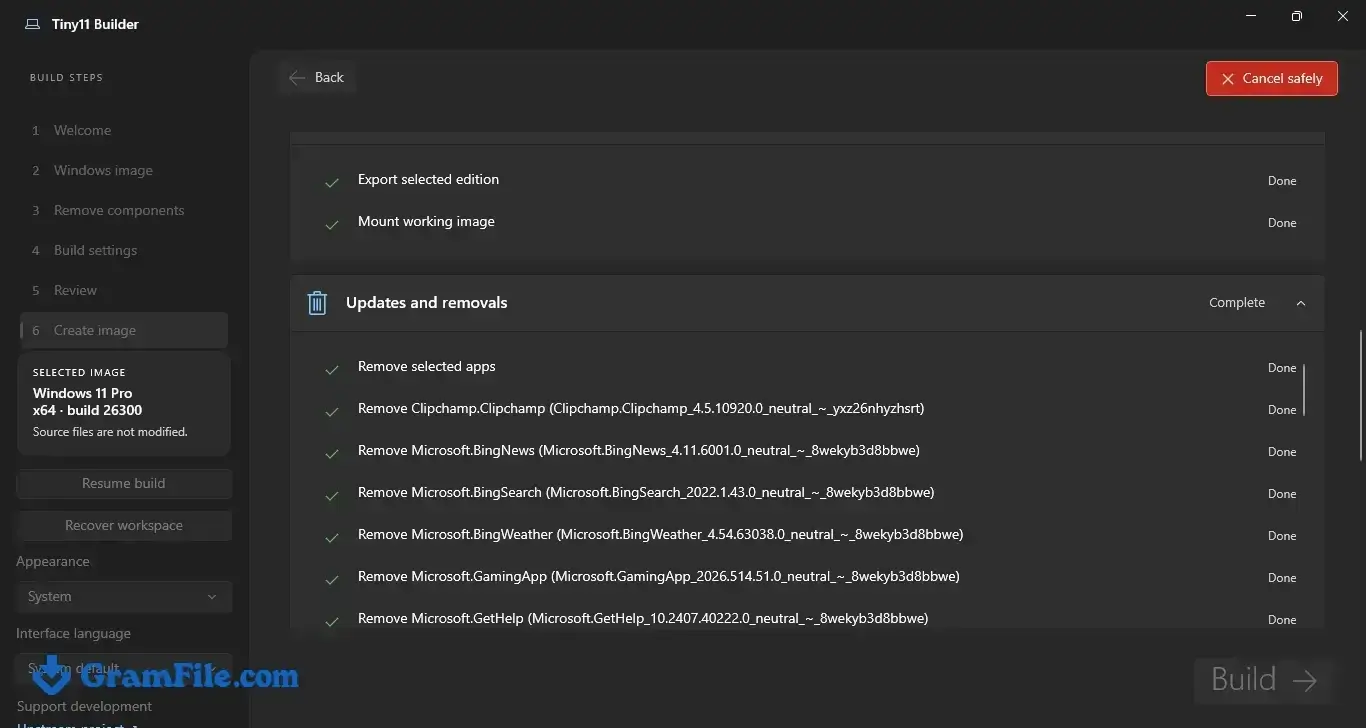
Step 7: The build moves on to its updates and removals stage. This is where the image gets slimmed down, so give it time.
Step 8: When the build ends, write the finished ISO to a USB drive with Rufus or Ventoy, or mount it in a virtual machine.
Tip: back up your files first. The new image installs clean and replaces whatever is on the target drive.
Is Tiny11 Builder safe to install?
The project is open source, so you can read what the scripts do. They use Microsoft tools to edit the image, and everything runs on your own machine.
The catch is the result. Microsoft does not support a trimmed Windows, and the packages are unsigned, so download only from a source you trust.
Skip it if you cannot start from a clean install
The builder cannot debloat the Windows you are running now. It only produces an ISO, so you have to reinstall to get any benefit.
It also does not make unsupported hardware officially supported. Drivers, updates and activation can still cause trouble on very old machines.
If all you want is to remove apps from an existing install, a tool like Win11Debloat is less work.
Pros & Cons
What we liked
- Free and open source
- Removes Edge, Copilot and preinstalled apps
- Uses Microsoft tools like DISM
- Builds from your own official ISO
- Custom recipes and Core mode included
What we didn't like
- Needs a clean install
- Core mode cannot receive updates
- Packages are unsigned
Conclusion
4.5out of 5 · 26 user ratings
Tiny11 Builder is one of several ways to get a cleaner Windows 11, and the right one depends on whether you can reinstall.
The table shows how much control each tool gives you and which ones need a fresh install.
| App | Best For | Price | Platform | Standout Feature |
|---|---|---|---|---|
| Tiny11 Builder | Slim ISOs for clean installs | Free | Windows | Standard and Core build modes |
| NTLite | Detailed image control and saved presets | Free edition, paid tiers | Windows | Reusable presets for repeat builds |
| MSMG Toolkit | Removing specific apps and features | Free | Windows | Edits the image with official methods |
| Win11Debloat | Cleaning an existing install | Free | Windows | No reinstall needed |
Final verdict
Pick Tiny11 Builder if you are reinstalling Windows 11 anyway and want fewer preinstalled apps. It is free and easy to run.
Stay on the regular mode for everyday PCs and save Core for testing. If a reinstall is off the table, a tool that cleans your current system makes more sense.
FAQ
Is Tiny11 Builder safe to run on my PC?
The project is open source and uses Microsoft tools to edit the image, so you can inspect what it does. Download it only from a source you trust, because the packages are unsigned.
Is there an official Tiny11 ISO to download?
The builder creates the ISO on your own PC from a Microsoft ISO. Prebuilt images on mirrors and forums are harder to verify, so building it yourself is the safer route.
Do I need a Windows 11 ISO from Microsoft first?
You need one as the source, but you do not have to hunt for it. The app can download the official Microsoft ISO, or you can pick local installation media you already have. Windows Server images are not supported.
Will a Tiny11 install still get Windows updates?
With the regular mode, yes, because Windows Update stays in place. Tiny11 Core removes it on purpose, so a Core install cannot take updates.
Can I debloat my current Windows installation with it?
No. The builder produces a new ISO, and you need a clean install to use it. Back up your files before you reinstall.
Does Tiny11 Builder work on ARM64 laptops?
Yes, there is a separate ARM64 package for Arm-based devices. Use it with an ARM64 Windows 11 ISO from Microsoft.
Found a problem with this download? Report an outdated version, broken link, suspicious installer or incorrect information.
Changelog - What's new in version 0.2.0
# Tiny11 Builder 0.2.0A feature and reliability update for the WinUI builder.
[Watch the 0.2.0 showcase](https://youtu.be/Ijp3J8SYqLc).
## What's new
- **Offline updates:** integrate local CAB/MSU files in prerequisite order before
removals. Packages are privately staged and hash-checked. Pending servicing
remains visible in reports and protects files needed at first boot.
- **Portable Custom recipes:** click Custom to choose manually or load JSON.
Imported groups appear checked; blank recipe paths keep your selected ISO,
edition, workspace and output. Source changes retain the removal selections.
- **More precise removals:** inspect individual files, driver packages, fonts,
resources and payload folders. Six Custom-only groups cover 32-bit support,
desktop .NET, IMEs, speech/OCR, printer/scanner drivers and bundled media.
- **Smaller stock boot image:** Custom can rebuild the source's `boot.wim` as
one maximum-compressed, bootable Setup index, retaining Setup and native drivers.
- **Extreme recipe:** `recipes/cd700-custom.json` supplies 37 checked removal
groups and an optional 700,000,000-byte whole-ISO limit. It works as a portable
profile, not a prepared-image copy or a fourth build mode.
- **Preset details:** inspect the complete read-only Tiny11/Core removal plans.
- **Complete inventory export:** save all loaded components to UTF-8 text,
regardless of filters or selections.
- **Interface languages:** English and Simplified Chinese, plus validated external
JSON catalogs for additional translations. See [the translator guide](https://github.com/ntdevlabs/tiny11builder/blob/winui-v0.2.0/docs/translation.md).
## Improvements and fixes
- Sidebar and primary navigation share validation and show clear prerequisites.
- Custom settings no longer expose image preservation or an external installer
picker. Recipe-specific size limits can be removed without editing JSON.
- New-build workspace preflight uses twice the source ISO's file size, plus
selected update staging, instead of the large expanded-image estimate.
- Fixed the Core/legacy Setup "cannot read the ProductKey setting" failure
without inserting a product key.
- Fixed required-privilege inheritance when launching DISM, including the
disabled-privilege case associated with error 1314.
- Improved trusted Microsoft image-tool detection for catalog signatures,
timestamped certificates and Windows Kits publishers; unsigned/tampered
tools are still rejected.
- Fixed false final-image failures when enablement releases report different
build numbers, such as 22621 becoming 22631.
- Extended guarded removal of stale Edge Update and WebView installed-program
entries when their corresponding offline files are gone.
- Improved sidebar scrolling and translated accessibility labels.
## Downloads and use
Choose **x64** for Intel/AMD PCs or **ARM64** for Windows on ARM. Extract the
entire ZIP and run `Tiny11Builder.exe` with administrator approval. Both packages
are self-contained; current compatible Microsoft image tools may still be required.
SHA-256 sidecars accompany the ZIPs.
Existing ISOs and installation USBs are not patched by updating the app.
Rebuild affected output from the original Windows media.
Tiny11 and Tiny11 Core preset selections are unchanged. Core is nonserviceable
and removes update/recovery support and antivirus protection. Protected Custom
removals can break boot, applications, input methods and devices. Test output
in an isolated VM. The extreme recipe does **not** guarantee CD size or boot
compatibility for every source. Unknown Insider builds require compatible tools;
Windows Server is unsupported. Packages are unsigned.
See [usage and compatibility](https://github.com/ntdevlabs/tiny11builder/blob/winui-v0.2.0/docs/usage.md) and [distribution notices](https://github.com/ntdevlabs/tiny11builder/blob/winui-v0.2.0/NOTICE.md).
All features remain free.
## Support
[GitHub Sponsors](https://github.com/sponsors/ntdevlabs) |
[Patreon](https://www.patreon.com/ntdev) |
[Ko-fi](https://ko-fi.com/ntdev) |
[PayPal](https://paypal.me/ntdev2)
 Zoom Workplace
 Nitro PDF Pro
 Sumatra PDF
 IrfanView
 K-Lite Codec Pack
 WinRAR