

Download Details
- Version
- 26.002.22031 (latest)
- File size
- 826.4 MB
- License
- Free
- SHA-256 checksum
6ff26e9d58df0e6af633ced481a1efff97f17a30d2b1554d054c398e824e7c77- Developer
- Adobe
- Supported OS
- Windows 11, Windows 10
- Installers
- 64-bit (x64), 32-bit (x86), ARM (Arm64), Offline
- Downloads
- 12166
- Rating
- 4.7 out of 5 · 104 reviews
- File name(s)
- AcroRdrDCx642600222031_MUI.exe
 Reviewed by Mohamed Zaki
Tested on Windows 11 and 10 · · How we review
Screenshots
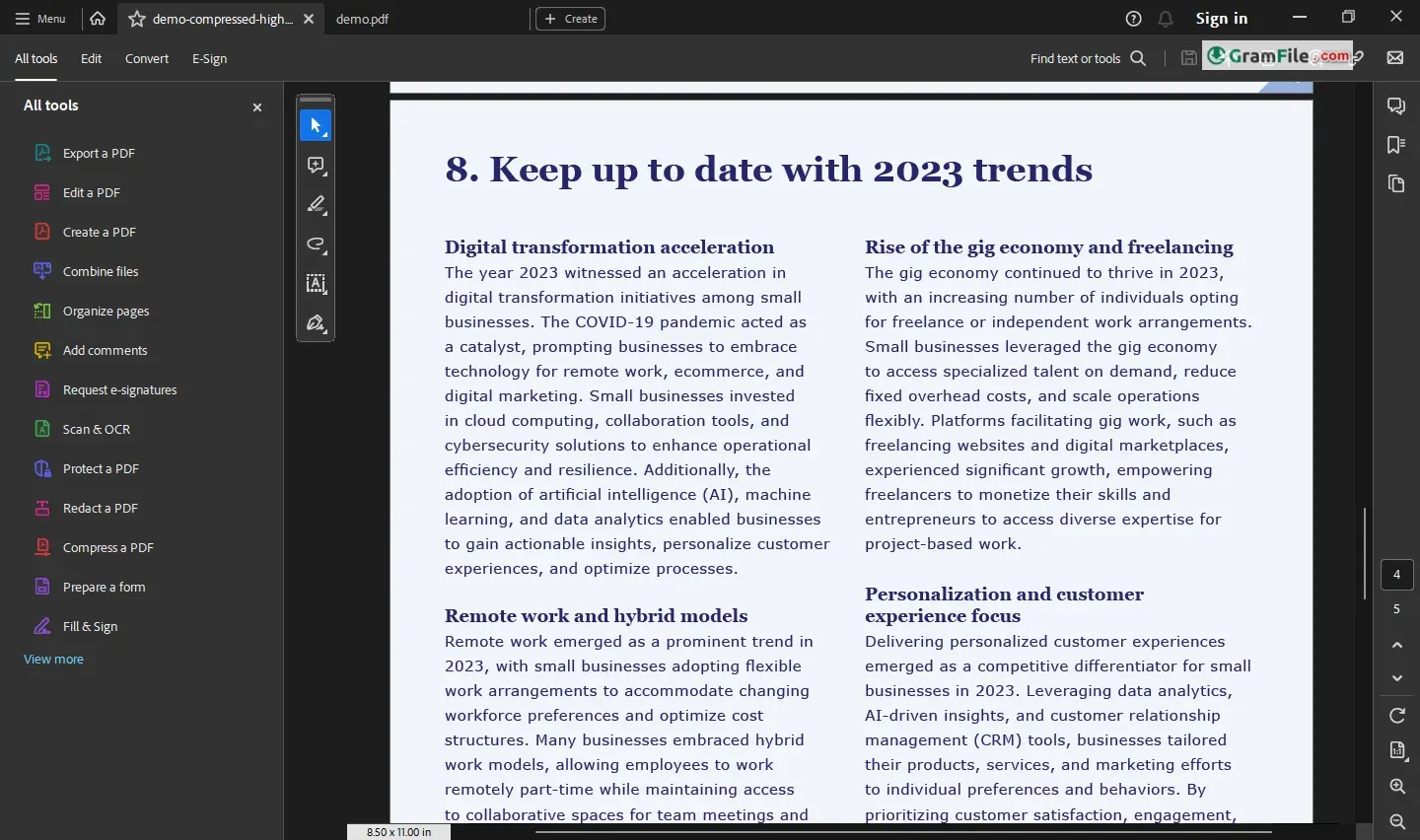
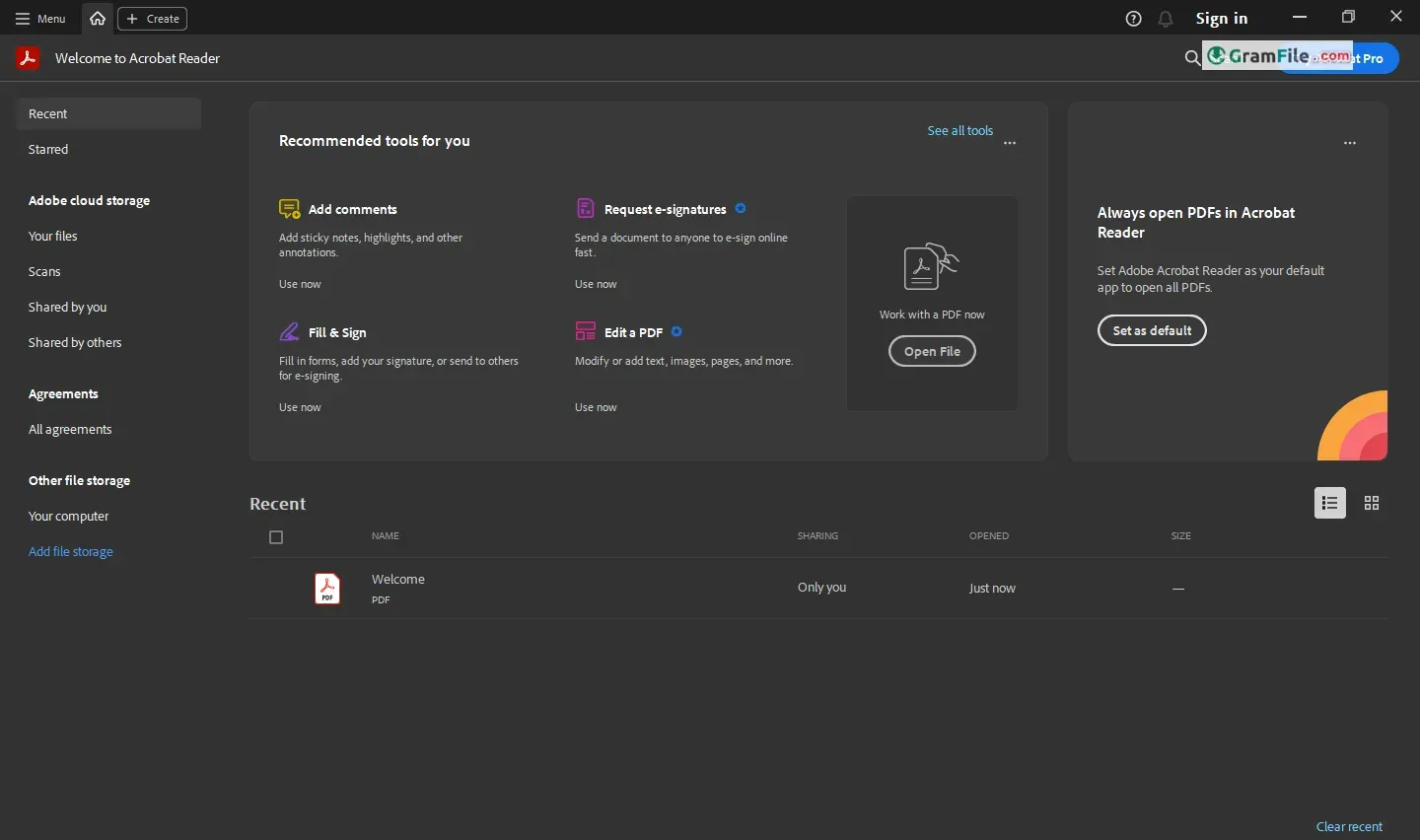
Adobe Acrobat Reader DC: The leader of free PDF readers for Windows since 1993. Developed by the creators of the PDF format itself, it guarantees compatibility with virtually any PDF file.
It allows you to view, print, and annotate PDFs with ease, making it ideal for anyone who frequently encounters these documents.
While the free version offers these core functionalities, upgrading unlocks advanced features like editing text and images within PDFs.
Despite facing competition from free alternatives, Adobe Reader DC remains a trusted choice for its reliability, heritage, and seamless integration with other Adobe products.
Need a reliable tool to view, print, and manage your PDFs on Windows? Look no further than Adobe PDF Reader for Windows PC, the free and trusted solution from the industry leader.
Discover the power of PDFs. This free viewer lets you view, print, and interact with PDFs flawlessly, ensuring documents appear exactly as intended.
The Basics:
- Free and Feature-Packed: Downloading and using Adobe PDF Reader is entirely free. It covers all the essentials you’d expect: opening, viewing, printing, and searching PDFs.
- Cross-Platform Compatibility: Seamlessly access your PDFs across devices with the mobile apps and browser extension.
- Annotation Tools: Highlight, underline, add sticky notes, and draw directly on PDFs for easy markup and collaboration.
- Form Filling and Signing: Fill out interactive forms electronically and sign documents digitally with e-signatures.
Strengths:
- Industry Standard: Adobe’s legacy ensures wide compatibility and accurate rendering of even complex PDFs.
- Security and Updates: Regular security updates and integration with Adobe Document Cloud enhance data protection.
- Advanced Features: Paid Acrobat Pro subscriptions unlock password protection, document comparison, and PDF creation, among others.
Core Functionality:
- Open and View PDFs: Read any PDF file, regardless of its complexity or embedded elements like forms or multimedia.
- Navigation and Printing: Easily zoom in, pan around, and jump between pages. Print entire documents or specific sections.
- Basic Annotations: Highlight, underline, and add sticky notes to PDFs for personal reference or collaboration.
Potential Drawbacks:
- Resource Usage: Compared to lighter alternatives, Reader can be resource-intensive, especially on older machines.
- Bundled Software: The installer might include optional offers for additional Adobe products you may not need.
- Limited Editing: Free Reader lacks native editing capabilities, requiring paid upgrades for text or image modifications.
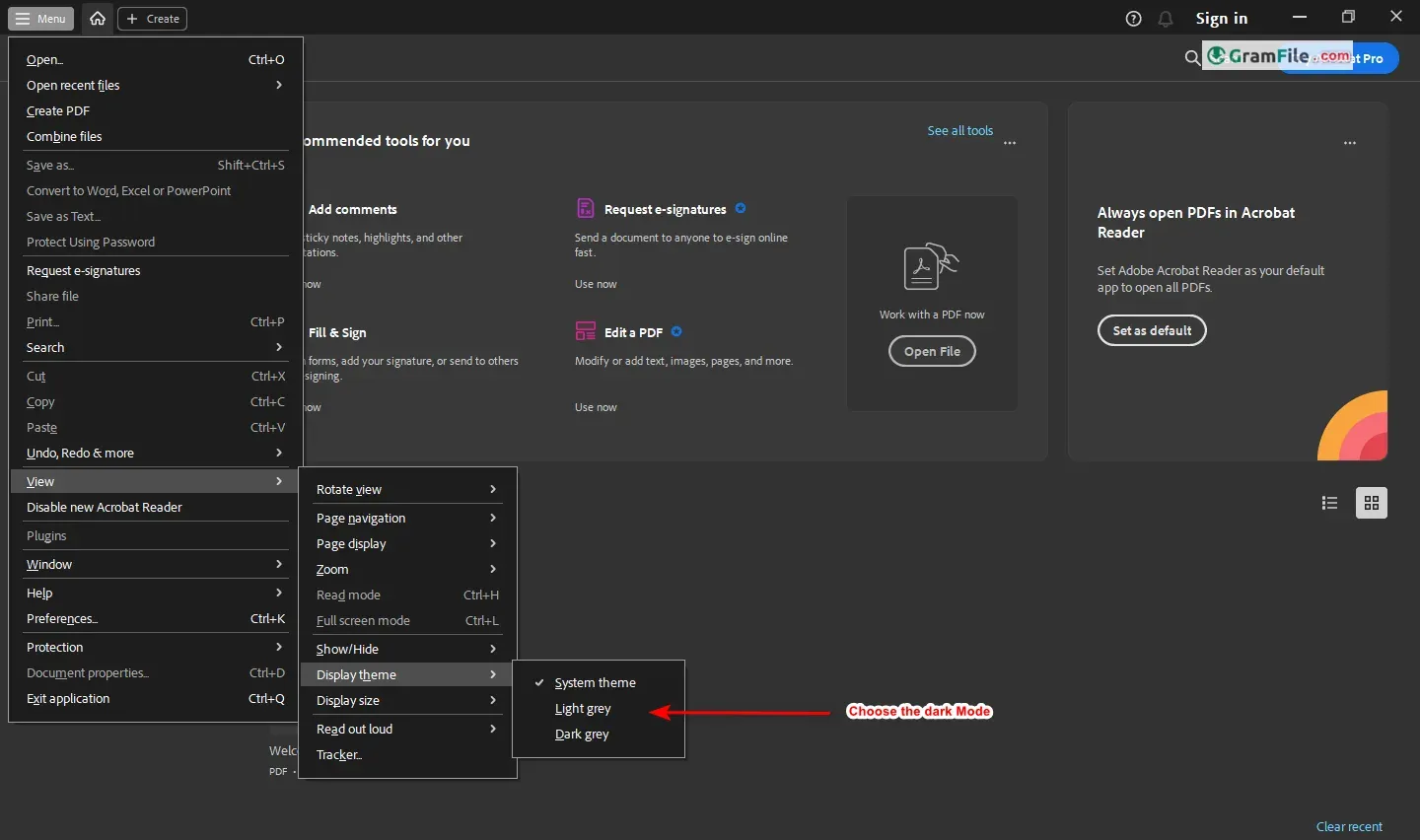
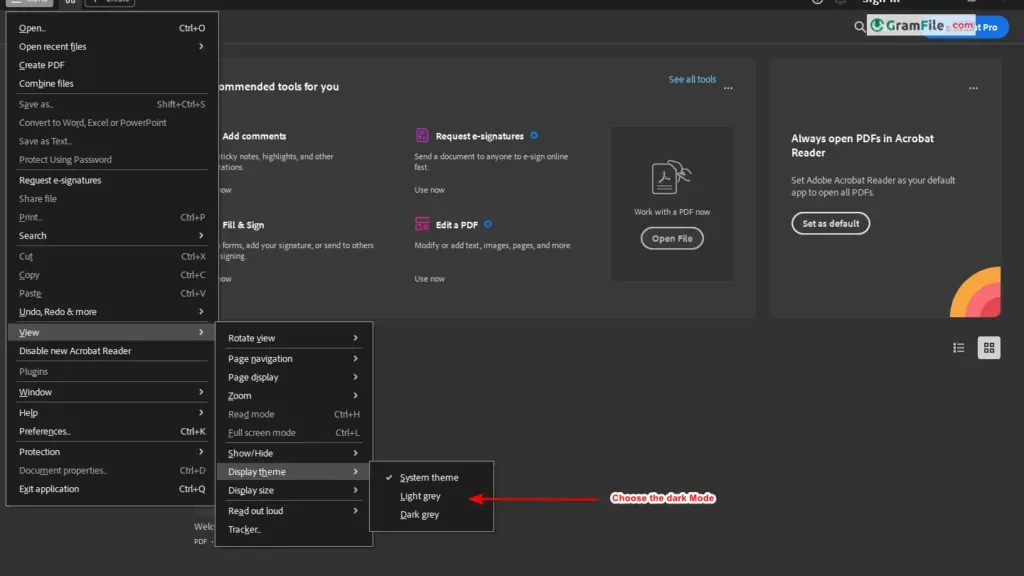
Acrobat Reader’s Dark Mode: Lights Out, Text Bright
Easy on the eyes, finally! Dark mode transforms harsh PDFs into a reading oasis. Text pops, and late-night doc reviews become a breeze. Just be prepared for a few interface elements that might not be as dark yet.
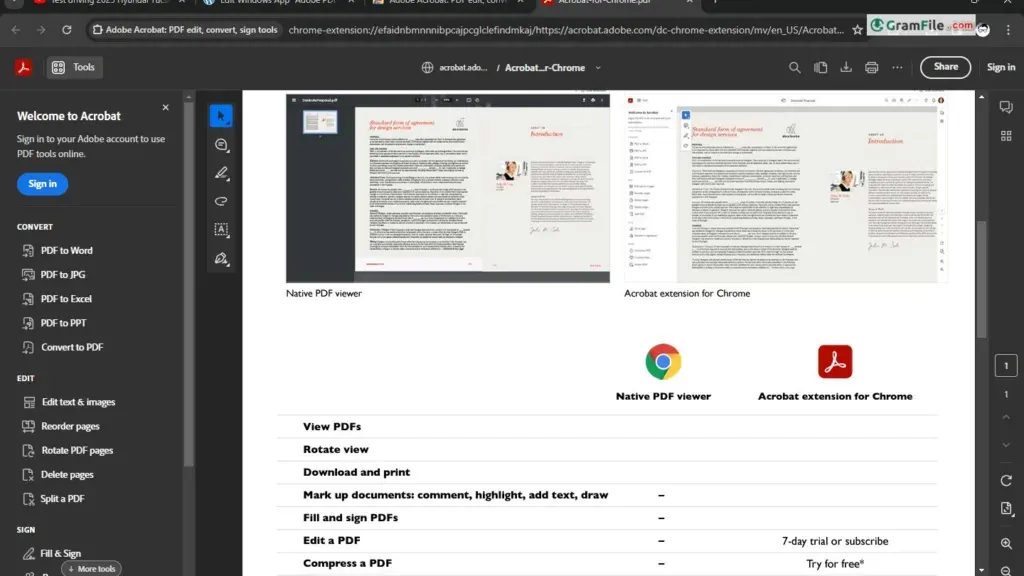
Streamlined PDF handling in Chrome: The chrome extension
View, download, and annotate PDFs directly within your browser. No more switching between programs.
Free basic editing: Add comments, highlights, and basic text edits without paying for the full Adobe Acrobat software.
Limited editing features: While convenient, the free extension lacks advanced editing functions like conversion or compression.
Worth it for frequent PDF readers: Saves time and simplifies workflow for those who regularly work with PDFs online.
How to Download & Install
Here’s a quick guide to downloading and installing it on your PC:
Downloading:
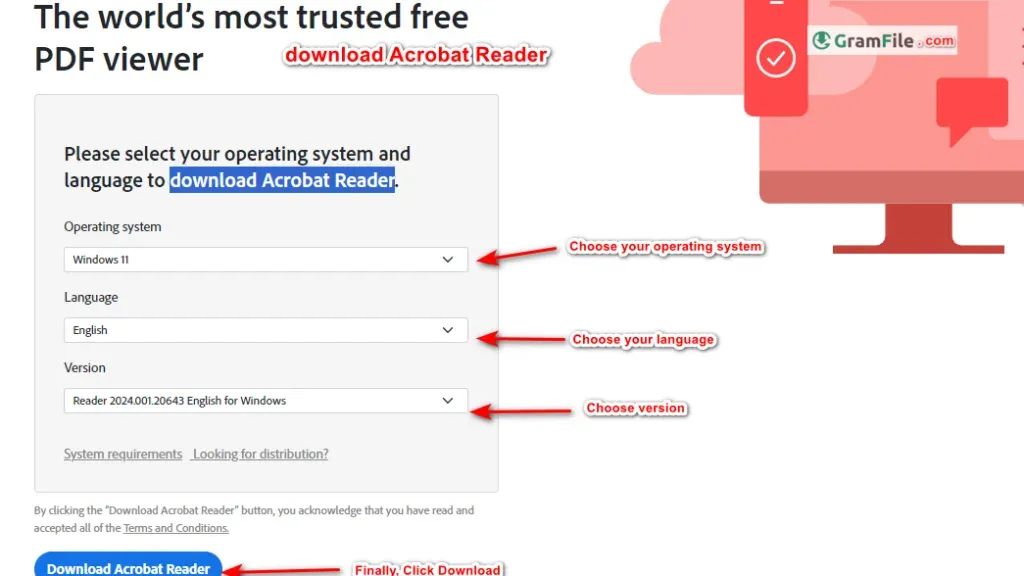
- First of All: Click on the above download button to navigate to the download page.
- Head to the Official Source: The download page will drive you to the official download website.
- Choose Your Flavor: Select the version that best suits your system. The latest version is always recommended for optimal performance and security.
- Click and Download: Hit the “Download Acrobat Reader” button. Be mindful of any optional offers during the download process.
Installing:
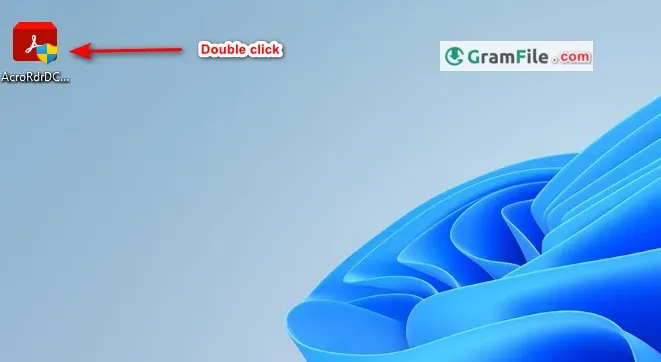
- Run the Installer: Once downloaded, double-click the downloaded file (usually ending in “.exe”).
- Follow the Prompts: The installation process is straightforward. You’ll be guided through language selection, installation location, and optional features.
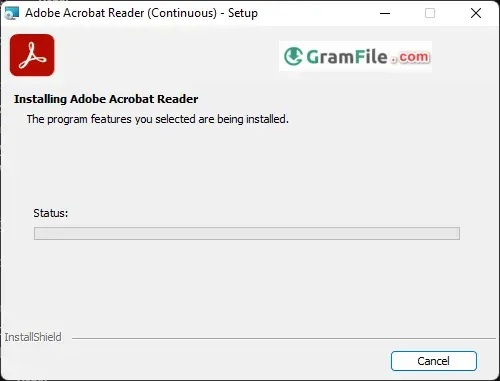
- Customize (Optional): You can choose to make Reader your default PDF viewer and opt for automatic updates if desired.
- Finish and Launch: Click “Install” and wait for the process to complete. Once finished, click “Finish” to launch Adobe PDF Reader.
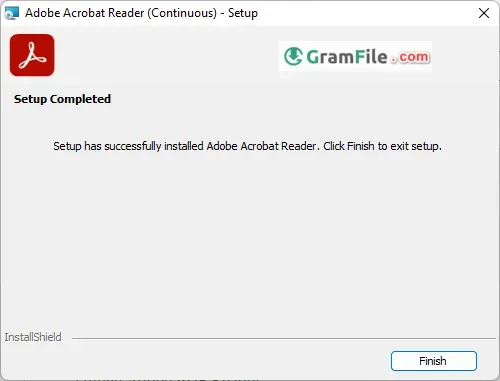
How to download the Adobe Acrobat Reader DC offline installer
The Adobe Acrobat Reader DC offline installer is a standalone installer that you can use to install Adobe Acrobat Reader DC on a computer without an internet connection. This is useful if you need to install Adobe Acrobat Reader DC on multiple computers or if you have a limited internet connection.
To download the Adobe Acrobat Reader DC offline installer:
- Go to the Adobe Acrobat Reader DC download page: https://get.adobe.com/reader/
- Under the “More download options” section, select the operating system and language that you want.
- Click the “Download offline installer” button.
- The offline installer will be downloaded to your computer.
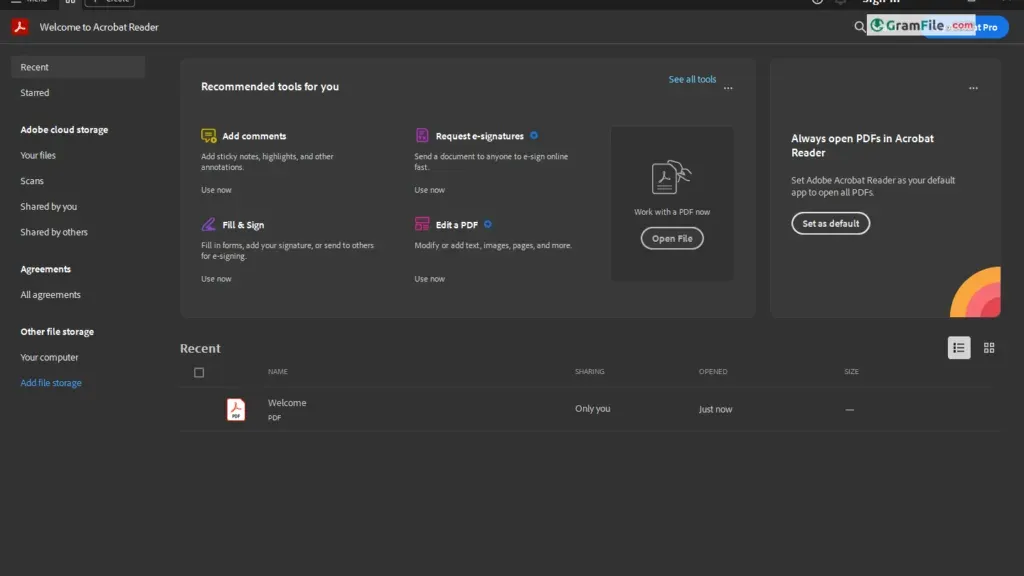
To install Adobe Acrobat Reader DC using the offline installer:
- Double-click the offline installer file that you downloaded.
- Follow the on-screen instructions to complete the installation.
Getting Started:
- Drag and drop your PDFs directly onto the Reader window to open them.
- Use the navigation bar to zoom, scroll, and change page views.
- Annotate documents with the highlight, underline, and sticky note tools.
- Fill out interactive forms and even add digital signatures (with limitations in the free version).
- Explore additional features like searching within PDFs, bookmarking pages, and printing specific sections.
Remember:
- While free, Adobe Reader offers advanced features through paid subscriptions, like converting PDFs to other formats or editing text and images.
- Consider alternatives like Foxit Reader or SumatraPDF for lighter options, but be aware of potential feature limitations compared to Reader.
- With its ease of use, reliability, and robust features, Adobe PDF Reader remains a top choice for managing your PDFs on Windows.
System Requirements
- Acrobat Reader 32-bit:
- Processor: Intel® or AMD processor; 1.5GHz or faster.
- Operating System: Windows 7 or above
- RAM: 2GB.
- Hard Disk Space: 450MB of available hard-disk space.
- Monitor Resolution: 1024×768 screen resolution (with Windows update 2919355 installed).
- Acrobat Reader 64-bit:
- Processor: Intel® or AMD processor; 1.5GHz or faster.
- Operating System:Windows 10 (64-bit) or above
- RAM: 2GB.
- Hard Disk Space: 900MB of available hard-disk space for English (1GB for other languages).
- Monitor Resolution: 1024×768 screen resolution.
Pros & Cons
What we liked
- Free, industry standard PDF viewer.
- Simple interface, easy to navigate.
- Reliable for viewing and printing PDFs.
What we didn't like
- Limited editing functions (requires paid Acrobat Pro).
- Larger file size compared to some lightweight alternatives.
- May require admin rights for some features.
Best Adobe PDF Reader Alternatives
-
 Sumatra PDF
A lightning-fast PDF reader that prioritizes simplicity over anything else.
-
 Foxit PDF Reader
A free, lightweight program for viewing and annotating PDFs.
-
 PDF-XChange Viewer
Tiny 2000s PDF reader that did more than just viewing PDF documents.

Conclusion
4.7out of 5 · 104 user ratings
For basic PDF viewing, printing, and annotation, Adobe PDF Reader remains a solid choice. Its cross-platform compatibility, security focus, and advanced features (with paid upgrades) cater to diverse needs. However, if you prioritize a lightweight program or require editing capabilities, exploring alternatives like Foxit Reader, SumatraPDF, or even the built-in Microsoft Edge PDF viewer might be worthwhile.
Ultimately, the best PDF reader for you depends on your individual needs and priorities. Consider factors like resource usage, desired features, and budget to make an informed decision.
Download and install it today to start reading and interacting with your documents seamlessly!
Found a problem with this download? Report an outdated version, broken link, suspicious installer or incorrect information.
 Zoom Workplace
 Nitro PDF Pro
 IrfanView
 K-Lite Codec Pack
 WinRAR