

Download Details
- Version
- 3.7 (latest)
- File size
- 12.5 MB
- License
- Free
- Developer
- Tim Kosse
- Supported OS
- Windows 11, Windows 10
- Installers
- 64-bit (x64), Offline
- Downloads
- 8172
- Rating
- 4.2 out of 5 · 59 reviews
 Reviewed by Ahmed Madbouli
Tested on Windows 11 and 10 · · How we review
Screenshots
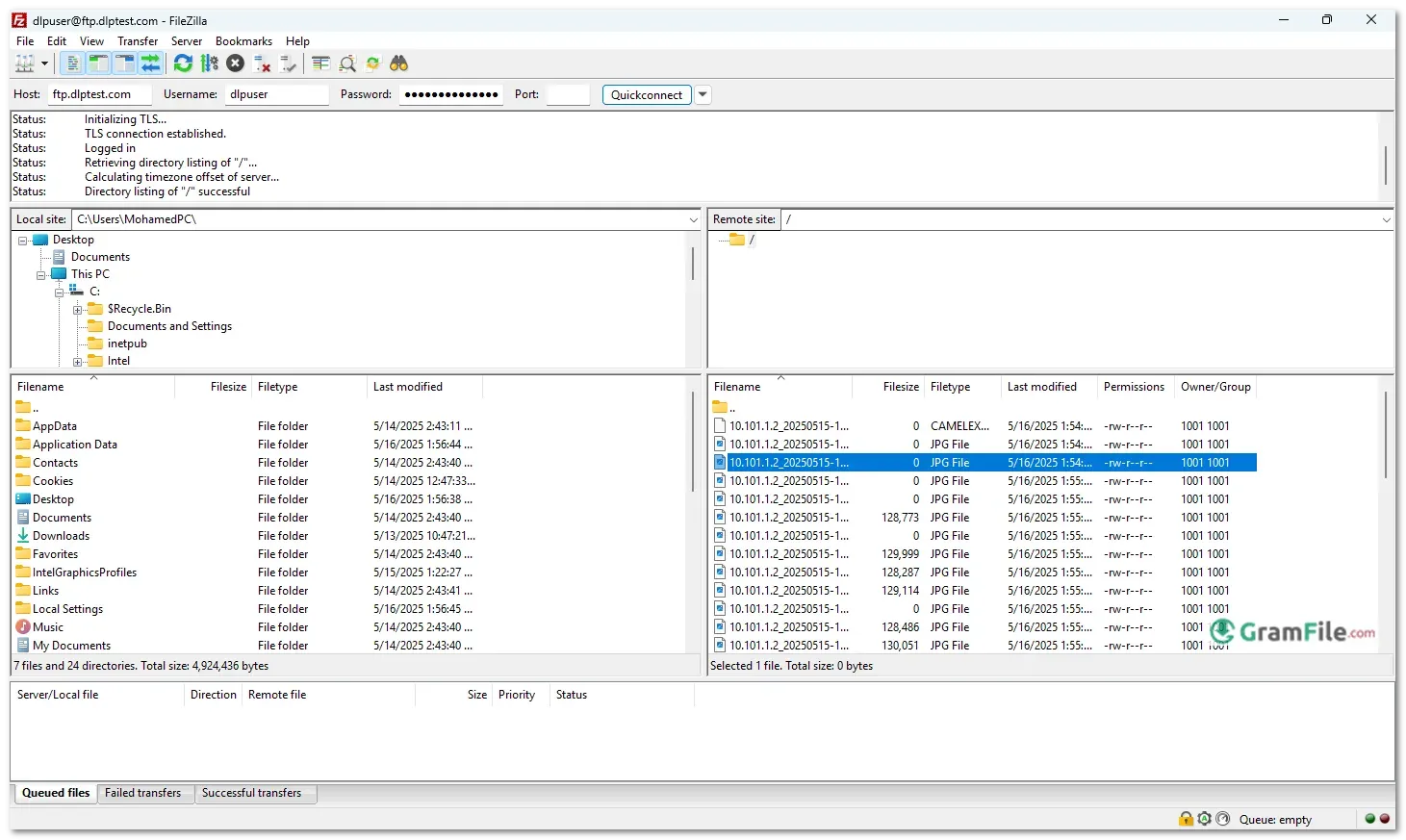
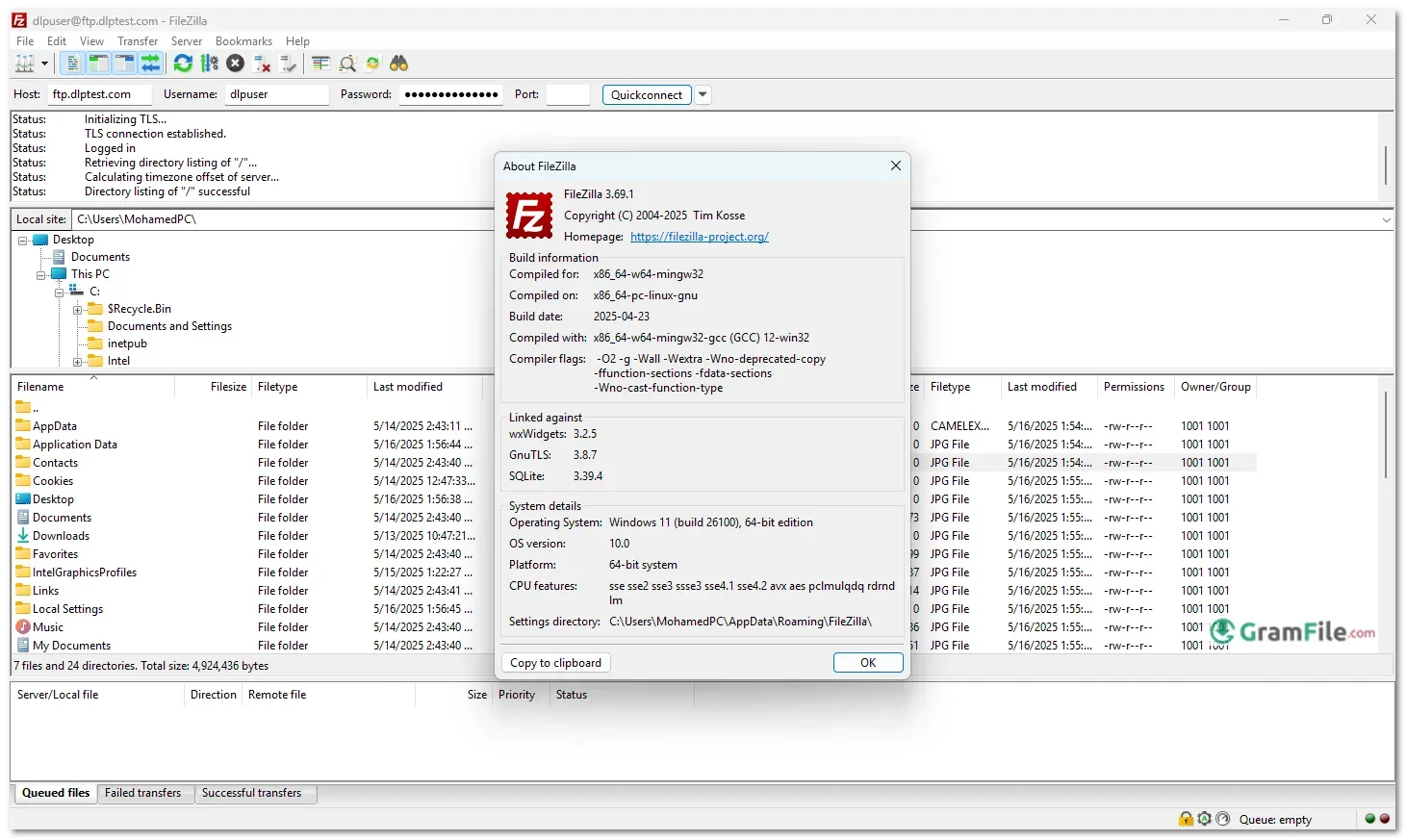
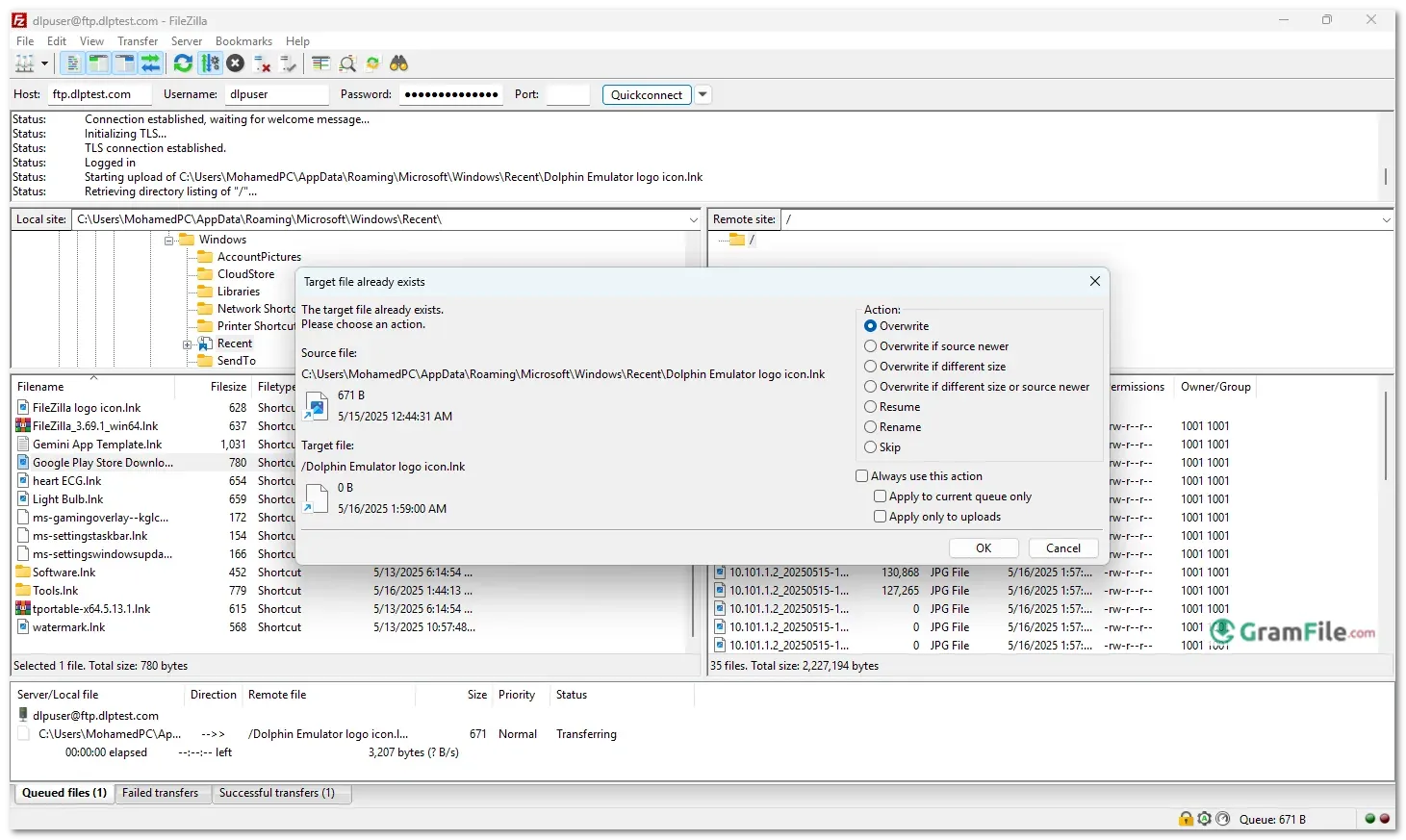
We’re taking a look at a really handy tool today: FileZilla for Windows. If you’ve ever needed to move files between your computer and a website or another online spot, you might have heard of it. It’s a very popular program that helps make transferring files straightforward and reliable.
FileZilla actually started way back in January 2001. It began as a project by some students, including Tim Kosse, for a computer science class.
Their goal was to create a good, free tool for transferring files because they saw a need for it. They decided to make it open for anyone to use and even see how it’s built, under a special kind of license.
Over the years, it’s grown and improved a lot, adding more features and becoming a go-to choice for many people who work with files online. It’s been around for a while, proving itself to be a steady and useful piece of software.
If you’ve ever needed to upload files to a website, manage a server, or transfer large batches of data securely, you’ve probably heard of FileZilla.
This free, open-source FTP client has been a favorite among developers, webmasters, and IT professionals for years, and for good reason. It’s reliable, easy to use, and gets the job done without unnecessary complications.
What is FileZilla?

FileZilla is a File Transfer Protocol (FTP) client that lets you move files between your computer and a remote server.
Think of it as a digital bridge: whether you’re updating a website, backing up data, or managing cloud storage, FileZilla provides a simple drag-and-drop interface to handle transfers smoothly.
It supports FTP, FTPS (secure FTP), and SFTP (SSH File Transfer Protocol), making it versatile for different security needs.
Portable & Offline 64-bit Version

Need FileZilla on the go? The portable version means you can run the program directly from a USB stick or cloud storage without actually installing it on the computer’s hard drive.
This is great if you use different computers often and want to have your FileZilla settings and saved sites with you, or if you’re on a computer where you can’t install new software.
You just open the folder where the portable version is saved, click the FileZilla program file, and it runs.
Also, The portable version always comes free of bloatware 🙂 Enjoy!
The 64-bit version ensures better performance on modern systems, handling large file transfers more efficiently.
Key Features & Highlights
- It’s free to use.
- It helps you move files between your computer and online servers.
- It has a simple window showing your files and the server’s files side-by-side.
- You can easily drag and drop files to transfer them.
- It supports secure ways to transfer files like FTPS and SFTP.
- There’s a 64-bit version for better performance on newer computers.
- An offline installer lets you install without internet.
- A portable version runs from a USB drive without installation.
How to Use FileZilla?
Using FileZilla is as simple as moving files between folders on your own computer, just with a remote server in the mix.
After installing, fire it up and enter your server details (host address, username, password, and port) in the Quickconnect bar or save them for later in the Site Manager.
Once connected, you’ll see your local files on the left and the remote server’s files on the right. Need to upload something? Just drag and drop from left to right. Downloading works the same way, right to left.
You can queue multiple transfers, pause and resume them, or even edit files directly on the server.
The transfer logs at the bottom keep you updated on what’s moving, and if anything goes wrong, the error messages are straightforward.
Whether you’re managing a website or just moving backups, FileZilla keeps file transfers hassle-free.
How to Download & Install

Getting FileZilla up and running is quick:
- Download – Click on the above Green Download Button for official and direct download. This ensures you get a legitimate copy and avoid any potential malware.
- Run the Installer – Double-click the downloaded file and follow the prompts. (Watch out for optional bundled software—uncheck it if you don’t need it.)
- Launch & Connect – Open FileZilla, enter your server details (host, username, password), and start transferring files.
Pros & Cons
What we liked
- Free forever – No paywalls.
- Simple transfers – Just drag and drop.
- Secure – FTPS/SFTP support.
- Works offline – No internet needed.
- Fast – Handles big files easily.
What we didn't like
- Old interface – Looks outdated.
- Bundled junk – Watch during install.
- No cloud sync – Servers only.
- No auto-sync – Manual work required.
Best FileZilla Alternatives
-
 WinSCP
A free tool for securely transferring files between your PC and remote servers.
Conclusion
4.2out of 5 · 59 user ratings
FileZilla remains the top choice for straightforward, no-frills file transfers, and for good reason. It’s 100% free, supports all major protocols (FTP, FTPS, SFTP), and delivers rock-solid performance even with large files.
While its interface hasn’t changed much over the years, that’s part of its appeal: no unnecessary clutter, just pure file-transfer efficiency.
FileZilla vs. The Competition
- WinSCP – More security-focused but less intuitive for beginners.
- Cyberduck – Modern design but missing some power-user FTP features.
- SmartFTP – Feature-rich but requires a paid license.
- CuteFTP – Polished interface and automation tools, but expensive for what it offers.
FileZilla wins for being lightweight, free, and universally reliable, ideal if you need secure transfers without complications. Just remember to uncheck bundled software during installation.
The bottom line?
If you want a free, no-nonsense FTP client that won’t let you down, FileZilla is still the best choice. For flashier interfaces or advanced automation, paid tools like CuteFTP exist—but they’re hard to justify when FileZilla covers the basics so well.
Found a problem with this download? Report an outdated version, broken link, suspicious installer or incorrect information.
 Zoom Workplace
 Nitro PDF Pro
 Sumatra PDF
 IrfanView
 K-Lite Codec Pack
 WinRAR