

Download Details
- Version
- 6.7 (latest)
- File size
- 12.5 MB
- License
- Free
- Security scan
- VirusTotal: 71 of 71 engines say OK (0 flagged)
- SHA-256 checksum
c8e603088b608b6620ca8e06846486cfed48969b76b111f05a83a386a829207c- Developer
- WinSCP.net
- Supported OS
- Windows 11, Windows 10, Windows 7, Windows 8.1
- Installers
- 64-bit (x64), 32-bit (x86), ARM (Arm64), Portable, Offline
- Downloads
- 21741
- Rating
- 4.7 out of 5 · 72 reviews
 Reviewed by Mohamed Zaki
Tested on Windows 11 and 10 · · How we review
Screenshots
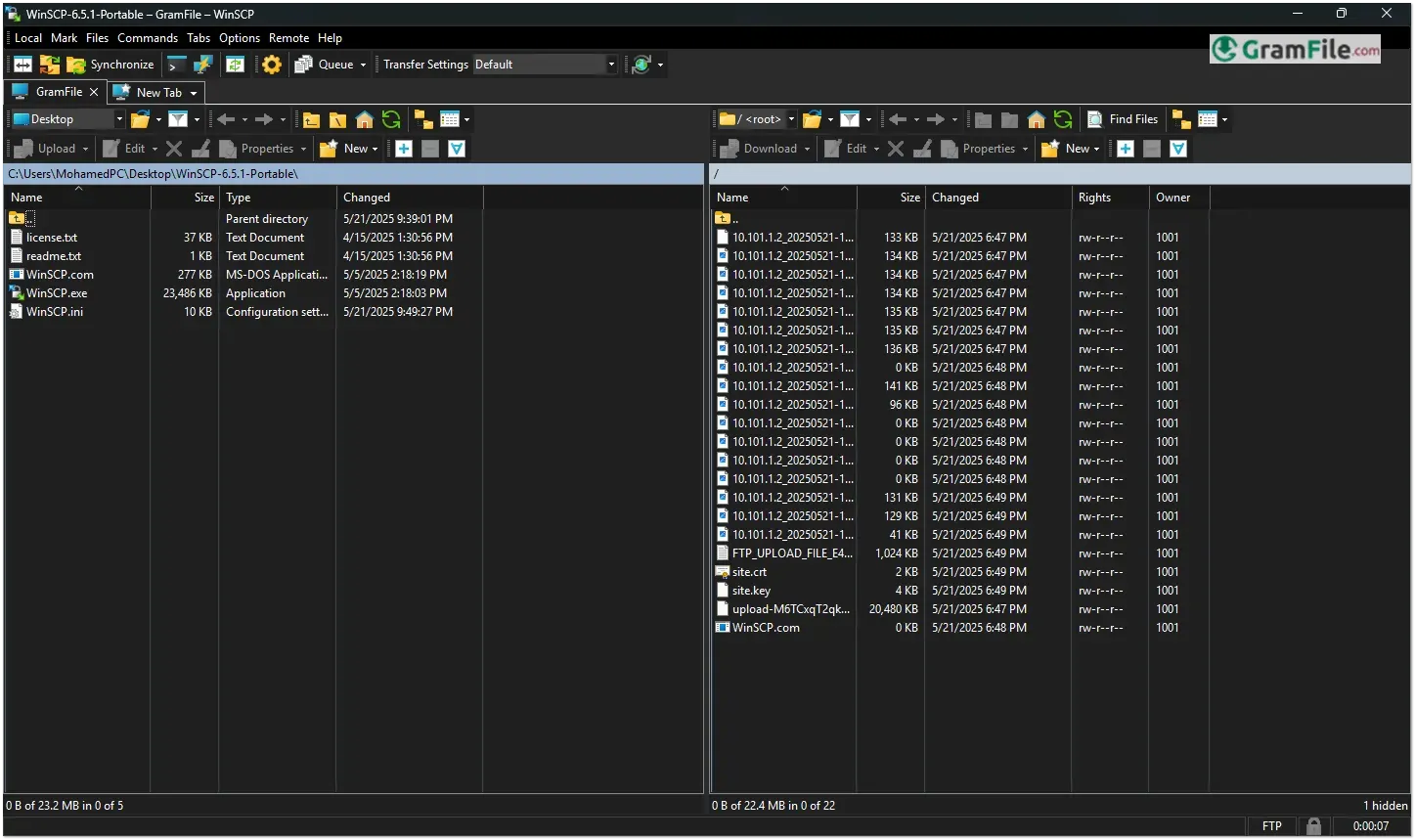
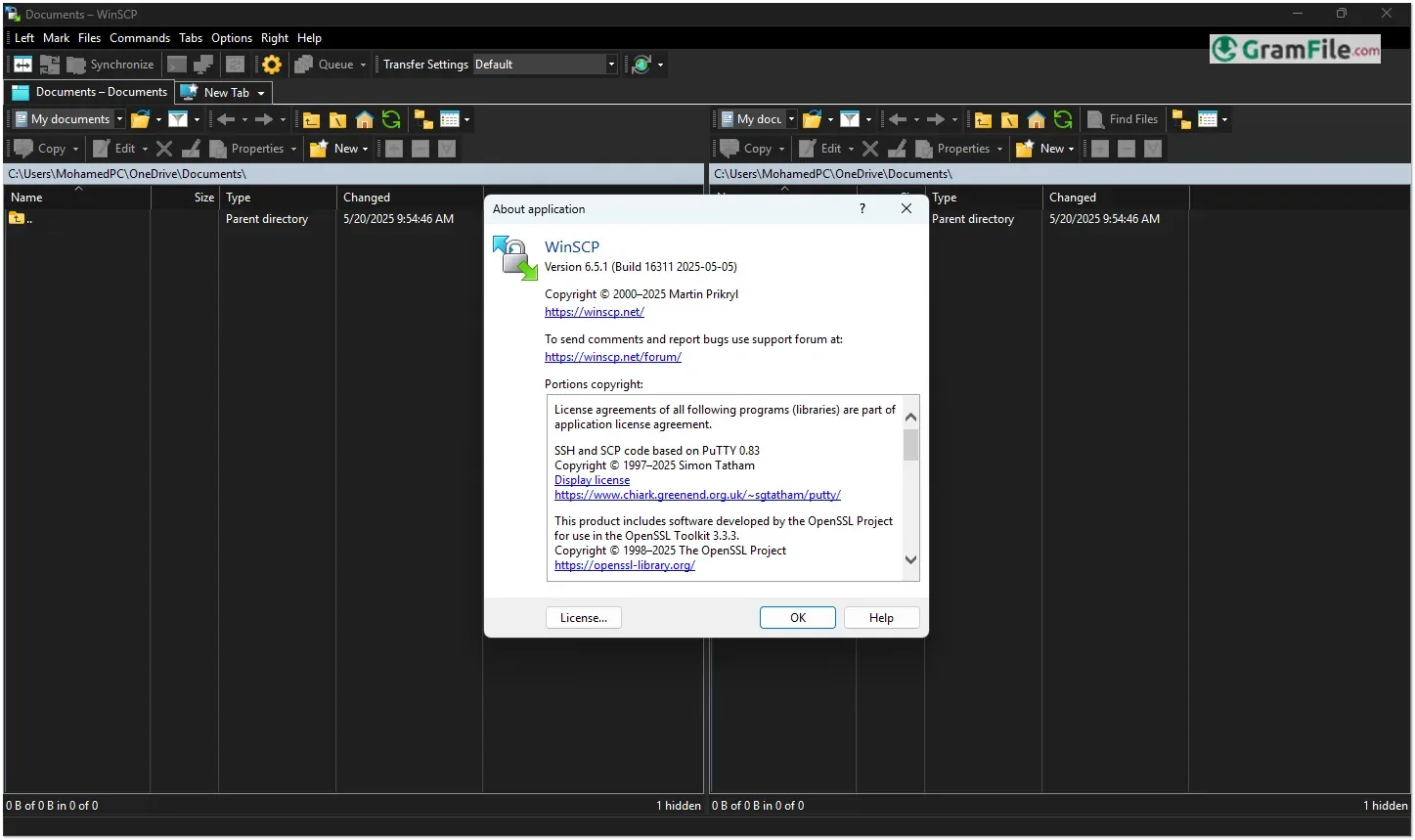
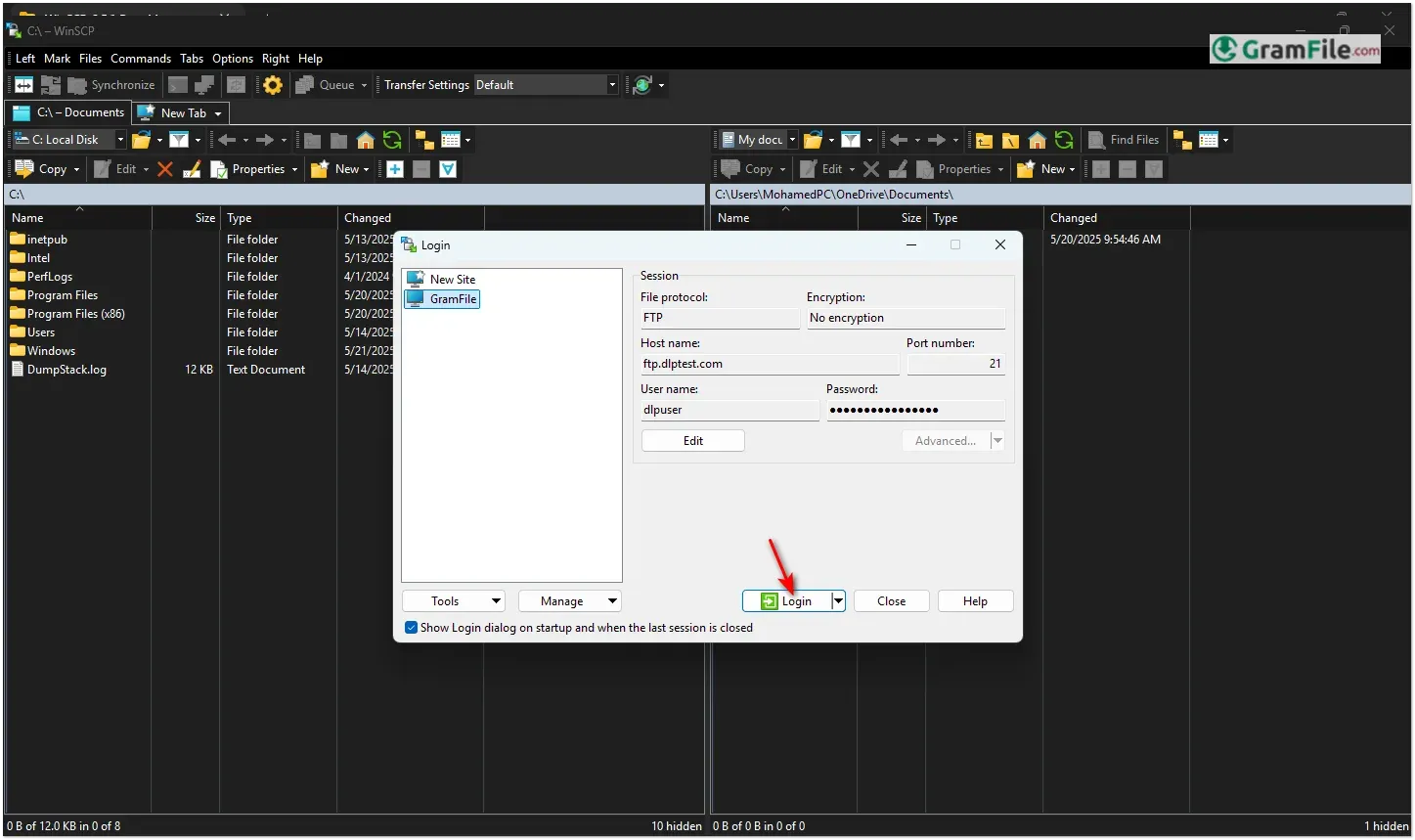
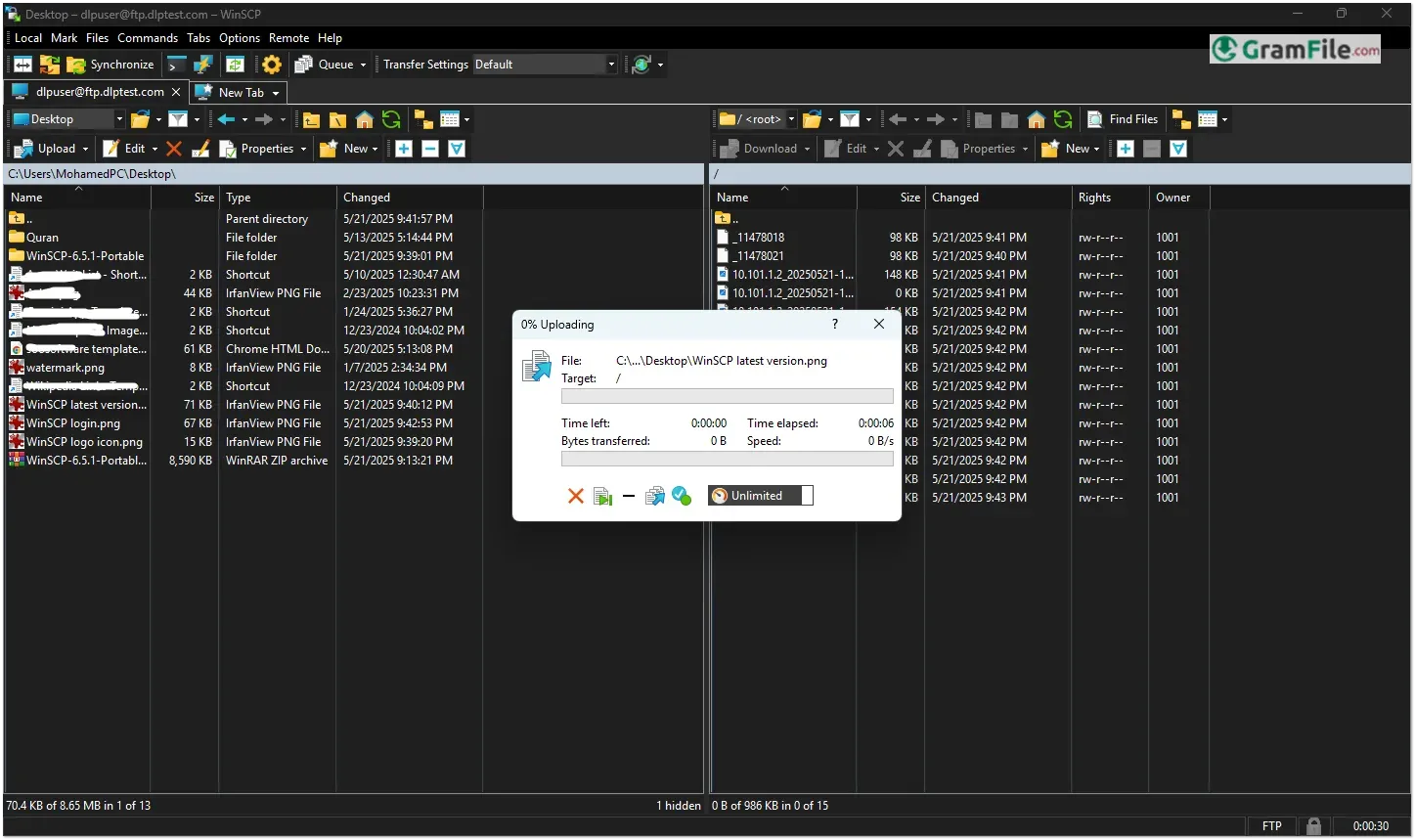
Known for its user-friendly interface and robust encryption, WinSCP has become a trusted choice for IT professionals, developers, and everyday users who need a dependable way to manage files over networks.
Originally developed by Martin Přikryl in 2000, WinSCP emerged as a free alternative to commercial FTP clients, prioritizing security and ease of use.
Over the years, it has evolved with consistent updates, adding features like scripting, synchronization, and integration with Windows Explorer.
Its longevity and strong community support have cemented its reputation as a go-to file transfer tool for Windows users worldwide.
If you regularly move files between computers or servers, you’ve probably heard about WinSCP.
This free, open-source tool has been the go-to solution for secure file transfers on Windows for over two decades. But is it still worth using nowadays? Let’s explore it.
What Exactly is WinSCP?
WinSCP is a free file transfer client for Windows that supports secure protocols like SFTP, SCP, FTP, and WebDAV.
Unlike basic FTP clients, it encrypts your transfers, keeping sensitive data safe from prying eyes. It’s particularly popular among developers, system admins, and anyone who needs to manage files on remote servers.
WinSCP Portable: Your Secure File Transfer Tool On The Go

Need to transfer files securely without installing software? WinSCP offers a portable 64-bit version that runs straight from a USB drive, no installation required.
Why Go Portable?
- Works offline: No internet needed after download
- Zero traces left: Runs without registry changes or system files
- Always up-to-date: Carry the latest version on your flash drive
- Full 64-bit performance: Handles large file transfers smoothly
Military-Grade Security Without the Complexity
WinSCP wraps your file transfers in SSH-2 and TLS encryption, making it safe enough for sensitive data while keeping the interface simple enough for everyday use. The best security is the kind you don’t have to think about.
Two Faces, One Powerful Tool
Switch between Commander-style dual-pane interface (for power users) and Explorer-style view (for everyone else). It’s like having two tools in one, adapting to how you work rather than forcing you to adapt to it.
Portable Power When You Need It
The portable version means you can carry your entire secure transfer solution on a USB stick.
Need to move files from a client’s machine? Just plug and go, no installations, no permissions needed.
Automation That Doesn’t Make You Learn Programming
Built-in scripting and task automation handle repetitive transfers. Schedule backups, sync folders, or automate deployments without writing complex code.
It Plays Well With Others
Seamless integration with Windows (right-click actions, stored credentials) and support for WebDAV means it fits into your existing workflow rather than forcing you to create new ones.
How to Use WinSCP – Quick Guide
- Launch & Connect
- Open WinSCP and click “New Session”
- Enter:
• Hostname (server IP/address)
• Username & Password
• Protocol (SFTP/SCP recommended) - Click “Login”
- Navigate Files
- Left pane = Your computer
- Right pane = Remote server
- Double-click folders to explore
- Transfer Files
- Drag-and-drop between panes
- Or right-click → “Upload”/”Download”
- Advanced Options
- Right-click files for:
• Permissions (CHMOD)
• Synchronization
• Direct editing - Use “Commands” menu for scripting
- Right-click files for:
- Disconnect
- Close window or click “Session” → “Disconnect”
Pro Tip: Bookmark frequent connections under “Stored Sessions” for 1-click access next time.
WinSCP Server? Not Exactly.
WinSCP itself is just a client, it doesn’t host files. But you can use it to connect to:
- SFTP/SCP servers (OpenSSH on Linux, Bitvise on Windows)
- FTP servers (FileZilla Server, vsftpd)
- Cloud storage (Nextcloud, WebDAV-enabled services)
How to Install SFTP
Most servers already support SFTP. If you’re setting one up:
- On Linux: Enable OpenSSH (
sudo apt install openssh-server) - On Windows: Install OpenSSH (Windows optional feature) or Bitvise
- In WinSCP: Just enter your server’s IP, username, and password
Wait… Does WinSCP Work on Ubuntu?
While WinSCP is Windows-only, Linux users can access remote files using:
- Built-in CLI tools (
scp,sftpcommands) - Graphical alternatives like FileZilla or Dolphin (KDE)
- Running WinSCP via Wine (possible but not ideal)
WinSCP vs. FileZilla: The Real-World Comparison
Here’s a clear comparison table between WinSCP and FileZilla:
| Feature | WinSCP | FileZilla |
|---|---|---|
| Security | SFTP/SCP by default (more secure) | FTP by default (less secure) |
| Interface | Clean, Windows-like | Older, more cluttered |
| Platform Support | Windows only | Windows, macOS, Linux |
| Scripting | Built-in powerful automation | Basic automation only |
| Transfer Protocols | SFTP, SCP, FTP, WebDAV | FTP, FTPS, SFTP |
| Recent Safety | No major vulnerabilities | Had security issues in past |
| Best For | Secure, simple transfers | Cross-platform FTP needs |
Bottom Line
- Need security and simplicity? WinSCP
- Need macOS/Linux support? FileZilla
- Just don’t use plain FTP anymore.
How to Download & Install
Want to get WinSCP up and running fast? Here’s how to do it, no fluff, just the essential steps:
Step 1: Download
Click on the above Green Download Button for official and direct download.
Step 2: Install
- Run the installer (double-click the
.exefile). - Follow the prompts, just click Next unless you need special settings.
- At the Components screen, keep the defaults (they’re usually fine).
- Choose “Typical” installation (unless you know you need something else).
- Wait a few seconds, it installs fast.
Step 3: First Launch
- Open WinSCP from your Start Menu or desktop shortcut.
- When prompted, enter your server details (hostname/IP, username, password).
- Click Login, and you’re ready to transfer files securely!
That’s it! You now have a powerful, secure file transfer tool ready to use.
How To Use It
- Download the WinSCP Portable .zip from the official site
- Extract to any folder (or your USB drive)
- Run WinSCP.exe – it remembers your sessions between computers
Perfect for IT technicians, security-conscious users, or anyone who needs secure file access on different machines. The full power of WinSCP, without leaving a footprint.
(Keeps all security features: SSH, SFTP, and encryption work exactly like the installed version.)
Pros & Cons
What we liked
- Free with strong encryption
- Simple drag-and-drop transfers
- Works without installation
- No ads or bloatware
What we didn't like
- Basic interface
- No cloud features
Best WinSCP Alternatives
-
 FileZilla
Upload and download files between your computer and a website’s server.
Conclusion
4.7out of 5 · 72 user ratings
Why Choose WinSCP?
WinSCP is the quiet professional of file transfer tools, no flashy ads, no bloated features, just rock-solid performance. It’s perfect if you:
- Need security (SFTP/SCP encryption by default)
- Want simplicity (drag-and-drop like Windows Explorer)
- Hate subscriptions (free forever, no “premium” upsells)
- Work offline (no cloud requirements)
WinSCP vs. The Competition
- FileZilla? WinSCP wins on security (no recent vulnerabilities) and cleaner interface.
- Cyberduck? WinSCP is lighter, faster, and doesn’t nag you about upgrades.
- Built-in Windows tools? WinSCP adds encryption, scripting, and a proper GUI.
Bottom Line
If you transfer files regularly – especially to servers – WinSCP is the most reliable, no-nonsense tool for the job. It won’t wow you with design, but it will work every time.
Found a problem with this download? Report an outdated version, broken link, suspicious installer or incorrect information.
Changelog - What's new in version 6.7
- Allowing to report abnormal program terminations.- Bug fix: Failure when keeping remote directory up to date. 2468
- Bug fix: Failure when using options in button drop down menus on Overwrite confirmation box. 2469
- Bug fix: File handle leak. 2470
- Bug fix: Failure when using rmdir command with WebDAV protocol. 2471
 Zoom Workplace
 Nitro PDF Pro
 Sumatra PDF
 IrfanView
 K-Lite Codec Pack
 WinRAR