

Download Details
- Version
- 7.3.7.1327 (latest)
- File size
- 93.5 MB
- License
- Free
- Security scan
- VirusTotal: 66 of 66 engines say OK (0 flagged)
- SHA-256 checksum
12955495fb4357c88d18b2665513a5adadda0724152147529ca853c80354422b- Developer
- Google LLC
- Supported OS
- Windows 11, Windows 10, Windows 8.1
- Installers
- 64-bit (x64), 32-bit (x86), Offline
- Downloads
- 35828
- Rating
- 4.9 out of 5 · 142 reviews
- File name(s)
- googleearth-win-pro-7.3.7.1327-x64.exe, googleearth-win-pro-7.3.7.1327-x86.exe
 Reviewed by Eman Sakr
Tested on Windows 11 and 10 · · How we review
Screenshots
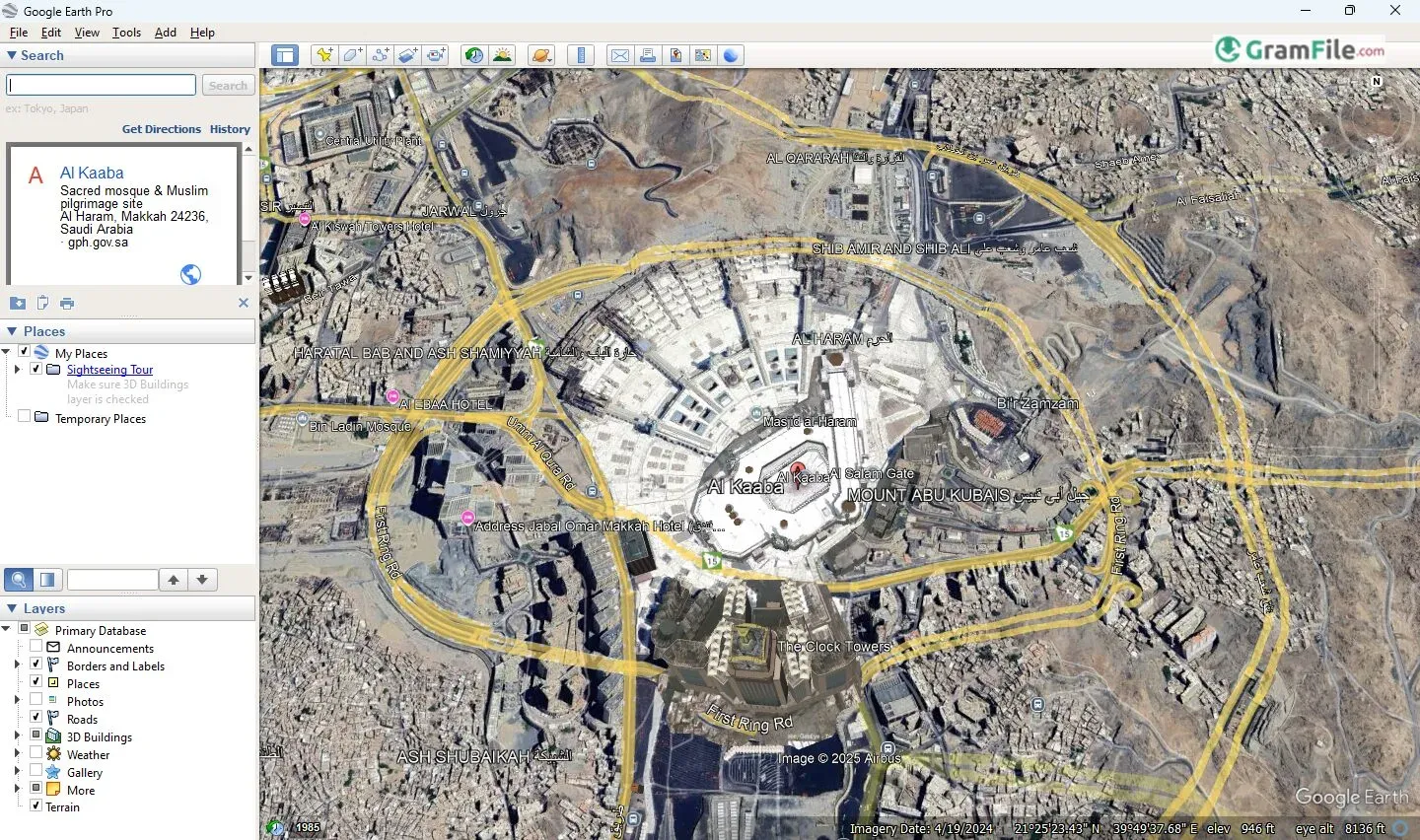
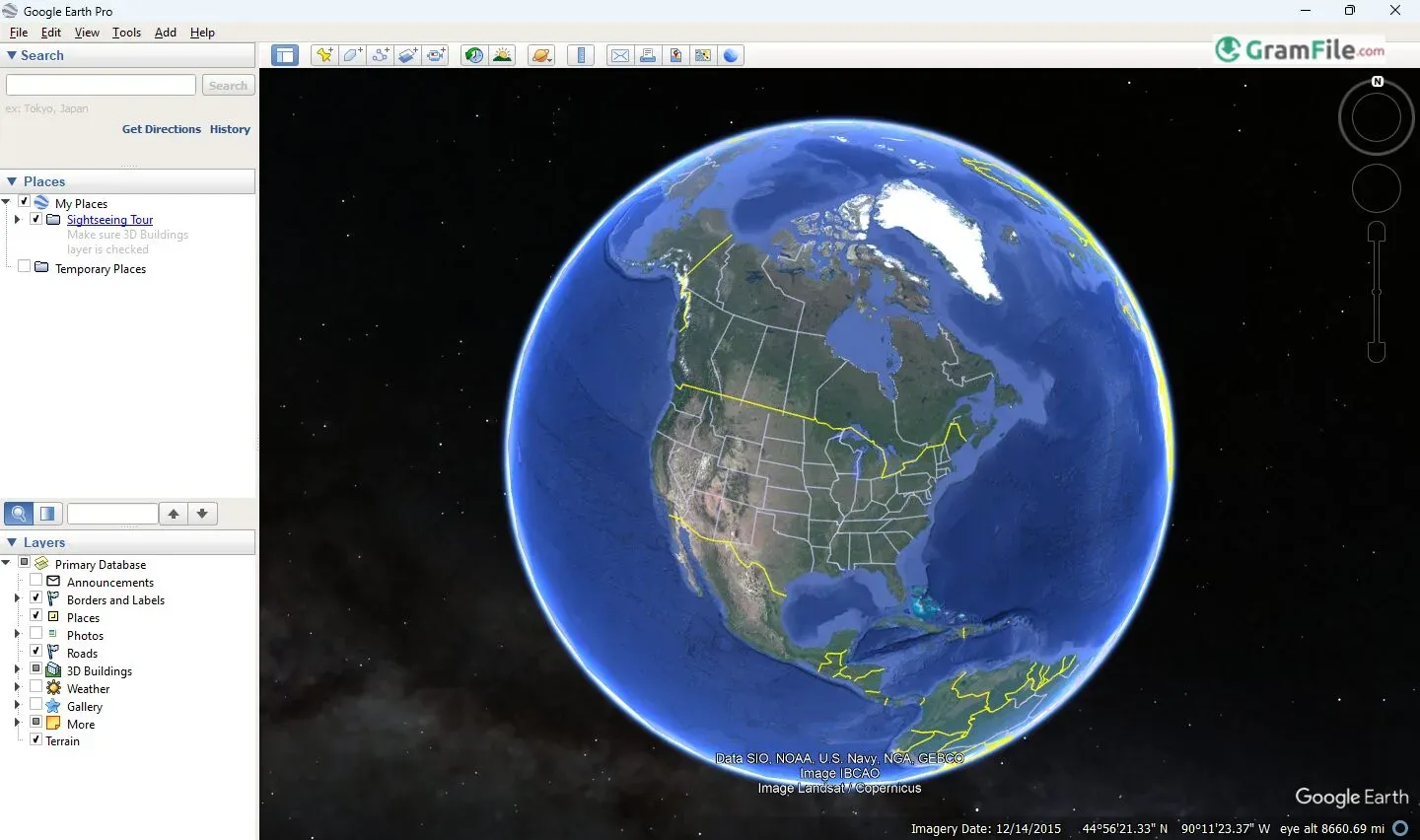
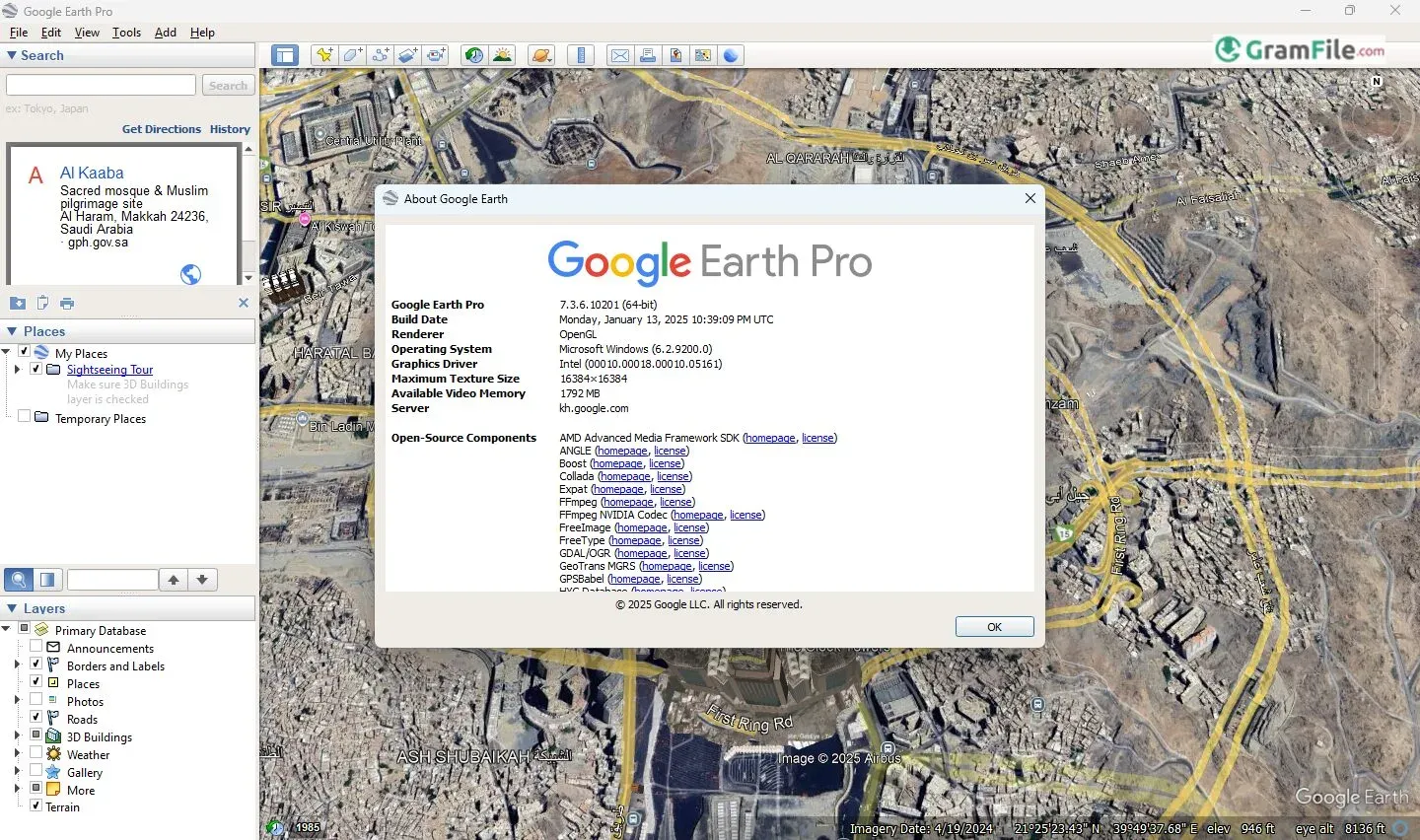
Since its launch in 2001 as Keyhole EarthViewer, Google Earth has revolutionized how we visualize our planet.
Originally developed by Keyhole, Inc. and later acquired by Google, the software evolved into Google Earth Pro—a premium version offering advanced mapping, measurement, and historical imagery tools.
Today, it remains an essential resource for professionals, educators, and curious explorers alike, combining high-resolution 3D landscapes with powerful geographic data.
Whether you’re planning a project, analyzing terrain, or simply satisfying your wanderlust, Google Earth Pro delivers a window to the world from your desktop.
Forget flat, outdated maps, Google Earth Pro turns your computer into a dynamic 3D atlas.
This free (yes, totally free!) desktop application lets you zoom anywhere on Earth with stunning detail, from your childhood home to the peaks of the Himalayas.
But it’s far more than just a virtual globe – it’s packed with tools that even professionals rely on daily.
Alright, let’s dive into Google Earth Pro for Windows. It’s more than just a map; it’s a digital globe that lives on your computer, giving you a serious bird’s-eye view of, well, everything.
So, What is Google Earth?
Basically, it’s a beefed-up version of the regular Google Earth you might have used in your browser.
Think of it as the “pro” toolkit. It lets you do some really cool stuff, like measure distances and areas, import your own data, and even create detailed videos of fly-throughs.
If you’re into planning trips, studying land changes, or just want to see your neighborhood from the sky, this is your jam.
Imagine having a magic globe that lets you:
- Zoom into your childhood home in 3D
- Measure your backyard’s exact dimensions
- See how your city looked 20 years ago
- Even explore Mars and the Moon
That’s Google Earth Pro – the power-user version of the classic virtual globe, now completely free.
Google Earth Pro Live
Now, “live” is a bit of a tricky word. Google Earth Pro doesn’t give you a true, real-time video feed of the planet. Instead, it uses a massive collection of satellite and aerial imagery, which is updated regularly.
So, while you’re not seeing live video, you’re getting pretty recent snapshots of the world. Think of it like a constantly updated photo album of Earth.
The “live” aspect comes from the fact that Google is always adding new images, so the view keeps getting more current.
Beyond Earth: Moon and Mars
Here’s where it gets really fun. Google Earth Pro lets you explore more than just our home planet. You can switch to views of the Moon and Mars, seeing detailed maps and even 3D models of these celestial bodies. It’s like having a mini space mission on your desktop.
You can see craters on the Moon, explore Martian canyons, and get a sense of what it’s like to be on another world. It’s a fantastic way to satisfy that inner space explorer.
High-Res 3D Exploration
No more flat, lifeless maps. Tilt and rotate the globe to see cities, mountains, and even the Grand Canyon in crisp 3D. It’s the closest thing to flying without leaving your chair.
Time Machine Mode
Ever wondered what your street looked like 20 years ago? Historical imagery lets you rewind and watch cities grow, forests shrink, or glaciers melt over time. (Spoiler: A lot has changed.)
Measure Anything, Anywhere
Need to check the size of your backyard, a hiking trail, or even an entire island? The ruler tool handles distances, areas, and perimeters with scary accuracy. Handy for builders, hikers, or just the curious.
Print Poster-Sized Maps
Forget grainy screenshots. Export ultra-high-resolution images for presentations, reports, or that “Where I’ve Traveled” wall art you’ve been meaning to make.
Explore Space (Yes, Really)
Switch to Moon or Mars mode to explore NASA’s surface maps, complete with Apollo landing sites and Martian canyons. There’s even a “Sky” view for stargazers.
Timelapse
One of the most exciting features in Google Earth is Timelapse. This tool lets you watch how places changed over decades – forests shrinking and cities expanding.
It’s a fresh way to see environmental change without needing maps from other sources.
On Windows 11, Timelapse feels responsive and intuitive – you simply drag a slider to go forward or backward in time. This feature is both educational and powerful, reminding us how our world evolves.
Flight Simulator (Because Why Not?)
Hidden gem: Press Ctrl + Alt + A to pilot a virtual plane over landscapes. Surprisingly addictive—just try not to crash into the Alps.
Maps Customizer
Another useful addition is Maps Customizer – a feature that lets you create personalized maps with pins, routes, and notes.
This is perfect for planning trips, school projects, or even tracking field research. On Windows 11, this tool feels natural to use with both mouse and touch screens.
It adds practical value beyond just viewing the earth; you can tailor maps for your goals and export them for presentations or sharing.
How to Download & Install
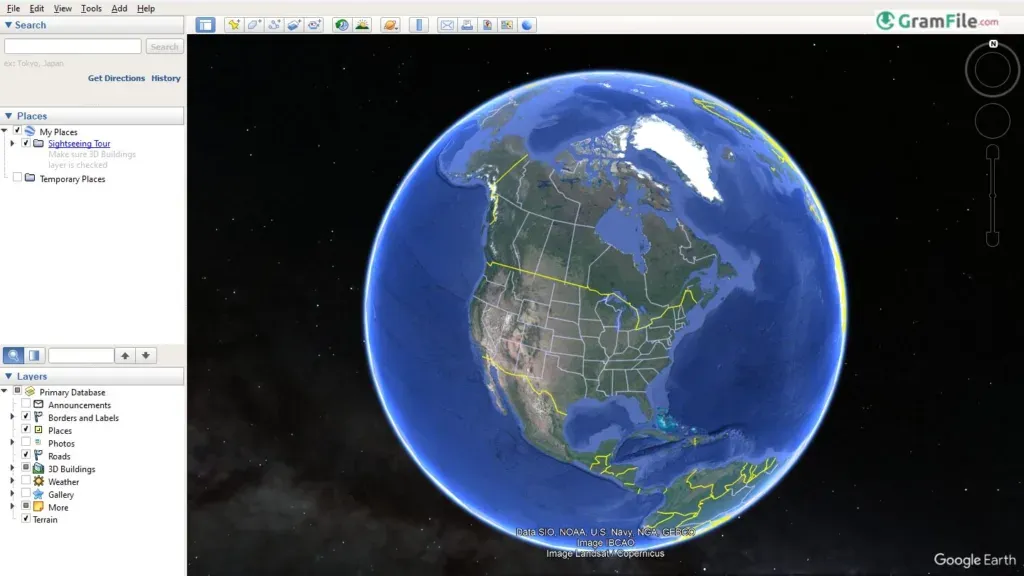
1. Download the Installer
The fastest way to download Google Earth Pro is through our download page.
Click on the above green download button for official and direct download. This ensures you get a legitimate copy and avoid any potential malware.
The #1 Question: Where’s the REAL Offline Installer?
- Trusted Source Only: Always download from Gramfile’s download pages:
👉 https://gramfile.com/google-earth-pro-windows/download/ - File Name: Look for “GoogleEarthProWin-x64.exe” (~68MB)
- Offline Trick: After installing, cached areas remain accessible without internet
⚠️ Watch Out: Third-party sites often bundle malware with fake “offline installers”. Stick to our link above.
2. Run the Installer
- Locate the downloaded file (usually in Downloads as “GoogleEarthProWin-x64.exe“).
- Double-click it: Click “Yes” if Windows asks for permission.
3. Install in <1 Minute
- The installer opens → Just click “Install” (no need to tweak settings).
- Wait a few seconds—it’s lightning-fast.
4. Launch & Explore
- After installing, check “Launch Google Earth Pro” → Click “Finish”.
- Done! Start zooming to Paris, your backyard, or Mars.
Pro Tip: Pin it to your taskbar (right-click the icon → “Pin to taskbar”) for instant globe-trotting later.
For Windows 10 64-Bit
Although this review focuses on Windows 11, Google Earth still runs smoothly on Windows 10 64-bit. If you’re transitioning from Windows 10 to Windows 11, you’ll notice the interface feels familiar yet faster.
The 64-bit support helps load high-resolution imagery more quickly, which is important when zooming into cities and landscapes.
Users with mid-range laptops often find Earth runs without stutters, even when viewing detailed terrain and buildings.
Pros & Cons
What we liked
- Free. Powerful features with no cost.
- 3D Views. Explore cities and terrain like a drone.
- Historical Imagery. See how places changed over time.
- Precision Tools. Measure distances and areas accurately.
- High-Res Maps. Print or save detailed images.
- Offline Use. Works without internet (after loading).
- Flight Simulator. Hidden fun feature.
What we didn't like
- Not Real-Time. Satellite images can be outdated.
- Heavy on RAM. Slows older PCs.
- Limited Street View. Not all areas covered.
Conclusion
4.9out of 5 · 142 user ratings
Why Choose Google Earth Pro?
It’s the Swiss Army knife of digital maps—free, packed with pro tools, and surprisingly easy to use. Need to measure a property? Check. Want to see your hometown in the 1990s? Done. Curious about Mars? Yep, that too. No other free tool offers this much power without a subscription or ads.
Google Earth Pro vs. Others
- Vs. Web Version (Earth.google.com):
Pro wins with higher resolution exports, historical imagery sliders, and offline use—things the browser version can’t match. - Vs. Paid GIS Software (like ArcGIS):
Unless you’re a surveyor, Google Earth Pro does 90% of what most users need without costing $1,000+. - Vs. Mobile Apps (like Maps):
Desktop precision wins. Mobile apps are great for directions, but Pro’s 3D views and measurements are unbeatable for planning.
Final Thought
For explorers, teachers, realtors, or hobbyists, Google Earth Pro is a no-brainer. It’s free, flexible, and feels like magic—whether you’re researching volcanoes or just reminiscing about your old school.
Try it if: You’ve ever thought, “I wonder what that looks like from above.”
Pro Tip: Hit Ctrl+Alt+A to find the secret flight simulator!
Found a problem with this download? Report an outdated version, broken link, suspicious installer or incorrect information.
Changelog - What's new in version 7.3.7.1327
Here are highlights of the fixes, changes, and improvements we've made since the last major release of Google Earth Pro:- Google Earth 10 KML compatibility improvements:
- Support for gx:CascadingStyle KML extension; KML features imported from Google Earth 10 retain styles like icons, line widths, and colors.
- Support for other extensions found in KML exported from Google Earth 10.
- Fix for app launch issue on some recent Linux releases.
- Measurement tool and property editor measurement tab use the same unit selection.
- GeoTIFF imports or super overlays can be saved as KMZs that can be opened in Google Earth 10.
- Other minor fixes and improvements.
 Zoom Workplace
 Nitro PDF Pro
 Sumatra PDF
 IrfanView
 K-Lite Codec Pack
 WinRAR