

Download Details
- Version
- 36.0.38 (latest)
- File size
- 49.1 MB
- License
- Free Trial
- Security scan
- VirusTotal: 65 of 65 engines say OK (0 flagged)
- SHA-256 checksum
58e3da928e1bdefccade79a1f9d3c35348b4aa1cf2730bb597058a1927b4f6fd- Developer
- Inc.JRiver, Inc.
- Supported OS
- Windows 11, Windows 10
- Installers
- 64-bit (x64), 32-bit (x86), Offline
- Downloads
- 7270
- Rating
- 4.5 out of 5 · 54 reviews
- File name(s)
- MediaCenter360038-x64.exe
 Reviewed by Mohamed Zaki
Tested on Windows 11 and 10 · · How we review
Screenshots
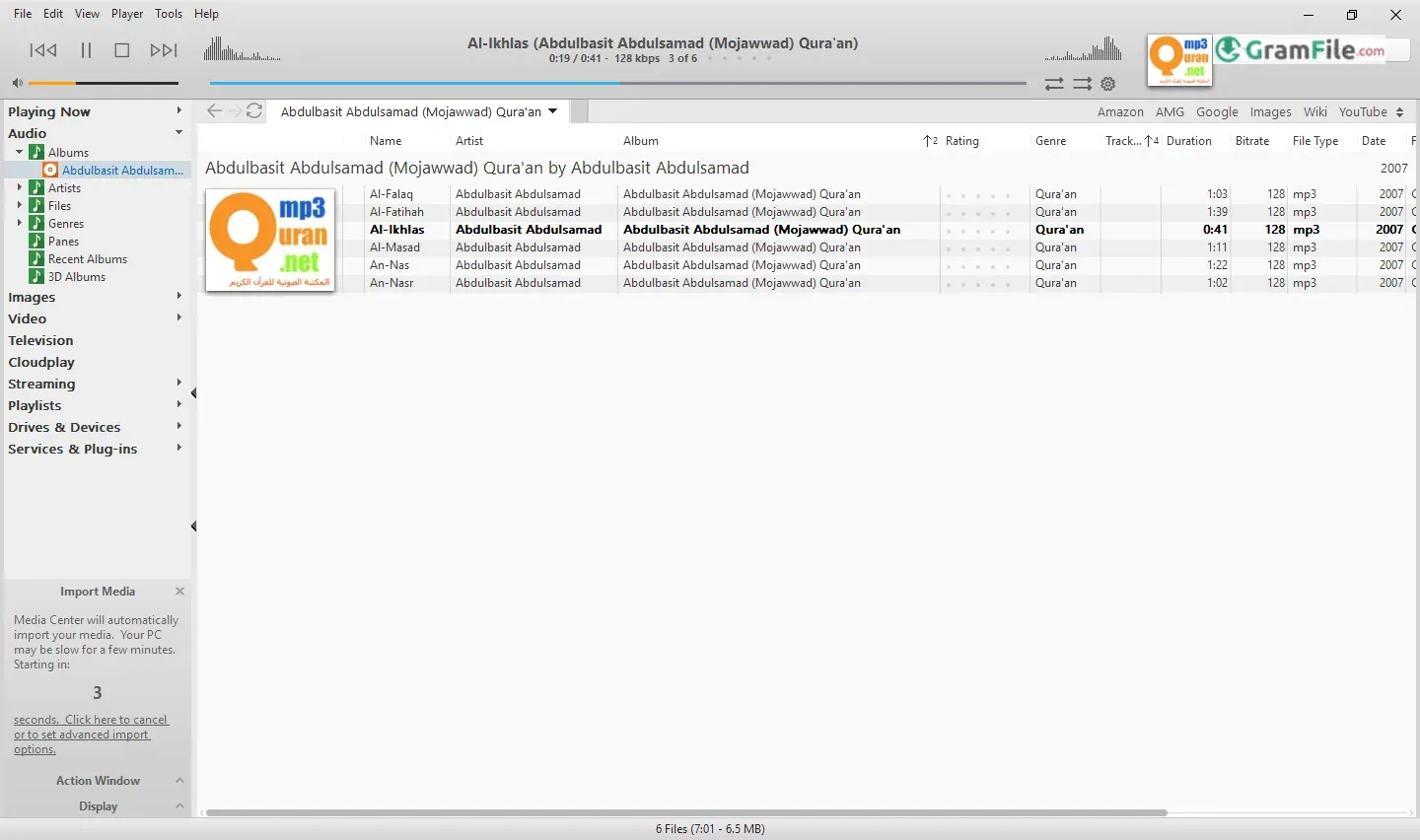
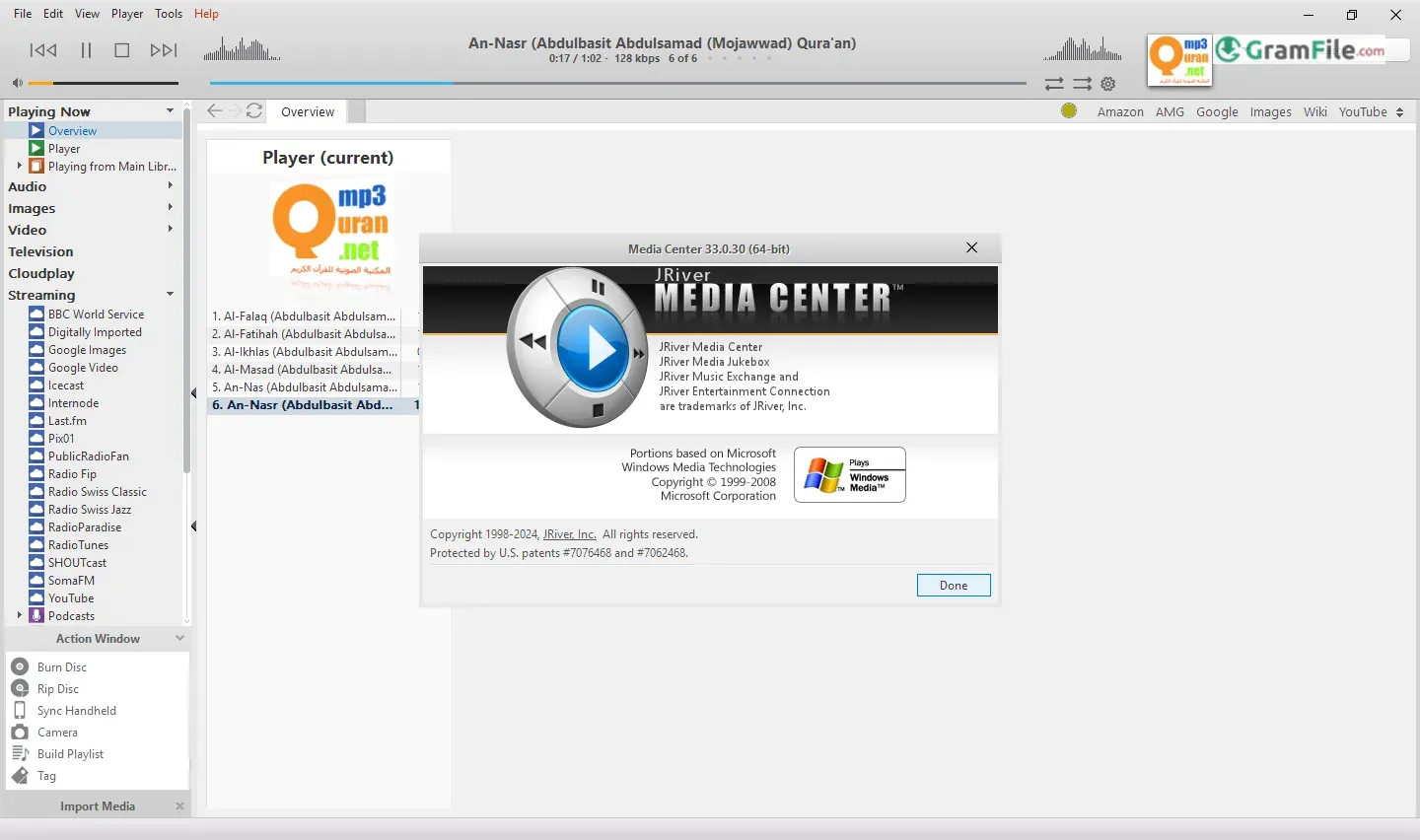
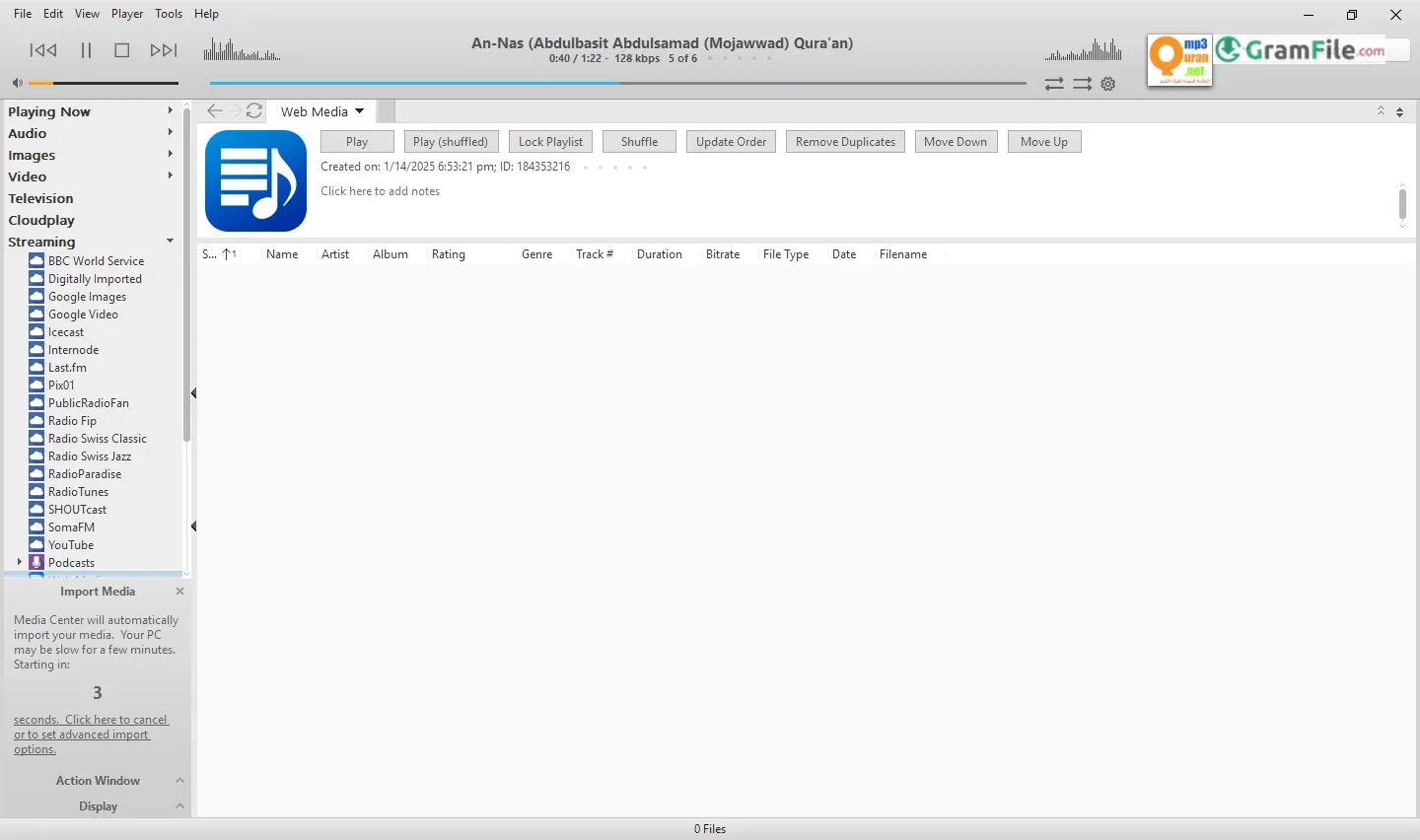
Founded in 1999, JRiver has been a pioneer in digital media management, offering a robust and versatile solution for organizing, playing, and enjoying your entire entertainment library.
From humble beginnings, JRiver Media Center has evolved into a sophisticated and powerful platform, continually adapting to the ever-changing landscape of digital media consumption.
This review will explore the core features, strengths, and weaknesses of JRiver Media Center for Windows, providing insights for both seasoned users and those considering making the switch to this comprehensive media management solution.
JRiver Media Center is more than just a media player; it’s a comprehensive digital media hub designed to take control of your entire entertainment library.
Developed by JRiver Software, this powerful application has been a cornerstone in the digital media landscape for over two decades, continuously evolving to meet the demands of discerning users.
Features That Set JRiver Apart
1. Unmatched Organization
JRiver excels at organizing vast media collections – music, videos, photos, and more – with unparalleled precision.
Its powerful tagging, metadata editing, and library management tools provide unmatched control over your digital assets.
2. Versatile Playback
Beyond basic playback, JRiver supports a wide range of audio and video formats, including high-resolution audio and 4K video.
It seamlessly integrates with various audio devices, from high-end DACs to home theater systems.
3. Powerful Automation
JRiver’s automation features allow you to streamline tasks, such as automatically downloading album art, renaming files, and even creating customized playlists. This not only saves time but also enhances the overall user experience.
4. Extensive Customization
JRiver is highly customizable, allowing users to tailor the interface and functionality to their specific needs. From keyboard shortcuts to custom skins, users can create a personalized experience.
5. Cross-Platform Compatibility
While this review focuses on the Windows version, JRiver Media Center is available across multiple platforms, ensuring a seamless experience across your devices.
Offline 64-bit Version
JRiver offers an offline 64-bit version leverages the full power of modern hardware, ensuring optimal performance and compatibility with high-resolution media.
Latest Version Update
As of the time of this writing, JRiver Media Center is constantly being updated with new features and improvements.
The latest version includes enhancements to audio and video playback, improved stability, and support for the newest media formats and devices.
Key Features and Highlights
- Library: Organizes all media with tags and metadata.
- Audio: Delivers bit-perfect sound with wide format support.
- Video: Plays all videos, supporting high resolutions and streaming.
- Home: Streams to multiple zones and offers device control.
- Tools: Includes TV recording, ripping, and a media server.
- Interface: Offers customizable skins and flexible layouts.
- Formats: Plays many formats with broad compatibility.
- Support: Provides an active community and regular updates.
How to Download & Install
Here’s a concise guide to installing JRiver Media Center on Windows:
- Click on the above Green Download Button, you’ll be directed to the official download page for direct and secure download.
- Find Downloads: Locate the “Downloads” section.
- Select Windows: Choose the Windows version (usually 64-bit).
- Download the Installer: Click the download button.
- Run the Installer: Double-click the downloaded .exe file.
- Follow Prompts: Proceed through the setup wizard, accepting the license and choosing installation options.
- Finish Installation: Click “Finish” when complete.
- Launch JRiver: Find it in your Start Menu and open it.
Note: The first time you launch JRiver, it might ask you to set up your media libraries or configure some basic settings. Follow the on-screen instructions to get started.
That’s it! You’ve successfully installed JRiver Media Center. Now you can start exploring its features and organizing your media.
Pros & Cons
What we liked
- Organized.
- Great audio.
- Plays all video.
- Home streaming.
- Podcasts Support.
- Customizable.
What we didn't like
- Expensive.
- Old design.
Best JRiver Media Center Alternatives


Conclusion
4.5out of 5 · 54 user ratings
JRiver Media Center is more than a player; it’s a powerful media hub. While its initial complexity might intimidate some, the depth of features quickly becomes apparent.
Audiophiles will appreciate the bit-perfect playback and robust tools, while video enthusiasts will enjoy broad format support and HTPC integration.
The price tag might give pause, but for those seeking a single, comprehensive solution for managing and enjoying all their digital media, JRiver offers exceptional value.
It’s an investment for those who prioritize control, quality, and a truly unified media experience, setting it apart from simpler, free alternatives.
Found a problem with this download? Report an outdated version, broken link, suspicious installer or incorrect information.
 Zoom Workplace
 Nitro PDF Pro
 Sumatra PDF
 IrfanView
 K-Lite Codec Pack
 WinRAR