

Download Details
- Version
- 12.13.11.1 (latest)
- File size
- 193.4 MB
- License
- Free
- Security scan
- VirusTotal: 62 of 62 engines say OK (0 flagged)
- SHA-256 checksum
25b28905a81406a5edbf482f7f3ee4831a8641d32d29dceda5d1eb3e8d534c08- Developer
- Apple
- Supported OS
- Windows 11, Windows 10
- Installers
- 64-bit (x64), 32-bit (x86), Offline
- Downloads
- 14211
- Rating
- 4.6 out of 5 · 80 reviews
- File name(s)
- iTunes64Setup.exe, iTunesSetup.exe
 Reviewed by Mohamed Zaki
Tested on Windows 11 and 10 · · How we review
Screenshots
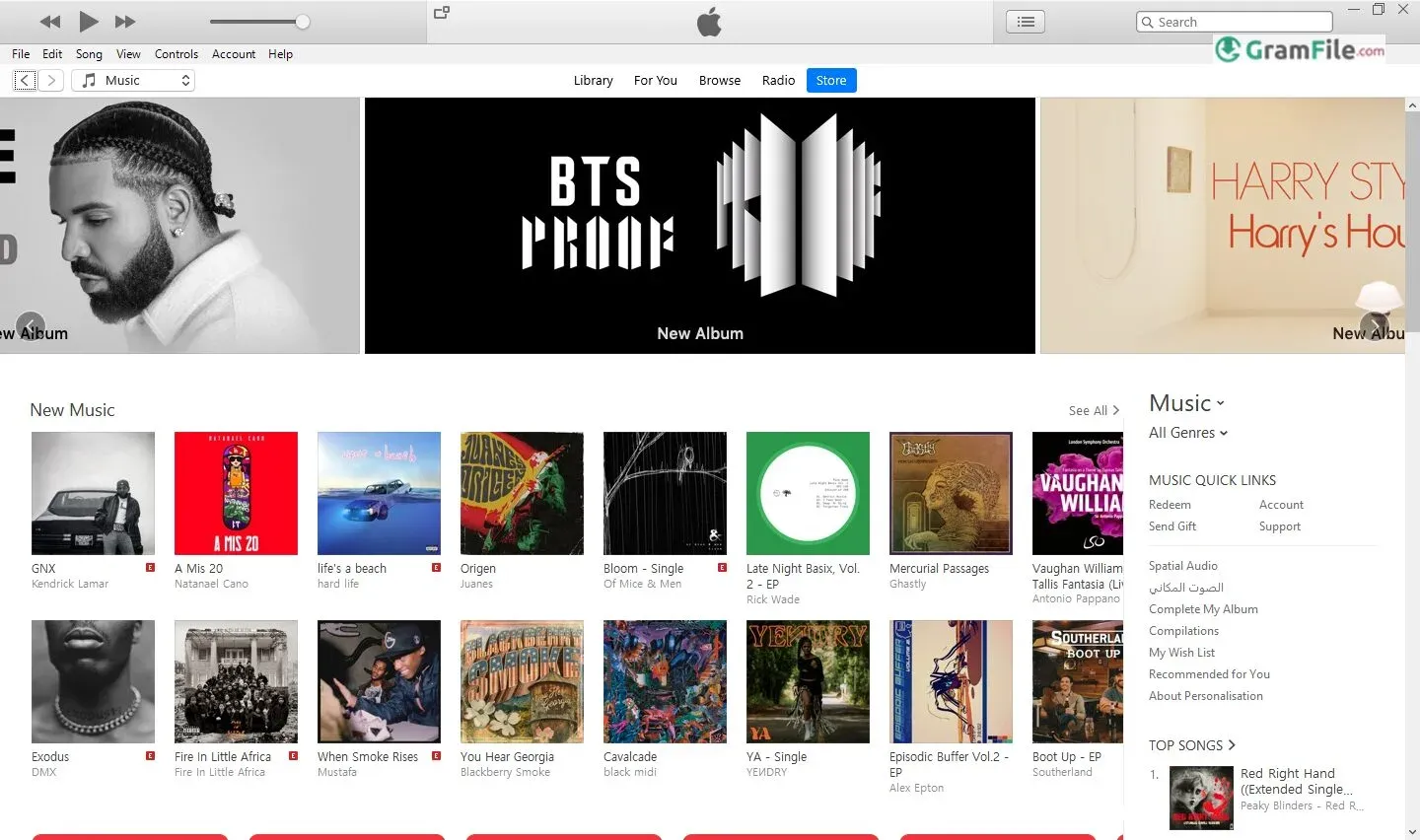
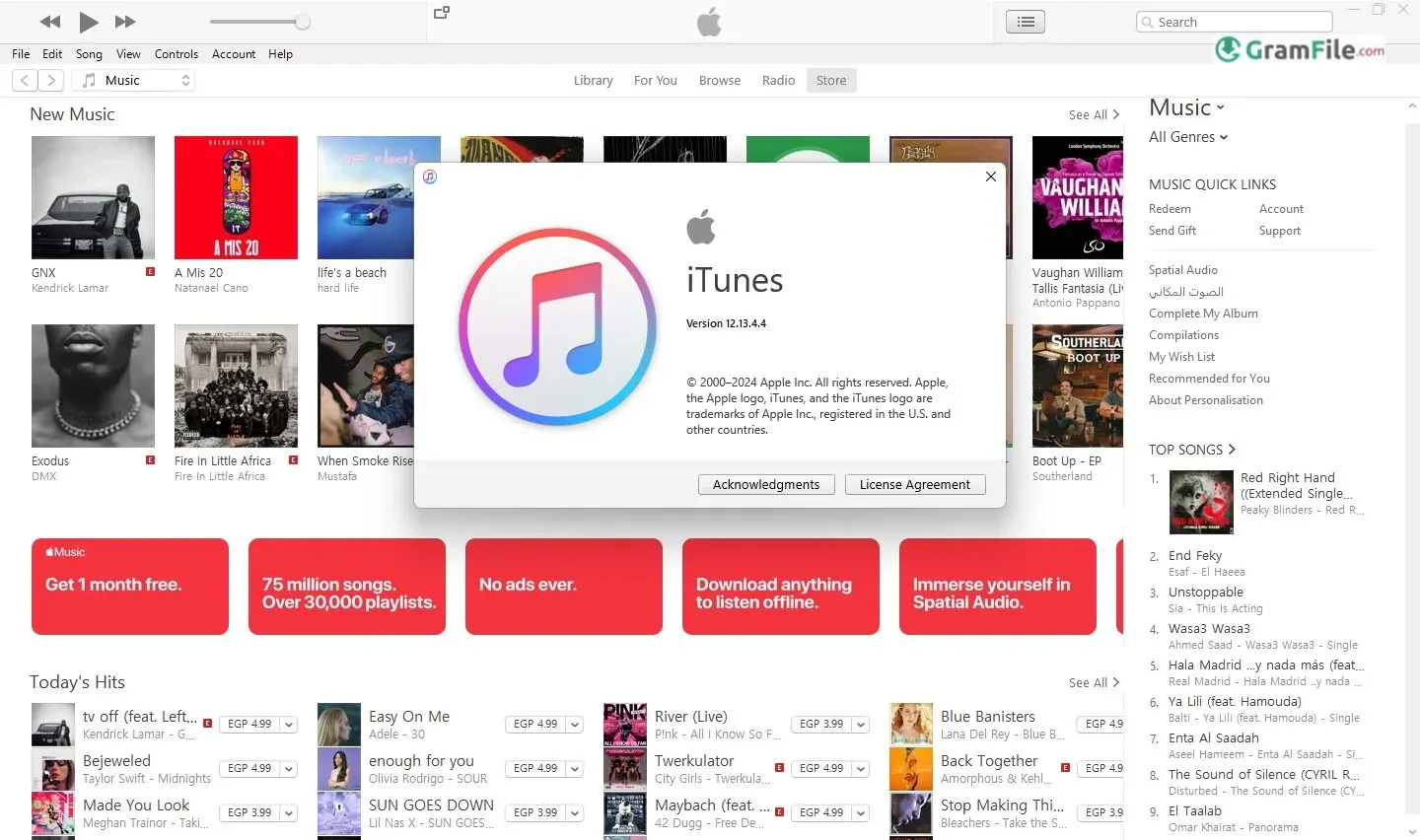
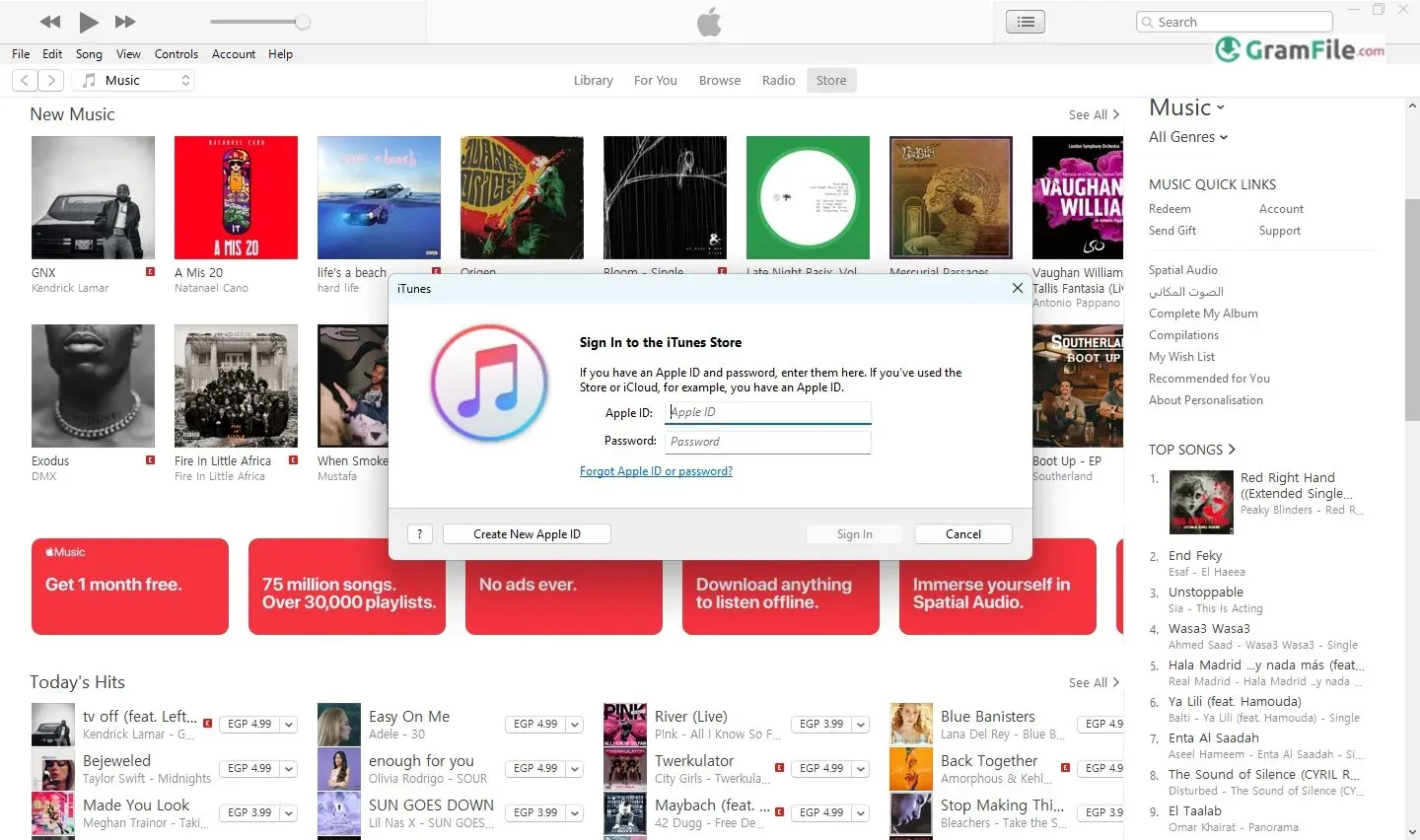
iTunes on Windows acts as a key portal, connecting PC users to the Apple universe. It’s the essential link for managing iPhones, iPads, and accessing the expansive iTunes Store. Its story on Windows is one of constant change, mirroring the evolution of digital media and Apple’s own strategies.
Starting as a Mac-only application in 2001, iTunes ventured onto Windows in 2003. This bold step broadened Apple’s reach, tapping into the massive Windows user base.
Initially focused on music organization and playback, iTunes rapidly grew into a full-fledged media hub, incorporating podcasts, audiobooks, films, and TV shows. This expansion, while offering more content, also led to complaints about iTunes becoming cumbersome and demanding on Windows systems.
Even with these issues, iTunes for Windows remains crucial for many. It provides core functions like device synchronization, backups, and software updates, effectively acting as the entry point to Apple’s mobile world for PC users.
Understanding its past and its place within the larger Apple ecosystem helps explain its sometimes-complicated relationship with the Windows platform.
iTunes for Windows occupies a unique, and often debated, space in the software world. It’s not just a media player; it’s the primary conduit for Windows users to interact with Apple’s ecosystem, from managing iPhones and iPads to accessing the iTunes Store.
While its role has shifted with the rise of streaming services and Apple’s own evolving strategies, it remains a relevant, if sometimes cumbersome, piece of software.
What is iTunes?
At its core, iTunes is a media management application. It allows users to organize, play, and purchase digital music, podcasts, audiobooks, movies, and TV shows.
For Windows users, it also serves as the essential link for managing iOS devices, handling backups, software updates, and syncing media.
Though Apple has moved away from iTunes on macOS, replacing it with dedicated apps for Music, Podcasts, TV, and Books, the Windows version persists, primarily due to the platform’s architectural differences and the sheer number of Windows users within Apple’s customer base.
Key Features & Highlights
- Comprehensive Media Library: Organize your entire music and video collection.
- Smart Playlists: Automatically create playlists based on your listening habits.
- iTunes Store Integration: Browse, purchase, and download music, movies, and TV shows.
- Podcast and Audiobook Support: Subscribe to podcasts and listen to audiobooks.
- Device Management: Sync music, videos, and other content with your iPhone, iPad, or iPod.
- Backup and Restore: Back up your iOS devices and restore them if needed.
- Software Updates: Install the latest iOS updates on your devices through iTunes.
- CD Ripping and Burning: Import music from CDs and create custom audio CDs.
- Equalizer and Audio Enhancements: Fine-tune the audio output with built-in tools.
- Genius Mixes: Discover new music based on your existing library.
- Home Sharing: Share your iTunes library with other devices on your home network.
- Offline Availability (Installer): Install iTunes without a constant internet connection.
Latest Version and Updates
Keeping iTunes updated is essential for maintaining compatibility with the latest iOS devices and ensuring security. Apple typically releases updates for iTunes alongside iOS updates.
These updates often include bug fixes, performance improvements, and security patches. Users can check for updates directly within the iTunes application or by visiting Apple’s support website.
It’s crucial to ensure you have the latest version to avoid compatibility issues with newer iPhones or iPads.
How to Download & Install
Downloading and installing iTunes on Windows, while seemingly simple, can present a few nuances depending on your needs.
This guide outlines the process step-by-step, ensuring a smooth installation.
Choosing Your Download Source
The most reliable source for iTunes is Apple’s official website. Avoid downloading from third-party sites, as these may contain outdated or even malicious software. You have two main options on Apple’s site:
- Microsoft Store Version: This is the recommended option for most users. It ensures automatic updates and seamless integration with Windows.
- Standalone Installer: This option is useful for users with limited internet access or those who prefer more control over the installation process. It provides an offline installer that can be saved and used later.
Downloading from the Microsoft Store
- Open the Microsoft Store app on your Windows PC.
- Search for “iTunes.”
- Click on the “Get” or “Install” button.
- The download and installation will proceed automatically.
Downloading the Offline Standalone Installer
Click on the above Green Download Button to download iTunes from the official download page.
Installing the Offline Standalone Version

- Once the download is complete, locate the installer file.
- Double-click the file to run the installer.
- A User Account Control (UAC) prompt may appear; click “Yes” to allow the installation.
- The iTunes setup wizard will open. Click “Next” to proceed.
- You’ll be presented with options to change the installation location, create a desktop shortcut, and set iTunes as the default player for audio files. Adjust these as needed.
- Click “Install” to begin the installation process.
- Once the installation is complete, click “Finish.”

Launching iTunes
- If you installed from the Microsoft Store, iTunes will appear in your Start Menu.
- If you used the standalone installer, a shortcut may have been created on your desktop. Otherwise, you can find it in your Start Menu.
- Click the iTunes icon to launch the application.
System Requirements
Ensure your PC meets the minimum system requirements for iTunes, which can be found on Apple’s website.
Updates
Regardless of which installation method you choose, it’s essential to keep iTunes updated to ensure compatibility with the latest iOS devices and receive security patches.
The Microsoft Store version updates automatically, while the standalone version will prompt you to update when a new version is available.
By following these steps, you can successfully download and install iTunes on your Windows PC and begin managing your media and Apple devices.
Pros & Cons
What we liked
- Manages Apple devices.
- Backs up iOS devices.
- Updates iOS software.
- Organizes media.
- Accesses iTunes Store.
- Supports podcasts.
What we didn't like
- Uses lots of resources.
- Interface is dated.
- Has unnecessary features.
- Can be unstable.
- Lacks customization.
- Not Windows-optimized.
Best iTunes Alternatives
-
 Kodi
KodiA free, open-source media center that personalizes your entertainment experience.

Conclusion
4.6out of 5 · 80 user ratings
iTunes for Windows persists as a functional, if somewhat outdated, tool for managing media and Apple devices.
While its interface and performance can feel clunky compared to modern alternatives, it remains essential for Windows users invested in the Apple ecosystem.
For device backups, software updates, and syncing, iTunes remains the primary solution. Though its future is uncertain amidst evolving digital media consumption, its legacy as a key player in digital music management is undeniable. Whether a necessity or an inconvenience depends on your Apple hardware usage, but its impact is undeniable.
Found a problem with this download? Report an outdated version, broken link, suspicious installer or incorrect information.
 Zoom Workplace
 Nitro PDF Pro
 Sumatra PDF
 IrfanView
 K-Lite Codec Pack
 WinRAR