

Download Details
- Version
- 26.6.0.5560 (latest)
- File size
- 43.55 MB
- License
- Free
- Security scan
- VirusTotal: 63 of 63 engines say OK (0 flagged)
- SHA-256 checksum
c4840fffebf0f722e68f9279f9c57aff8782ee5fc46f1f397fb19dbf2a58dcf1- Developer
- Mobatek
- Supported OS
- Windows 11, Windows 10
- Installers
- 64-bit (x64), 32-bit (x86), Offline
- Downloads
- 21103
- Rating
- 4.7 out of 5 · 42 reviews
- File name(s)
- MobaXterm_Installer_v26.6.zip
Screenshots
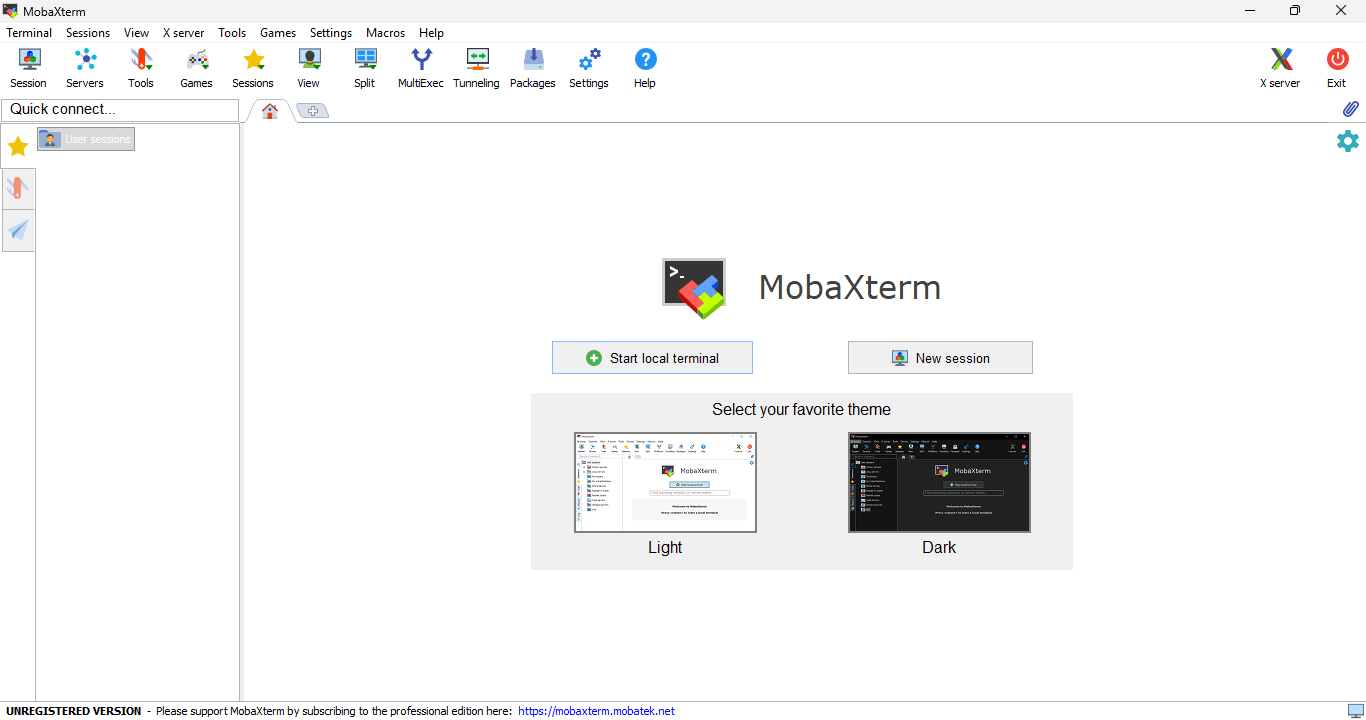
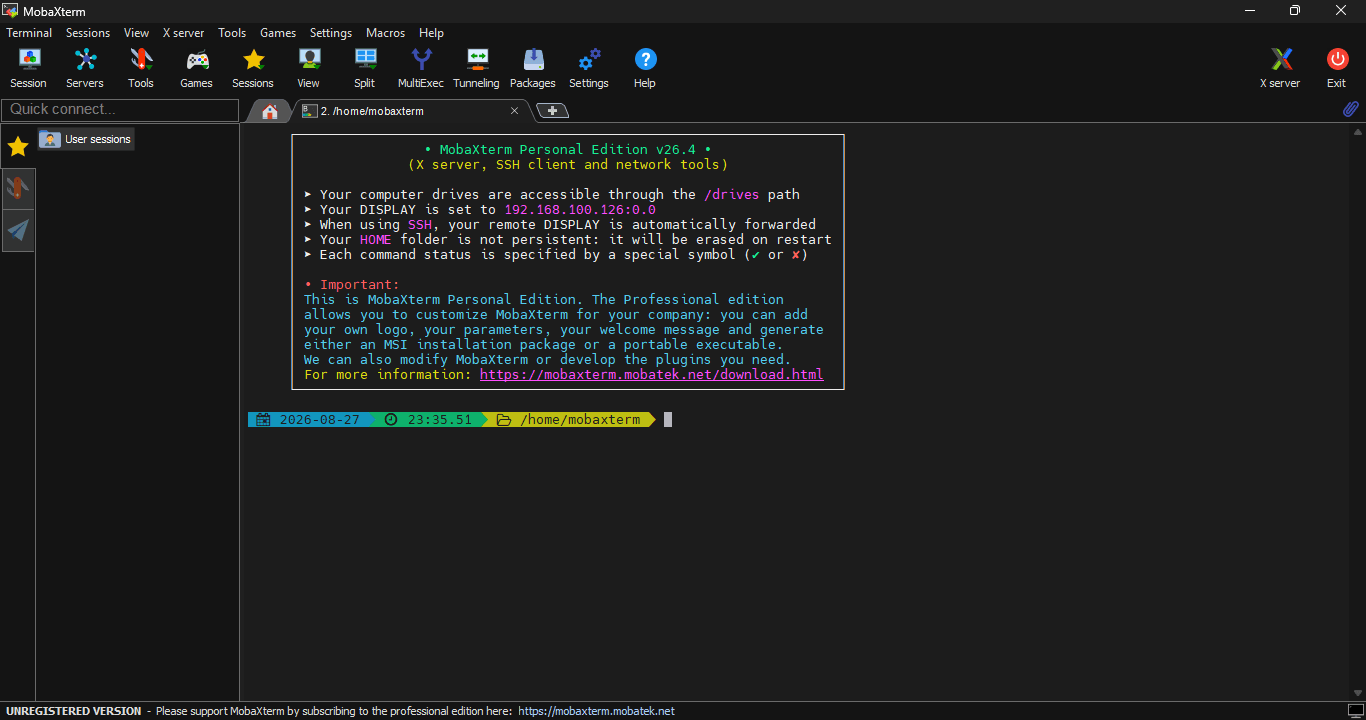
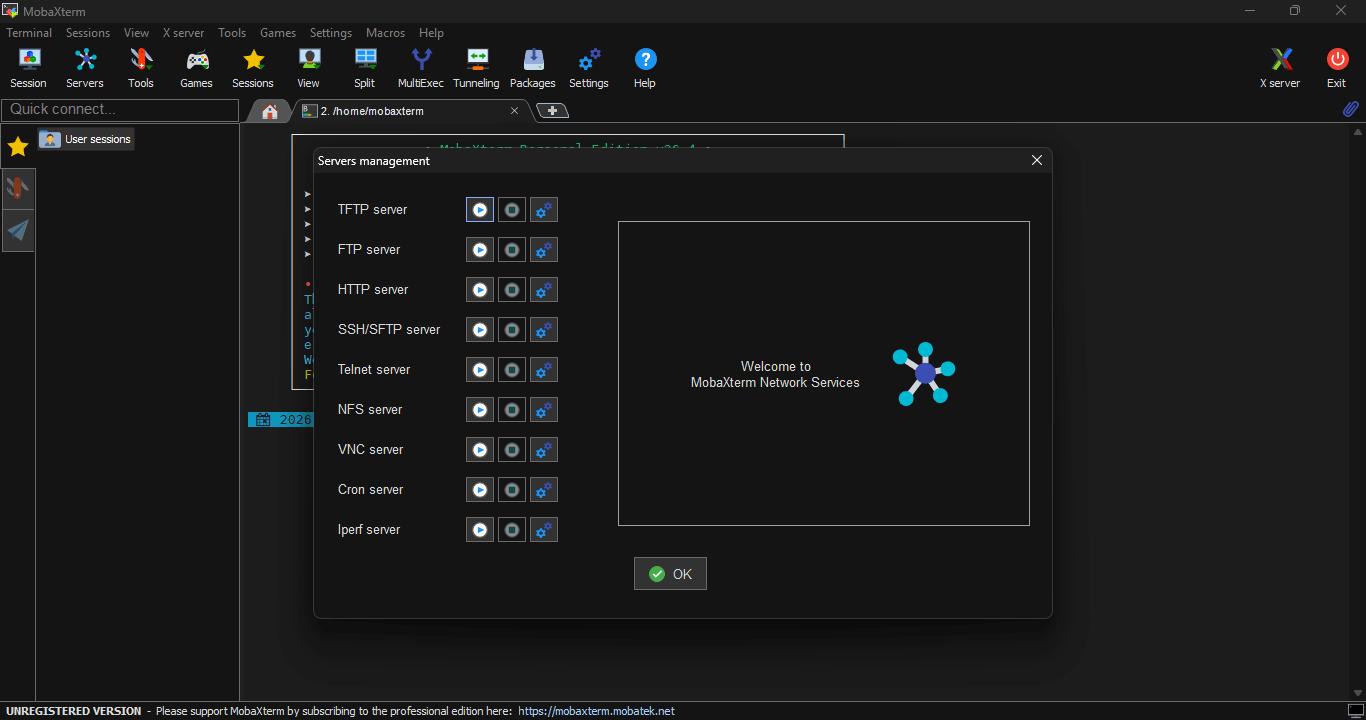
MobaXterm packs an SSH client, an X11 server, and a full set of Unix commands into one Windows app, so you stop juggling PuTTY, Xming, and WinSCP separately.
It’s built for developers, sysadmins, and anyone who connects to Linux or Unix servers from a Windows desktop.
The free Home Edition handles most personal workflows, capped at 12 sessions, 12 macros, and 12 bookmarks.
If you manage more than one remote server and want it all in a single tabbed window, this download earns its spot on your machine. We checked the SHA-256 hash on every build linked below before publishing it.
What is MobaXterm?
MobaXterm is a terminal application for Windows built by the French company Mobatek. It combines an SSH client, an embedded X11 server, and a Cygwin-based set of Unix commands into a single tabbed window.
Instead of installing PuTTY for SSH, Xming for X11 forwarding, and WinSCP for file transfers, you get all three in one app.
It’s been a go-to tool for network engineers and developers since its first release, and it’s still one of the most searched SSH clients for Windows because it solves a real annoyance: switching between five separate remote-access tools.
Built-in X11 Server
MobaXterm’s X11 server starts automatically the moment you launch the app. Connect over SSH to a Linux machine, run a graphical Linux application, and its window opens directly on your Windows desktop, no separate X server configuration needed.
This is the feature most engineers mention first when they explain why they switched from PuTTY plus a standalone X server.
Setup that used to take three separate installs and some registry tweaking now just works out of the box.
SSH Client and Session Manager
The session manager on the left sidebar keeps every saved SSH, RDP, VNC, FTP, or Telnet connection organized in folders.
Click a saved session and MobaXterm opens it in a new tab, complete with a local file browser showing the remote directory tree next to your terminal.
Password and key-based authentication both work, and sessions can be set to reconnect automatically if the connection drops, which matters if you’re SSH’d into something you can’t afford to lose mid-task.
Unix Commands on Windows
Under the hood, MobaXterm runs a lightweight Cygwin distribution, which means commands like ls, grep, ssh, rsync, and wget work directly in its local terminal without installing WSL or a separate Unix environment.
It’s not a full Linux distribution, but for scripting and quick file operations on Windows, it removes a lot of friction that Command Prompt or PowerShell alone don’t solve.
File Transfer: SFTP, SCP, and FTP
Every SSH session automatically opens a matching SFTP file browser in the same tab, so dragging files between your Windows machine and a remote server doesn’t require opening WinSCP separately.
It also supports standalone FTP and SCP sessions if that’s all you need. The file transfer panel updates live and remembers your last browsed directory per session.
Remote Desktop: RDP and VNC
Beyond terminal work, MobaXterm handles RDP and VNC connections in the same interface, useful if you manage a mix of Windows and Linux machines and don’t want a separate remote desktop client for each protocol.
Plugins and Customization
MobaXterm supports optional plugins that add tools like Docker integration, extra compression formats, or additional protocol support.
The interface itself is customizable down to color schemes, font sizes, and keyboard shortcuts, and it remembers your layout across sessions.
Home Edition vs Professional Edition
This is the comparison most people search for before downloading. Home Edition is free forever but caps you at 12 simultaneous sessions, 12 macros, and 12 bookmarks; past that, you’ll see a popup asking you to upgrade.
Professional Edition removes all three caps and adds persistent session logging, custom branding for enterprise deployment, and priority support.
For a solo developer managing a handful of servers, Home Edition is usually enough. Once you’re managing dozens of connections across a team, the caps start getting in the way and Professional becomes worth the cost.
Performance and Resource Use
MobaXterm stays light on system resources even with several tabs open.
It’s not going to strain a modern machine, though users running many simultaneous X11 sessions with graphics-heavy remote apps will notice more RAM and CPU use than a plain terminal window would need.
Portable Edition: How It Works
Unzip the folder, run MobaXterm.exe, done. No installer, nothing touches the registry. Works fine off a USB stick if that’s your thing.
Your sessions and bookmarks all live in a MobaXtermSettings folder right next to the exe, so copying that one folder moves your entire setup to another machine.
Downside: you’re on your own for plugins and updates since there’s no installer babysitting that for you.
MobaXterm vs PuTTY
PuTTY still does one job and does it fast: you open it, you’re SSH’d in, that’s it. MobaXterm throws in file transfer, X11 forwarding, and a Unix shell on top, so you’re not switching between four different windows for one server.
The tradeoff is startup time. For a quick thirty-second connection, PuTTY wins every time. Once you’re juggling several servers and moving files back and forth all day, the extra weight stops mattering.
I still keep both on my machine. PuTTY for the one-off, MobaXterm for everything else.
How to Download & Install
How to Download and Install MobaXterm
Direct Download
Get the verified MobaXterm build from the GramFile MobaXterm download page. We manually review the file and publish its SHA-256 checksum so you can confirm it against the official release before running it. No bundled toolbars, no forced browser extensions.
Available Installer Types
- Installer Edition (.msi) – the standard setup. Adds a Start menu shortcut and installs the default plugin set for you.
- Portable Edition (.zip) – no install required. Unzip it anywhere, including a USB drive, and run MobaXterm.exe directly. Good fit for locked-down office machines.
System Requirements
- Windows 7, 8, 8.1, 10, or 11 (32-bit and 64-bit builds both available)
- Around 100 MB of free disk space
- No demanding RAM or CPU requirements – it runs comfortably on older hardware
License Type and Activation
MobaXterm ships in two editions. Home Edition is free for personal use, permanently, but limits you to 12 open sessions, 12 macros, and 12 saved bookmarks at once.
Professional Edition removes those caps and adds features like persistent session history across reboots and centralized license deployment for teams. Pricing starts near $69 for a single-user license and drops per seat as you buy in bulk.
To activate Professional, Mobatek emails you a license key file after purchase.
- Drop that file into the same folder as MobaXterm.exe, or load it manually from Settings > Configuration > Misc > License.
- The app switches to Professional mode automatically the next time you launch it, no separate serial number to type in.
How to Update MobaXterm
MobaXterm doesn’t check for updates on its own. Go to Help > Check for updates inside the app, or just download the newest installer from the GramFile page and run it over your current install.
Your saved sessions, bookmarks, and settings stay intact. Portable Edition users should download the latest zip and copy their old MobaXtermSettings folder into the new one so sessions carry over.
Pros & Cons
What we liked
- Free Home Edition, no time limit
- SSH, X11, and file transfer combined
- Portable edition needs no install
- Unix commands work without WSL
- Session manager keeps connections organized
What we didn't like
- Free version caps sessions at 12
- Professional license costs extra per seat
- Windows only, no native Mac version
Best MobaXterm Alternatives

Conclusion
4.7out of 5 · 42 user ratings
MobaXterm earns its download numbers honestly. It replaces three or four separate remote-access tools with one that doesn’t get in your way, and the free tier covers real work, not just a crippled demo.
The session cap is the only real limitation, and it only becomes a problem once you’re managing more servers than a single person usually needs to.
For anyone connecting to Linux or Unix boxes from a Windows machine, it’s still one of the most reliable tools in this category.
| App | Best For | Price | Platform | Standout Feature |
|---|---|---|---|---|
| MobaXterm | SSH plus X11 plus file transfer in one app | Free (Home) / from $69 (Pro) | Windows | Built-in X11 server, no separate setup |
| PuTTY | Lightweight, no-frills SSH access | Free | Windows, Linux | Tiny footprint, fast to launch |
| Termius | Cross-device SSH with cloud sync | Free / from $10 per month (Pro) | Windows, Mac, Linux, iOS, Android | Synced sessions across all your devices |
| SecureCRT | Enterprise teams needing scripting and support | From $99 (one-time) | Windows, Mac, Linux | Advanced scripting and session logging |
FAQ
Is MobaXterm free to use?
Yes. The Home Edition is free for personal use with no expiration date, but it limits you to 12 open sessions, 12 macros, and 12 bookmarks at a time. Removing those caps requires a paid Professional license.
What is the difference between MobaXterm Installer and Portable edition?
The Installer edition (.msi) adds MobaXterm to your Start menu and installs default plugins automatically. The Portable edition (.zip) needs no installation at all; you unzip it and run the executable directly, which works well on USB drives or machines where you can’t install software.
Does MobaXterm work on Mac or Linux?
No, MobaXterm is built for Windows only. Mac and Linux users typically rely on the built-in terminal along with an SSH client, since both operating systems already include native Unix tooling.
How many sessions can I open in the free version?
The free Home Edition allows up to 12 simultaneous sessions. Once you hit that limit, MobaXterm prompts you to close a session or upgrade to Professional.
How much does MobaXterm Professional cost?
A single-user Professional license starts at around $69, with the per-seat price dropping as you purchase licenses for more users. Pricing is set by Mobatek and can change, so check the official pricing page before buying.
Is MobaXterm safe to download?
Yes, as long as you download it from the official Mobatek site or a verified mirror like GramFile that checks the file’s SHA-256 hash. Avoid third-party download sites that repackage installers with bundled adware.
Does MobaXterm include an X11 server?
Yes, MobaXterm has a built-in X11 server that starts automatically when the app launches, so graphical Linux applications you run over SSH display directly on your Windows desktop without any separate configuration.
How do I update MobaXterm to the latest version?
Open MobaXterm and go to Help then Check for updates, or download the newest installer from the official site or GramFile and run it over your existing installation. Your saved sessions and settings are preserved.
Found a problem with this download? Report an outdated version, broken link, suspicious installer or incorrect information.
Changelog - What's new in version 26.6.0.5560
- New feature: added a new 64-bit RDP engine for faster remote desktop sessions- New feature: added a new IME composition tool for terminal sessions
- Improvement: improved support of the "RemoteGuard" RDP option with the new RDP engine
- Improvement: added support for the "PublicMode" setting in the new RDP engine
- Improvement: improved compatibility with new versions of RDP servers with the new RDP engine
- Improvement: the new IME composition window is now displayed directly inside terminal sessions
- Improvement: properly handle the backspace key in the new IME composition window
- Improvement: changed the order of the executable main icon for better compatibility with Citrix
- Improvement: added automatic detection of multi-line PAM prompts in SSH and SFTP sessions
- Improvement: added automatic detection of URLs in SSH and SFTP session prompts
- Improvement: the SSH browser follows the current terminal path even when the browser tab is hidden
- Improvement: the "_Username_" variable in the custom persistent root folder will be translated into the current user name
- Improvement: ensure that all terminal sessions are properly notified when the keyboard layout changes
- Improvement: suppressed a first-time startup window in browser sessions that use the Firefox engine
- Improvement: updated the embedded OpenSSL library to its latest version
- Improvement: updated the embedded OpenSSH command to its latest version
- Improvement: updated the embedded X server based on Xorg to its latest version
- Bugfix: after reconnecting an RDP session, the corresponding tab title is no longer displayed in red
- Bugfix: the startup macro now remains attached to the session when duplicating it
- Bugfix: on some Windows 7 Pro computers, the tab titles were hidden
 Zoom Workplace
 Nitro PDF Pro
 Sumatra PDF
 IrfanView
 K-Lite Codec Pack
 WinRAR