

Download Details
- Version
- 7.3.3 (latest)
- File size
- 60.18 MB
- License
- Free
- Security scan
- VirusTotal: 68 of 68 engines say OK (0 flagged)
- SHA-256 checksum
865cd80080ef1948bd818000c05fe81cabbbd0688a91c2cf8978f9cc73fd5a06- Developer
- Telegram
- Supported OS
- Windows 11, Windows 10
- Installers
- 64-bit (x64), 32-bit (x86), ARM (Arm64), Portable
- Downloads
- 19917
- Rating
- 4.8 out of 5 · 136 reviews
- File name(s)
- td-setup-win-x64-7.3.3.exe, td-setup-win-x86-7.3.3.exe, td-setup-win-arm-7.3.3.exe, td-portable-win-x64-7.3.3.zip
 Reviewed by Eman Sakr
Tested on Windows 11 and 10 · · How we review
Screenshots
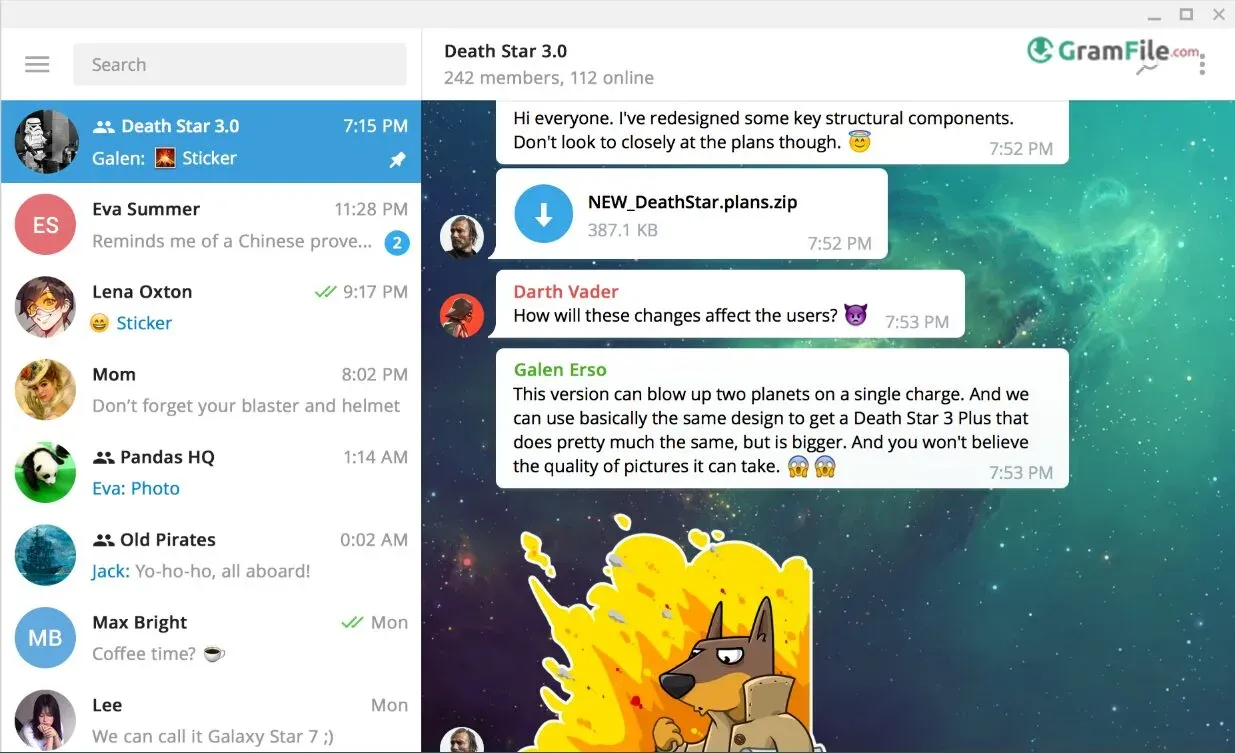

Telegram Desktop for Windows brings the full power of Telegram’s privacy-focused platform to your workstation, combining military-grade encryption with intuitive productivity features.
Launched in 2013 as a mobile-first alternative to traditional messaging apps, Telegram expanded to Windows in 2014 to meet growing demand from professionals and power users.
The desktop version has since evolved into a robust communication hub, offering seamless cloud synchronization, large-file transfers, and customizable workflows.
In this review, we’ll examine how the Windows client stands up for both personal privacy and professional collaboration in today’s digital landscape.
Telegram Desktop delivers the platform’s signature speed and privacy in a streamlined Windows client, optimized for professionals who prioritize both security and efficiency.
Unlike browser-based alternatives, the native app provides smoother performance and deeper integration with Windows workflows. Here’s how its features stand out:
Cloud-Based Synchronization
All messages, files, and chats sync instantly across devices via Telegram’s encrypted cloud.
Switch between phone and desktop without missing conversations—ideal for remote workers or teams coordinating across time zones.
End-to-End Encryption (Secret Chats)
While standard chats use server-client encryption, optional Secret Chats offer true end-to-end protection with self-destruct timers. Perfect for sensitive business discussions or confidential file sharing.
No File Size Limits
Send documents, videos, or archives up to 2GB per file, unmatched by competitors like WhatsApp or Slack. Files remain accessible indefinitely in the cloud.
Customizable
- Quick keyboard shortcuts (Ctrl+F to search, Ctrl+Up/Down to jump chats)
- Minimalist mode for distraction-free focus
- Custom themes with dark/light scheduling
Group & Channel Tools
- Admin controls for large teams (500+ members)
- Pin important announcements
- Silent messages for off-hours communication
Bot Integrations
Automate tasks with 3rd-party bots:
- @GmailBot for email alerts
- @GitHubBot for code updates
- Custom bots via API
Voice Calls & Screen Sharing
Crisp VoIP calls with optional end-to-end encryption. Share your screen during meetings without switching apps.
Local Data Control
Choose where to store downloads (defaults to secure Telegram folder). Opt to auto-delete cached files.
How to Use Telegram Desktop (Windows)
- Download & Install: Get the official app from telegram.org.
- Launch the App: Open Telegram Desktop after installation.
- Choose Login Method: Pick “Log in by QR Code” or phone number.
- QR Code Login (Easiest): Open Telegram on your phone, go to Settings > Devices > Link Desktop Device, then scan the QR on your PC screen.
- Phone Number Login: Enter your number, then input the SMS verification code sent to your phone.
- Set Up Profile: Add a photo/name if it’s your first time.
- Start Messaging: Click the pencil icon to begin a new chat or select existing conversations.
- Send Files: Drag & drop documents (up to 2GB) into any chat.
- Enable Secret Chats: Right-click a contact’s name > “Start Secret Chat” for encrypted messages.
- Customize Settings: Adjust themes, notifications, and privacy under the hamburger (☰) menu.
Tip: Use shortcuts like Ctrl+F to search chats or Ctrl+Up/Down to switch conversations quickly.
Pros & Cons
What we liked
- Fast and lightweight
- Syncs across all devices
- Send large files (2GB)
- Secret chats with encryption
- Clean, ad-free interface
What we didn't like
- No video calls
- Few business features
- No message scheduling
- Can be confusing for beginners
Best Telegram Desktop Alternatives
-
 WhatsApp
Brings your phone's messaging to your computer screen.
Conclusion
4.8out of 5 · 136 user ratings
Telegram Desktop for Windows remains a top choice for users who prioritize speed, privacy, and seamless cross-device synchronization.
Its lightweight yet powerful design strikes the perfect balance between functionality and simplicity, offering features like unlimited file sharing and encrypted secret chats that many competitors restrict behind paywalls.
Why Choose Telegram Desktop?
- For Privacy-Conscious Users: End-to-end encrypted secret chats and a strict no-ads policy make it more private than WhatsApp or Facebook Messenger.
- For Professionals & Teams: The ability to send 2GB files dwarfs Slack’s limits, while cloud sync ensures you never lose access to important documents.
- For Power Users: Customizable shortcuts and bots automate tasks that require third-party tools in other apps.
How It Compares
- vs WhatsApp Desktop: Telegram wins with larger file support, native apps (no browser dependency), and proper multi-device sync.
- vs Discord: Better for file sharing and privacy, though Discord leads in voice chat features.
- vs Signal: More features (channels, bots) but Signal has simpler, stronger default encryption.
The Bottom Line
If you want a messaging app that’s fast, flexible, and free without hidden compromises, Telegram Desktop delivers.
It’s not perfect—video calls still require mobile, and business features lag behind Slack, but for personal use or agile teams, it’s arguably the best blend of utility and user control available today.
Found a problem with this download? Report an outdated version, broken link, suspicious installer or incorrect information.
Changelog - What's new in version 7.3.3
- Show TON DNS gift owners as links, not address groups.- Fix green video tint when using D3D9 backend with ANGLE on Windows.
- Fix transparent unusable media viewer with ANGLE on Windows.
- Fix inability to type '?' showing Shortcuts legend instead.
- Fix text rendering ignoring system settings on Windows.
- Fix Chinese characters not showing on older Windows.
- Fix possible crash in context loss on Windows.
- Fix respecting Focus Mode on Windows.
- Fix menu translation on macOS.
- Fix several other crashes.
- Add DESKTOP_APP_DISABLE_PRIVATE_QT_API build option. (allows to build tdesktop without the need to rebuild on Qt updates at the price of feature degradation and KWindowSystem dependency)
 Zoom Workplace
 Nitro PDF Pro
 Sumatra PDF
 IrfanView
 K-Lite Codec Pack
 WinRAR