

Download Details
- Version
- 13.1.1.700 (latest)
- File size
- 175.3 MB
- License
- Free
- Security scan
- VirusTotal: 64 of 64 engines say OK (0 flagged)
- SHA-256 checksum
4a314d6babeb6a071ec2c7959375fc3cf2ab18336e6c07858795c514b3eb97b9- Developer
- Veeam Software
- Supported OS
- Windows 11, Windows 10
- Installers
- 64-bit (x64), 32-bit (x86), Offline
- Downloads
- 9728
- Rating
- 4.5 out of 5 · 46 reviews
- File name(s)
- VeeamAgentWindows_13.1.1.700_wg.exe
 Reviewed by Ahmed Madbouli
Tested on Windows 11 and 10 · · How we review
Screenshots
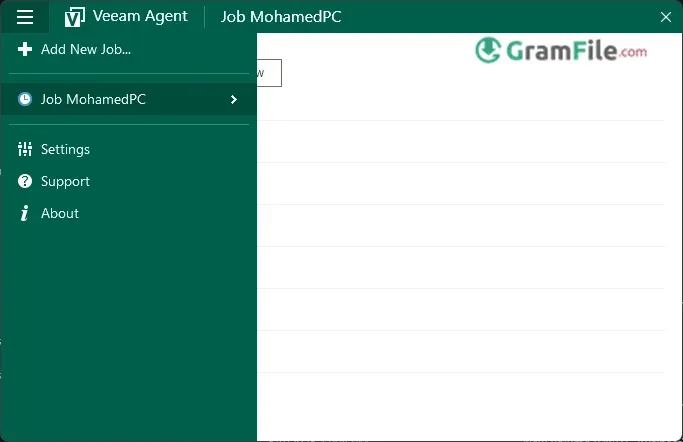
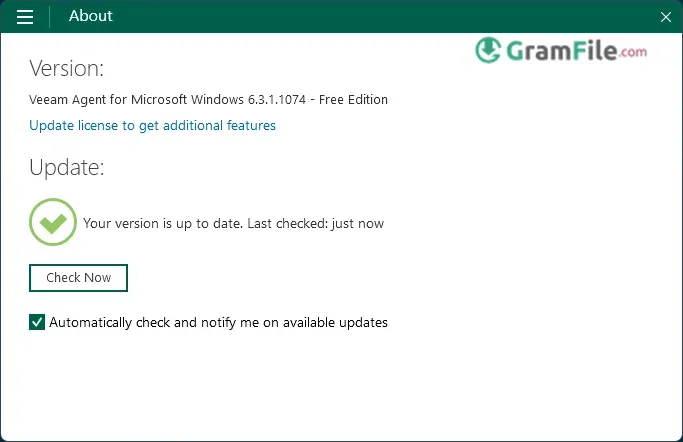
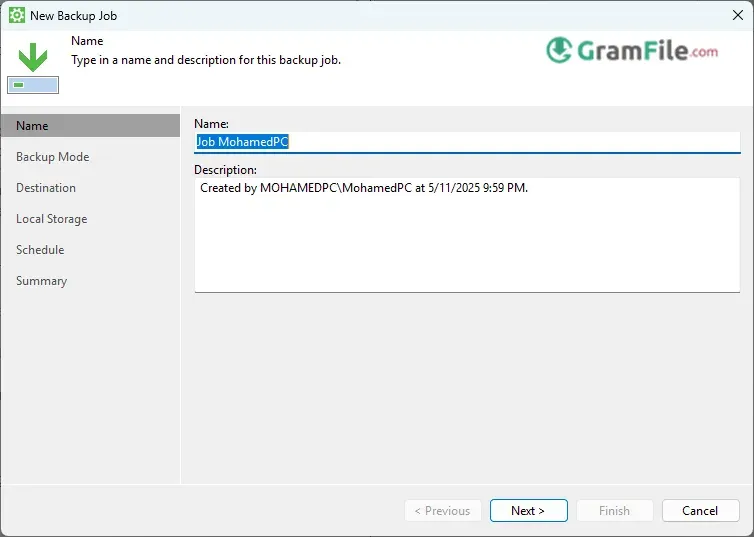
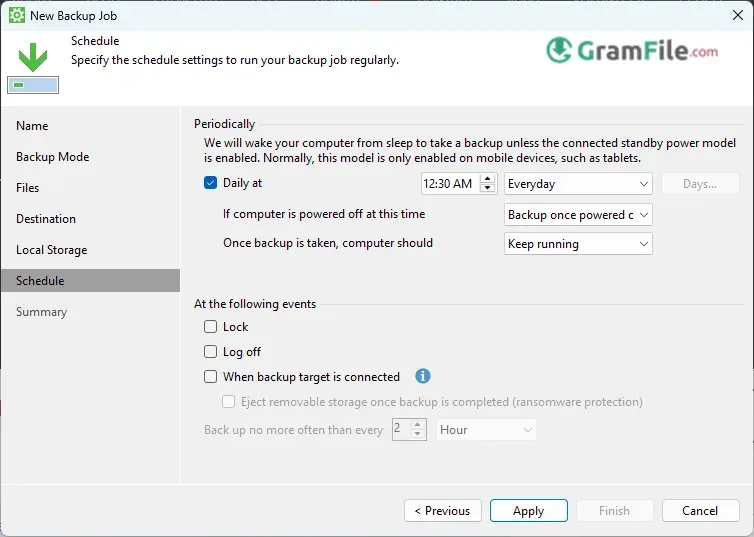
Since its launch in 2015 (originally as Veeam Endpoint Backup FREE), Veeam Agent for Windows has been a go-to solution for protecting physical machines, combining enterprise-grade features with straightforward usability.
Built on Veeam’s proven backup technology, it offers full system imaging, file-level recovery, and ransomware protection, supporting everything from local drives to cloud storage.
What makes it stand out? Powerful yet simple. Whether you’re backing up a home PC or managing workstations across a business, it delivers automated, encrypted, and dependable backups without complexity.
Over the years, it’s evolved into a versatile tool that balances professional-grade security with the ease of a set-it-and-forget-it approach.
What is Veeam Agent?
Veeam Agent for Windows is a reliable backup tool that protects your entire PC – from personal laptops to business workstations.
Unlike basic Windows backup tools, it offers complete system image backups, ransomware protection, and flexible recovery options.
First introduced in 2015, it has grown into one of the most trusted backup solutions for both home users and IT professionals.
Latest Version
- Full support for Windows 11 and upcoming Server versions
- Improved 64-bit performance for faster backups
- Enhanced stability and bug fixes
- Better resource management during backups
Key Features
Complete System Protection
Imagine being able to restore your entire PC exactly as it was – programs, settings, files – after a crash. That’s what Veeam’s disk imaging does.
Unlike simple file backups, this captures everything, including your operating system.
Smart Backup Scheduling
Set it once and forget it. The software can automatically back up when you’re not using your computer, or create versions at regular intervals.
No more remembering to click “backup now.”
Military-Grade Security
Your backups get 256-bit AES encryption – the same protection banks use. Even if someone gets their hands on your backup files, they can’t access your personal data without your password.
Recovery Options for Any Situation
- Need one deleted file? Restore it in seconds.
- Hard drive died? Rebuild your entire system on new hardware.
- Ransomware attack? Roll back to a clean version before the infection.
Storage Flexibility
Save backups to:
- External USB drives
- Network folders
- Cloud storage (including popular services)
- Or any combination for extra safety
How to Download & Install
Download
Get the latest version. Click on the above Green Download Button for official and direct download. This ensures you get a legitimate copy and avoid any potential malware.
Install
1. Double-click the setup file
2. Click Next
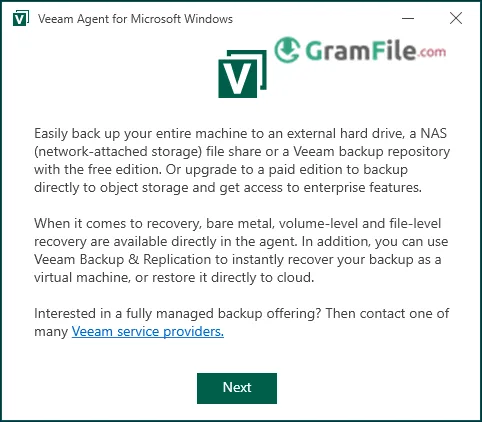
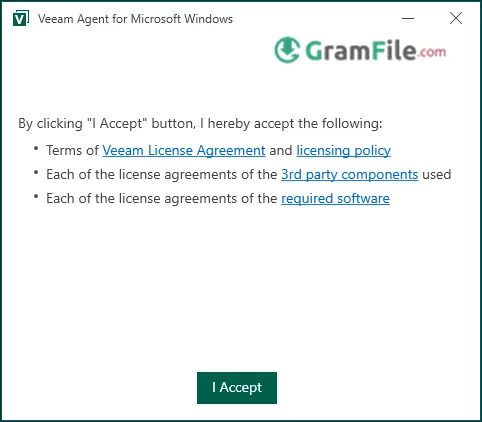
3. Accept the license – Click I Accept
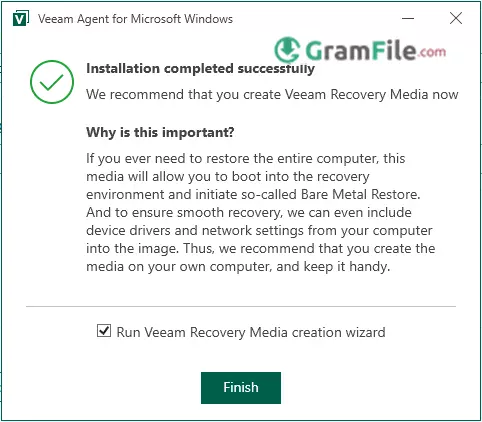
4. Click Finish and Run
Configure
Choose backup type (full system, volume, or file-level) and destination (local drive, network share, or cloud).
Pros & Cons
What we liked
- Full system image backups
- Easy bare-metal recovery
- Strong ransomware protection
- Works automatically in background
- Free version available
What we didn't like
- Cloud options limited
- No mobile access
- Paid version needed for best features
Best Veeam Agent Alternatives
-
 Macrium Reflect
Safeguards your Windows system with powerful imaging and backup tools.
Conclusion
4.5out of 5 · 46 user ratings
After putting Veeam Agent for Windows through its paces, here’s the bottom line: it’s the most reliable “set it and forget it” backup solution for Windows users who want enterprise-grade protection without the complexity.
Why Choose Veeam Agent?
- It Just Works – Unlike finicky backup tools that fail when you need them most, Veeam delivers consistent, automatic protection.
- Complete Peace of Mind – From ransomware protection to bare-metal recovery, it covers all disaster scenarios.
- Zero Learning Curve – The interface is so intuitive, your grandparents could use it (but powerful enough for IT pros).
Veeam vs. The Competition
- Vs. Windows Backup: Veeam offers stronger encryption, cloud support, and actual reliability.
- Vs. Free Tools: Most lack Veeam’s system image backups and recovery flexibility.
- Vs. Paid Solutions: Many charge for features Veeam includes free, like ransomware protection.
The Reality Check
While it lacks Mac/Linux support and some cloud integrations, for Windows users, nothing else combines this level of power with simplicity.
Whether you’re protecting family photos or business files, Veeam Agent is the silent guardian your data deserves.
Final Recommendation
If you value your files but hate complicated software, download the free version today. Your future self will thank you when disaster strikes.
Found a problem with this download? Report an outdated version, broken link, suspicious installer or incorrect information.
 Zoom Workplace
 Nitro PDF Pro
 Sumatra PDF
 IrfanView
 K-Lite Codec Pack
 WinRAR