

Download Details
- Version
- 22H2 (Build 19045) (latest)
- File size
- 6.51 GB
- License
- Free
- SHA-256 checksum
2c23bc8b95a9314f15ebff881dcbea49651f52a96a0327d7aaf523aa66043765- Developer
- Microsoft Corporation
- CPU Support
- 64-bit (x64), 32-bit (x86), ARM (Arm64), Offline
- Downloads
- 18057
- Rating
- 4.7 out of 5 · 83 reviews
- File name(s)
- en-us_windows_10_business_editions_version_22h2_updated_oct_2025_x86_dvd_d9ac9936.iso, en-us_windows_10_business_editions_version_22h2_updated_oct_2025_x86_dvd_d9ac9936.iso
 Reviewed by Mohamed Zaki
Tested on PC, Virtual Machine · · How we review
Screenshots
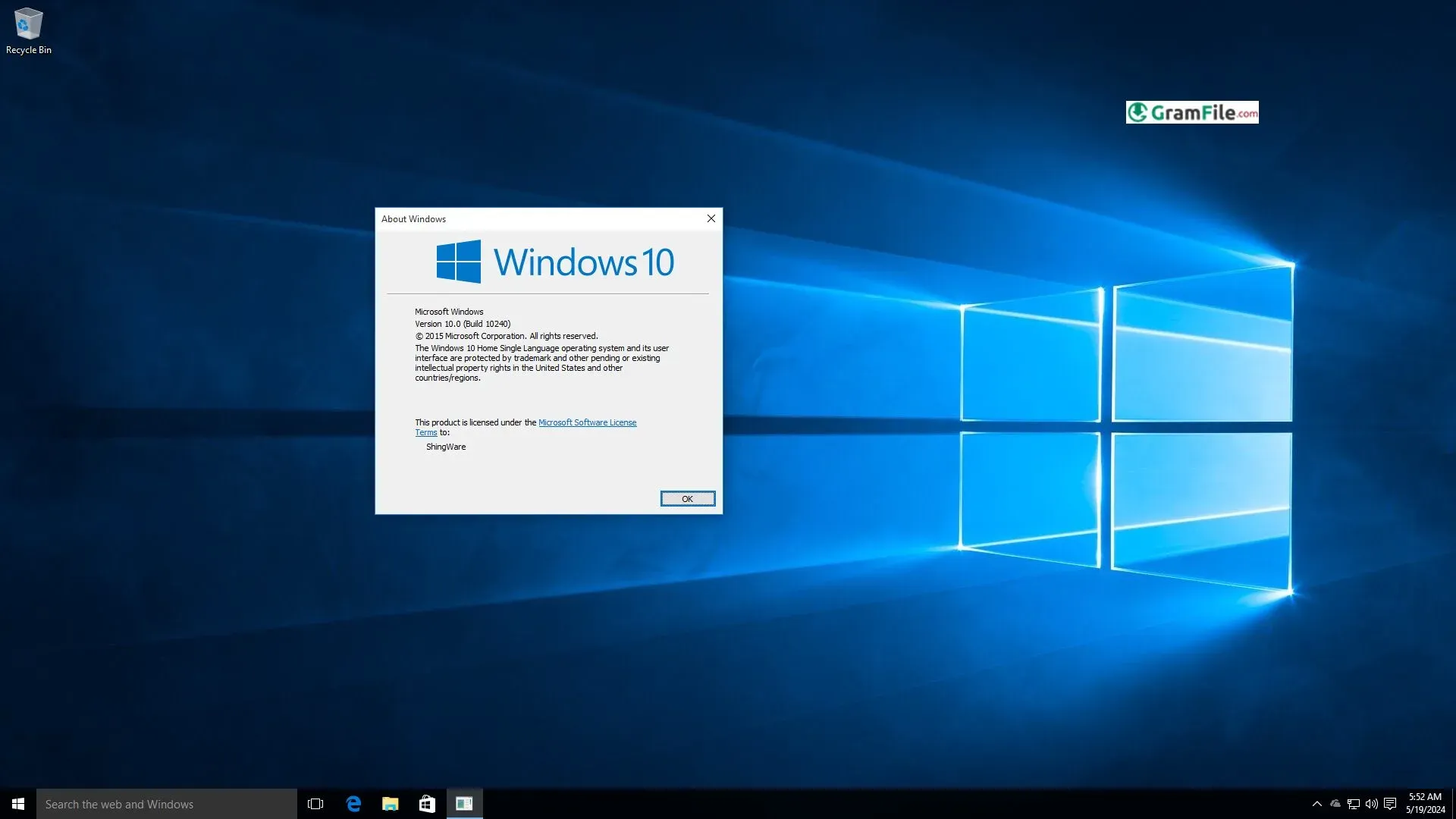
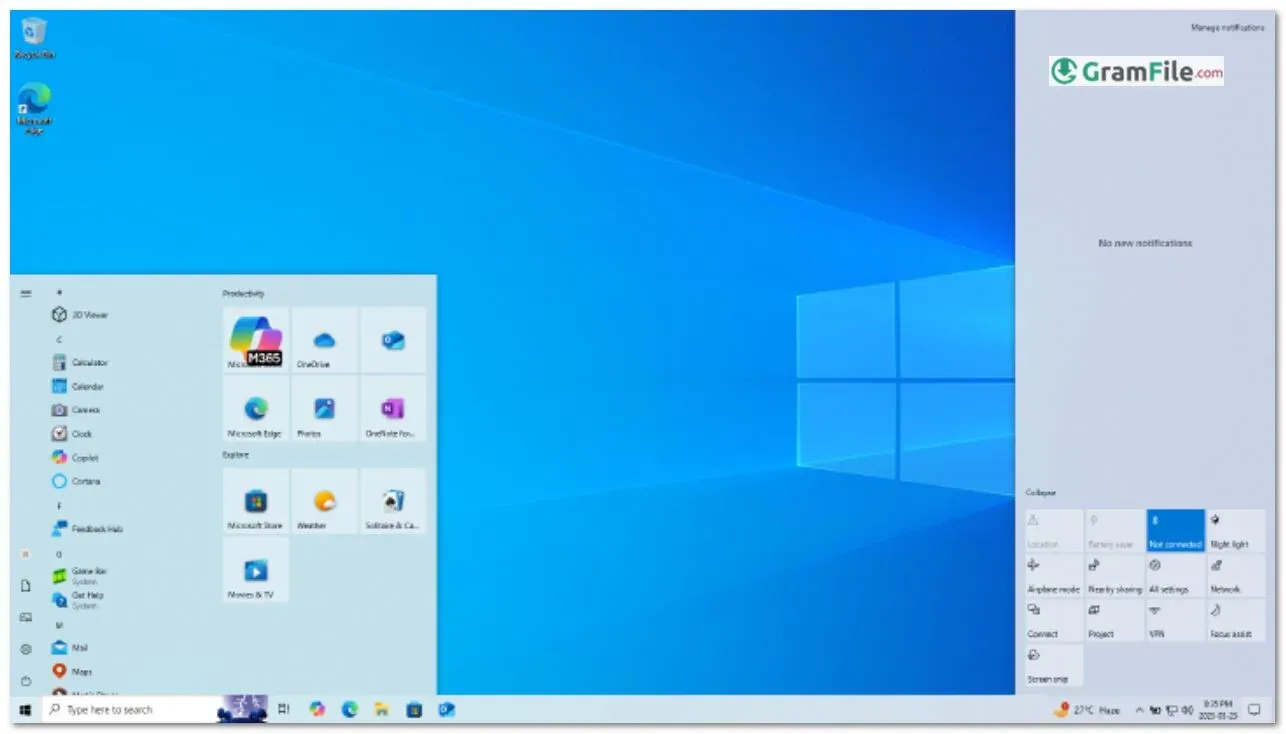
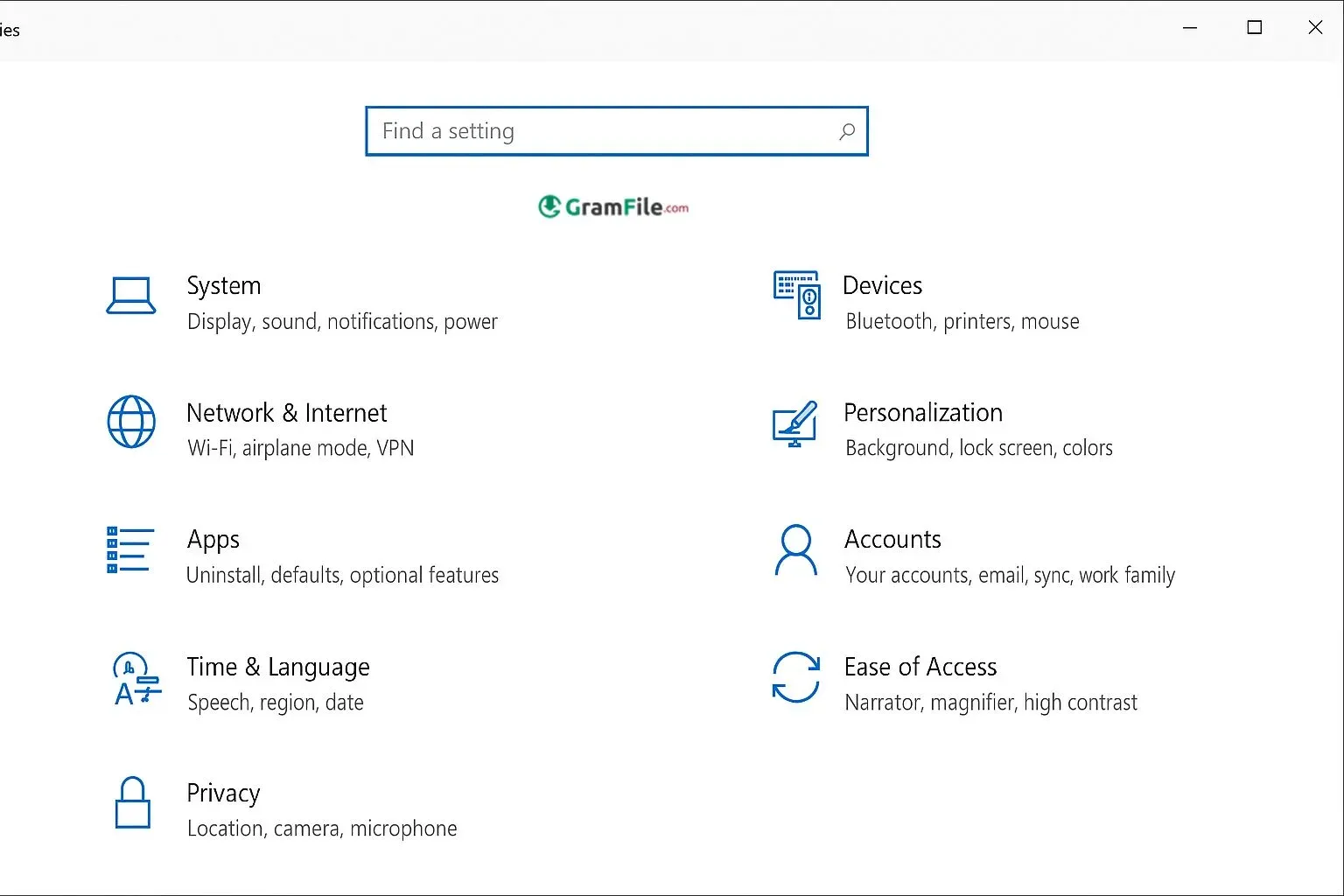
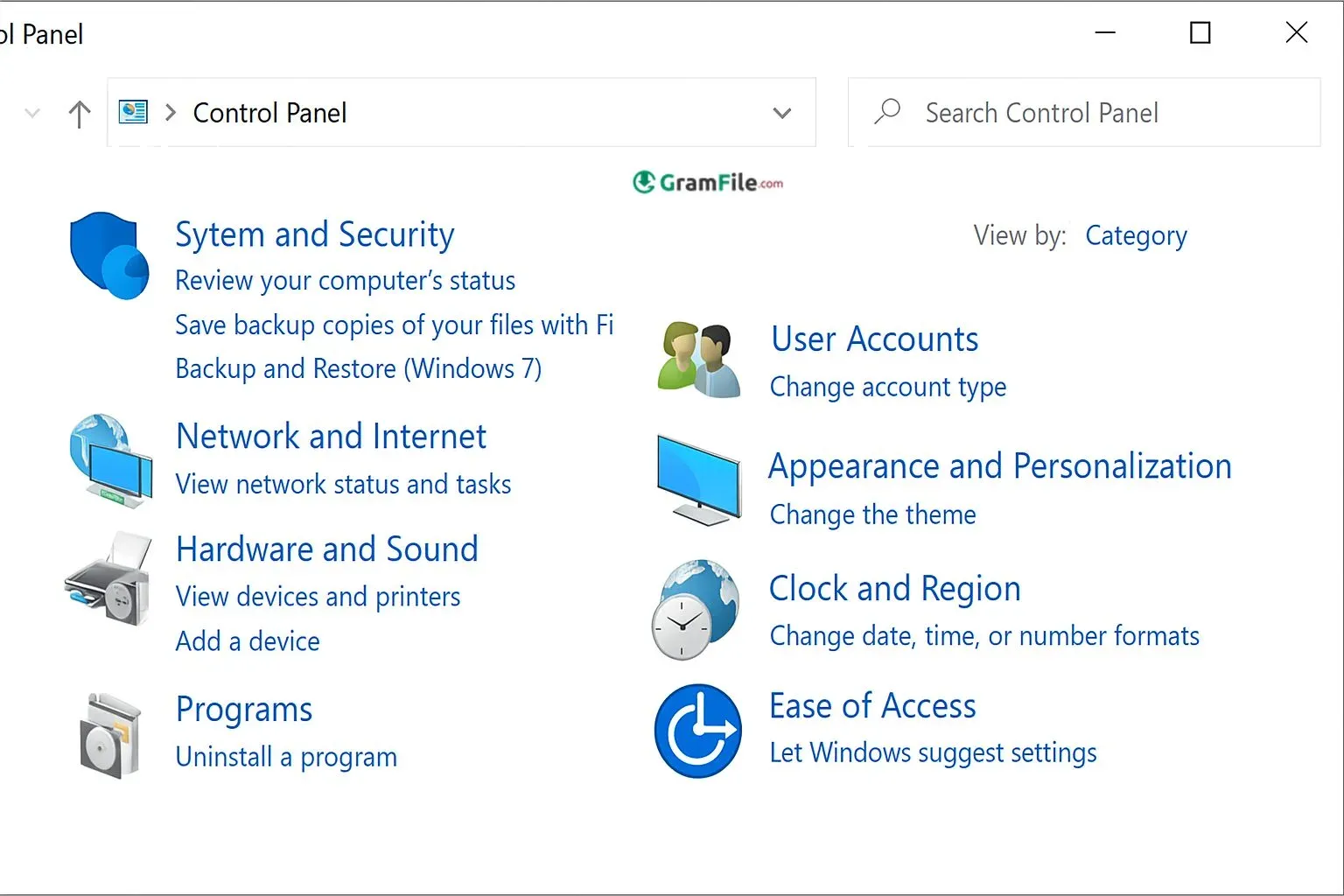
Windows 10 is Microsoft’s most balanced operating system, built to combine the classic familiarity of Windows 7 with the modern design and security of Windows 8.
Released on July 29, 2015, it marked the beginning of a “Windows as a service” era, where Microsoft no longer launched entirely new versions every few years but instead improved Windows through continuous updates.
The early goal of Windows 10 was clear: to create one system that works perfectly across all devices, from powerful desktop computers and laptops to tablets and even hybrid touch devices.
Over time, Microsoft refined Windows 10 through dozens of major updates, each improving speed, security, and the way users interact with their devices. It became the heart of millions of homes, schools, and businesses.
What is Windows 10?
Windows 10 is a modern operating system developed by Microsoft for PCs, laptops, and tablets. It bridges the gap between personal and professional use, ideal for students, creators, and businesses alike.
Its intuitive design brings back the Start Menu, integrates the Microsoft Store, and includes smart features like Cortana, Windows Hello, and Defender Security.
Windows 10 adapts easily to any hardware and supports a massive range of applications. It is known for being easy to use, secure, and compatible with older programs, a combination few systems achieve.
Windows 10 Version 22H2 and Latest Updates
The 22H2 update, known as the Windows 10 2022 Update, is the final major version for Windows 10. It focuses on performance and reliability improvements rather than drastic design changes.
How to Update
You can update using the Windows Update Assistant, or download the offline installer directly from Microsoft for manual setup.
Key New Features and Highlights
- Enhanced security and driver updates
- Better Windows Hello login speed
- Improved Microsoft Edge integration
- Updated Settings interface
- Reduced system bugs and background load
- Smarter battery optimization
- Latest Defender updates for protection
- New emoji panel improvements
- Stronger compatibility with modern hardware
- Overall performance and stability upgrade
Windows 10 22H2 is designed to run efficiently on both old and new hardware, making it the perfect long-term choice for users who prefer a familiar interface without switching to Windows 11.
How to Download & Install
Step 1: Click on the above Green Download Button for official and direct download.
Step 2: Create Installation Media
Run the Media Creation Tool and choose either Upgrade this PC now or Create installation media (USB/DVD).
Step 3: Choose Your Edition and Language
Select your preferred Windows 10 edition, language, and architecture (32-bit or 64-bit).
Step 4: Installation Process
If you’re upgrading, Windows will automatically install. If you’re installing fresh, boot your PC from the USB drive and follow on-screen instructions.
Step 5: Activation
Once installed, activate using a genuine Microsoft key or sign in with a Microsoft account linked to a digital license.
Important Tip: Always back up your data before installation to prevent file loss.
System Requirements
Even though Windows 10 is powerful, it runs smoothly on older machines too. Here are the basic requirements:
- Processor: 1GHz or faster with 2 or more cores
- RAM: 2GB (32-bit) or 4GB (64-bit)
- Storage: 20GB (minimum)
- Graphics: DirectX 9 or later
- Display: 800×600 resolution minimum
- Internet: Required for updates and activation
32-bit vs 64-bit
Windows 10 comes in both 32-bit and 64-bit versions.
- 32-bit: Designed for older PCs with less RAM (below 4GB).
- 64-bit: Recommended for modern systems, allowing more memory and better performance.
If your PC supports it, always choose 64-bit for faster multitasking and improved security.
Different Editions of Windows 10
Microsoft offers several editions to fit different users:
- Windows 10 Home: Ideal for everyday users, featuring Cortana, Microsoft Edge, and basic security.
- Windows 10 Pro: Includes advanced tools like BitLocker, Remote Desktop, and domain join.
- Windows 10 Enterprise: Built for large organizations, offering deeper device and app management.
- Windows 10 Education: Tailored for schools and learning institutions with academic licensing.
- Windows 10 IoT: Designed for small embedded systems and smart devices.
How to Buy and Activate Windows 10
You can purchase Windows 10 directly from the Microsoft Store, authorized retailers, or through a digital download. Upon purchase, you’ll receive an activation key.
To activate:
- Go to Settings → Update & Security → Activation.
- Enter your 25-character product key.
- Windows verifies your license and activates your copy online.
Warning: Avoid pirated keys, cracks, or activation patches. They often include malware, compromise your data, and can permanently damage your system. Always use genuine copies for full support and regular security updates.
Pros & Cons
Pros
- Fast and responsive system.
- Compatible with older software.
- Strong built-in security tools.
- Regular updates and patches.
- Clean, customizable interface.
Cons
- Frequent update restarts.
- Some ads in the Start Menu.
- High memory use on older PCs.
- Telemetry and privacy concerns.
- Limited design personalization.
Best Windows 10 Alternatives
-
 Windows 11
A simple and smooth system that makes your PC feel modern and attractive.
-
 Windows 7 Professional
A stable and dependable operating system for professionals.

Conclusion
4.7out of 5 · 83 user ratings
Windows 10 remains one of Microsoft’s most complete and user-friendly systems ever made. It merges performance, compatibility, and usability in one package, perfect for both casual and professional users.
Why choose Windows 10?
Because it’s proven, secure, and runs almost any app you need. It’s also flexible enough to fit your daily routine – whether for work, gaming, or creativity.
Windows 10 vs Others
Compared to older versions, Windows 10 is faster, safer, and better optimized. Against Windows 11, it’s more stable and familiar, especially for users who prefer a traditional desktop experience.
| Feature | Windows 10 | Windows 11 | macOS (Latest) | Linux (e.g., Ubuntu) |
| Primary Focus | Stability, broad compatibility, legacy support. | Modern design, stricter security, cloud integration. | Creative professionals, seamless ecosystem integration. | Customization, open-source code, server use. |
| Hardware Requirements | Very modest; runs well on older PCs. | Strict requirements (TPM 2.0, newer CPU). | Limited to Apple’s own (often premium-priced) hardware. | Very low; runs on almost anything, even very old PCs. |
| Mainstream Support | Ended Oct 2025; requires paid ESU for security. | Ongoing; receives free, regular feature updates. | Ongoing; tied to hardware and operating system updates. | Continuous; security patches are always community-driven and free. |
| App & Game Compatibility | Unrivaled; runs the largest library of software. | Excellent, though some legacy apps may need compatibility mode. | Strong for creative work; limited for mainstream PC gaming. | Growing, but often requires workarounds (WINE) for proprietary software. |
| User Interface (UI) | Classic Start Menu, functional, familiar desktop. | Centered Taskbar, rounded corners, modern, cleaner look. | Clean, minimalist, dock-based, focused on aesthetics. | Highly varied; customizable from simple to complex interfaces. |
| Cost | Retail key purchase necessary; free ESU for some. | Free upgrade from Windows 10 (if hardware allows) or included with new PC. | Included with the purchase of Apple hardware. | Completely free to download, install, and use. |
In short, Windows 10 is still the heartbeat of modern computing, reliable, secure, and here to stay.
Found a problem with this download? Report an outdated version, broken link, suspicious installer or incorrect information.