

Download Details
- Version
- 26H2 (latest)
- File size
- 8.42 GB
- License
- Free Trial
- SHA-256 checksum
BD4307DF32BC8AF33B39CCECB1174AEB345386630F89A2B86C7A4E36B55EA650- Developer
- Microsoft Corporation
- CPU Support
- 64-bit (x64), ARM (Arm64), Offline
- Downloads
- 58334
- Rating
- 4.9 out of 5 · 128 reviews
- File name(s)
- Windows11_Client_x64_en-us_26300_9457.iso, Windows11_Client_arm64_en-us_26300_9457.iso
 Reviewed by Mohamed Zaki
Tested on PC, Virtual Machine · · How we review
Screenshots
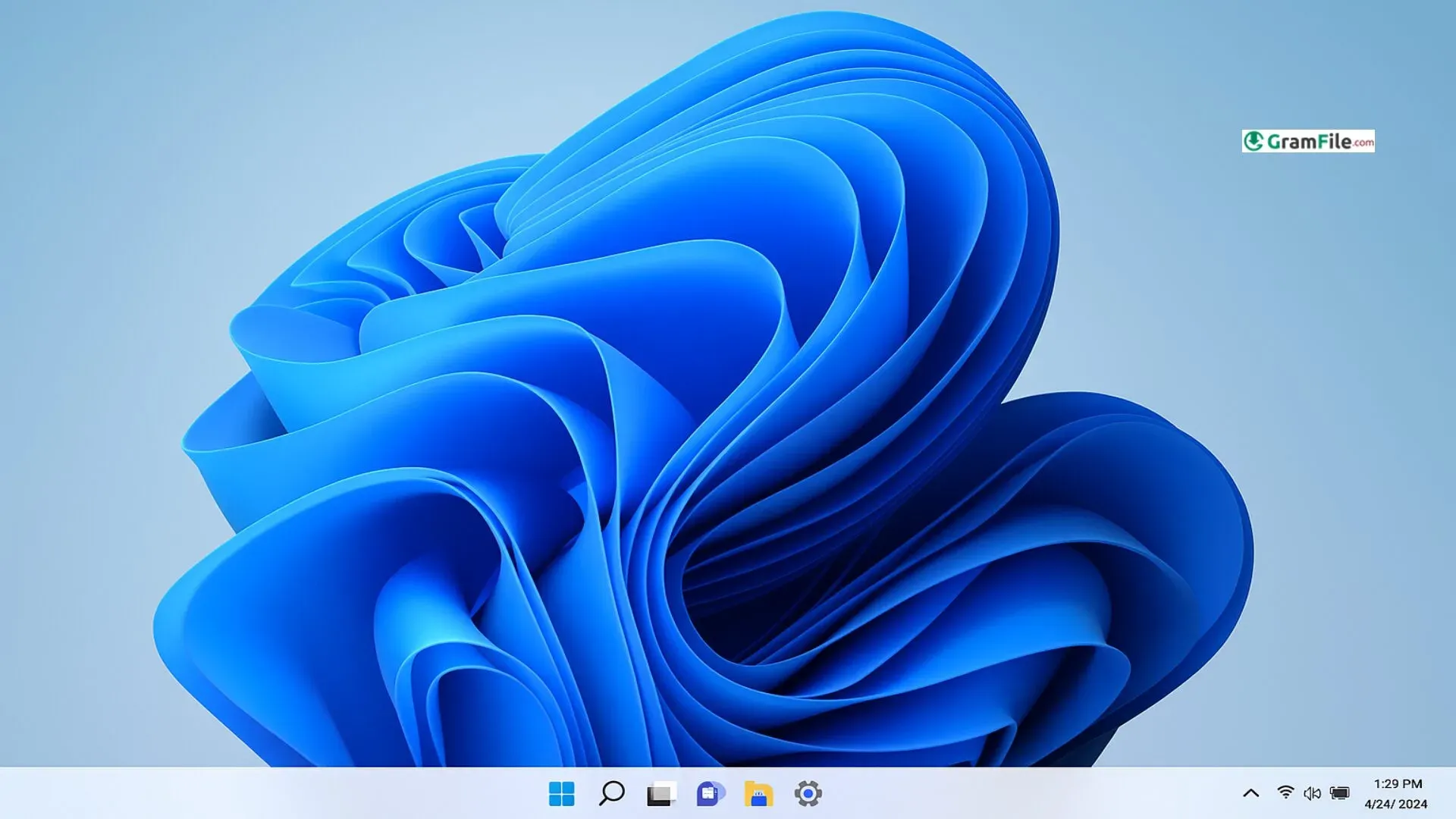
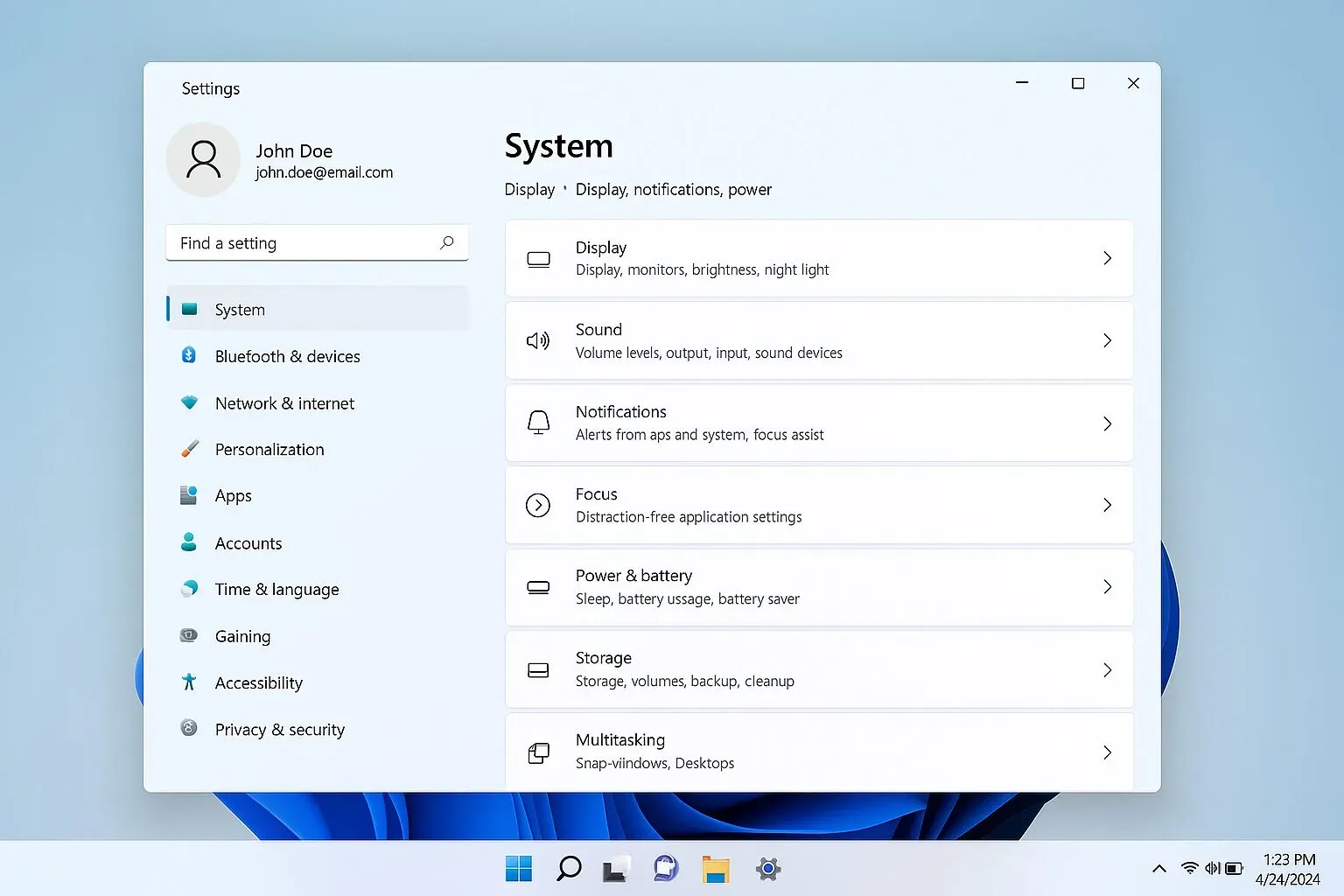
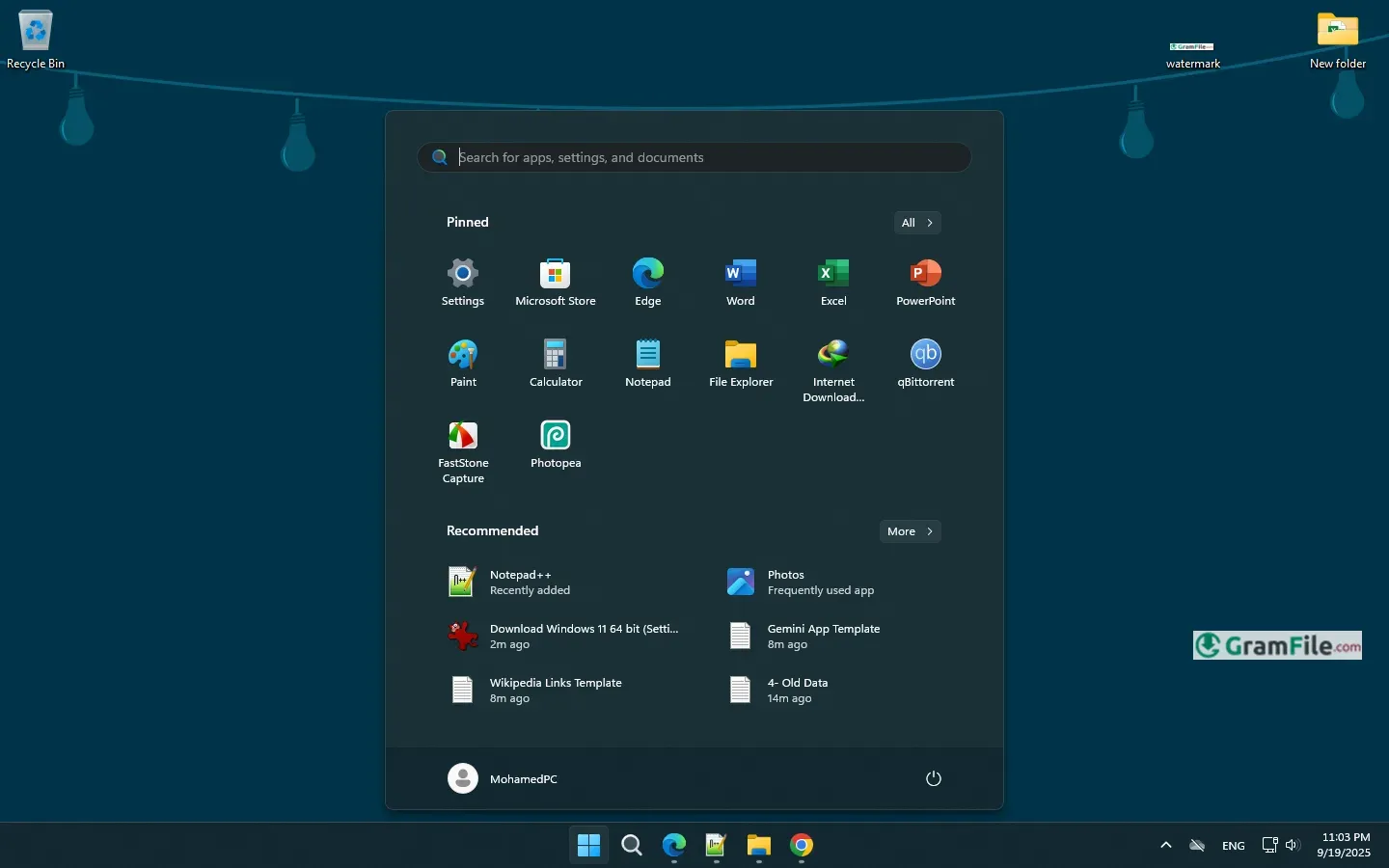
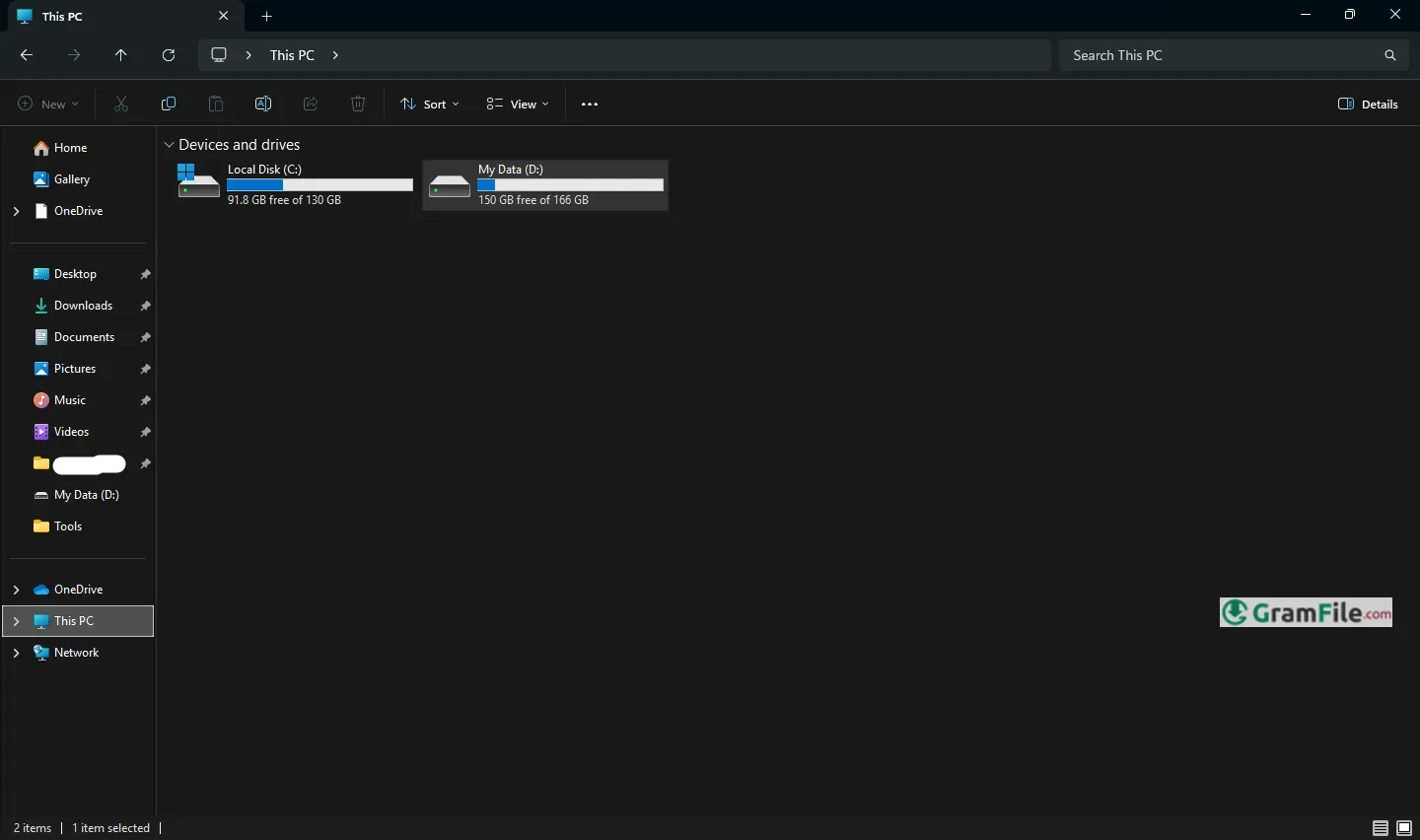
Windows 11 is Microsoft’s newest operating system, built to feel modern, simple, and more personal in the way people use their computers every day.
It takes the familiar strengths of Windows 10 and gives them a fresh look with softer design, smoother performance, and smarter features that make multitasking easier.
First revealed in 2021, Windows 11 marked an important shift for Microsoft, moving away from years of steady updates under Windows 10 to a system that feels like a true step into the future, while still keeping the comfort of the tools and apps people already know.
What to expect in this review?
- How to Download and Install Disk Image (ISO) for 64 bit systems
- Windows 11 iso download 64 bit
- Windows 11 iso for virtualbox
- Windows 11 enterprise iso download
- Windows 11 home download
- Main Features
- System Requirements
- Editions
- The Installation Media
- How to Upgrade to Windows 11
- Clean Installation
What is Windows 11?
Windows 11 is Microsoft’s newest operating system, built as the natural successor to Windows 10 but with a sharper focus on design, productivity, and everyday usability.
It isn’t just a facelift, it’s a shift toward making the PC feel modern, lightweight, and more in tune with how people work and connect today.
From its centered taskbar to subtle animations, everything about Windows 11 is designed to feel calmer, cleaner, and more personal.
Main Features
1. A Fresh Look and Feel
The first thing anyone notices is the new design. The taskbar and Start Menu now sit at the center, giving the desktop a balanced, almost Mac-like look.
Rounded corners, softer colors, and fluid animations make the whole interface feel less rigid and more approachable.
2. Smarter Multitasking with Snap Layouts
Windows 11 takes window management seriously. Snap Layouts let you arrange multiple apps side by side in neat grids, so juggling tasks feels natural.
Even better, Snap Groups remember your layout, meaning you can pick up exactly where you left off after switching between apps.
3. A More Useful Microsoft Store
The redesigned Microsoft Store is not just prettier; it’s also practical. It opens the door to more apps, including Android apps, which makes Windows a lot more versatile for everyday use.
4. Widgets for Quick Updates
Widgets bring bite-sized information directly to your desktop. Weather forecasts, calendar reminders, and personalized news stories are just a swipe away, giving you updates without having to open multiple apps.
5. Gaming
Windows 11 is also a gamer’s OS. Features like Auto HDR and DirectStorage make games load faster and look richer.
Combined with Xbox Game Pass integration, it positions Windows 11 as one of the best platforms for gaming on PC.
6. Virtual Desktops
Whether you’re working, studying, or relaxing, Windows 11 lets you create separate desktops for each. Each can have its own background and app setup, making it easier to keep work and play apart.
7. Teams in the Taskbar
With video calls now part of daily life, Microsoft integrated Teams directly into Windows 11. A single click on the taskbar can start a call or chat, no matter which device the other person is using.
8. Security and Performance Upgrades
Microsoft also tightened the security belt. Windows 11 leans on modern hardware like TPM 2.0 to reduce vulnerabilities. Add performance tweaks and improved battery efficiency, and it feels smoother on supported devices.
Editions of Windows 11
Windows 11 is available in several editions, each designed for different types of users:
- Windows 11 Home – Best for everyday users. It includes all the core features like the redesigned interface, Snap Layouts, Widgets, and Microsoft Store. This is the edition most people will get when buying a new laptop or PC.
- Windows 11 Pro – Aimed at professionals and small businesses. It adds advanced tools like BitLocker encryption, remote desktop, and better management options.
- Windows 11 Enterprise – Tailored for large organizations. It offers advanced security, deployment, and IT management tools to keep data safe and devices under control.
- Windows 11 Education – Built with schools in mind, giving teachers and students the productivity and collaboration features they need in a learning environment.
These editions share the same core design but differ in the level of control, security, and business features they provide.
Windows 11 ISO Download (64-Bit)
For users who prefer a clean installation or need to upgrade manually, Microsoft provides the Windows 11 ISO (64-bit).
This file is essentially a digital copy of the installation media. It can be written to a USB drive or DVD and used to set up Windows 11 on any compatible PC.
The 64-bit format ensures compatibility with modern hardware and delivers better performance than older 32-bit systems.
Windows 11 ISO for VirtualBox
For those who want to test Windows 11 without installing it on their main system, the ISO can be used inside VirtualBox.
VirtualBox allows you to run Windows 11 as a virtual machine, making it possible to try out features, test apps, or explore the OS safely without affecting your main PC.
It’s a popular option for developers, IT professionals, and curious users.
How to Download & Install
Windows 11 Enterprise ISO Download
Organizations often prefer to download the Enterprise ISO to deploy Windows 11 across many machines.
This edition focuses on large-scale management, advanced security, and enterprise-grade features like Windows Defender Application Guard and DirectAccess.
Having an ISO makes it easier for IT teams to roll out the system consistently across the company.
Windows 11 Home Download
The Home edition can also be downloaded directly. This is the most common version for personal use, offering all the essentials like the new Start Menu, Snap Layouts, and integration with Microsoft Teams.
If you’re a casual user, gamer, or student, the Home edition will cover your needs without the extra enterprise features.
System Requirements
To run Windows 11 smoothly, your PC needs to meet some basic requirements. These are not too complex, but they ensure the system runs safely and efficiently:
- Processor: 1 gigahertz (GHz) or faster, with at least 2 cores on a 64-bit processor or system on a chip (SoC).
- RAM: Minimum of 4 GB.
- Storage: At least 64 GB of available disk space.
- Graphics Card: Compatible with DirectX 12 or later, with a WDDM 2.0 driver.
- Display: High-definition (720p) screen, at least 9 inches diagonally, with 8 bits per color channel.
- Firmware: UEFI with Secure Boot enabled.
- TPM: Trusted Platform Module (TPM) version 2.0 required for added security.
- Internet Connection: Needed for updates and to set up Windows 11 Home.
Remember
Even if your PC meets the minimum specs, Windows 11 feels significantly better on newer hardware with SSDs, 8+ GB RAM, and a modern multi-core processor.
If you’re unsure, Microsoft’s “PC Health Check” tool can verify compatibility in minutes.
The Installation Media
Windows 11 can be installed using official installation media created with Microsoft’s Media Creation Tool.
This tool lets you download the latest Windows 11 ISO and make a bootable USB drive. A 8 GB USB stick is usually enough, though a 16 GB one is safer.
The ISO file is always updated to the most recent release, so users don’t have to install months of updates afterward.
This method is not only useful for fresh installations but also for repairing a corrupted system or reinstalling Windows on a new storage drive.
💡 Pro Tip: Using an SSD with the installation media significantly speeds up the setup process, often cutting the installation time to under 20 minutes on modern hardware.
How to Upgrade to Windows 11
If you’re on Windows 10, the easiest path is through Windows Update. Eligible devices receive the “Upgrade to Windows 11” option automatically once Microsoft verifies compatibility. The upgrade is free for licensed Windows 10 users.
- During the upgrade:
- Personal files, apps, and settings are preserved.
- The process usually takes between 30 minutes to an hour, depending on hardware speed.
- A stable internet connection is required to download updates during installation.
Microsoft has been rolling out updates steadily, and as of now, Windows 11 has received multiple feature updates that improve stability and add new tools like improved File Explorer tabs and enhanced Start Menu customization.
💡 Extra Value: Users can also join the Windows Insider Program to test upcoming features before they’re officially released, though this is better suited for advanced users.
Clean Installation
A clean install is the method preferred by power users, technicians, and anyone wanting a completely fresh system. It wipes the drive and installs Windows 11 from scratch. The benefits are clear:
- No leftover files from Windows 10 or older versions.
- Fewer errors or compatibility issues.
- Better long-term performance.
The process requires backing up files first, as everything on the selected drive is erased. Once installed, the system feels noticeably lighter.
💡 Real-World Insight: On a mid-range laptop with an SSD, a clean install of Windows 11 typically boots to the desktop in under 15 minutes.
After setup, Windows Update automatically fetches the latest drivers, meaning most users won’t need to install them manually.
Download All Updates
| Version | Also Known As | What It Means / Key Info |
|---|---|---|
| 21H2 | “Original release” | First public version of Windows 11, released in the second half of 2021. |
| 22H2 | “2022 Update” / codename Sun Valley 2 | First major update after the original. Introduced many UI improvements and new features. |
| 23H2 | “2023 Update” / codename Sun Valley 3 | Built as an enablement package over 22H2. Added more features and refinements. |
| 24H2 | “2024 Update” / codename Hudson Valley | Latest major version, with new features and system updates. |
| 25H2 | Coming update (2025) | Announced as the next yearly release, continuing Microsoft’s update cycle. |
1. Upgrading from Windows 10
Step 1: Check compatibility
- Open the PC Health Check tool from Microsoft.
- Confirm your processor, TPM, and Secure Boot are supported.
Step 2: Backup your files
- Even though the upgrade keeps your files, it’s smart to back them up on an external drive or cloud.
Step 3: Open Windows Update
- Go to Settings > Update & Security > Windows Update.
- If your PC is eligible, you’ll see “Upgrade to Windows 11 is ready.”
Step 4: Download and install
- Click Download and install.
- The system will fetch Windows 11, restart your PC, and complete the upgrade.
Step 5: Finish setup
- After restart, follow the on-screen prompts.
- Sign in with your Microsoft account.
💡 Pro Tip: Upgrades usually take 30–60 minutes. Plug in your laptop to avoid interruptions.
2. Clean Installation
Step 1: Create installation media
- Download the Media Creation Tool from Microsoft.
- Use it to make a bootable USB (8 GB or more).
Step 2: Backup everything
- A clean install erases all files, so copy important data to an external drive or cloud.
Step 3: Enter BIOS/UEFI
- Restart your PC and press the key (often F2, F12, Del, or Esc) to open BIOS/UEFI.
- Enable Secure Boot and TPM 2.0 if not already enabled.
- Set USB drive as the first boot device.
Step 4: Boot from USB
- Insert your bootable USB and restart.
- Your PC should load the Windows 11 installer.
Step 5: Start the installation
- Choose your language and keyboard layout.
- Click Install Now.
- Enter a valid product key, or select “I don’t have one” if your device already has a digital license.
Step 6: Choose custom install
- Select Custom: Install Windows only (advanced).
- Pick the drive where you want Windows installed.
- Format it if needed, then click Next.
Step 7: Let Windows install
- The setup copies files, installs features, and reboots several times.
- This usually takes 15–30 minutes on an SSD.
Step 8: Complete setup
- Choose your region, keyboard, and sign in with your Microsoft account.
- Set preferences like privacy settings and updates.
Step 9: Update drivers
- Once at the desktop, open Windows Update to fetch the latest drivers.
- For missing drivers, visit your PC manufacturer’s support page.
💡 Pro Tips for Clean Install:
- Use an SSD for much faster performance.
- Disconnect unnecessary USB devices to avoid conflicts.
- Keep Wi-Fi or Ethernet connected so Windows can pull drivers automatically.
Pros & Cons
Pros
- Sleek, modern look.
- Multitasking feels easier.
- Strong security built in.
- Gaming runs smoother.
- Touch and pen work better.
Cons
- Needs newer hardware.
- Some features are gone.
- Taskbar is less flexible.
- Updates can still break things.
Best Windows 11 Alternatives
-
 Windows 10
A smart and stable operating system made for everyone.
-
 Windows 7 Professional
A stable and dependable operating system for professionals.


Conclusion
4.9out of 5 · 128 user ratings
Windows 11 feels like Microsoft’s attempt to make the PC both smarter and calmer at the same time. The new design isn’t just about style; it actually makes the desktop feel easier to use and less cluttered.
Tools like Snap Layouts, virtual desktops, and Widgets make everyday tasks smoother, while gamers get real benefits from faster loading and richer graphics.
It’s not perfect, but it feels like a step forward rather than just a re-skin of Windows 10.
Why Choose Windows 11?
You’d pick Windows 11 if you want a system that looks modern, stays secure, and helps you get more done with less effort.
It’s especially worth it if you rely on your PC for both work and play, because it blends productivity and entertainment better than older versions.
Windows 11 vs Others
This is where your choice truly depends on your needs and philosophy.
vs. macOS
The age-old debate continues. macOS is renowned for its rock-solid stability and flawless integration within the Apple universe.
If you own an iPhone and iPad, that seamless experience is powerful. Windows 11, however, wins on hardware choice and flexibility.
You can find a Windows machine at any price point, for any need—from powerful gaming rigs to versatile 2-in-1 convertibles. Windows 11 is the champion of choice and customizability.
vs. Chrome OS
Chrome OS is brilliant for one thing: simplicity. It’s fast, secure, and perfect for web-based tasks on a budget. Windows 11 is the complete desktop experience.
It runs full-powered professional applications like the Adobe Suite, advanced engineering software, and PC games that Chrome OS simply cannot handle. It’s for those who need a full computer, not just a browser.
vs. Linux
Linux is a haven for developers and tinkerers who demand ultimate control, transparency, and free, open-source software. Windows 11 is for everyone else.
It offers a hassle-free, user-centric experience where everything – from drivers to software – “just works” without requiring command-line expertise.
In the end, Windows 11 is about balance, it keeps the familiarity of Windows while giving you a cleaner, more future-ready experience.
Found a problem with this download? Report an outdated version, broken link, suspicious installer or incorrect information.