

Download Details
- Version
- Service Pack 1 (SP1), Build 7601 (latest)
- File size
- 5.49 GB
- License
- Free Trial
- SHA-256 checksum
19bba30eb8231119ac23a11bba65b70446b6ea9e35cf64dc2c12d21d8fd445ea- Developer
- Microsoft Corporation
- CPU Support
- 64-bit (x64), 32-bit (x86), Offline
- Downloads
- 51984
- Rating
- 4.8 out of 5 · 196 reviews
- File name(s)
- 7601.24214.180801-1700.win7sp1_ldr_escrow_CLIENT_PROFESSIONAL_x64FRE_en-us.iso, 7601.24214.180801-1700.win7sp1_ldr_escrow_CLIENT_PROFESSIONAL_x86FRE_en-us.iso
 Reviewed by Mohamed Zaki
Tested on PC, Virtual Machine · · How we review
Screenshots
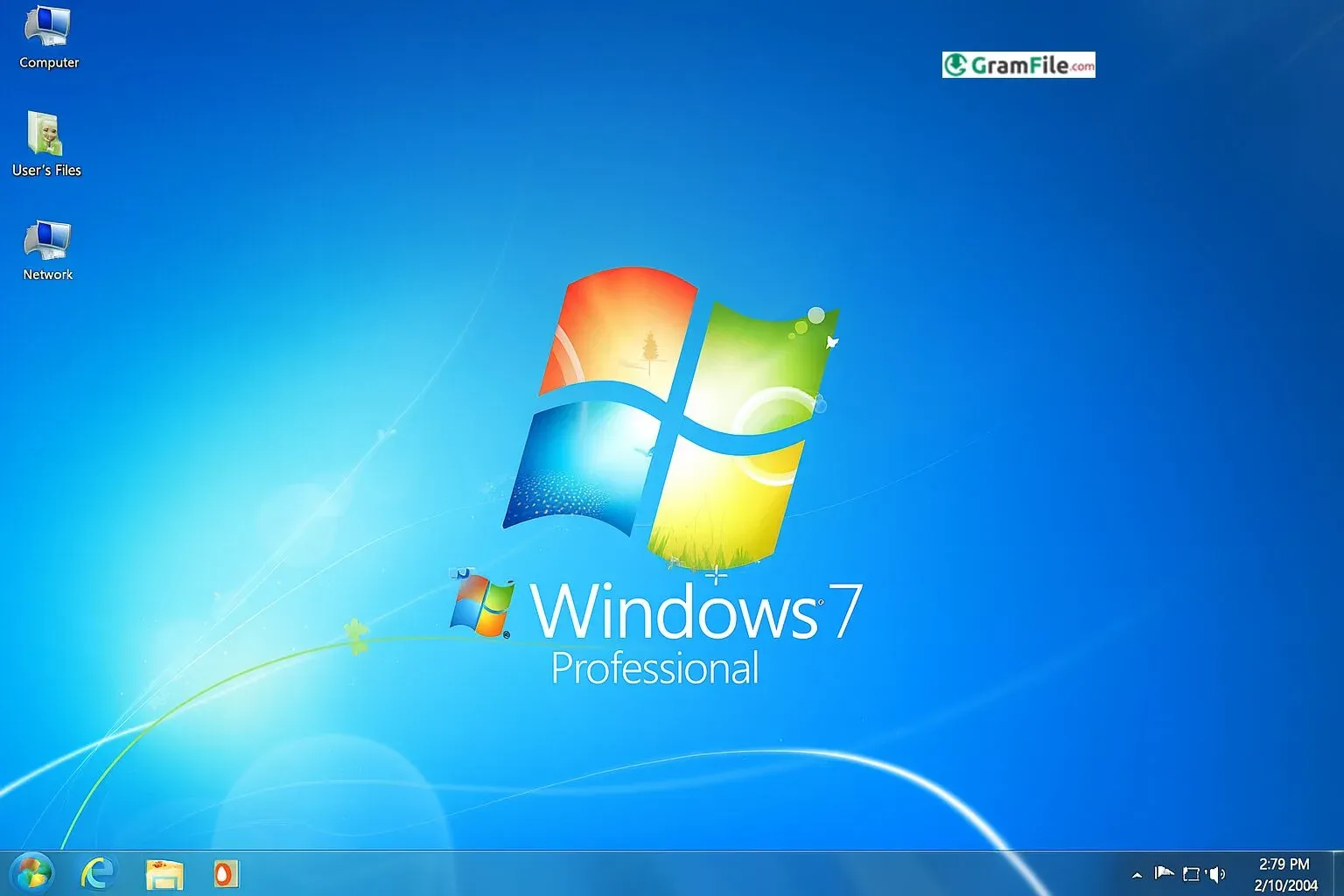
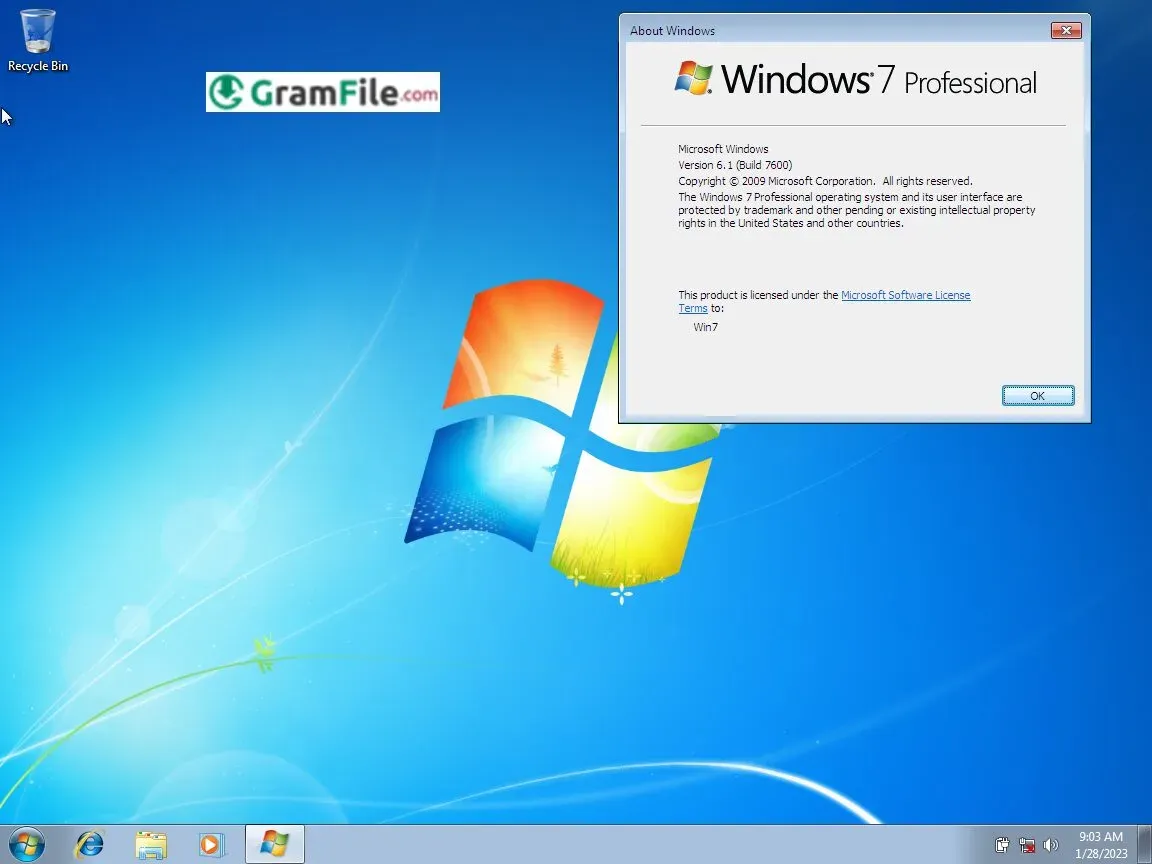
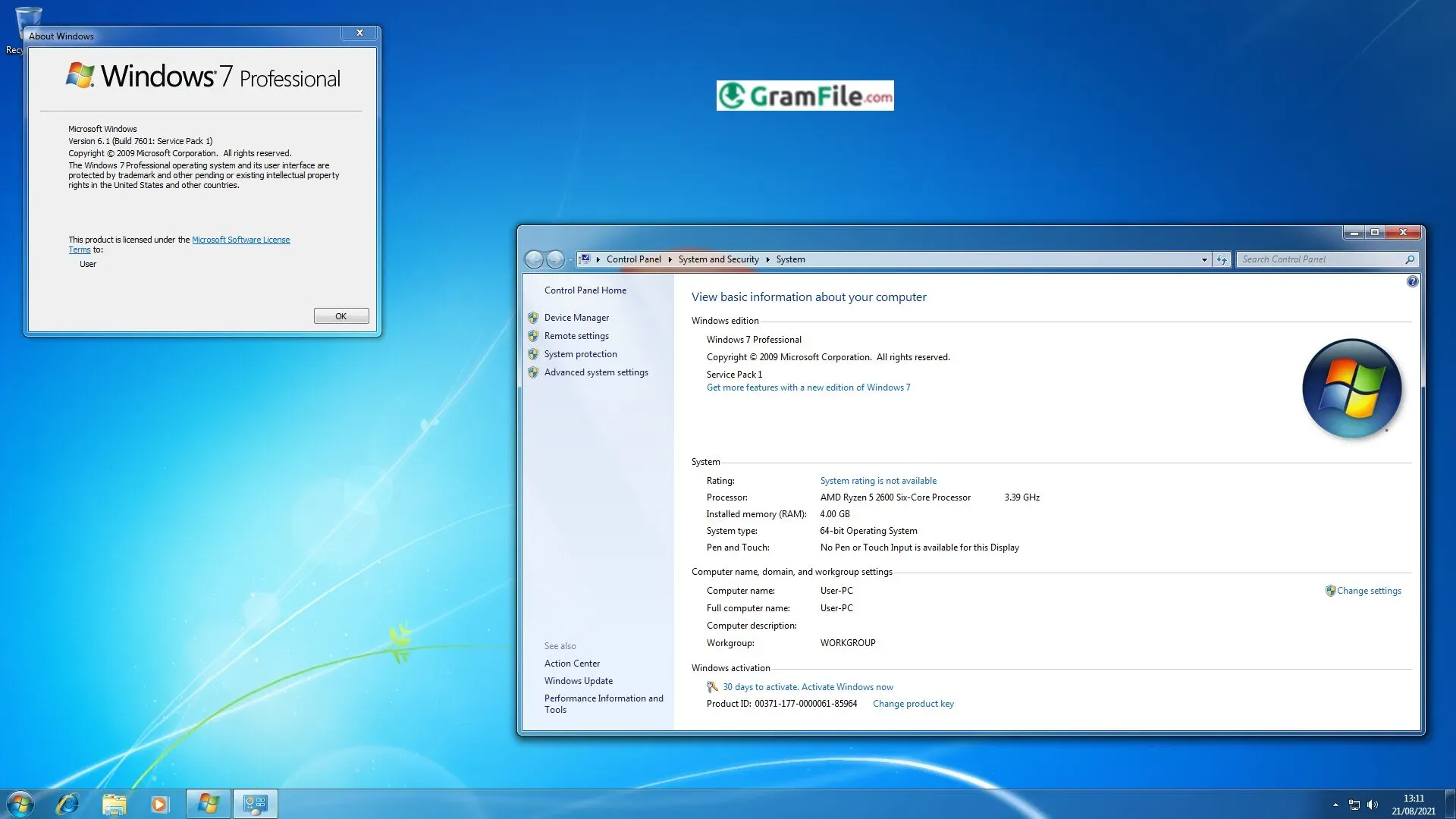
Launched in October 2009, Windows 7 Professional was positioned as a better successor to Windows Vista, fixing issues that users had struggled with, mainly performance slowdowns and heavy resource usage.
Windows 7 delivered faster boot times, a cleaner interface, better hardware support, and an environment that felt familiar yet noticeably improved.
Over the years, it became the choice for offices, universities, shops, and technical professionals because it offered a perfect balance between user-friendliness and professional-grade features like domain joining, advanced backup, and XP Mode.
Although official support ended, Windows 7 Professional remains widely used around the world because of its lightweight footprint and predictable behavior, something newer systems sometimes lack. This review explores its features, advantages, installation, and real-world performance from a practical point of view.
What Is Windows 7 Professional?
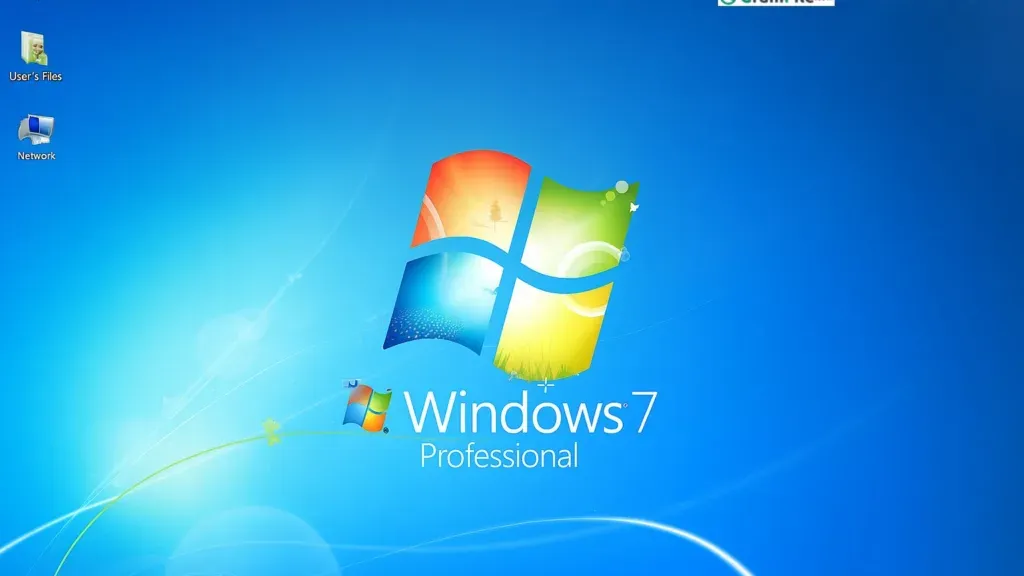
Windows 7 Professional is a version of the Windows 7 family built for business, technical users, and anyone who needs more control and productivity features than the Home editions.
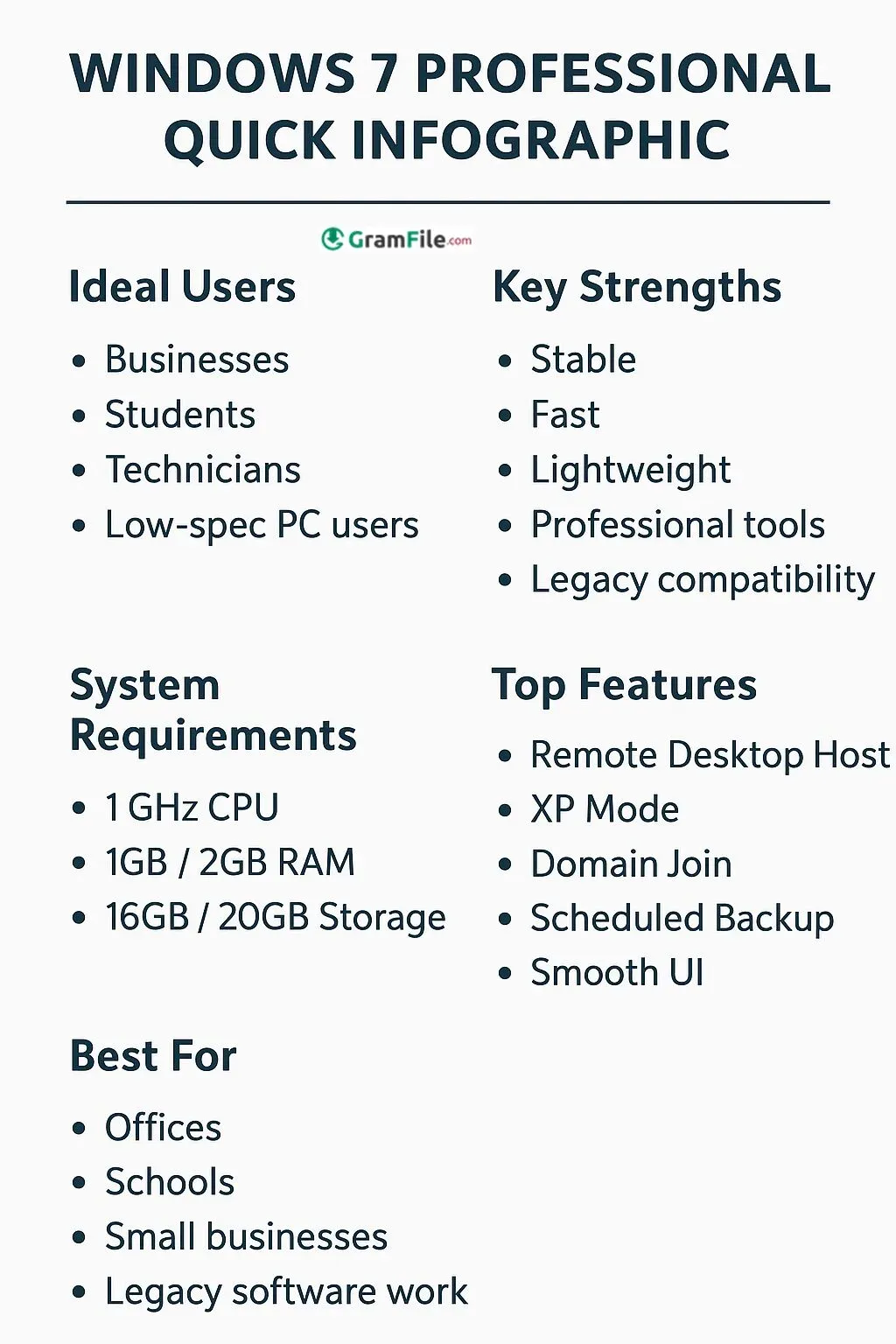
It includes enhanced networking tools, remote desktop hosting, advanced backup scheduling, encryption options, domain join capability, and compatibility features such as Windows XP Mode.
Unlike Home Premium, the Professional edition brings a more complete set of system tools without unnecessary visual effects or features that slow down older machines. It is designed to run smoothly even on older hardware while still providing security and reliability.
Latest Version Updates and New Features
Although Windows 7 no longer receives major updates, the latest official releases before support ended included stability improvements, security roll-ups, and performance refinements.
- Fast and stable interface.
- Simple and predictable workflow.
- Professional networking tools.
- Remote Desktop host support.
- XP Mode for legacy apps.
- Efficient file management.
- Enhanced backup scheduling.
- Low system resource usage.
- Domain join functionality.
- Smooth performance on older PCs.
How to Download & Install

Step 1 – Prepare Installation Media
- Use a DVD or create a bootable USB using tools like Windows USB/DVD tool.
- Ensure the ISO file is genuine and untouched.
Step 2 – Backup Your Files
- Although Windows 7 Professional offers easy migration tools, always back up important data manually.
Step 3 – Boot from USB or DVD
- Insert your installation media.
- Restart the computer.
- Press the boot key (F12, F9, ESC, or DEL depending on the motherboard).
Step 4 – Select Language and Edition
- Choose language, time format, and keyboard layout.
- Select Windows 7 Professional (32-bit or 64-bit).
Step 5 – Choose Installation Type
- Upgrade if you want to keep files (from Vista or older Windows 7).
- Custom for clean installation (recommended for performance).
Step 6 – Partitioning
- Delete old partitions if you want a fresh start.
- Create new partitions as needed.
Step 7 – Installation Process
- Windows copies files, expands them, installs features, and configures settings.
- System restarts several times.
Step 8 – First-Time Setup
- Enter PC name, create user, set password.
- Configure updates preference.
- Connect to network.
System Requirements
One of the reasons for Windows 7’s popularity was its modest hardware demands, especially compared to Vista.
Minimum Requirements:
- CPU: 1 GHz or faster
- RAM: 1 GB (32-bit) / 2 GB (64-bit)
- Storage: 16 GB (32-bit) / 20 GB (64-bit)
- Graphics: DirectX 9 with WDDM 1.0 driver
These modest requirements allow it to run smoothly on old laptops, desktops, and even low-power business machines.
32-bit and 64-bit Version Availability
Windows 7 Professional is available in both 32-bit and 64-bit versions:
- 32-bit: Better for older systems with under 4 GB RAM.
- 64-bit: Ideal for modern systems, supports more RAM, faster performance, and better multitasking.
Different Editions of Windows 7
Although this review focuses on Professional, Windows 7 includes several editions:
- Starter
- Home Basic
- Home Premium
- Professional
- Enterprise
- Ultimate
Professional sits in the middle, balancing essential business features without the complexity or cost of Enterprise or Ultimate.
How to Buy and Activate
Even though Windows 7 is no longer on Microsoft’s main sales channels, legitimate licenses still exist through:
- Authorized resellers
- OEM system builders
- Retailers that still hold unused keys
Activation is done through:
- Entering your genuine product key
- Online activation
- Or telephone activation (automated system)
Warning
Never use cracks, serial generators, patched ISOs, or activation bypass tools. They often contain malware, backdoors, crypto-miners, trackers, or corrupted system files that break stability and security.
Genuine activation ensures updates, safe performance, and legal usage.
Pros & Cons
Pros
- Stable
- Fast
- Lightweight
- Professional tools
- Legacy compatibility
Cons
- No modern update support.
- Older security architecture limits protection.
- Lacks new OS features.
- Certain apps stop receiving updates.
- Requires careful offline usage.
Best Windows 7 Professional Alternatives
-
 Windows 11
A simple and smooth system that makes your PC feel modern and attractive.
-
 Windows 10
A smart and stable operating system made for everyone.

Conclusion
4.8out of 5 · 196 user ratings
Choosing Windows 7 Professional is ideal if you need a reliable, stable, and lightweight operating system for work or productivity.
It avoids unnecessary modern bloat, runs smoothly on older hardware, and provides dependable performance day after day.
Windows 7 Professional vs. Others
Compared to other editions, Windows 7 Professional offers the perfect balance between functionality and simplicity.
When compared to newer systems like Windows 10 or Windows 11, it may lack modern features, but it delivers a cleaner interface, predictable behavior, and faster performance on low-spec machines.
| Feature | Windows XP (Old) | Windows 7 Professional (Prime) | Windows 10/11 (New) |
| Interface | Dated, very basic | Modern, Aero Glass, Taskbar | Flat, Fluent Design, constantly evolving |
| Speed | Excellent on old hardware | Excellent, optimized, faster boot | Excellent, optimized for SSDs |
| Networking | Basic, cumbersome setup | HomeGroup, Domain Join, seamless | OneDrive Integration, Cloud-focused |
| Security | Minimal, constant patching | Improved, Action Center, EFS | Modern, Windows Defender, Biometrics |
| Status | Severely Retired | Retired (Unsafe) | Fully Supported |
If your workflow depends on stability, classic Windows design, and compatibility with older programs, Windows 7 Professional remains an excellent choice.
Windows 7 Professional FAQ
Is it safe to download and use the Windows 7 Professional ISO today?
Yes, if you verify the file’s SHA-256 hash before installing (Get-FileHash in PowerShell). Microsoft ended support in January 2020, so keep the PC offline or isolated and use it for legacy software or testing, not banking.
Does the Windows 7 Professional ISO include a product key?
No. The ISO is only the installation image. Windows 7 installs without a key and runs as a trial, then needs a genuine Professional key to activate online or by phone. Keys for other editions won’t work.
Should I install the 32-bit or the 64-bit version?
Choose 64-bit if you have 4 GB of RAM or more, since 32-bit uses only about 3 to 3.5 GB. Pick 32-bit only for very old hardware or legacy software. You can’t switch between them without a clean install.
How do I create a Windows 7 bootable USB from the ISO?
Use an 8 GB or larger USB drive and a tool like Rufus. Select the ISO, choose MBR for BIOS or GPT for UEFI, and start. The drive will be erased. Then boot from it using your PC’s boot menu (F12, F9, Esc, or Del).
Why do my keyboard and mouse stop working during Windows 7 setup?
Windows 7 has no built-in USB 3.0 drivers, so newer PCs may not respond in the installer. Use a USB 2.0 or PS/2 port, or enable legacy USB support in the BIOS.
Why is Windows Update stuck or failing on a fresh Windows 7 install?
A clean install can’t verify modern SHA-2 signed updates. Install the SHA-2 code signing update and the latest servicing stack update manually from the Microsoft Update Catalog, then restart and check for updates again.
What does Windows 7 Professional have that Home Premium does not?
Domain Join, Remote Desktop hosting, the Encrypting File System, network backup, and Windows XP Mode. These are the business features that set it apart from the Home editions.
Found a problem with this download? Report an outdated version, broken link, suspicious installer or incorrect information.