
Chrome Remote Desktop is a free, lightweight solution by Google that allows users to remotely control a Windows PC from any device via a web browser.
Launched in 2011 as part of Google’s Chrome Web Store, it quickly gained popularity for its simplicity, cross-platform compatibility, and strong security features.
Unlike many remote desktop tools, it requires no complex setup, just the Chrome browser and a Google account.
Over the years, it has evolved with improved performance and encryption, making it a trusted choice for both personal and professional use.
In this review, we’ll examine its features, usability, and whether it’s the right remote access solution for your needs.
What Is Chrome Remote Desktop?
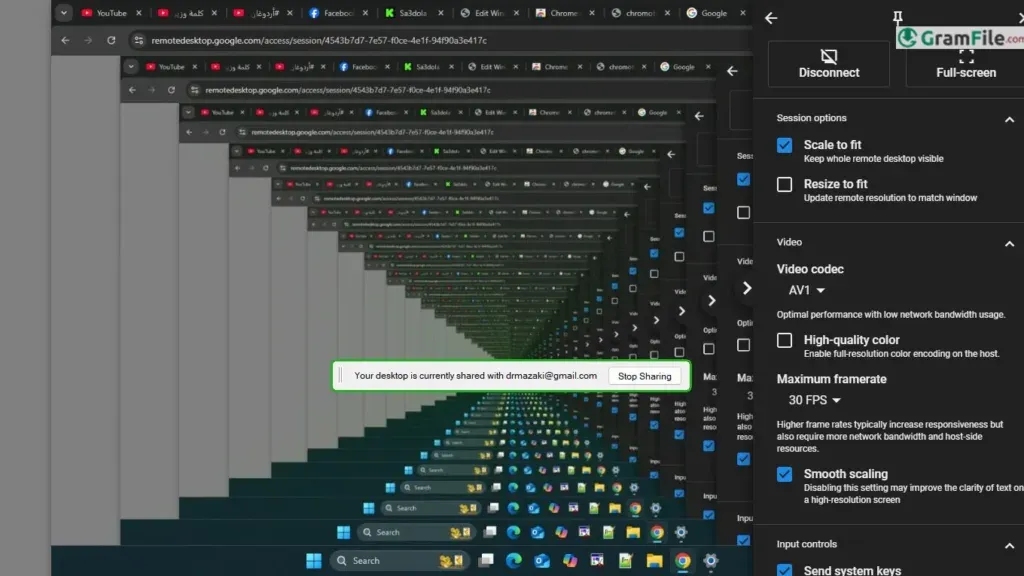
Chrome Remote Desktop is a free tool from Google that lets you control a Windows PC from another device, whether it’s another computer, a smartphone, or a tablet—using just a web browser.
Unlike many remote access solutions, it’s lightweight, requires minimal setup, and works across different operating systems.
Whether you need to access work files from home, help a family member troubleshoot their PC, or manage a server, Chrome Remote Desktop provides a fast and secure way to connect.
Key Features & Highlights
- Completely free with no paid tiers
- Works through Chrome browser on any device
- Cross-platform access including mobile
- Simple PIN-based security
- No networking knowledge required
- Basic file transfer capability
- Low system resource usage
- Automatic updates via Chrome
Ideal for remote work, tech support, or accessing your PC anywhere.
How to Download & Install
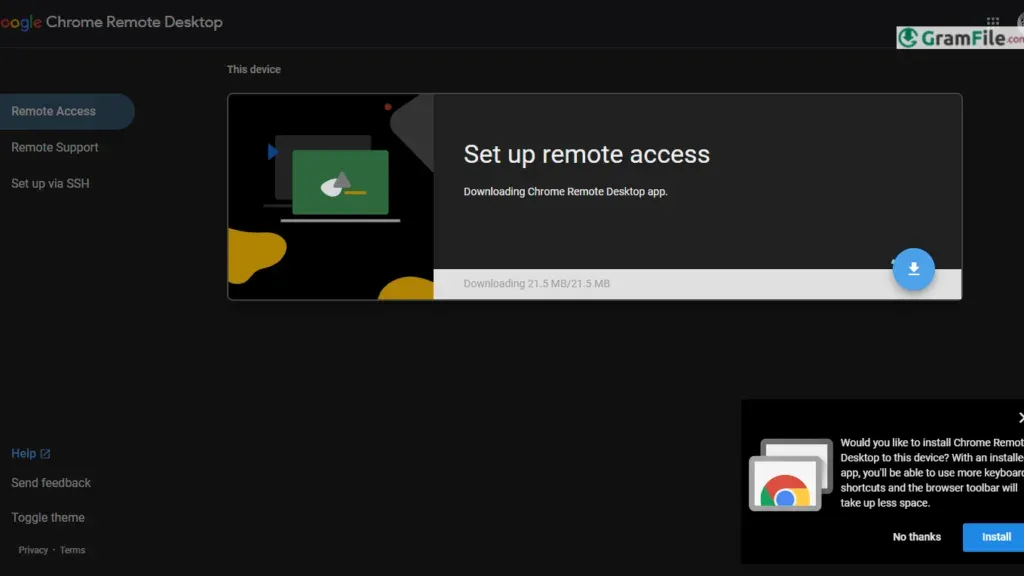
Getting started is straightforward:
- Install Chrome Browser – Since this is a Google product, you’ll need Chrome (download from Here).
- Add the Chrome Remote Desktop Extension – Go to the Chrome Web Store and click “Add to Chrome.”
- Launch the App – Open Chrome and type
chrome://appsin the address bar, then click the Chrome Remote Desktop icon.
Setting Up Your Computer for Remote Access
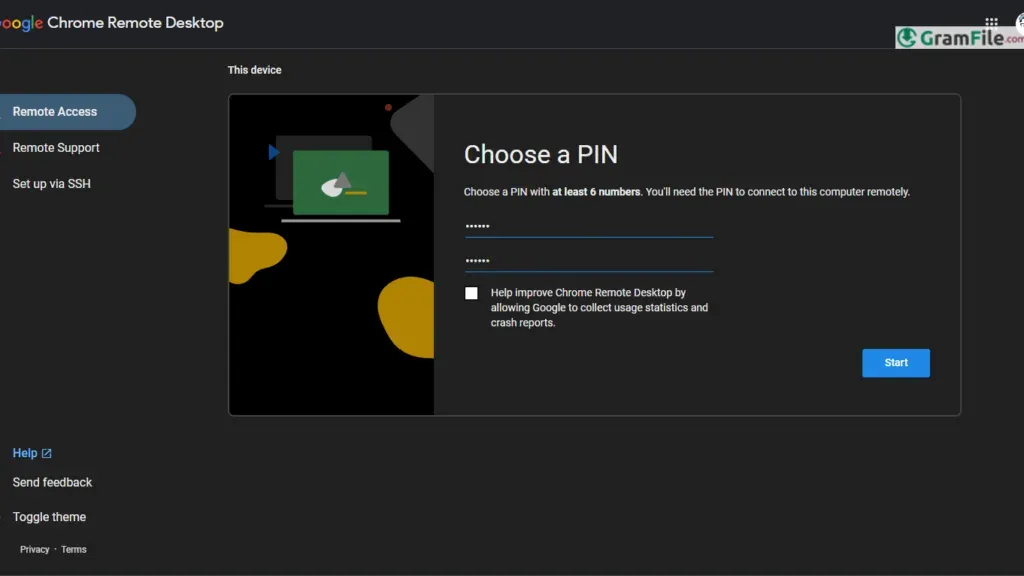
Before you can connect remotely, you’ll need to enable access on your Windows PC:
- Name Your Computer: Under “Remote Access,” click Enable remote connections, then give your PC a recognizable name (e.g., “Work Laptop” or “Home Desktop”).
- Set a Secure PIN: Choose a 6-digit PIN (required for security). Avoid easy-to-guess numbers like 123456.
- Confirm Permissions: Windows may ask for administrator approval; click Yes to proceed.
Once enabled, your PC will stay accessible even when locked or asleep (as long as it’s powered on).
Logging In Remotely
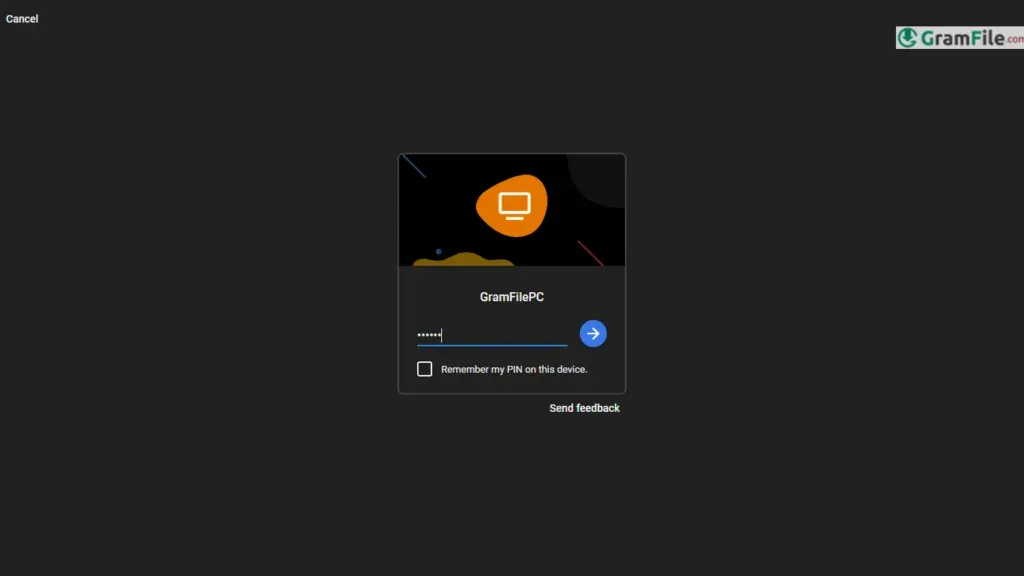
To access your PC from another device:
- Go to remotedesktop.google.com (or open the mobile app).
- Select your PC from the list and enter the PIN you set earlier.
- You’re In! – Your desktop will appear in a browser tab or app window, ready for full control.
System Requirements
Chrome Remote Desktop works on most modern Windows systems with minimal demands:
- OS: Windows 10 or 11 (Windows 7/8.1 still work but are no longer officially supported).
- Browser: Latest version of Google Chrome, Edge, or Firefox (Chrome is recommended).
- Internet: A stable connection (5 Mbps or higher for smooth performance).
- Permissions: Administrator rights for initial setup.