

Download Details
- Version
- 53 (latest)
- File size
- 103.3 MB
- License
- Free
- Developer
- Google LLC
- Supported OS
- Windows 11, Windows 10
- Installers
- 64-bit (x64), 32-bit (x86), ARM (Arm64)
- Downloads
- 13715
- Rating
- 4.1 out of 5 · 94 reviews
 Reviewed by Ahmed Madbouli
Tested on Windows 11 and 10 · · How we review
Screenshots
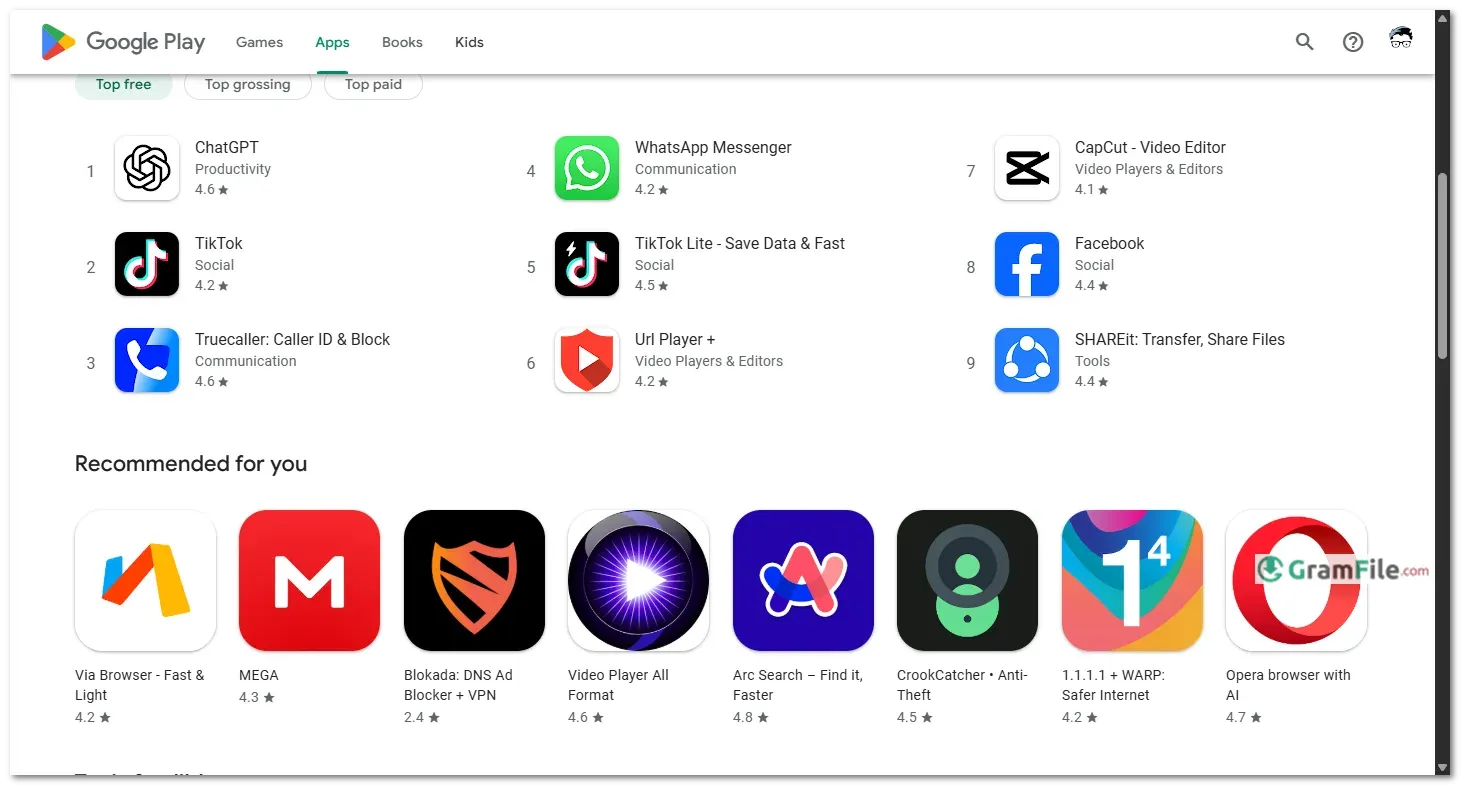
Back in 2008, Google kicked off the Android Market to bring apps to Android phones. In 2012, it became the Google Play Store, adding games, movies, and more. As people wanted to use these apps on PCs, clever developers found ways to make it happen.
By 2021, developers and enthusiasts, like those creating workarounds for Windows 11, enabled the Play Store to run on Windows, allowing users to access millions of apps directly on their computers.
This marked a significant step in blending mobile and desktop experiences, making the Play Store a versatile tool for Windows users seeking Android’s diverse app ecosystem.
The Google Play Store is Android’s official app hub-home to millions of apps, games, and services. While it’s designed for phones and tablets, many users want that same convenience on their Windows PCs.
Unfortunately, Microsoft recently discontinued official support for Windows Subsystem for Android (WSA), leaving users without a built-in way to run Android apps on Windows 11.
But don’t worry, there’s still a way: Android emulators. These clever programs mimic an Android device on your PC, letting you install and use the Play Store just like on a phone. Here’s how to do it:
Does It Work Well?
- Performance: Depends on your PC—newer machines run smoother.
- App Compatibility: Most apps work, but some (especially games) may lag or need tweaks.
- Limitations: No official Google support means occasional quirks, but emulators keep improving.
Why Use Google Play Store on Windows PC?
Using the Google Play Store through an emulator like BlueStacks is a game-changer. You get access to millions of Android apps, from social media like Instagram to games like Candy Crush, all on your PC’s big screen.
It’s great for people who want to multitask, play mobile games with better controls, or use apps that don’t have a Windows version.
BlueStacks is also safe and doesn’t require tricky workarounds like the old WSA hacks did.
Things to Keep in Mind
While emulators are awesome, they can be a bit heavy on older or less powerful PCs, so a decent processor and enough RAM are important.
Some apps might not work perfectly due to regional restrictions or compatibility issues, but most run smoothly.
Also, unlike WSA, emulators don’t get automatic updates from Microsoft, but BlueStacks keeps itself updated with the latest Android features.
Key Features & Highlights
- Android apps on PC – Run mobile apps seamlessly on Windows.
- Massive app library – Access millions of apps and games.
- Easy setup – Install via emulators in minutes.
- Google account sync – Log in to keep apps and data connected.
- Big-screen experience – Enjoy mobile apps on a larger display.
- Keyboard & mouse support – Better control for games and apps.
- Multi-instance – Run multiple apps or games at once.
- Regular updates – Stay current with the latest app versions.
- Free to use – No extra cost for app downloads (unless paid).
- Performance tweaks – Adjust settings for smoother operation.
How to Download & Install
- Pick an Emulator – Popular choices like BlueStacks, LDPlayer, or NoxPlayer work well. Pick one from our Best Android Emulators list.
- Install & Set Up – Run the installer, follow the steps, and sign in with a Google account when prompted.
- Open the Play Store – Once the emulator boots up, you’ll see the Play Store ready to use—just like on an Android device.
- Download Apps – Search for your favorite apps and install them directly.
System Requirements
To run the Google Play Store smoothly on your PC, you’ll need:
- Windows 10 or 11 – Older versions may not work well.
- A decent processor – Intel or AMD, at least 4 cores for good performance.
- 4GB RAM minimum – 8GB or more is better for multitasking.
- 5GB free storage – Apps and games need space.
- Updated graphics drivers – Helps with smoother visuals.
- Virtualization enabled – Turn it on in BIOS for better speed.
- Stable internet – Required for downloads and updates.
Keep in mind, System Requirements depends on the android emulator you will use, choose the right one.
Pros & Cons
What we liked
- Huge app selection.
- Easy to use.
- Great for gaming.
- Works on big screens.
- Safe downloads.
What we didn't like
- Needs strong PC.
- Some apps lag.
- Uses lots of RAM.
- Setup takes time.
- No Microsoft support.
Best Google Play Store Alternatives
-
 BlueStacks
Transforms your PC into a powerful Android gaming machine.
-
 MEmu
MEmuA fast and flexible Android emulator that lets you run mobile apps and games smoothly on Windows.
-
 NoxPlayer
Play mobile games on your PC with superior performance and control.
-
 GameLoop
Lets you play mobile games on your PC with a big-screen, high-performance experience.


Conclusion
4.1out of 5 · 94 user ratings
The Google Play Store brings Android’s massive app library to your PC through emulators, giving you the best mobile experience on a bigger screen.
While Microsoft’s discontinued WSA support leaves no official way to run Android apps on Windows, quality emulators like BlueStacks or NoxPlayer fill the gap surprisingly well.
Why Choose Google Play Store for PC?
- Largest selection of trusted Android apps
- Seamless sync with your Google account
- Regular updates directly from developers
- Familiar, easy-to-use interface
Play Store vs. Alternatives
Unlike third-party app stores that might offer modified or pirated apps, Google Play delivers authentic, secure downloads.
While Amazon Appstore (available through WSA before) had limited selection, and standalone APK sites risk malware, the Play Store remains the gold standard for safety and variety.
The Bottom Line
If you want Android apps on Windows, the Play Store via emulator is your best bet. It’s not perfect, some apps may glitch, and performance depends on your PC.
But for accessing your favorite mobile apps safely and reliably? Nothing beats the real deal.
Found a problem with this download? Report an outdated version, broken link, suspicious installer or incorrect information.
 Zoom Workplace
 Nitro PDF Pro
 Sumatra PDF
 IrfanView
 K-Lite Codec Pack
 WinRAR