


MediaMonkey, a robust digital media manager, has evolved from its early 2000s beginnings as a simple music organizer into a comprehensive platform for handling extensive audio and video collections.
Initially focused on streamlining tagging and playback, MediaMonkey quickly gained a loyal following due to its powerful organizational capabilities and support for a wide array of file formats.
Over the years, it has expanded its feature set to include advanced library management, device synchronization, podcast support, and even CD ripping and burning, solidifying its position as a versatile tool for both casual listeners and serious audiophiles.
This review explores MediaMonkey’s current iteration, exploring its strengths and weaknesses in today’s media landscape.
What is MediaMonkey?
MediaMonkey is a sophisticated media management application for Windows designed to organize, play, tag, and sync digital audio and video files.
Unlike simpler media players, MediaMonkey excels at handling large libraries, offering powerful tools for metadata editing, file conversion, and device synchronization.
It is suitable for users who demand meticulous control over their media collections, from casual listeners to dedicated audiophiles.
MediaMonkey Portable
MediaMonkey Portable offers all the features of the standard version in a portable format.
This allows users to carry their entire media library and MediaMonkey’s settings on a USB drive or other portable storage device, enabling them to access their media and maintain consistent organization across different computers without installation.
Latest Version Updates
Recent updates have focused on performance improvements, bug fixes, and enhanced support for newer audio and video codecs.
Developers consistently address user feedback and work to maintain compatibility with the latest operating systems and devices.
Checking the official MediaMonkey website or release notes provides the most accurate and up-to-date information on the latest version’s features and changes.
MediaMonkey Gold
MediaMonkey Gold is the premium version, offering additional features beyond the standard free version. These include:
- Automatic Library Organization: Automatically organize files based on tags and folder structure.
- Advanced Auto-Tagging: Access more comprehensive online databases for automatic tag retrieval.
- Unlimited MP3 Encoding: The free version has some limitations on MP3 encoding; Gold removes these restrictions.
- Virtual CD/DVD: Mount ISO images as virtual drives within MediaMonkey.
- Priority Support: Gold users receive priority support from the developers.
Concise and Professional list of Key Features
- Media Organization: Efficiently organizes and manages large music collections.
- Media Player: Proprietary player for audio files.
- Wireless Syncing: Syncs music across devices wirelessly.
- Library Cleaning: Cleans and maintains music and video libraries.
- Playlist Management: Manages and shares playlists.
- Cross-Device Access: Access media from any device.
- Advanced Tagging: Automatically tags and renames files.
- Custom Playlists: Creates custom playlists based on criteria.
- Podcast Support: Manages and plays podcasts.
- Metadata Editing: Edits and updates metadata.
How to Download & Install
MediaMonkey offers both a free (Standard) version and a paid (Gold) version. The download and installation process is largely the same for both, with the Gold version simply unlocking additional features upon purchase.
Here’s a detailed guide:
First: How to Download
- Click on the above green download button -at start of this page- to download from the official page. This ensures you download a legitimate and safe copy of the software.
- Choose Your Version: You’ll typically see options for both the Standard (free) and Gold versions. If you wish to try the free version first, select the appropriate download link. If you’ve already purchased a Gold license, you’ll likely download the same installer, which will then be unlocked with your license key.
- Select the Installer: You’ll usually be presented with a standard installer (.exe file). Choose this option for a typical Windows installation. Standard install provides both regular and portable installation options.
- Start the Download: Click the chosen download link. Your web browser will begin downloading the MediaMonkey installer to your computer. The download time will depend on your internet speed.
- Save setup file to your local drive.
Second: How to Install?
1. Locate and Run the Installer: Locate the downloaded file, Double-click the downloaded .exe file to begin the installation process. Windows may display a security warning; click “Run” or “Yes” to proceed.
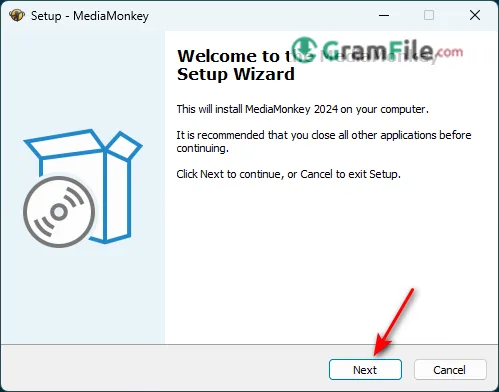
2. Step 2: Accept the Agreement
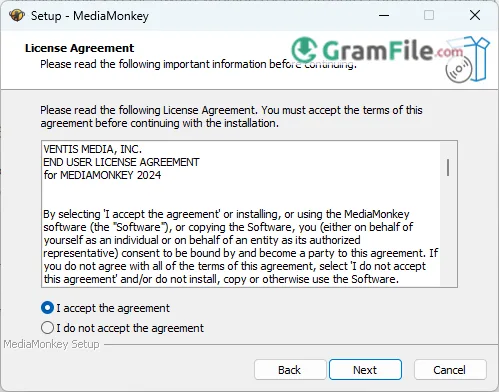
3. Choose Installation Folder

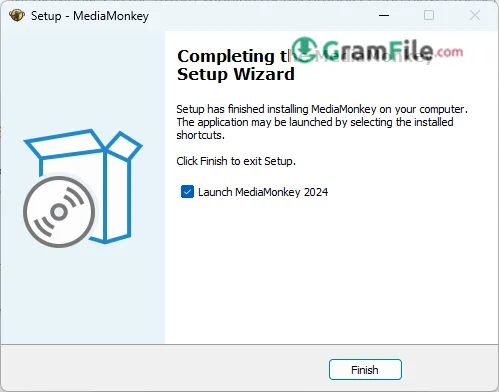
4. Final Step: Complete the Installation and Launch MediaMonkey: Once you’ve made your selections, click “Install.” The installer will copy the necessary files to your computer.
After the installation is complete, you’ll usually have the option to launch MediaMonkey immediately. You can also launch it later from the Start Menu or a desktop shortcut, if you chose to create one.
(For Gold Users) Activate Your License
If you purchased MediaMonkey Gold, you’ll need to enter your license key to unlock the premium features. This is usually done through a menu option within MediaMonkey itself, often found under “Help” or “About.”

By following these steps, you should be able to successfully download and install MediaMonkey on your Windows computer.
If you encounter any issues, consult the MediaMonkey support resources or online forums for assistance.





