


The Minecraft Launcher for Windows is the official platform for accessing and managing Minecraft’s diverse editions, offering a user-friendly interface for seamless gameplay, mod support, and cross-platform integration.
Originally launched in 2013, it evolved from fragmented tools into a unified hub, with major updates enhancing speed, accessibility, and modern system compatibility, solidifying its role as Minecraft’s central gateway.
The Minecraft Launcher for Windows is the official tool by Mojang Studios that lets players install, update, and launch Minecraft and its various editions, including Java Edition, Bedrock Edition, and spin-offs like Minecraft Dungeons.
Designed for simplicity, it centralizes game management, supports modded versions, and enables cross-platform play through Microsoft account integration.
How to Play with Minecraft Launcher on Windows
Open the Minecraft Launcher, sign in with your Microsoft account, and select your preferred edition (Java or Bedrock) from the main menu.
Click “Play” to launch the game instantly, no extra setup required. The launcher automatically updates to the latest version, but you can switch to older releases or modded setups via the “Installations” tab.
For multiplayer, choose “Multiplayer” from the game’s main menu or join realms directly. Offline play is supported if you’ve logged in previously, making it easy to dive into your blocky adventures anytime.
How to Download & Install
1. Click on the above Green Download Button for official and direct download. This ensures you get a legitimate copy and avoid any potential malware.
2. Run the installer, follow on-screen prompts (no complex settings needed).
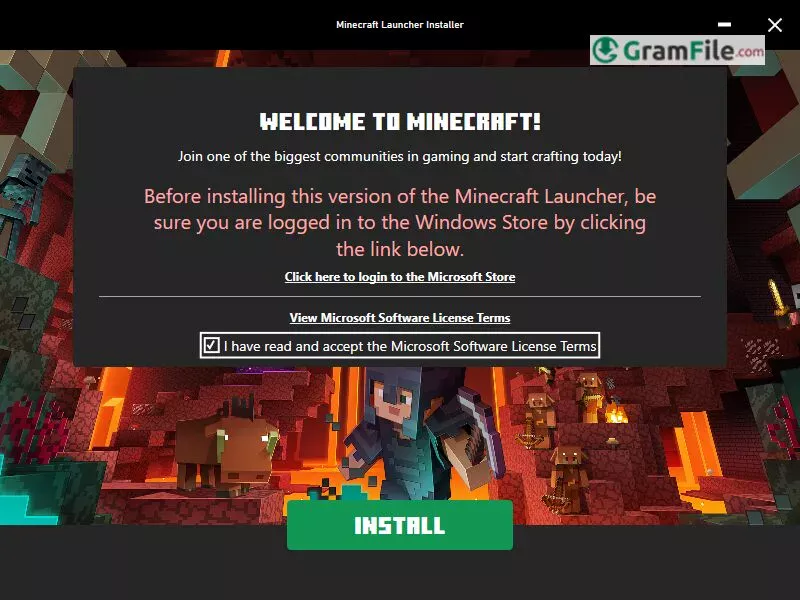
3. Wait till the installer downloads necessary files
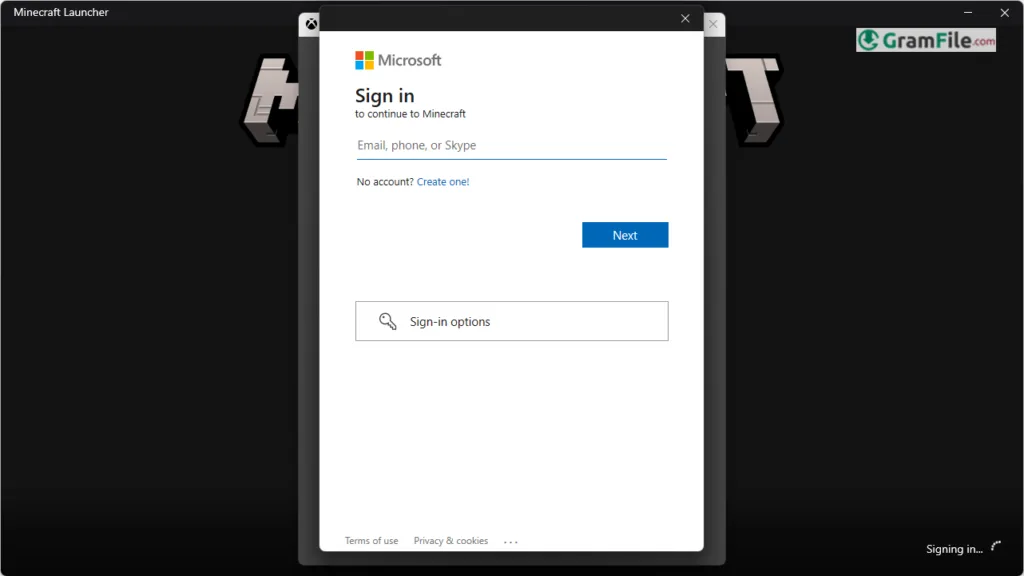
4. Sign in with your Microsoft account to access purchased games.
5. Launch Minecraft directly from the app, updates are automatic.

The launcher’s lightweight design ensures smooth performance even on older PCs, while its clutter-free layout prioritizes quick access to your favorite Minecraft experiences. Always download from the official site to avoid counterfeit software.
System Requirements
- Operating System: 64-bit Windows 10 or later.
- Processor: Dual-core CPU (Intel Core i3 or AMD equivalent).
- Memory (RAM): Minimum 2GB (4GB recommended for multitasking).
- Storage: 1GB free space for launcher; additional space for games.
- Graphics: Integrated GPU (Intel HD 4000 or similar).
- Internet: Stable connection for downloads/updates.
- Compatibility: Runs smoothly on most modern PCs; older systems may experience slower performance.
(Always verify requirements for specific Minecraft editions, as game demands vary.)





