

Download Details
- Version
- 24.8.2 (latest)
- File size
- 63.1 MB
- License
- Free Trial
- Security scan
- VirusTotal: 65 of 65 engines say OK (0 flagged)
- SHA-256 checksum
170e0deaef457ca8ce765865a081c1262a16717a918db96e4503d569871901fe- Developer
- Movavi
- Supported OS
- Windows 11, Windows 10
- Installers
- 64-bit (x64), 32-bit (x86), Offline
- Downloads
- 7457
- Rating
- 4.7 out of 5 · 69 reviews
- File name(s)
- MovaviScreenRecorder24_5853_release-SR-24.8.2_6ecbf1e_CyprusBuild003_WIN64_setup.exe
 Reviewed by Mohamed Zaki
Tested on Windows 11 and 10 · · How we review
Screenshots
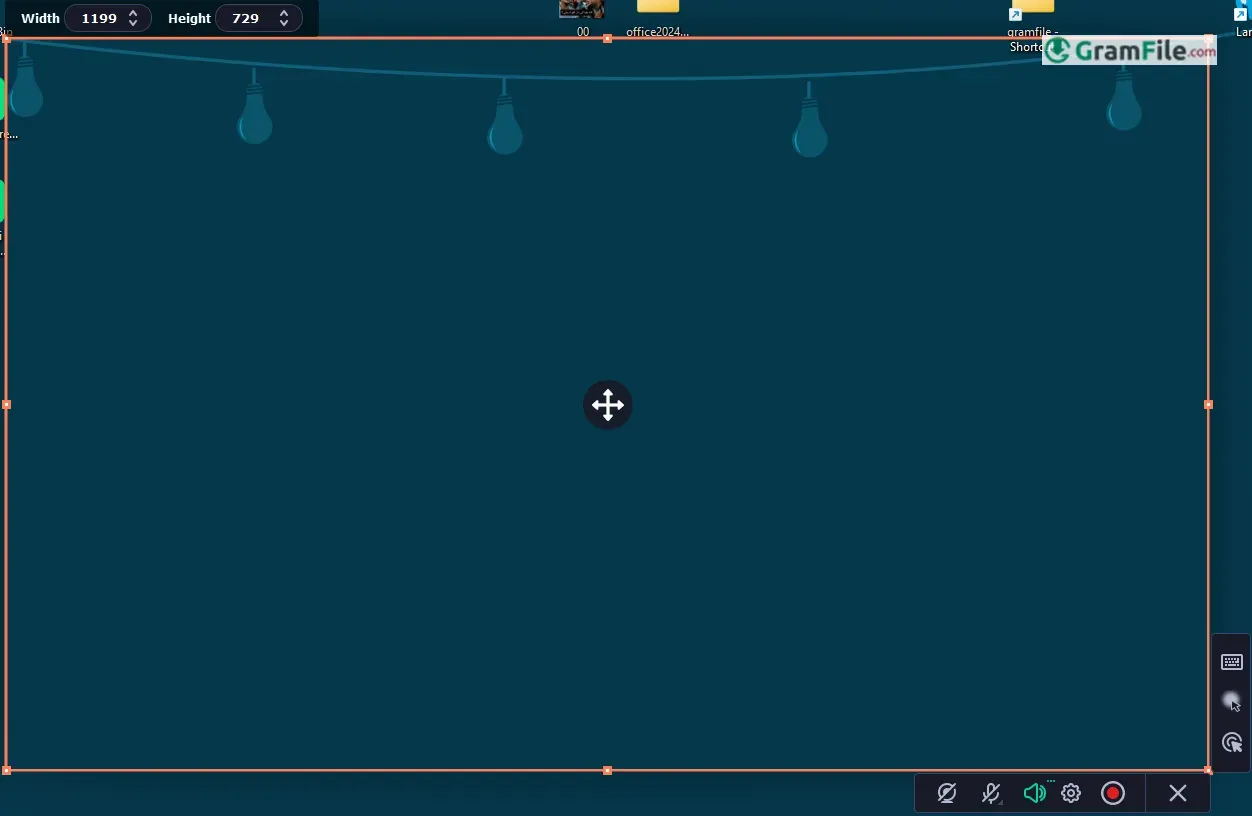


Capturing what happens on your computer screen is a common need these days, whether it’s for creating how-to guides, saving online calls, or sharing gameplay.
Developed by Movavi, a company specializing in multimedia software, this application simplifies the process of recording screen activity, making it accessible to both novice and experienced users.
Movavi itself has a history spanning over 15 years, initially focusing on video editing software before expanding its portfolio to include screen recording, video conversion, and other multimedia tools.
This experience has allowed them to refine their products, resulting in a screen recorder that balances powerful features with an intuitive interface, making it a popular choice for Windows users seeking a straightforward yet effective screen recording solution.
Movavi Screen Recorder for Windows is a user-friendly application designed to capture video and audio from your computer screen.
Whether you need to create tutorials, record webinars, capture gameplay, or save online streams, Movavi offers a streamlined solution.
It allows you to record the entire screen, a specific window, or a selected area, and includes options for capturing system audio, microphone input, and even webcam footage simultaneously.
What is Movavi Screen Recorder?
In essence, it’s a digital video camera for your desktop. It records everything happening within a defined area of your screen, saving it as a video file. This can be incredibly useful for a variety of purposes.
For example, educators can create video lessons, gamers can share their highlights, and professionals can record important online meetings. Movavi aims to simplify this process with an intuitive interface and a range of useful features.
Latest Version Updates and Features
Movavi regularly updates its software, adding new features and improving performance.
Recent updates have focused on enhanced recording quality, improved audio handling, and better integration with other Movavi products. While specific version numbers change frequently, common improvements include:
- Enhanced recording quality: Higher resolution recording and improved frame rates.
- Improved audio capture: Better synchronization and noise reduction.
- Streamlined interface: Making it even easier to start and stop recordings.
- New editing tools: Basic video editing features directly within the recorder.
It’s always recommended to check Movavi’s official website for the latest version and a detailed changelog.
Offline 64-bit Version
Movavi Screen Recorder is available as a 64-bit application, which is crucial for optimal performance on modern Windows systems.
The 64-bit version can utilize more of your computer’s RAM, leading to smoother recordings, especially when capturing high-resolution video or lengthy sessions.
Importantly, Movavi offers offline installers, meaning you can download the setup file and install the software without needing a constant internet connection. This is beneficial for users with limited or unreliable internet access.
What Can Movavi Screen Recorder Do for You?
- Create video tutorials and how-to guides: Easily demonstrate software usage, website navigation, or any on-screen process.
- Record webinars and online meetings: Preserve important information for later review or sharing with those who couldn’t attend.
- Capture gameplay: Share your gaming highlights, create walkthroughs, or analyze your performance.
- Create educational videos and online lessons: Engage students with dynamic visual content.
- Produce product demos and presentations: Showcase your products or services in a compelling way.
- Record streaming video: Capture online videos that are not available for download (respecting copyright laws).
- Save video calls: Preserve precious moments with family and friends.
- Document technical issues: Create visual recordings to clearly explain problems to support teams.
- Capture specific areas of your screen: Record only the relevant information, avoiding clutter.
- Record with audio (system and microphone): Add narration or capture system sounds for a more complete recording.
- Include webcam footage: Add a personal touch with a picture-in-picture view of yourself.
- Schedule recordings: Set a specific time for recording to start and stop automatically.
- Take screenshots: Quickly capture static images of your screen.
- Basic video editing: Trim unwanted sections or make simple adjustments to your recordings.
How to Download & Install
Here’s a straightforward, step-by-step guide to downloading and installing Movavi Screen Recorder on Windows:
- Click on the above Green Download Button for official direct download. It’s crucial to download from the official site to ensure you get a safe and legitimate copy of the software.
- Download the Installer: Click the Download button. Your browser will begin downloading the installation file. The download time will depend on your internet speed.
- Locate the Downloaded File: Once the download is complete, find the downloaded file on your computer.
- Run the Installer: Double-click the downloaded “.exe” file to start the installation process. A security prompt from Windows may appear asking if you want to allow the app to make changes to your device. Click “Yes” to proceed.
- Follow the On-Screen Instructions
- Complete the Installation: Click “Install” or “Next” through the installation wizard. The installation process will begin, copying the necessary files to your computer. This may take a few minutes.
- Launch Movavi Screen Recorder: Once the installation is complete, you’ll usually have the option to launch Movavi Screen Recorder directly from the installer. You can also find it in your Start Menu or on your desktop if you chose to create a shortcut.
- Activation: If you’ve purchased a license key, activate the software after launching it.
That’s it! You’ve successfully downloaded and installed Movavi Screen Recorder on your Windows computer. You’re now ready to start capturing your screen activity.
Pros & Cons
What we liked
- Easy to use interface.
- Records full or partial screen.
- Captures system and mic audio.
- Includes webcam recording.
- Has scheduled recording.
- Offers hotkey controls.
- Provides basic editing.
- Saves in many formats.
What we didn't like
- Paid for full features.
- Lacks advanced editing.
Best Movavi Screen Recorder Alternatives
-
 OBS Studio
Free software to turn your PC into a live streaming or recording studio.
-
 ScreenPal
A simple way to record and show what you're doing on your computer.
-
 ShareX
A tool for capturing and sharing screen images and other files quickly.

Conclusion
4.7out of 5 · 69 user ratings
Movavi Screen Recorder for Windows offers a solid balance of ease of use and functionality, making it a good choice for a wide range of users. Its intuitive interface and straightforward controls make it accessible even for those new to screen recording.
It reliably captures screen activity with good audio quality, and the inclusion of basic editing tools is a definite plus.
While it might not satisfy users needing advanced editing features or those working with high-end video production, it excels at everyday recording tasks like creating tutorials, capturing webinars, or sharing gameplay.
The free version provides a good taste of its capabilities, but the full version unlocks more features and removes the watermark.
Ultimately, if you’re looking for a simple, reliable, and affordable screen recorder for Windows, Movavi Screen Recorder is definitely worth considering.
Why to choose Movavi Screen Recorder? Movavi Screen Recorder vs others
Movavi Screen Recorder is a good choice for those who value simplicity and ease of use. Unlike complex programs like OBS Studio, it’s very easy to learn.
While some free recorders have limitations like watermarks, Movavi offers a balanced approach with a free trial and affordable full version.
If you need a simple, reliable, and reasonably priced screen recorder, Movavi is a strong option.
Found a problem with this download? Report an outdated version, broken link, suspicious installer or incorrect information.
 Zoom Workplace
 Nitro PDF Pro
 Sumatra PDF
 IrfanView
 K-Lite Codec Pack
 WinRAR