

Download Details
- Version
- 3.28.0 (latest)
- File size
- 30.5 MB
- License
- Free
- Developer
- ScreenPal
- Supported OS
- Windows 11, Windows 10
- Installers
- 64-bit (x64), 32-bit (x86)
- Downloads
- 12184
- Rating
- 4.8 out of 5 · 88 reviews
 Reviewed by Mohamed Zaki
Tested on Windows 11 and 10 · · How we review
Screenshots
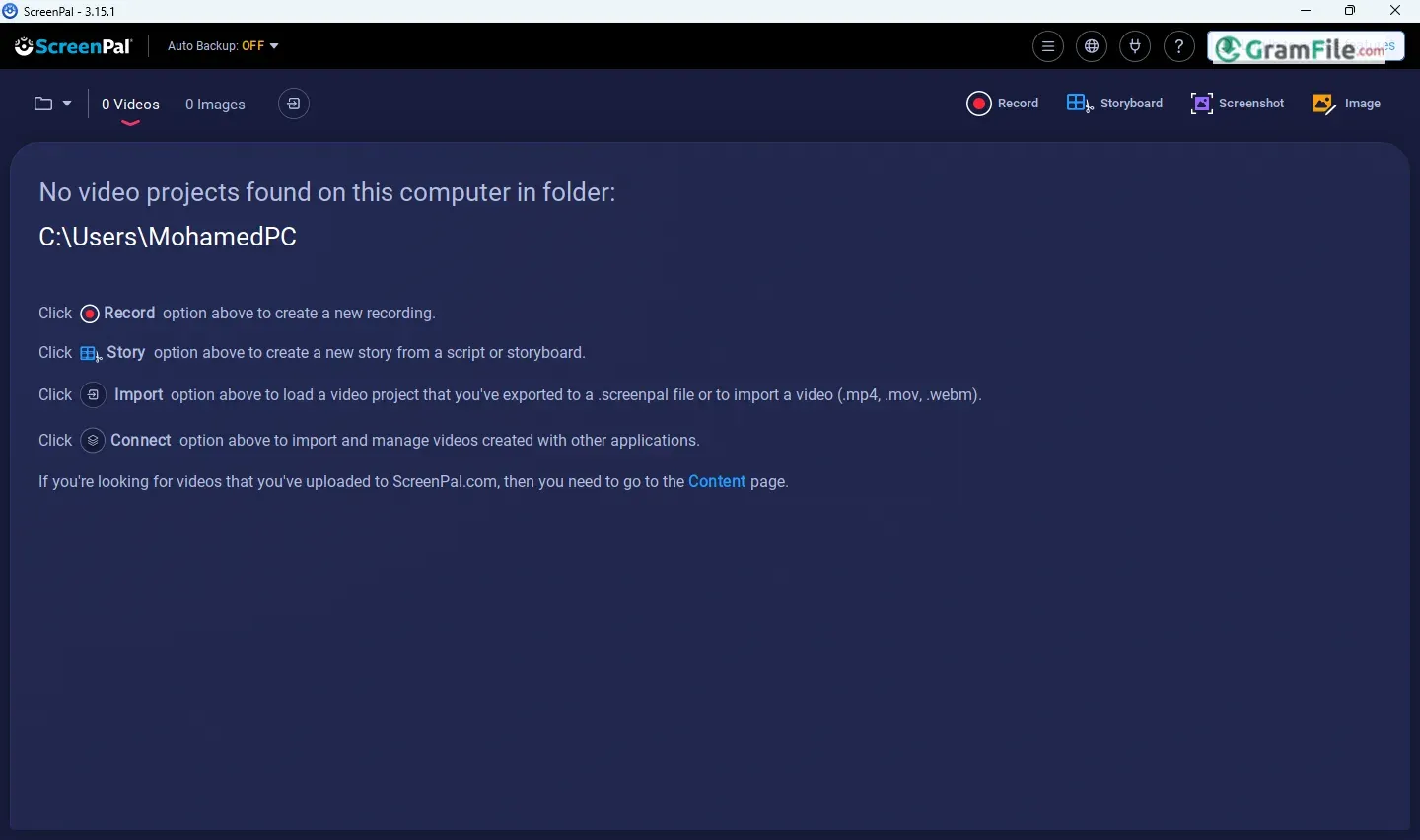
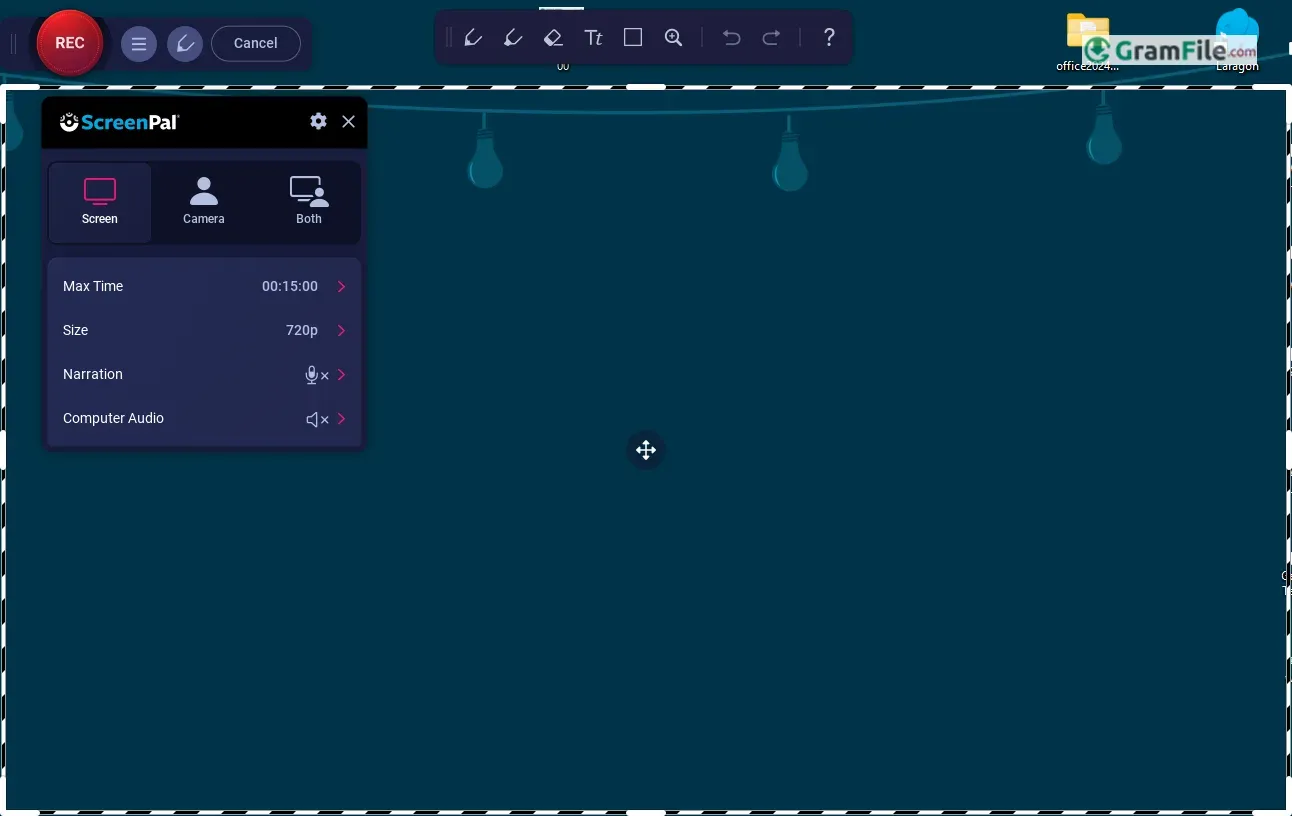
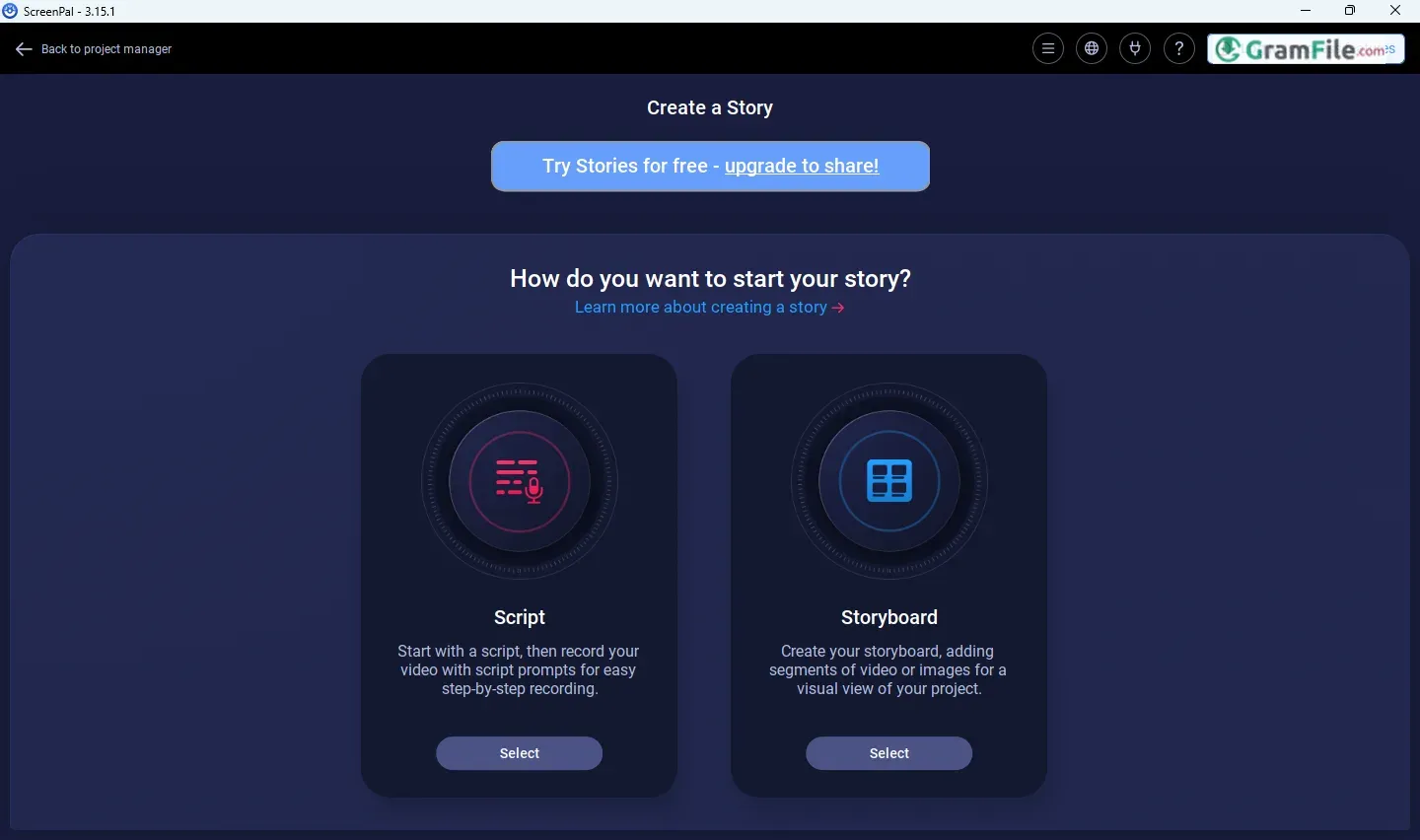
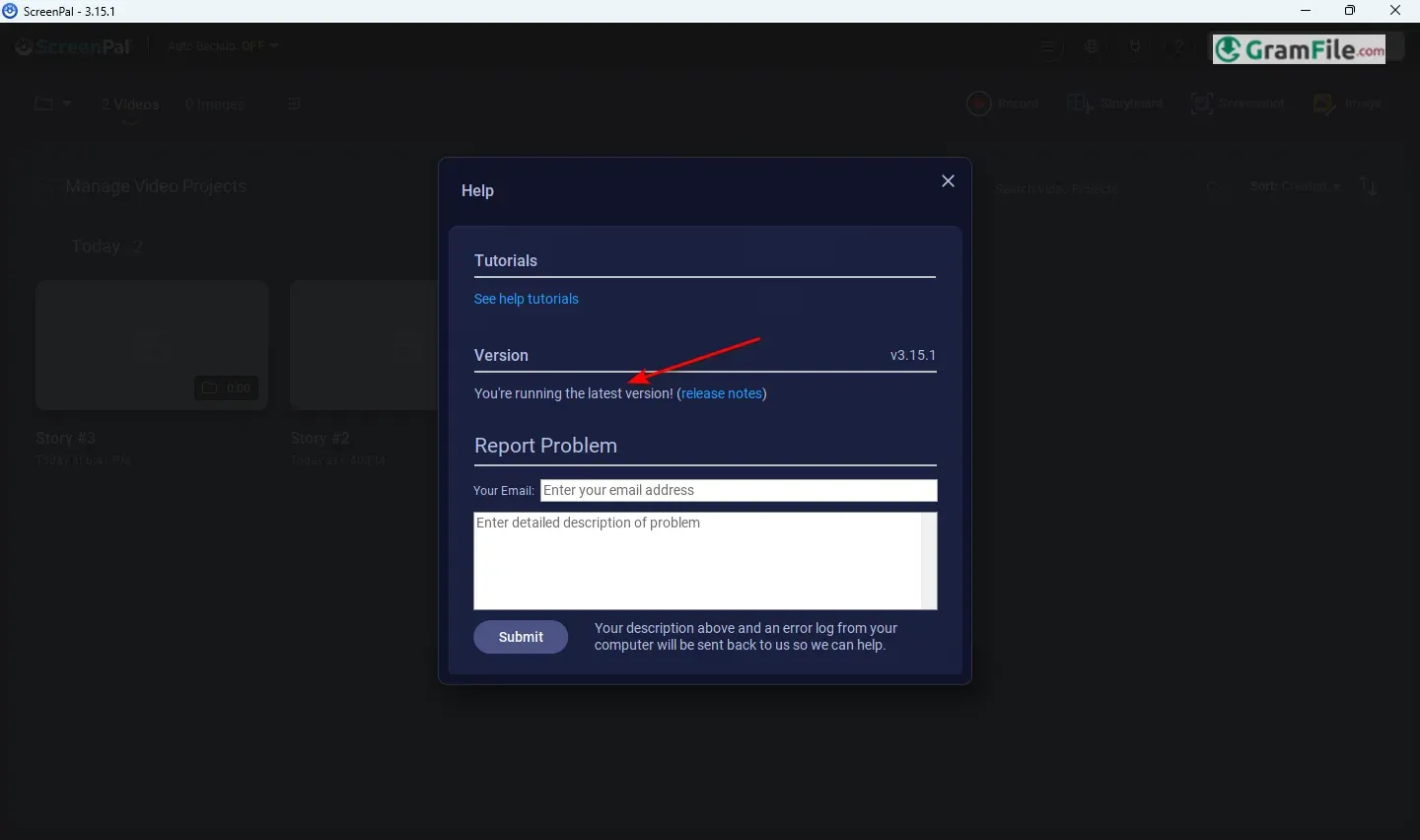
In today’s fast-paced digital world, sharing information visually is more important than ever.
Whether you’re creating tutorials, giving feedback on a project, or simply showing a friend how to do something on their computer, screen recording tools are essential.
One such tool that has been helping users capture their screens for over a decade is ScreenPal (formerly known as Screencast-O-Matic).
Launched in 2006, this software started as a simple web-based screen recorder, making it easy for anyone with an internet connection to create and share videos.
Over the years, ScreenPal has evolved into a robust desktop application for Windows, offering a range of features from basic screen recording to advanced video editing, making it a versatile choice for both casual users and professionals.
Let’s dive into a comprehensive tech review of ScreenPal for Windows.
What is ScreenPal?
ScreenPal (formerly Screencast-O-Matic) is a user-friendly software designed to record your computer screen and webcam. It’s a versatile tool for creating tutorials, presentations, game recordings, and more.
Unlike some complex video editing suites, ScreenPal focuses on making screen capture and basic editing straightforward, making it accessible to users of all technical levels.
ScreenPal Login and Extension
ScreenPal uses an account-based system, especially for users who utilize their hosting services. The login allows you to manage your recordings and access other features.
There is no official ScreenPal browser extension for recording; the primary recording function is handled by the desktop application.
Is ScreenPal Safe?
ScreenPal is a reputable company that has been around for many years. Downloading the software from their official website is generally considered safe.
As with any software, it’s always a good practice to have up-to-date antivirus software installed.
ScreenPal AI
ScreenPal has incorporated AI primarily into its automated captioning feature. This uses speech-to-text technology to generate captions for your videos, saving you time and effort.
While the AI is not pervasive throughout the entire application, this is a useful and practical implementation of AI technology.
Screen and Webcam Recording
At its core, ScreenPal lets you record what’s happening on your computer screen. This might sound simple, but it’s incredibly versatile.
You can choose to record your entire screen, a specific area you select, or just your webcam. Even better, you can record your screen and your webcam at the same time.
This is perfect for creating tutorials where you want to show your face while demonstrating something on your computer. It’s like having a mini TV studio on your desktop!
Video Editing: Simple Tweaks, Big Impact
ScreenPal isn’t designed to be a Hollywood-level video editor, and that’s a good thing. It focuses on the essential editing tools you need for screen recordings.
You can trim the beginning and end of your videos to cut out any unnecessary parts. You can add music to make your videos more engaging. And you can insert captions to help people understand what you’re saying, even if they’re watching without sound.
There are also zoom and pan effects, which let you focus on specific parts of your screen during the recording. These simple tools make a big difference in the final product.
Hosting and Sharing: Getting Your Videos Out There
Once you’ve recorded and edited your video, ScreenPal makes it easy to share it with the world. They offer their own hosting service, which is a convenient way to store and share your videos online. But you’re not limited to that.
You can also upload your videos directly to popular platforms like YouTube and Vimeo, or simply save them as files on your computer. This flexibility gives you complete control over how you share your creations.
Audio Recording: Capturing Sound Alongside Video
A good screen recording isn’t just about visuals; it’s also about sound. ScreenPal lets you record audio from your microphone, which is perfect for adding your voiceover or commentary.
It can also record system audio, which includes sounds coming from your computer, like music playing in a program or notification alerts. This ensures that your recordings capture the complete experience.
Automated Captions: Making Videos Accessible
One of the most useful recent additions to ScreenPal is automated captions. This feature uses clever technology to automatically generate text captions for your videos based on what’s being said.
This is incredibly helpful for people who are watching your videos in noisy environments, people who are deaf or hard of hearing, and even people who simply prefer to read along. It makes your videos more accessible to a much wider audience.
To summarize features and highlights, here’s the list:
- Record your screen.
- Record a specific area.
- Record your webcam.
- Record both at once.
- Trim your videos.
- Add music.
- Add captions.
- Auto-generate captions.
- Zoom in on details.
- Record your voice.
- Record computer sounds.
- Host videos online.
- Share to YouTube.
- Save to your computer.
- Easy to use.
- Works on Windows.
- Affordable options.
Pros & Cons
What we liked
- Easy to install (automatic installation) and easy to use.
- Quick recording.
- Webcam recording included.
- Simple editing tools.
- Good for basic tasks.
- Affordable pricing.
- Has free option.
- Auto captions are helpful.
- Easy video sharing.
What we didn't like
- Limited advanced editing.
- Free version has limits.
- Not for complex projects.
- No portable version (exactly).
Best ScreenPal Alternatives
-
 OBS Studio
Free software to turn your PC into a live streaming or recording studio.
-
 Movavi Screen Recorder
Easily captures anything on your computer screen as a video or screenshot.
-
 ShareX
A tool for capturing and sharing screen images and other files quickly.

Conclusion
4.8out of 5 · 88 user ratings
Choosing the right screen recorder can feel overwhelming with so many options available.
ScreenPal stands out for its simplicity and affordability. It’s designed to be easy to use, even if you’re not a tech expert. Unlike some complex software that requires hours of learning, ScreenPal lets you start recording quickly.
While other tools might offer advanced editing features, they often come with a steep learning curve and a higher price tag. It focuses on the essential features most people need: clear screen recording, basic editing, and easy sharing.
This makes it a great choice for creating tutorials, presentations, or quick videos to share with friends and family.
If you need a straightforward, budget-friendly way to capture your screen, ScreenPal is definitely worth considering.
Found a problem with this download? Report an outdated version, broken link, suspicious installer or incorrect information.
 Zoom Workplace
 Nitro PDF Pro
 Sumatra PDF
 IrfanView
 K-Lite Codec Pack
 WinRAR