

Download Details
- Version
- Update 3 (KB2919355) (latest)
- File size
- 4.02 GB
- License
- Free Trial
- SHA-256 checksum
d8333cf427eb3318ff6ab755eb1dd9d433f0e2ae43745312c1cd23e83ca1ce51- Developer
- Microsoft Corporation
- CPU Support
- 64-bit (x64), 32-bit (x86), Offline
- Downloads
- 14320
- Rating
- 4.3 out of 5 · 66 reviews
- File name(s)
- en_windows_8.1_with_update_x64_dvd_6051480.iso, en_windows_8.1_with_update_x86_dvd_6051550.iso
 Reviewed by Mohamed Zaki
Tested on PC, Virtual Machine · · How we review
Screenshots
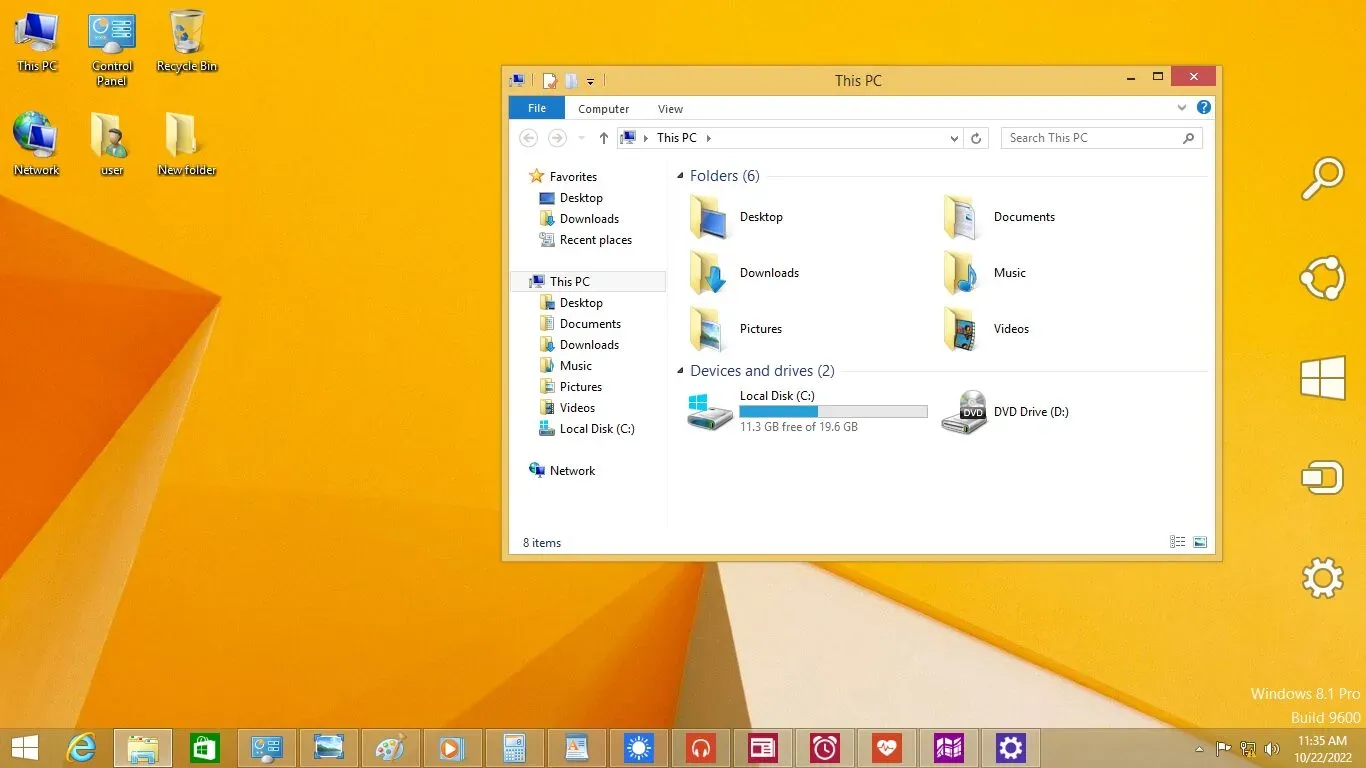
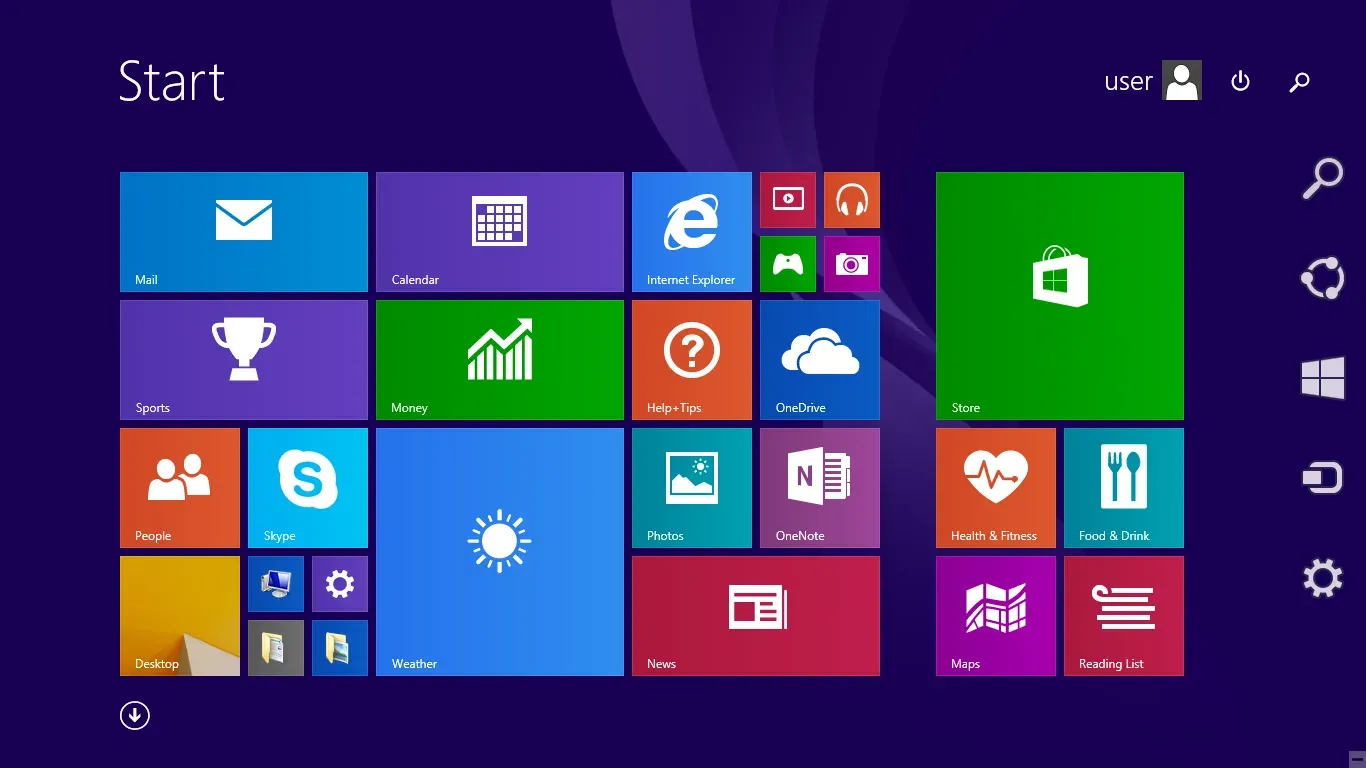
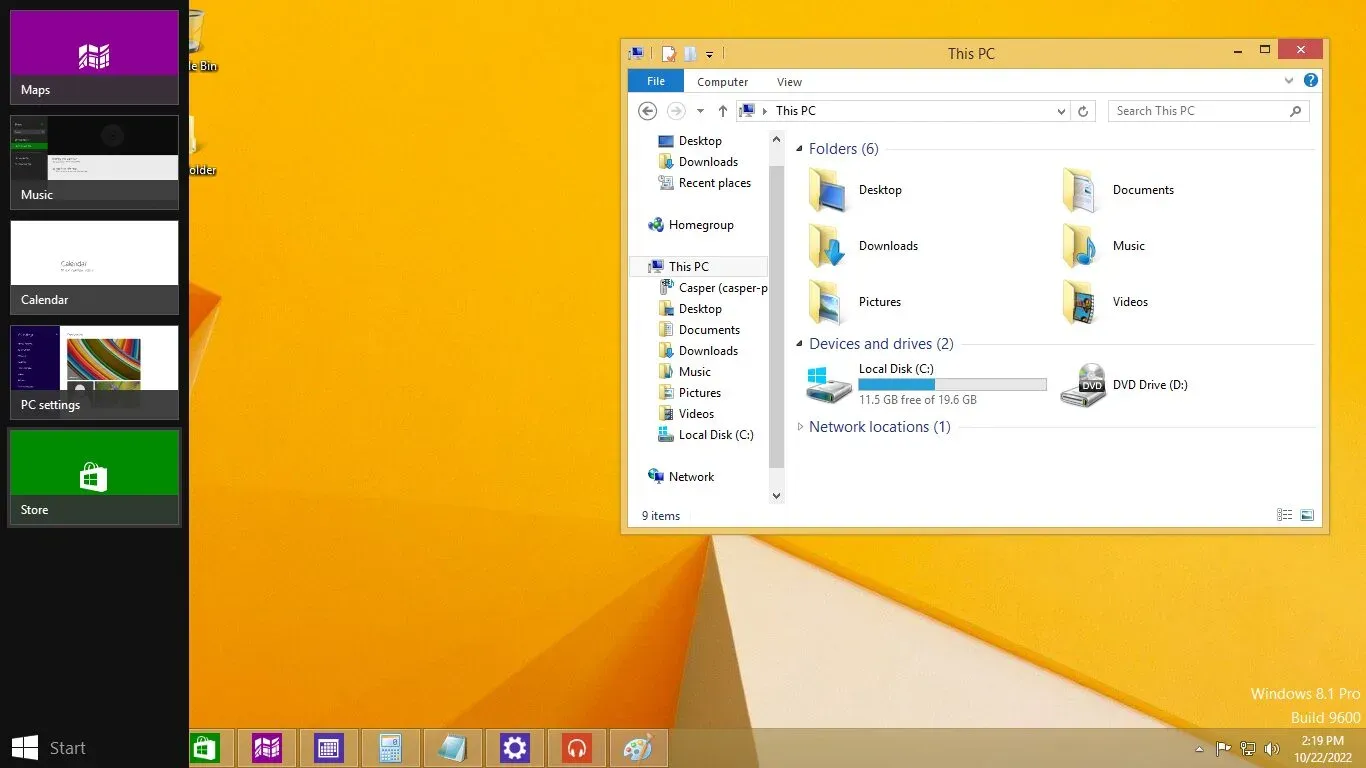
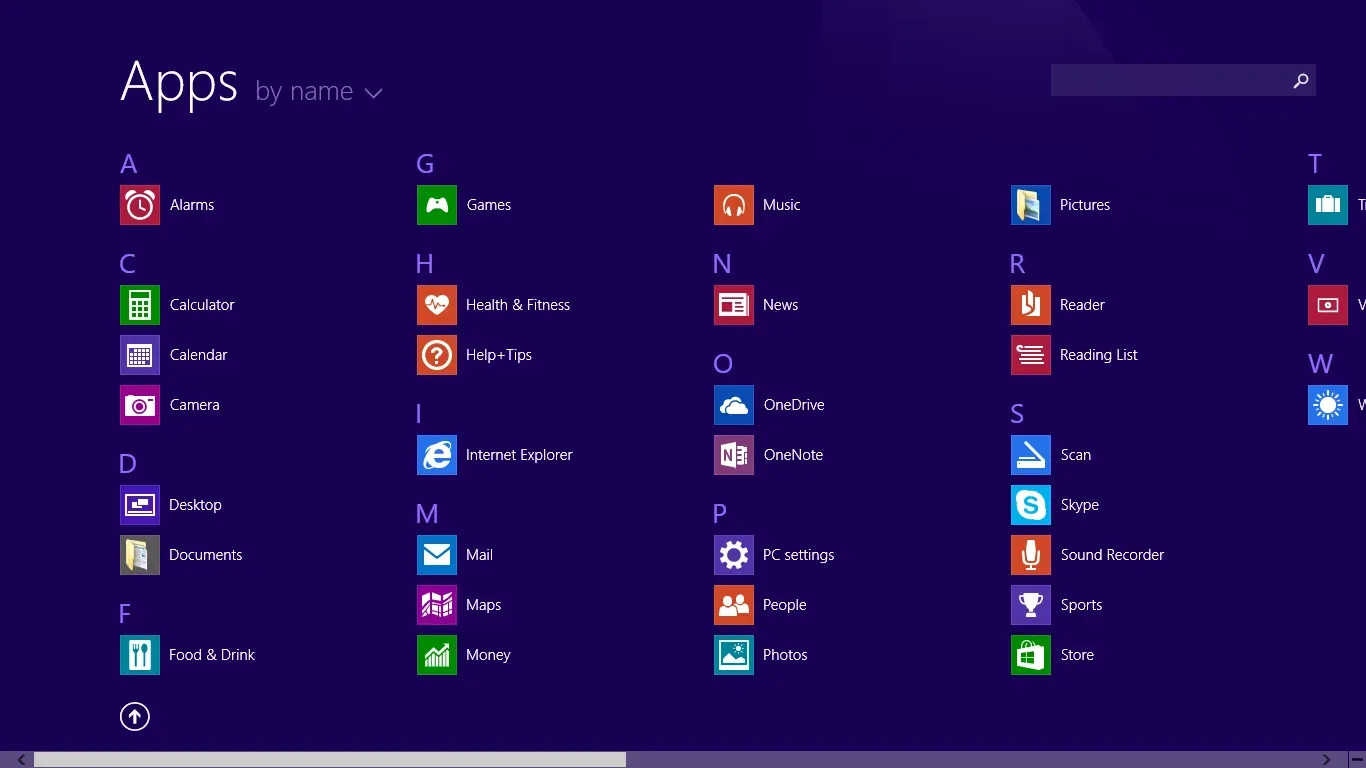
Windows 8.1 is Microsoft’s refined version of Windows 8, designed to bring back simplicity and balance between touch and desktop computing.
Released in October 2013, it marked a turning point in Microsoft’s approach to user feedback and system design. The update came as a direct response to criticism of Windows 8’s radical shift from the traditional desktop to a modern tile-based interface.
Unlike its predecessor, Windows 8.1 reintroduced comfort, familiarity, and flexibility, blending the modern Start Screen with the beloved desktop mode.
It offered smoother navigation, stronger security, and improved customization, making it one of the most stable and adaptable versions of Windows before Windows 10’s arrival.
This version wasn’t just an update; it was Microsoft’s commitment to listen, improve, and refine the digital workspace. Whether for home users, professionals, or touch-based devices, Windows 8.1 delivered a user experience built on speed, integration, and ease of use.
What is Windows 8.1?
Windows 8.1 is an operating system developed by Microsoft as an upgrade to Windows 8. It keeps the modern “Metro” design while improving system performance, security, and productivity.
It bridges the gap between touchscreen devices and traditional PCs, offering both tablet-like navigation and a classic desktop environment. The system integrates Microsoft’s cloud services like OneDrive, providing easy file storage and access from any device.
It also enhances personalization, faster boot times, and built-in apps that make everyday computing smoother. In short, Windows 8.1 is a flexible OS that adapts to how you work, not the other way around.
Key Features and Highlights
- Hybrid Start Button (not a classic menu).
- Boot directly to the Desktop.
- Highly customizable Live Tile Start Screen.
- Deep OneDrive cloud storage integration.
- Improved Snap View for multi-tasking apps.
- Unified Search across files, settings, and the web.
- Vastly improved modern app ecosystem.
- Superior touch and gesture support.
- Refreshed stock apps like Mail and Calendar.
- Lower system footprint than Windows 10/11.
How to Download & Install
1. Backup Your Data:
Before installation, save your files to an external drive or cloud service.
2. Get the Installation Media:
Download the official Windows 8.1 update 3 – latest update – ISO files from our download page. Click on the above green download button to navigate to the download page.
ISO Files (English version): an official ISO straight from Microsoft (not a 3rd party)
- Win8.1_English_x64.iso
- Win8.1_English_x32.iso
Size: 3.85 Gb for the 64 bit version OS, and 2.84 Gb for the 32 bit version.
3. Create a Bootable USB/DVD:
Use a tool like Rufus to burn the ISO to a USB or DVD.
4. Insert and Restart:
Plug the bootable USB into your computer and restart it.
5. Enter BIOS or Boot Menu:
Press the required key (often F2, F10, or DEL) to change the boot order.
6. Begin Installation:
Choose your language, region, and keyboard layout, then click Install Now.
7. Enter Product Key:
Input your genuine Windows 8.1 key during setup.
8. Select Installation Type:
Choose Custom: Install Windows only for a clean install.
9. Choose Preferred Language, Time, and Keyboard

10. Partition Drive:
Select the drive or partition where Windows will be installed.

11. Wait for Installation:
The system will copy files and reboot several times.

12. Set Up Your Preferences

13. Update your system

After installation, set up your Microsoft account, network, and privacy options.

Once done, your system is ready with Windows 8.1 fully activated and updated.
System Requirements
Minimum Requirements:
- Processor: 1 GHz or faster (x86/x64)
- RAM: 1 GB (32-bit) or 2 GB (64-bit)
- Storage: 16 GB (32-bit) or 20 GB (64-bit)
- Graphics: DirectX 9 compatible with WDDM driver
- Display: 1024 x 768 resolution
Windows 8.1 is light on resources, making it ideal for older PCs and laptops that can’t run newer Windows versions smoothly.
64-bit and 32-bit Versions
Windows 8.1 comes in both 32-bit and 64-bit versions.
- 32-bit: Better for systems with less than 4 GB of RAM.
- 64-bit: Recommended for modern hardware with better performance, multitasking, and memory handling.
Most users today prefer the 64-bit edition for its stability and compatibility with newer applications.
Different Editions
- Windows 8.1 (Core): Designed for home users.
- Windows 8.1 Pro: Includes advanced networking, encryption, and virtualization tools.
- Windows 8.1 Enterprise: Tailored for large organizations with volume licensing.
- Windows 8.1 RT: Made for ARM-based tablets with pre-installed Microsoft Office.
Each edition targets different needs, ensuring flexibility for both individuals and businesses.
How to Buy and Activate Windows 8.1
You can purchase a digital license or boxed version from Microsoft or authorized resellers. After installation, activation is simple:
- Go to Settings > PC Info > Activate Windows.
- Enter your product key.
- Wait for the activation confirmation.
Activation ensures you receive genuine updates, security patches, and support.
Warning from Serials, Cracks, and Patches
This is critical. With support ended, using unauthorized activation tools (cracks, patches, or KMS emulators) is more dangerous than ever. These files are almost always bundled with malware, including ransomware, trojans, and keyloggers.
Since your system will not receive security updates, any vulnerability introduced by these cracks will never be fixed, leaving your personal data, passwords, and financial information completely exposed.
The risk far, far outweighs the cost of moving to a supported OS.
Pros & Cons
Pros
- Fast and stable system.
- Smooth touchscreen support.
- Easy cloud integration.
- Customizable desktop and tiles.
- Strong security protection.
Cons
- Outdated modern UI design.
- Limited official support now.
- Lacks latest hardware drivers.
- No new feature updates.
- Requires manual updates setup.
Best Windows 8.1 Alternatives
-
 Windows 11
A simple and smooth system that makes your PC feel modern and attractive.
-
 Windows 10
A smart and stable operating system made for everyone.
-
 Windows 7 Professional
A stable and dependable operating system for professionals.


Conclusion
4.3out of 5 · 66 user ratings

Windows 8.1 stands as one of Microsoft’s most balanced operating systems, a bridge between old and new computing styles.
It successfully corrected Windows 8’s mistakes, reintroducing the Start button and familiar usability while maintaining the modern interface.
Windows 8.1 vs. Others
vs. Windows 10/11: Windows 10 and 11 are the present and future. They receive continuous security updates, have a more cohesive and less confusing user interface, support the latest technologies like DirectX 12 and WSL2, and offer a much more robust application ecosystem.
For any primary computer connected to the internet, Windows 10 or 11 is the unequivocal and only secure choice.
vs. Windows 7: Both are unsupported, but Windows 8.1 had a longer support lifecycle and is technically more secure from past threats than Windows 7.
It also has better native driver support for newer hardware and a more modern foundation. However, many users still prefer Windows 7’s purely traditional desktop.
vs. Linux Distributions: For reviving an old PC, a lightweight Linux distro like Lubuntu or Linux Mint Xfce is now a far superior alternative to Windows 8.1.
They are free, receive regular security updates, have a low system footprint, and offer a vast software repository, making them both safe and functional.
Summary
Windows 8.1 is a lightweight, user-friendly operating system that bridges classic Windows design with modern innovation. It offers fast performance, strong security, and flexibility for both desktop and touchscreen users.
With easy installation, cloud features, and wide compatibility, it remains a solid choice for personal and professional computing.
Remember
Using an unsupported operating system as your primary driver on the internet is a significant security risk.
It is highly recommended to use a currently supported operating system like Windows 10, Windows 11, or a modern Linux distribution.
Found a problem with this download? Report an outdated version, broken link, suspicious installer or incorrect information.