

Download Details
- Version
- 4.99.0 (latest)
- File size
- 595.06 MB
- License
- Free
- Security scan
- VirusTotal: 60 of 60 engines say OK (0 flagged)
- SHA-256 checksum
a5e299131c9c53d60f3f752b162078945eb5faf6eedcf0be20a214c6e6cea444- Developer
- Docker Inc.
- Supported OS
- Windows 11, Windows 10
- Installers
- 64-bit (x64), ARM (Arm64), Offline
- Downloads
- 9040
- Rating
- 4.8 out of 5 · 57 reviews
- File name(s)
- Docker Desktop Installer.exe
 Reviewed by Eman Sakr
Tested on Windows 11 and 10 · · How we review
Screenshots
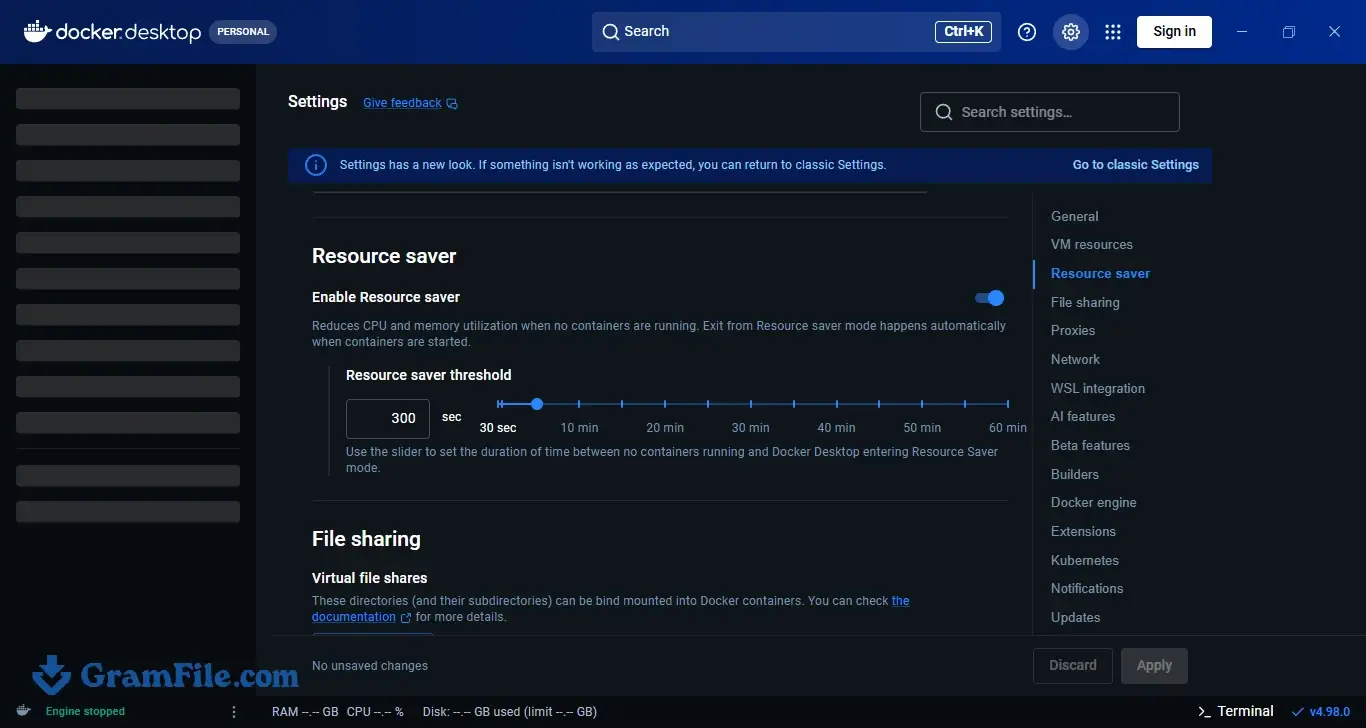
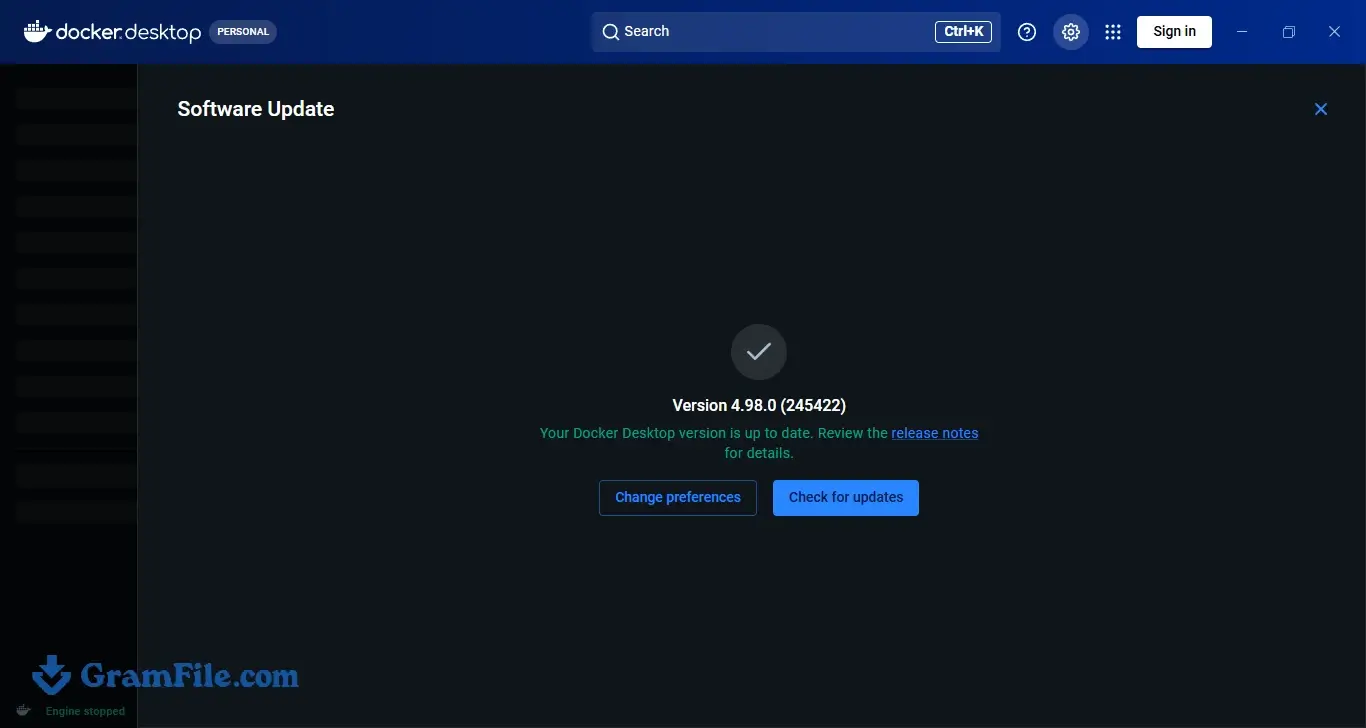
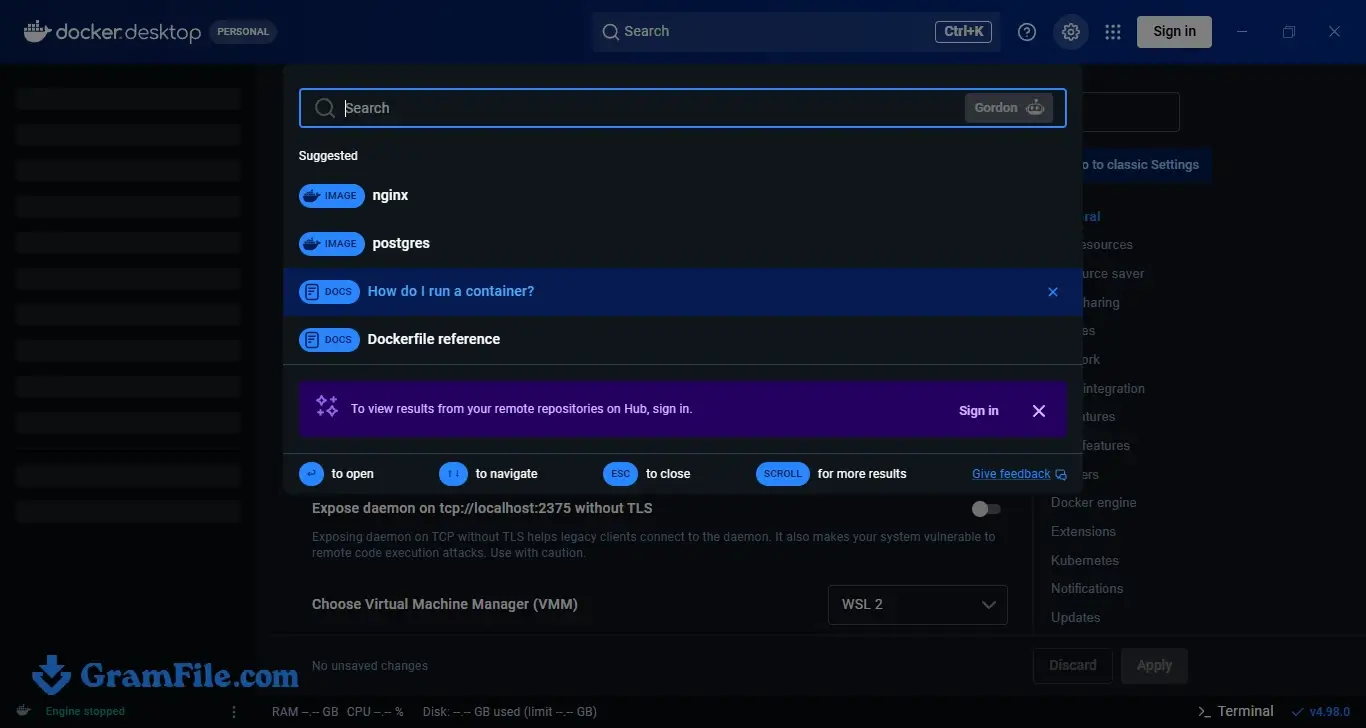
Docker Desktop is the standard way to build and run containers on a Windows PC. It bundles the Docker engine, the command line tools, a visual dashboard and an optional single-node Kubernetes cluster in one installer.
It suits developers, students and DevOps beginners who want a working container setup in minutes.
It is free for personal use, education and small businesses. Larger companies need a paid subscription, so check that before rolling it out at work.
The main trade-off is resource use, since the background virtual machine takes a share of your RAM.
What is Docker Desktop?
Docker Desktop is the official application from Docker Inc. for running containers on Windows. It packages the Docker engine, the Docker CLI, Docker Compose and a graphical dashboard together.
Containers let you run an app with all its dependencies in an isolated environment. That makes your local setup match production and removes the classic “works on my machine” problem.
What it does well
The dashboard shows your containers, images and volumes in one place. You can start, stop, inspect logs and open a shell in a container without typing commands.
Integration with WSL 2 means Linux containers start quickly and share resources with your Linux distributions.
Docker Compose support is built in, so multi-container projects run with a single command.
Tip: If you work with several services at once, define them in a Compose file and start the whole stack with docker compose up.
Built-in Kubernetes
Docker Desktop can start a local single-node Kubernetes cluster from its settings. It is handy for learning Kubernetes or testing manifests before pushing them to a real cluster.
Tip: Leave Kubernetes off when you do not need it, since it adds to memory use.
Where it annoys
The virtual machine behind Docker Desktop reserves memory, and the vmmem process can grow large on a busy machine. On a low-RAM laptop, you will feel it.
Tip: Create a .wslconfig file in your user folder to cap WSL 2 memory and processors, then run wsl --shutdown to apply it.
Startup can also be slow after a Windows restart, especially if WSL has to boot first.
Tip: Turn off “Start Docker Desktop when you sign in” if you only need containers occasionally.
Free vs paid
| Feature | Free (Personal) | Paid plans |
|---|---|---|
| Who can use it | Individuals, students, educators, open source projects and small businesses | Required for larger companies (more than 250 employees or over $10 million annual revenue) |
| Core engine, CLI and Compose | Included | Included |
| Kubernetes and dashboard | Included | Included |
| Admin controls and single sign-on | Not included | Available on business tiers |
The rules are set by Docker Inc., so confirm the current terms on the official site before using it at work.
Is Docker Desktop safe to install?
Docker Desktop is published by Docker Inc., the company behind the Docker platform, and it is the official desktop client.
It needs administrator rights and enables system virtualization features during setup, which is normal for this kind of software.
Only pull images from sources you trust, because a container can run whatever code its image contains.
Who should skip it
If your PC has 4 GB of RAM or less, Docker Desktop will feel heavy.
Companies above the free-use limit who do not want a subscription should look at open source alternatives instead.
If you only need an occasional Linux command line, WSL alone is lighter.
How to Download & Install
Click the download button at the top of this page to get the EXE installer for Docker Desktop. Run it with administrator rights and follow the steps below.
Step 1: Download the installer with the button at the top of this page and save it where you can find it.
Step 2: Before installing, open PowerShell as administrator and make sure the Virtual Machine Platform feature is installed. If it is missing, the wsl --install command sets up the WSL components for you.
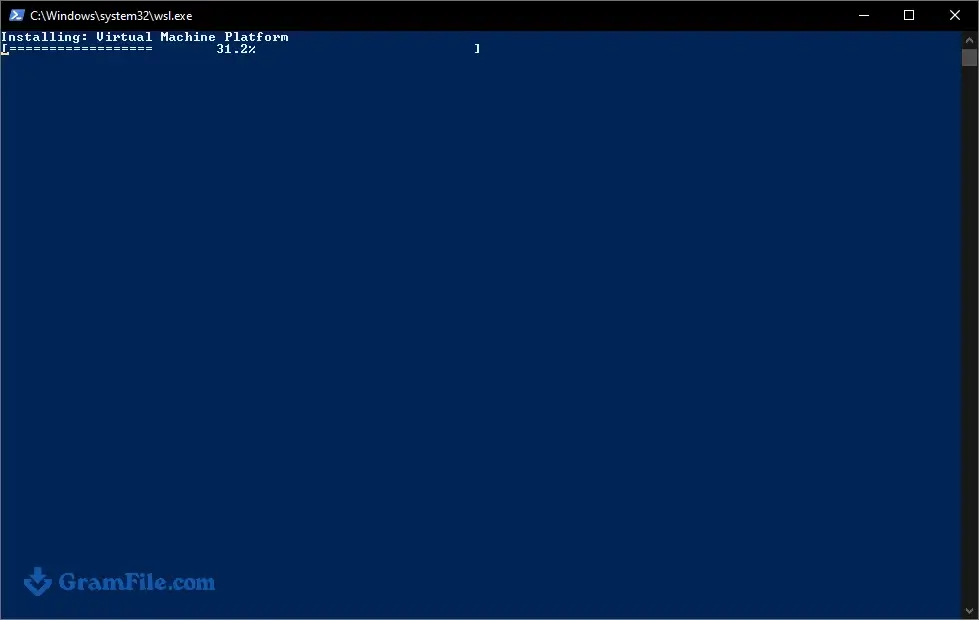
Step 3: Start the installer. On the configuration screen, keep the recommended options and click OK.
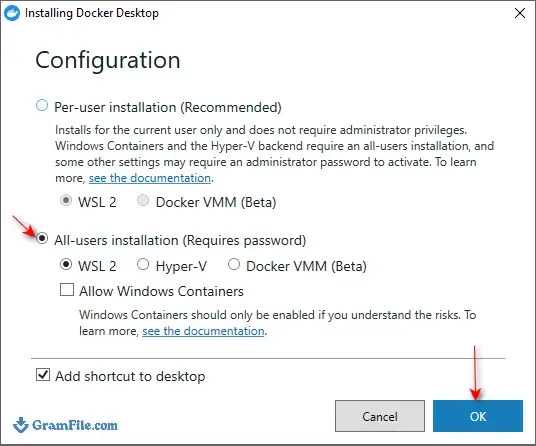
Step 4: Wait while the installer unpacks and sets up Docker Desktop. This takes a few minutes.
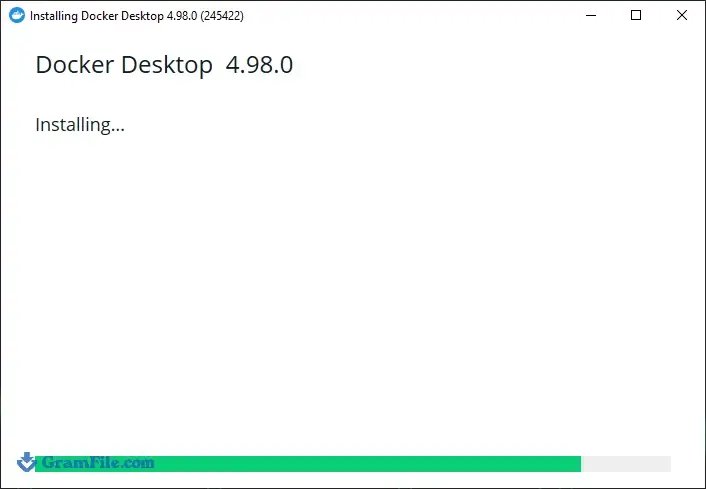
Step 5: When the installation finishes, click the button to close and restart. Windows needs the reboot to activate the virtualization components.
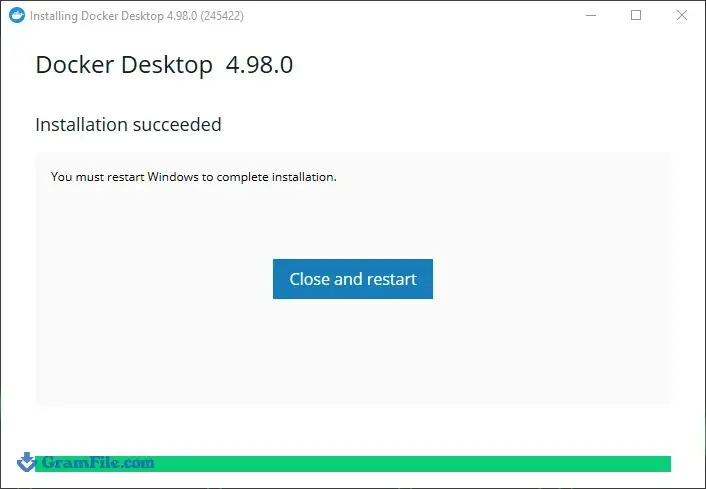
Step 6: After the restart, Docker Desktop opens the Subscription Service Agreement. Read it and press Accept to continue.
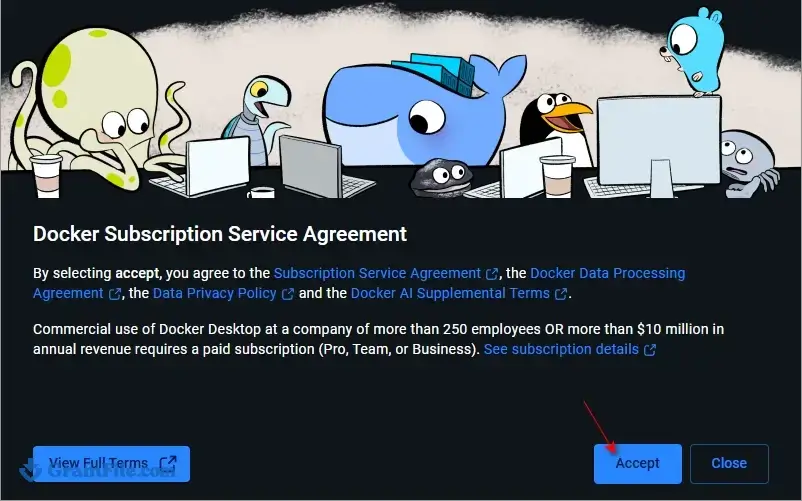
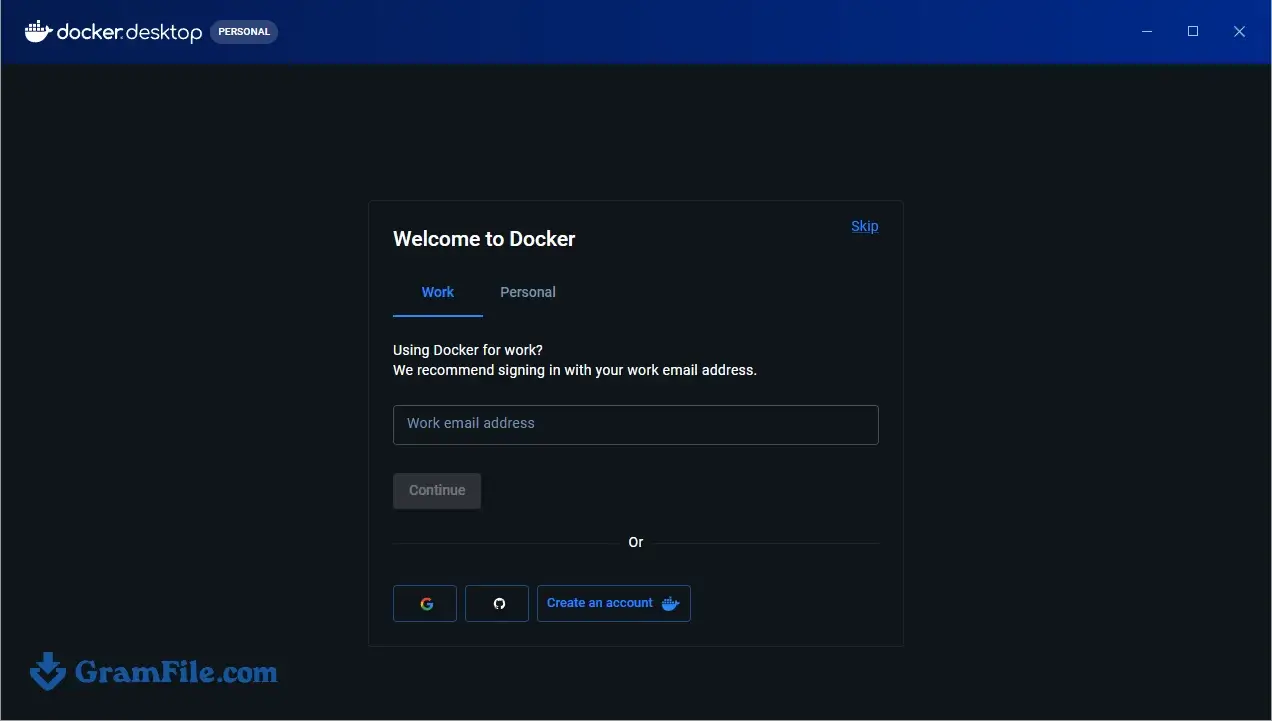
Step 7: Wait until the Docker engine shows as running in the app. You can then open a terminal and start your first container.
Installer types
- Main installer: the standard EXE for 64-bit (x64) PCs.
- ARM64 installer: for Windows devices with Arm processors.
System requirements
- Windows 10 or Windows 11 (64-bit), kept up to date with a supported build.
- A 64-bit processor with hardware virtualization support, enabled in BIOS or UEFI.
- WSL 2 or Hyper-V enabled (WSL 2 is the recommended backend).
- At least 4 GB of RAM, though 8 GB or more is much more comfortable.
How to update Docker Desktop
Docker Desktop checks for new releases on its own and shows a notice in the app when one is ready. Click the update prompt, let it restart, and your containers and images stay in place.
You can also run the new installer over the existing installation.
Fixing common install problems
- Virtualization is disabled: restart into BIOS or UEFI and turn on Intel VT-x or AMD-V (often called SVM Mode), then reinstall.
- WSL 2 errors on startup: run
wsl --updatein an administrator PowerShell, then restart Docker Desktop. - Engine stuck on “starting”: quit Docker Desktop fully, run
wsl --shutdown, and launch the app again.
Pros & Cons
What we liked
- Official all-in-one container toolkit
- Clear dashboard for containers and images
- Fast WSL 2 integration
- Docker Compose included
- Optional local Kubernetes cluster
What we didn't like
- High RAM use on small PCs
- Paid plan needed for larger companies
- Slow startup after reboot
Best Docker Desktop Alternatives
-
 VirtualBox
A free, powerful tool that lets you run multiple operating systems on your computer at the same time.
-
 VMware Workstation Pro
Run guest operating systems in isolated virtual machines with rollback snapshots.
-
 QEMU
A free and fast emulator that lets you run different operating systems on your PC.
Conclusion
4.8out of 5 · 57 user ratings
Docker Desktop is not the only way to run containers on Windows. Comparing it with free alternatives helps you pick the right fit for your team and hardware.
Look at licensing, resource use and whether you need Kubernetes or a specific container engine.
| App | Best For | Price | Platform | Standout Feature |
|---|---|---|---|---|
| Docker Desktop | Beginners and teams that want the standard Docker workflow | Free for personal and small business use, paid for larger companies | Windows, macOS, Linux | Polished dashboard with built-in Compose and Kubernetes |
| Podman Desktop | Users who prefer a daemonless, open source engine | Free | Windows, macOS, Linux | Rootless containers without a background daemon |
| Rancher Desktop | Kubernetes learners who want engine choice | Free | Windows, macOS, Linux | Switch between Docker and containerd engines |
Final verdict
Docker Desktop remains the easiest starting point for containers on Windows, with the best documentation and community behind it.
Pick it if you want a smooth setup and fall within the free terms. Choose an open source alternative if licensing or memory use is a concern.
FAQ
Is Docker Desktop free for Windows?
Yes, for personal use, education, open source projects and small businesses. Larger companies (over 250 employees or $10 million in annual revenue) need a paid subscription.
Does Docker Desktop work on Windows 11 and Windows 10?
Yes, it supports 64-bit Windows 11 and Windows 10 with virtualization enabled. An ARM64 installer is also available for Arm-based devices.
Do I need WSL 2 to run Docker Desktop?
WSL 2 is the recommended backend and gives the best performance. Hyper-V is an alternative on supported Windows editions.
Why is Docker Desktop using so much RAM?
The Linux virtual machine behind it reserves memory for containers. You can limit it by creating a .wslconfig file with memory and processor caps.
Why does Docker Desktop say “Docker Engine stopped”?
This usually means WSL 2 or virtualization is not working. Enable virtualization in BIOS, run wsl --update, then restart Docker Desktop.
How do I update Docker Desktop?
Click the update notice inside the app and let it restart. Your images and containers stay in place.
What are good alternatives to Docker Desktop?
Podman Desktop and Rancher Desktop are free, open source options. Both run containers on Windows without Docker’s subscription terms.
Found a problem with this download? Report an outdated version, broken link, suspicious installer or incorrect information.
 Zoom Workplace
 Nitro PDF Pro
 Sumatra PDF
 IrfanView
 K-Lite Codec Pack
 WinRAR