

Download Details
- Version
- 7.2.22 (latest)
- File size
- 169.9 MB
- License
- Free
- Security scan
- VirusTotal: 70 of 70 engines say OK (0 flagged)
- SHA-256 checksum
afd0ff1656cbe04ed88ce619594ae021419d97cce89fa9bdc443e9a963f1713f- Developer
- Oracle Corporation
- Supported OS
- Windows 11, Windows 10, Windows 7
- Installers
- 64-bit (x64), 32-bit (x86), Offline
- Downloads
- 21757
- Rating
- 4.8 out of 5 · 94 reviews
- File name(s)
- VirtualBox-7.2.22-175245-Win.exe
 Reviewed by Eman Sakr
Tested on Windows 11 and 10 · · How we review
Screenshots
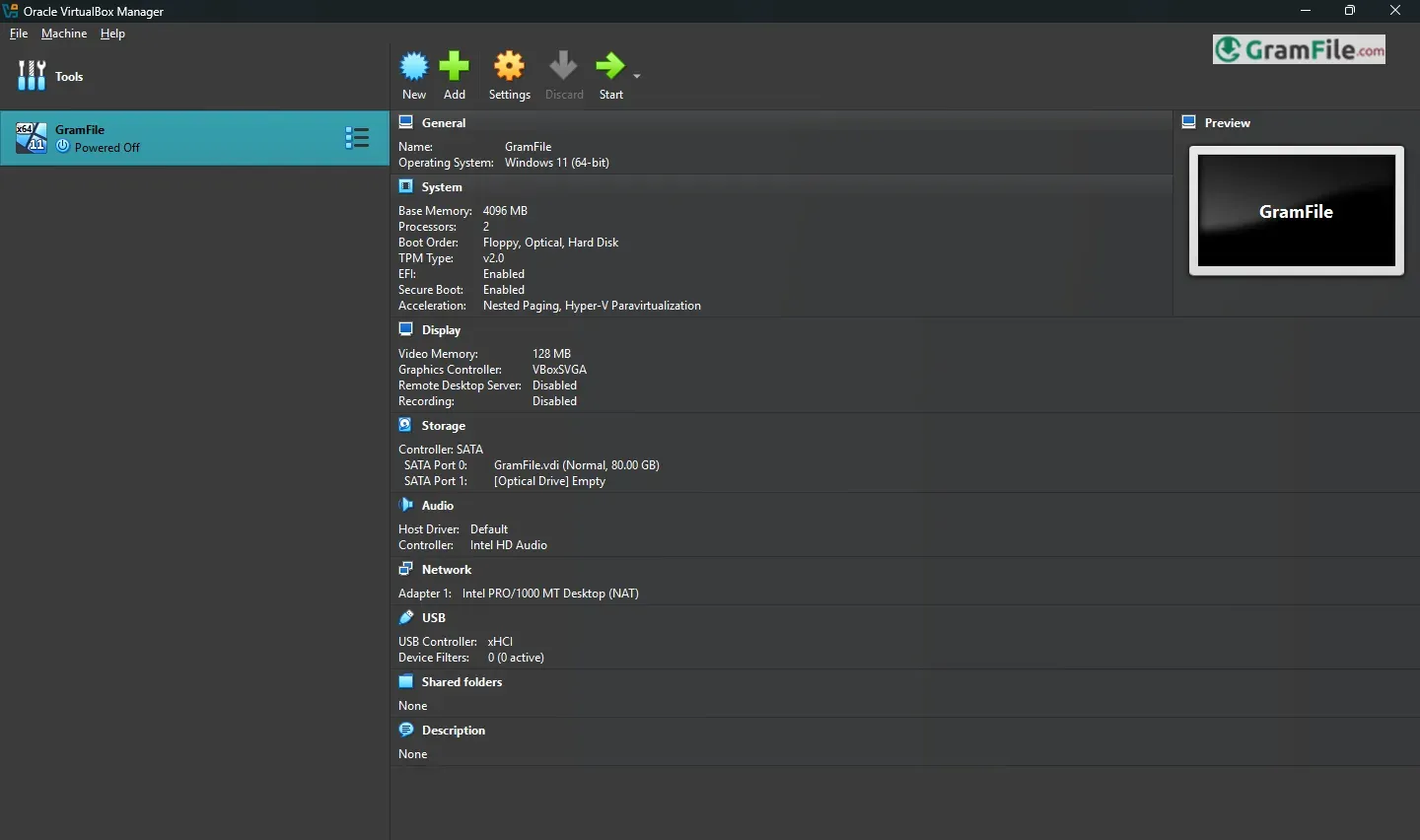
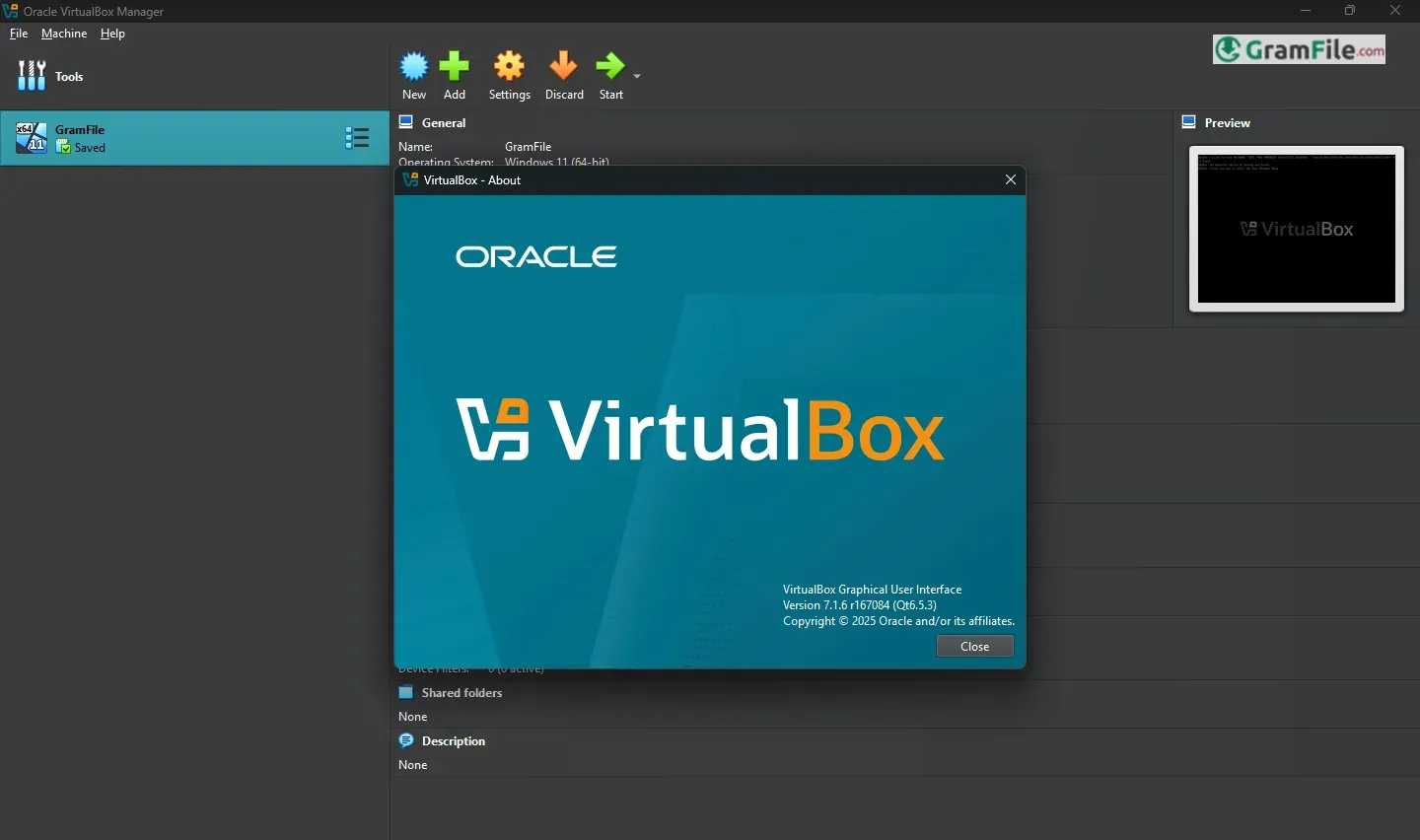
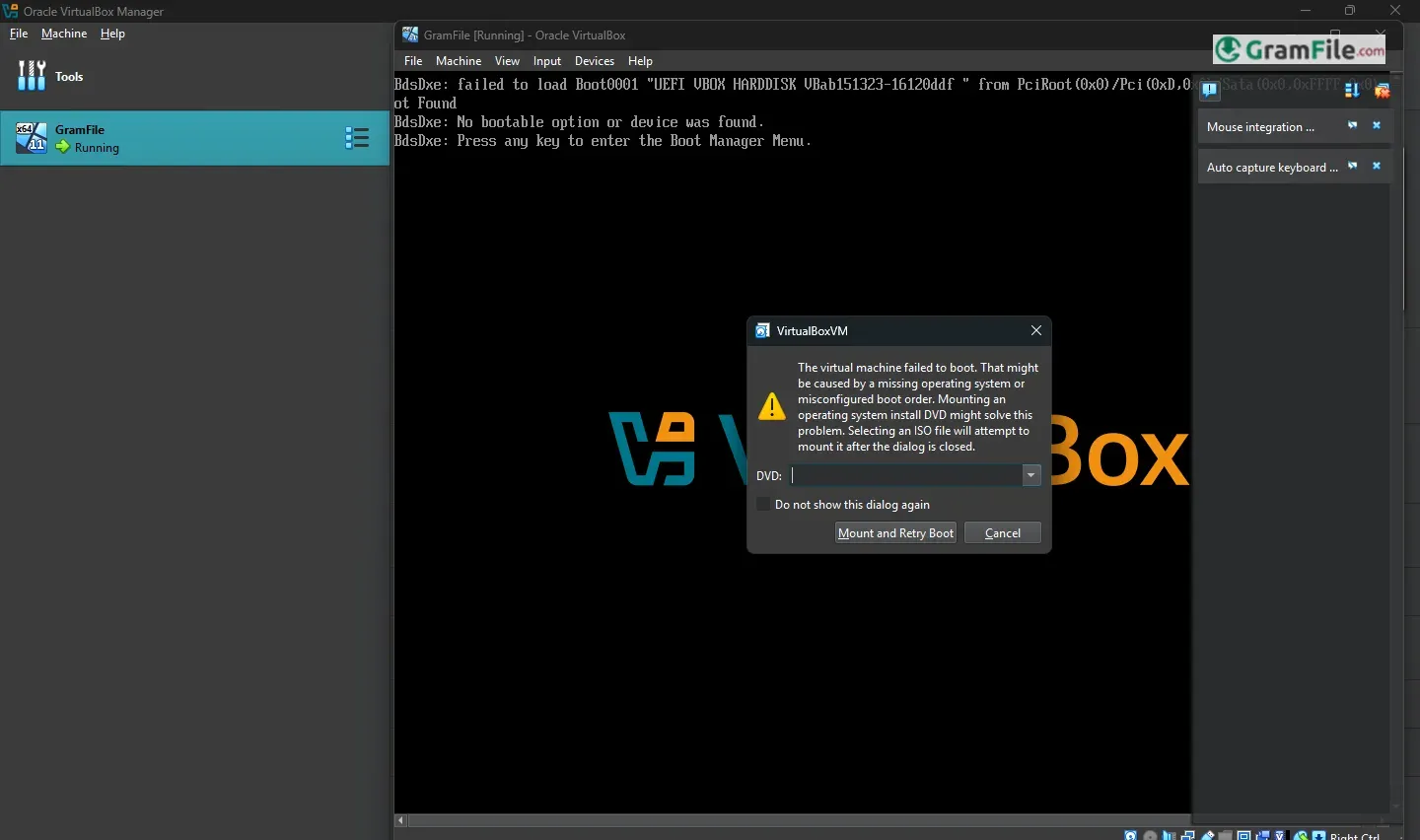
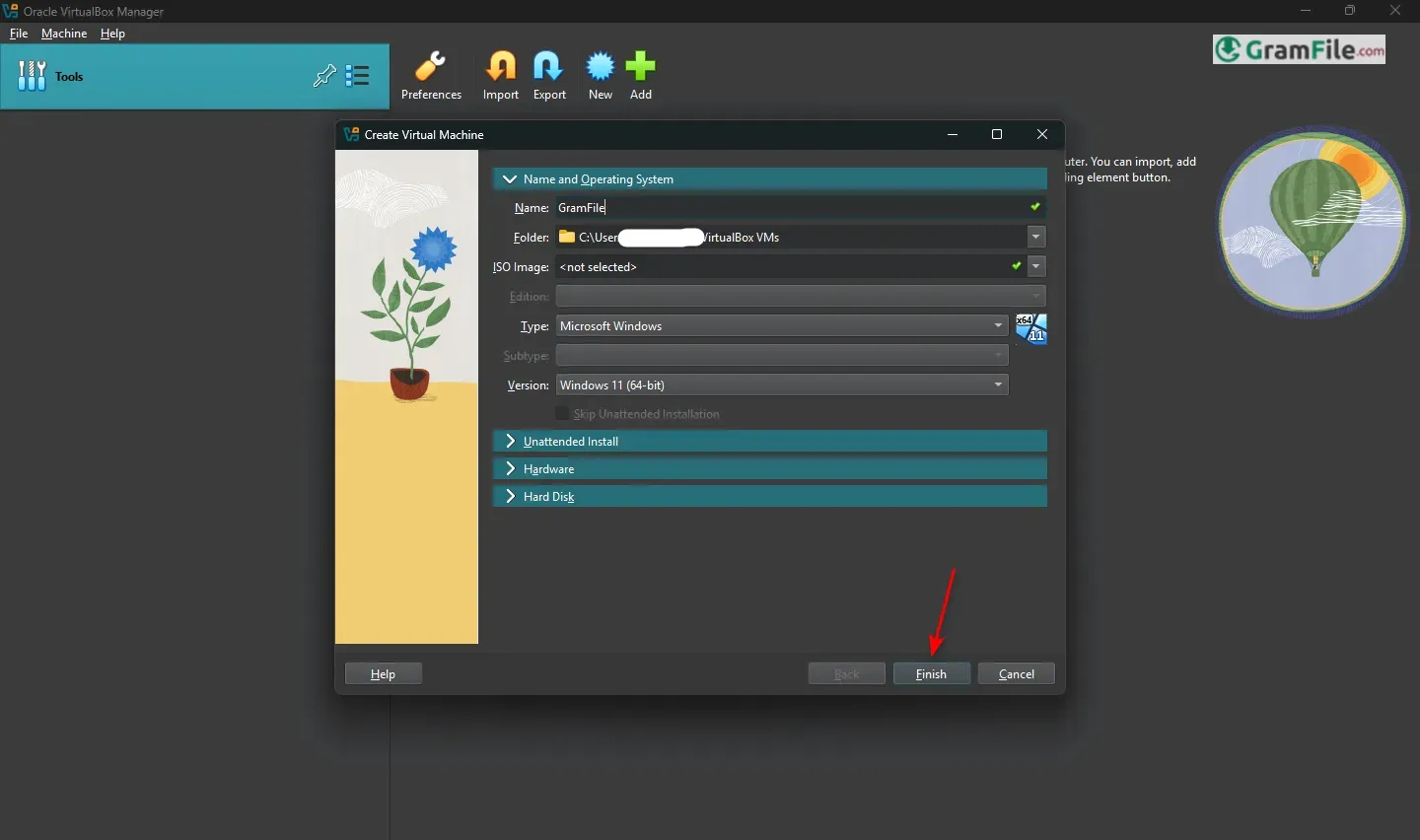
Ever wished you could try out a different operating system without messing up your Windows setup? Or maybe you’re a developer needing to test software in different environments? That’s where VirtualBox comes in.
It’s a powerful, free tool that lets you create and run virtual machines – essentially, little computer simulations – right on your Windows PC. Think of it like having a computer within your computer.
Originally developed by Innotek GmbH, and later acquired by Sun Microsystems (now Oracle), VirtualBox has been around since 2007, steadily growing in features and popularity.
It’s become a go-to solution for individuals and businesses alike, offering a safe and convenient way to explore different operating systems, run legacy applications, and much more.
Let’s have a closer look at VirtualBox for Windows.
What is VirtualBox?
VirtualBox is a free and open-source virtualization tool that allows users to run multiple operating systems on a single Windows machine.
Think of it as a “computer within a computer.” You can install and test different operating systems like Linux, macOS, or even another version of Windows without affecting your main system.
It’s perfect for developers, IT professionals, or anyone who needs to experiment with software in a safe, isolated environment.
The Extension Pack
While VirtualBox itself offers a solid base, the Extension Pack adds some extra oomph. Think of it like adding optional upgrades to a car.
The Extension Pack unlocks features like USB 2.0 and 3.0 support (meaning you can connect your flash drives and other devices to your virtual machine), VirtualBox Remote Desktop Protocol (VRDP) for remotely accessing your VMs, and support for disk encryption.
It’s not strictly necessary for basic use, but it significantly enhances the functionality and makes VirtualBox even more versatile, especially if you need to connect USB devices or access your virtual machines remotely.
It’s generally recommended to install the Extension Pack, as it broadens what you can do with VirtualBox.
VirtualBox Vs Others
QEMU vs VirtualBox
QEMU
- A hardware emulator that can run multiple operating systems on any supported architecture (e.g., ARM on x86).
- Highly customizable and ideal for developers testing software on different hardware setups.
- Requires more technical expertise to configure and use effectively.
VirtualBox
- A user-friendly virtualization tool designed for running multiple operating systems on a single host machine.
- Perfect for beginners and professionals who need a simple, intuitive interface.
- Limited to x86 and AMD64 architectures but offers seamless integration with the host OS.
Verdict: Use QEMU for advanced, cross-architecture emulation, and VirtualBox for straightforward, user-friendly virtualization.
VirtualBox vs Hyper-V
VirtualBox and Hyper-V are both popular virtualization solutions, but they cater to different needs.
VirtualBox
- Free, open-source, and works on Windows, macOS, and Linux.
- Easy to set up and use, making it ideal for personal use, testing, and development.
- Lacks advanced enterprise features like live migration.
Hyper-V
- A native hypervisor for Windows, included with Windows Pro and Enterprise editions.
- Designed for enterprise environments, offering features like live migration, high availability, and better resource management.
- Requires a Windows host and is less user-friendly for beginners.
Verdict: Choose VirtualBox for personal or cross-platform use, and Hyper-V for enterprise-level virtualization on Windows.
Proxmox vs VirtualBox
Proxmox and VirtualBox are both virtualization tools, but they target different use cases.
Proxmox
- A full-fledged virtualization platform based on KVM and LXC, designed for server environments.
- Offers advanced features like clustering, live migration, and backup/restore.
- Requires a dedicated server and is more complex to set up and manage.
VirtualBox
- A desktop virtualization tool for running multiple operating systems on a single machine.
- Simple to install and use, making it ideal for personal use, testing, and development.
- Lacks advanced server management features.
Verdict: Use Proxmox for server virtualization and enterprise environments, and VirtualBox for desktop virtualization and personal use.
Metasploitable on VirtualBox
Metasploitable is a deliberately vulnerable virtual machine used for penetration testing and security training. Running it on VirtualBox is a popular choice for ethical hackers and cybersecurity enthusiasts.
Why Use VirtualBox?
- VirtualBox is free, easy to set up, and works on multiple platforms (Windows, macOS, Linux).
- It provides a safe, isolated environment to practice hacking and security testing without affecting your main system.
How to Set Up Metasploitable on VirtualBox
- Download the Metasploitable VM image from a trusted source.
- Open VirtualBox, click New, and create a new VM (use Linux/Ubuntu as the OS type).
- Attach the Metasploitable disk image to the VM.
- Start the VM and log in (default credentials are usually provided in the documentation).
Use Cases
- Practice penetration testing tools like Metasploit, Nmap, and Wireshark.
- Learn about common vulnerabilities and how to exploit or fix them.
Verdict: VirtualBox is an excellent platform for running Metasploitable, providing a safe and accessible environment for cybersecurity training.
These comparisons and reviews should help you choose the right tool for your virtualization or security needs!
How to Download & Install
- Click on the Download Button at the top of this page.
- Download: Click “Download VirtualBox” and select “Windows hosts.”
- Run the Installer: Open the downloaded file (e.g., VirtualBox-7.0.x-Win.exe).
- Install: Follow the setup wizard, keep default settings, and click Install.
- Launch: After installation, VirtualBox will open automatically.
Optional: how to install virtualbox extension pack for extra features:
- Download it from the same website.
- In VirtualBox, go to File > Preferences > Extensions, and add the pack.
Done! You’re ready to create virtual machines. Enjoy!
VirtualBox Guest Additions ISO Download
VirtualBox Guest Additions is a set of tools and drivers that improve the performance and usability of virtual machines (VMs).
It enables features like better display resolution, shared folders, and seamless mouse integration. To install Guest Additions:
- Start your VM in VirtualBox.
- Go to the menu bar, click Devices > Insert Guest Additions CD Image.
- The ISO will load into the VM. Follow the on-screen instructions to install it.
If you need the ISO file separately, you can find it in the VirtualBox installation folder (usually under C:\Program Files\Oracle\VirtualBox).
Common Installation Problems
Fixing VirtualBox Fatal Error During Installation
A fatal error during installation usually occurs due to compatibility issues or corrupted files. Here’s how to fix it:
- Check Windows Version: Ensure your Windows version is compatible with the VirtualBox version you’re installing.
- Disable Hyper-V: VirtualBox conflicts with Hyper-V. Disable it:
- Open Command Prompt as Administrator.
- Type: bcdedit /set hypervisorlaunchtype off and restart your PC.
- Run as Administrator: Right-click the installer and select Run as Administrator.
- Re-download the Installer: The file might be corrupted. Download it again from the official website.
Fixing VirtualBox Missing Dependencies (Python Core)
- Install Python: Download and install the latest version of Python from python.org. During installation, check the box to Add Python to PATH.
- Reinstall VirtualBox: After installing Python, run the VirtualBox installer again.
- Check System Path: Ensure Python is added to your system’s PATH:
- Open Command Prompt and type: python –version. If it doesn’t show the version, manually add Python to PATH in Environment Variables.
These steps should resolve the issues and get VirtualBox running smoothly!
Make sure the kernel module has been loaded successfully
This error occurs when VirtualBox can’t load its kernel modules. Fix it by:
- Reinstalling VirtualBox: Uninstall VirtualBox, restart your PC, and reinstall it.
- Disable Hyper-V: Open Command Prompt as Administrator and run:
- bcdedit /set hypervisorlaunchtype off
- Then restart your PC.
- Check VirtualBox Drivers: Ensure VirtualBox drivers are installed. Go to Device Manager > System Devices and look for Oracle VM VirtualBox. If missing, reinstall VirtualBox.
VirtualBox Can’t Enumerate USB Devices
This happens when VirtualBox can’t detect USB devices. Fix it by:
- Install Extension Pack: Download and install the Oracle VirtualBox Extension Pack from the official website.
- Enable USB Controller: In VirtualBox, go to your VM’s settings, click USB, and ensure USB Controller is enabled.
- Add Your User to USB Group: On Linux hosts, add your user to the vboxusers group:
sudo usermod -aG vboxusers $USER
Then restart your PC.
VirtualBox Error 0xc0000034
This error is often caused by corrupted files or registry issues. Fix it by:
- Run System File Checker: Open Command Prompt as Administrator and run:
- sfc /scannow
- Reinstall VirtualBox: Uninstall VirtualBox, delete its installation folder (usually in C:\Program Files\Oracle\VirtualBox), and reinstall it.
NtCreateFile Failed in VirtualBox
This error occurs when VirtualBox can’t access a file. Fix it by:
- Check File Permissions: Ensure VirtualBox has access to the file or folder it’s trying to use.
- Reinstall VirtualBox: Uninstall and reinstall VirtualBox to fix corrupted files.
- Run as Administrator: Right-click the VirtualBox shortcut and select Run as Administrator.
VirtualBox Drag and Drop Not Working
Drag-and-drop issues are often due to Guest Additions. Fix it by:
- Install/Update Guest Additions: Start your VM, go to Devices > Insert Guest Additions CD Image, and follow the on-screen instructions.
- Enable Drag-and-Drop: In VirtualBox, go to your VM’s settings, click General > Advanced, and set Drag and Drop to Bidirectional.
VirtualBox Error in SUPR3HardenedWinRespawn
This error is usually caused by conflicts with antivirus software or corrupted files. Fix it by:
- Disable Antivirus Temporarily: Turn off your antivirus software and try running VirtualBox again.
- Reinstall VirtualBox: Uninstall VirtualBox, restart your PC, and reinstall it.
- Check for Windows Updates: Ensure your Windows OS is up to date.
These solutions should resolve most VirtualBox issues. If problems persist, consult the official VirtualBox documentation or forums for further assistance.
Pros & Cons
What we liked
- Free and open-source.
- Easy to use interface.
- Runs many operating systems.
- Good performance for most users.
- Large community support.
- Regular updates.
- Extension packs add features.
What we didn't like
- Some parts are technical.
- USB can be hard.
- Uses lots of resources.
- Driver issues happen.
Best VirtualBox Alternatives
-
 VMware Workstation Pro
Transforms your PC into a multi-OS hub, perfect for development and testing.
-
 QEMU
QEMUA free and fast emulator that lets you run different operating systems on your PC.

Conclusion
4.8out of 5 · 94 user ratings
VirtualBox is the go-to choice for anyone looking for a free, versatile, and easy-to-use virtualization tool.
While it may lack some advanced features found in enterprise solutions, its simplicity, cross-platform support, and active community make it a top pick for personal and professional use.
If you need a tool to run virtual machines without complexity, VirtualBox is the answer.
Why choose VirtualBox? Well, the price is definitely a big factor – free is hard to beat! It’s also cross-platform, so if you switch to Linux or macOS later, you can likely still use it.
The interface is fairly intuitive, making it easier to get started compared to some other virtualization solutions.
How does it stack up against the competition? If you’re a Windows user and need top-notch performance, especially for Windows virtual machines, Hyper-V might be worth considering.
It’s built right into Windows Pro and Enterprise, and because it’s a type 1 hypervisor, it can offer better performance. However, Hyper-V is Windows-only.
If you need cross-platform compatibility, VirtualBox is a better bet. QEMU is incredibly powerful, but it’s more technical, so it’s a better fit for advanced users.
Proxmox is in a different league entirely; it’s designed for managing servers and large-scale virtualization, not for individual desktop use.
In short, VirtualBox is a fantastic tool for everyday virtualization needs. It’s not perfect, but its ease of use, cross-platform nature, and, of course, its price make it a compelling choice for many users.
Found a problem with this download? Report an outdated version, broken link, suspicious installer or incorrect information.
 Zoom Workplace
 Nitro PDF Pro
 Sumatra PDF
 IrfanView
 K-Lite Codec Pack
 WinRAR