

Download Details
- Version
- 17.6.0 (latest)
- File size
- 245.5 MB
- License
- Free
- Developer
- Broadcom
- Supported OS
- Windows 11, Windows 10
- Installers
- 64-bit (x64), 32-bit (x86)
- Downloads
- 16476
- Rating
- 4.7 out of 5 · 106 reviews
 Reviewed by Eman Sakr
Tested on Windows 11 and 10 · · How we review
Screenshots
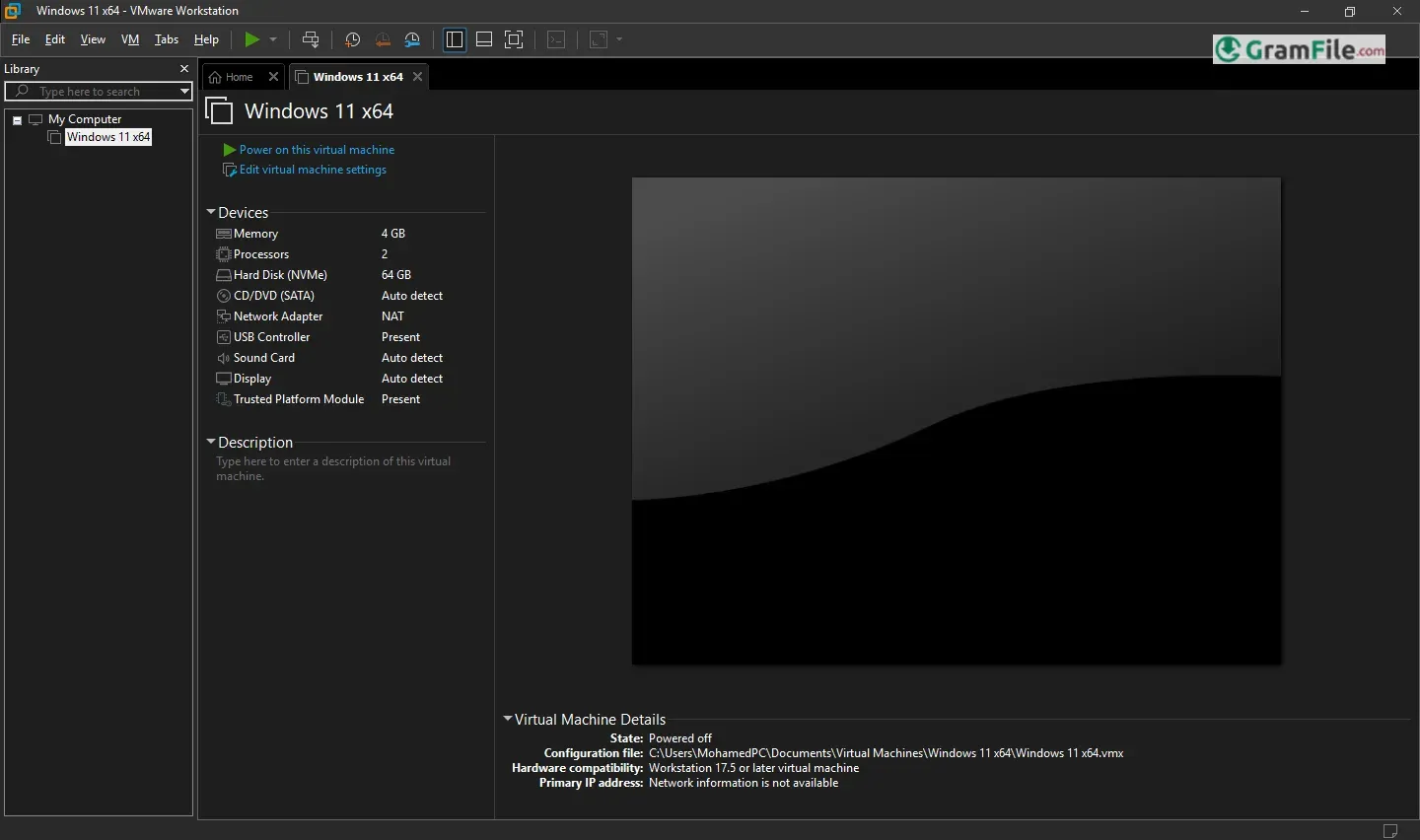
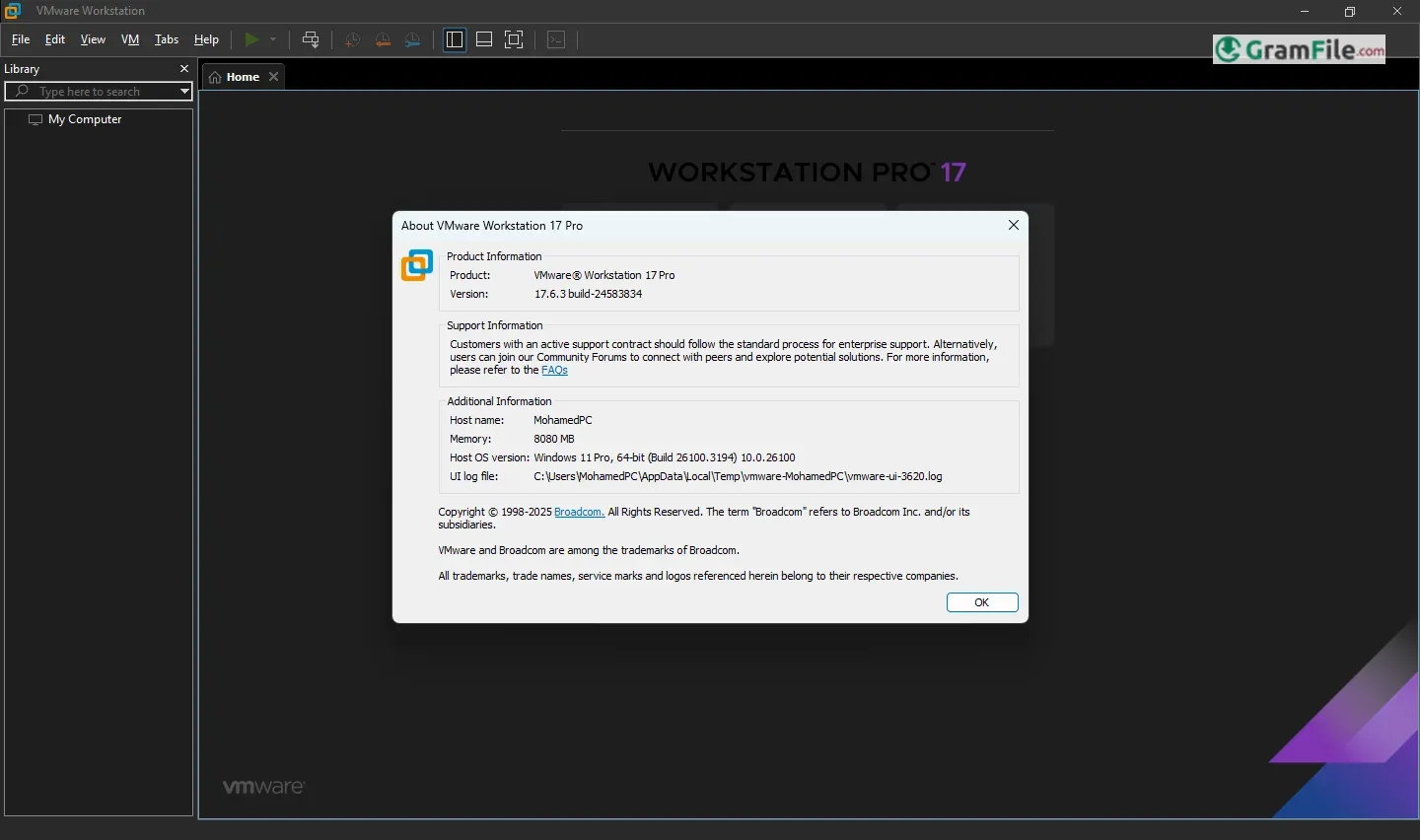
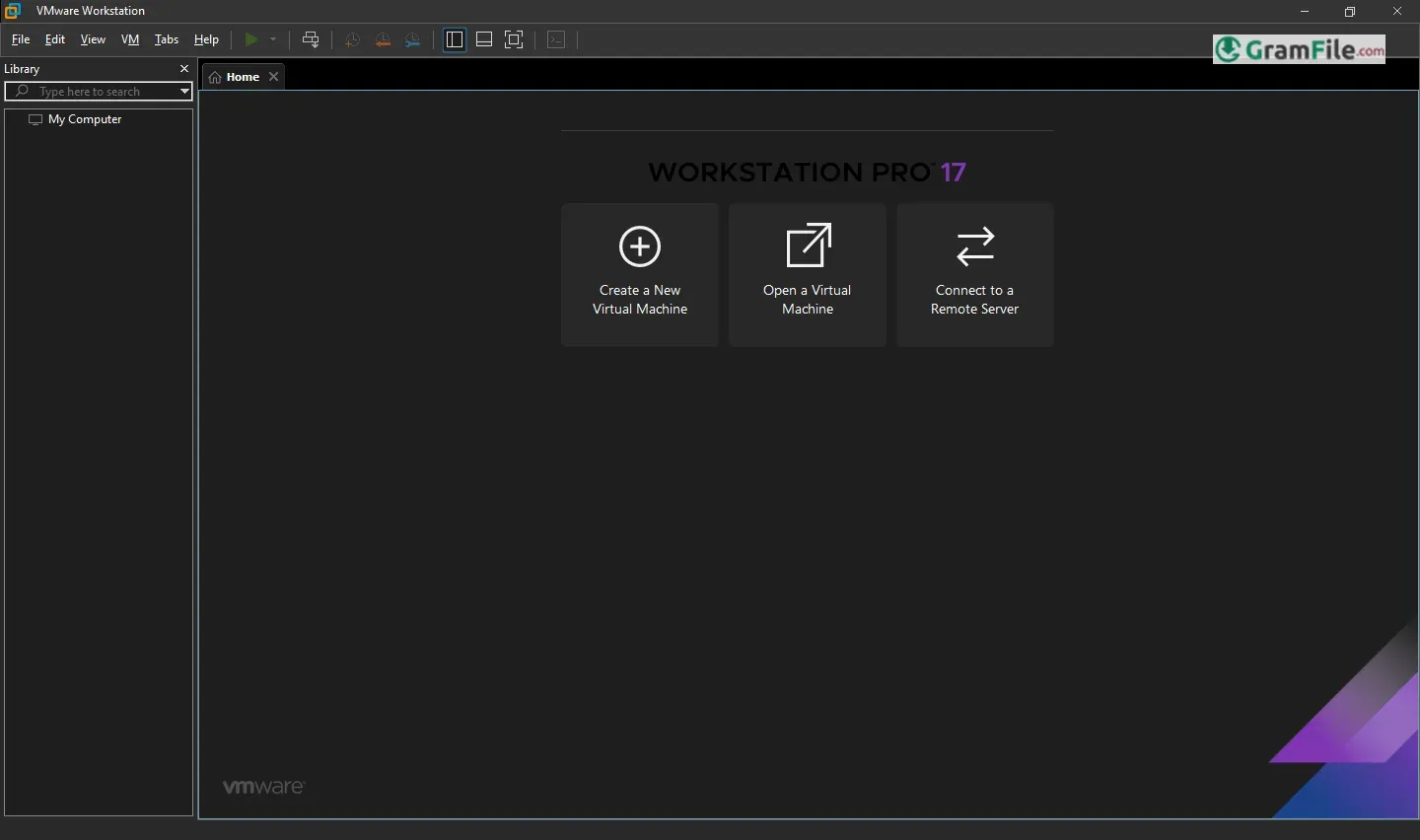
For anyone who’s ever wanted to play with different operating systems or test software without risking their main computer, this is the tool.
Simply put, it’s a way to run virtual machines—essentially, entire computers—right on your Windows desktop.
Since its initial release in 1999, VMware Workstation Pro has been at the forefront of virtualization technology, consistently evolving to meet the needs of professionals.
Over the years, it has introduced groundbreaking features like snapshots, virtual networking, and support for the latest operating systems, solidifying its reputation as an essential tool for developers, IT administrators, and tech enthusiasts.
Its ability to streamline workflows and reduce hardware dependency has made it a cornerstone in the world of virtualization.
What is VMware Workstation Pro?
VMware Workstation Pro is a premium virtualization software designed for Windows that allows users to create and run multiple virtual machines (VMs) on a single physical computer.
Each virtual machine operates as an independent system, complete with its own operating system (OS), applications, and settings.
This makes it an invaluable tool for developers, IT professionals, and businesses that need to test software, run legacy applications, or simulate complex environments without the need for additional hardware.
Think of it like this: your main computer is the house, and the VMs are separate rooms where you can do completely different things.
You can test new software without messing up your main system, run applications that need a specific operating system, or even create a safe environment for browsing the web.
Who is it For?
- Developers: Test applications across multiple operating systems without needing separate devices.
- IT Professionals: Simulate complex network environments for training or troubleshooting.
- Businesses: Reduce hardware costs by consolidating multiple systems into one machine.
- Students and Educators: Learn about different operating systems and software in a risk-free environment.
Key Features and Highlights
- Run multiple OSs. Different computers, one screen.
- Take snapshots. Save points for your virtual machines.
- Clone VMs fast. Make copies, quick and easy.
- Virtual networks. Connect your virtual computers.
- Good performance. Runs smoothly, mostly.
- Safe testing. Try things without risk.
- Container support. Works with newer tech too.
- USB device access. Use your USB devices in VMs.
- Drag and drop files. Easy transfer between systems.
- Encrypted VMs. Adds another security layer.
Latest 64 bit Offline Version

The most recent update of VMware Workstation Pro brings enhanced performance, improved compatibility with the latest operating systems, and support for newer hardware.
It also includes bug fixes and stability improvements, ensuring a smoother user experience.
The offline 64-bit version ensures that users without constant internet access can still enjoy the full range of features.
The latest version of VMware Workstation Pro supports 64-bit systems and has an offline installer, making it ideal for environments with limited or no internet access.
How to Download & Install
Let’s walk through getting VMware Workstation Pro onto your Windows machine, step by step, like we’re doing it together.
Check System Requirements
Before downloading, ensure your PC meets the minimum requirements:
- A 64-bit Windows 10 or 11 operating system.
- At least 4 GB of RAM (8 GB or more recommended).
- A compatible processor with hardware virtualization support (Intel VT-x or AMD-V).
- Enough storage space for virtual machines (SSD recommended for better performance).
Download VMware Workstation Pro
The fastest way to download VMware Workstation Pro is through our download page, Click on the above Green Download Button for official and direct download. This ensures you get a legitimate copy and avoid any potential malware.
Then, save the file to a location on your computer, such as your Downloads folder.
Installation
1. Locate the downloaded setup file, VMware-workstation-Vxxx.exe, where Vxxx is the version number.
2. Double-click the file to start the installation process.
3. If prompted by User Account Control (UAC), click Yes to allow the installer to make changes to your system.
4. The VMware Workstation Pro Setup Wizard will open. Click Next to begin.

5. Accept the license agreement by checking the box and clicking Next.

6. Choose user experience settings.

Select whether you want to enable updates and join the VMware Customer Experience Improvement Program, then click Next.
7. Click Install to begin the installation. This may take a few minutes.

8. Once the installation is complete, click Finish to close the wizard.

Start Using VMware Workstation Pro
- Open VMware Workstation Pro.
- Click Create a New Virtual Machine to set up your first virtual machine.
- Follow the prompts to install an operating system (e.g., Windows, Linux) on your virtual machine.
- Once set up, you can start using your virtual machine just like a physical computer.
Tips for a Smooth Experience
- Keep your software updated by enabling automatic updates.
- Allocate sufficient resources (RAM, CPU, and storage) to your virtual machines for optimal performance.
- Use snapshots to save the state of your virtual machines before making major changes.
By following these steps, you’ll have VMware Workstation Pro up and running on your Windows PC in no time. Enjoy the flexibility and power of virtualization!
Pros & Cons
What we liked
- Now Free. It is now free for personal use.
- Runs many OSs. Very flexible.
- Great snapshots. Easy rollbacks.
- Clones fast. Saves time.
- Good networks. Complex setups.
- Strong performance. Runs well.
- Secure testing. No main system risk.
- USB devices. Easy access.
- Drag/drop files. Simple transfers.
- Container ready. Modern tech.
What we didn't like
- Needs power. Uses lots of RAM.
- Updates needed. Can be frequent.
- Disk space use. VMs take room.
Best VMware Workstation Pro Alternatives
-
 VirtualBox
A free, powerful tool that lets you run multiple operating systems on your computer at the same time.
-
 QEMU
QEMUA free and fast emulator that lets you run different operating systems on your PC.

Found a problem with this download? Report an outdated version, broken link, suspicious installer or incorrect information.
 Zoom Workplace
 Nitro PDF Pro
 Sumatra PDF
 IrfanView
 K-Lite Codec Pack
 WinRAR