

Download Details
- Version
- 11.1.0 (latest)
- File size
- 197.0 MB
- License
- Free
- Security scan
- VirusTotal: 44 of 44 engines say OK (0 flagged)
- SHA-256 checksum
f98a8aeb5f7faea9765b6dee28316c266cd179d80354a2fed8e50176f9a2e59f- Developer
- QEMU Community
- Supported OS
- Windows 11, Windows 10
- Installers
- 64-bit (x64), ARM (Arm64), Offline
- Downloads
- 11297
- Rating
- 4.6 out of 5 · 78 reviews
- File name(s)
- qemu-w64-setup-20260811.exe, qemu-arm-setup-20260811.exe
 Reviewed by Mohamed Zaki
Tested on Windows 11 and 10 · · How we review
Screenshots
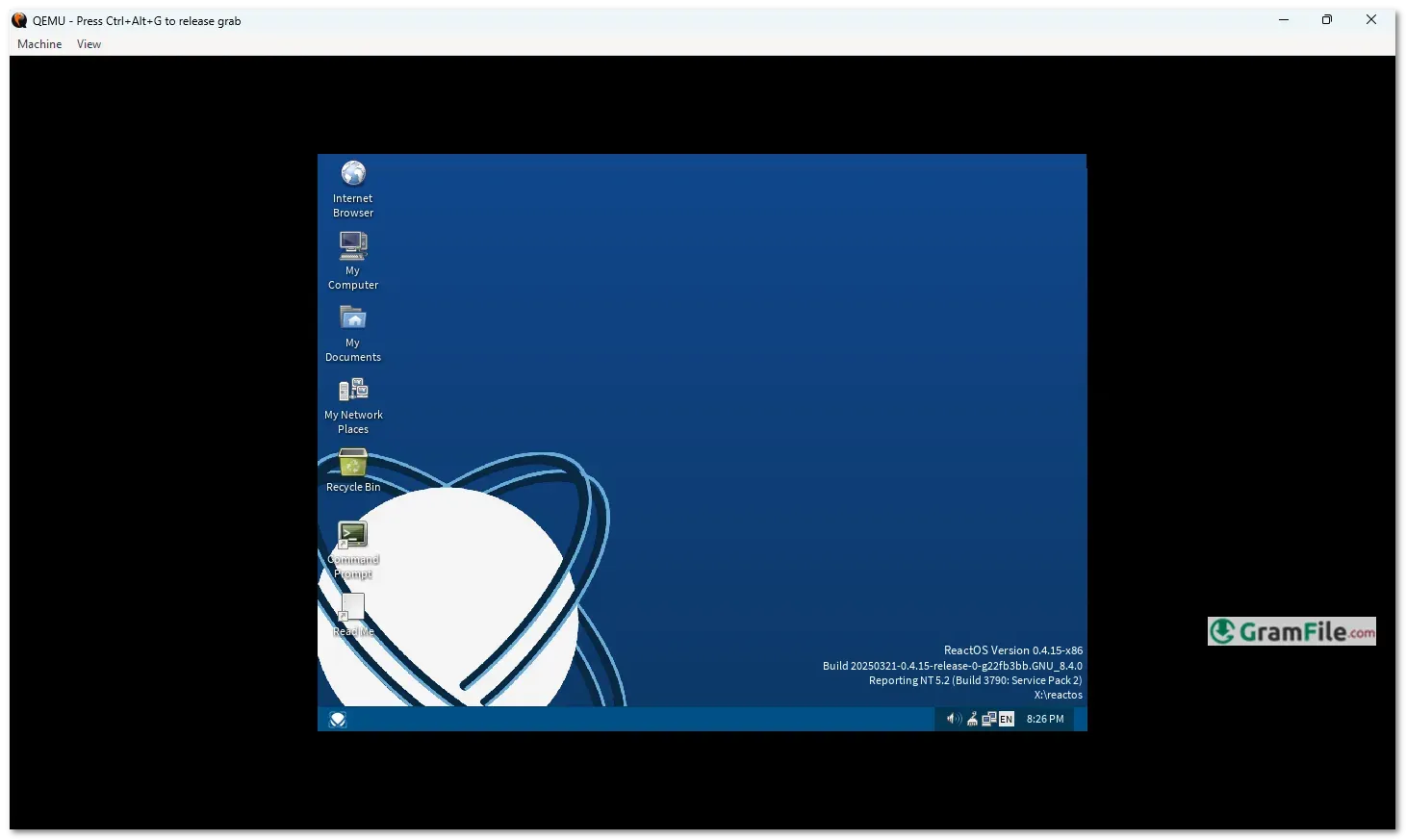
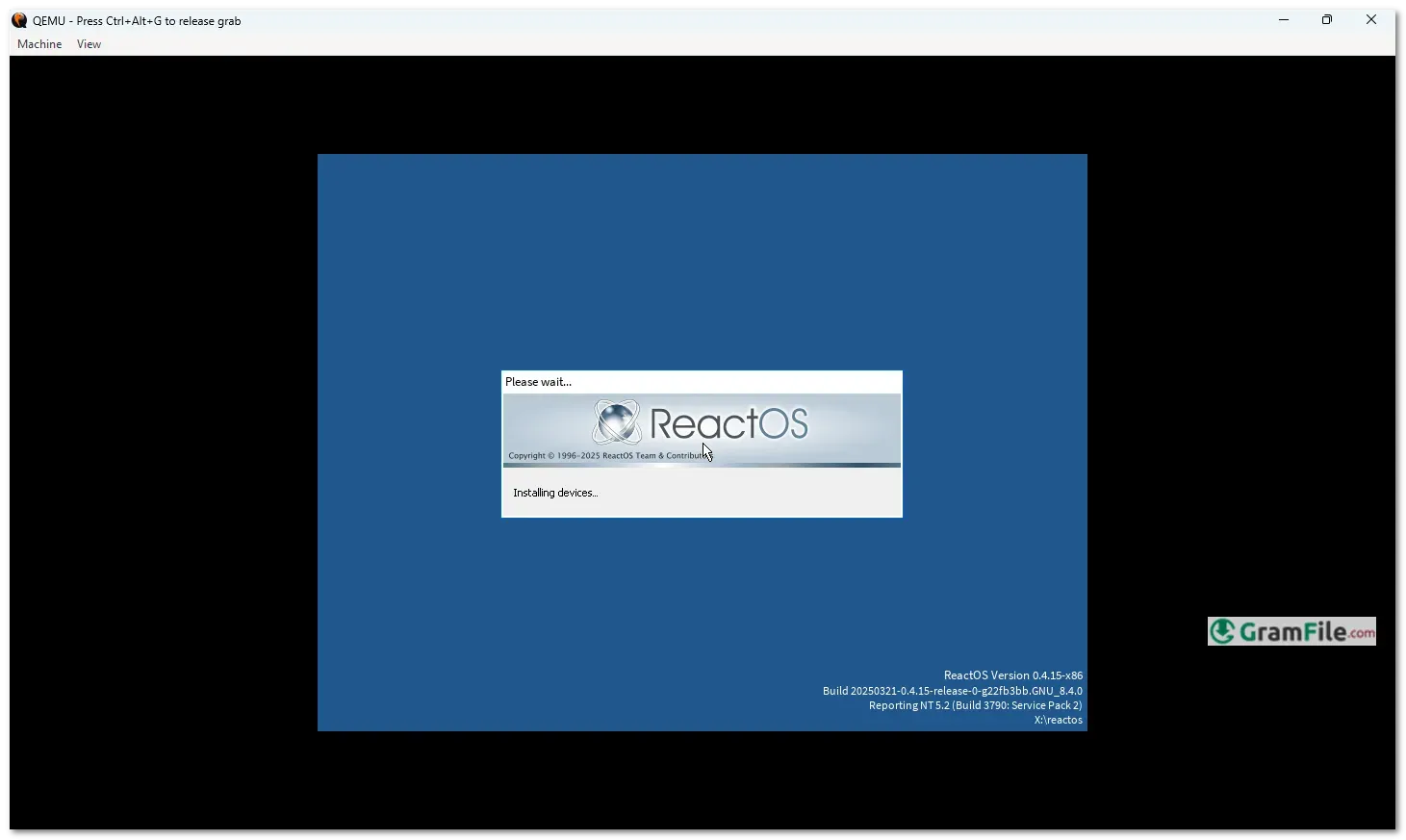
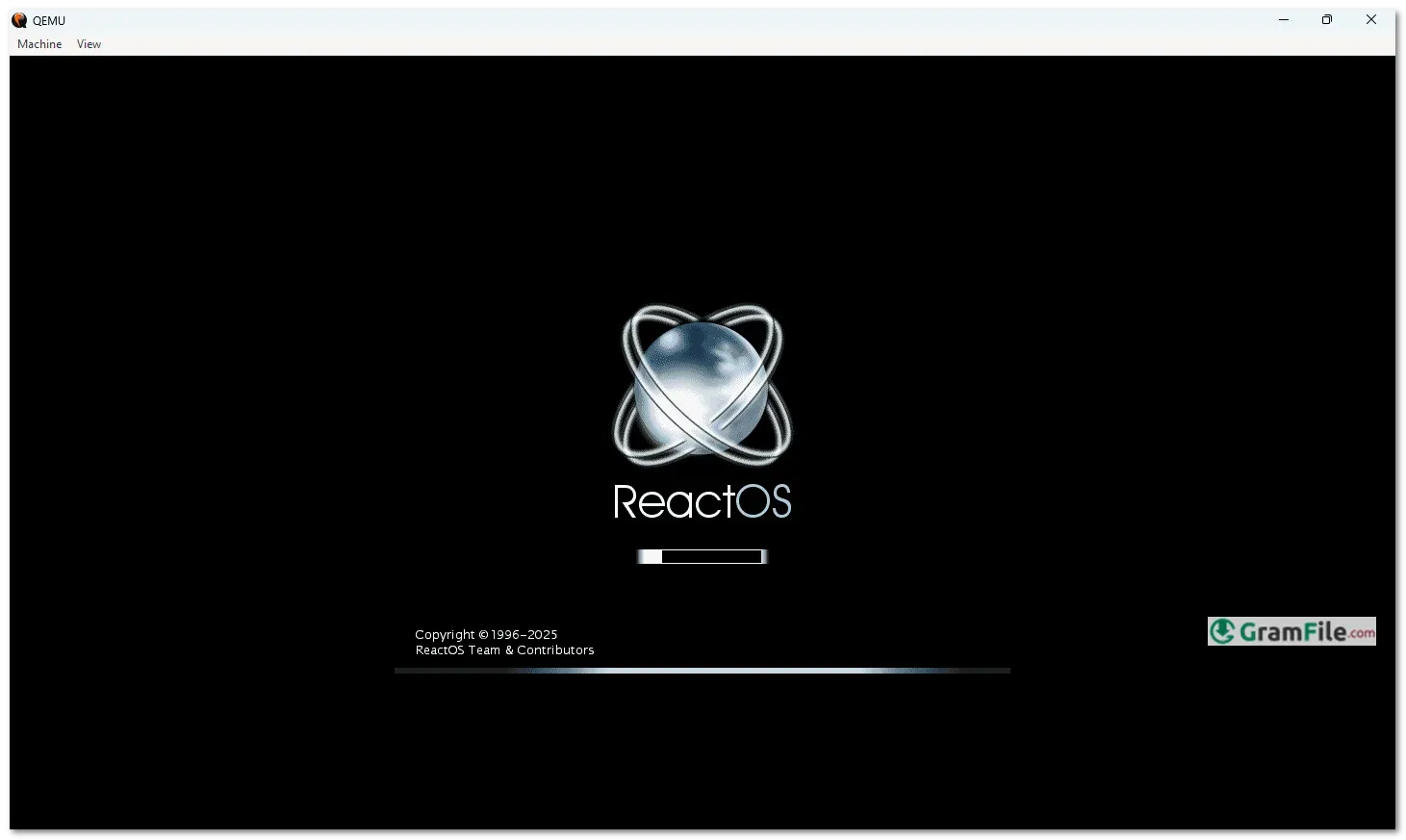
QEMU (Quick Emulator) is an open-source, high-performance machine emulator and virtualizer that allows users to run operating systems and software designed for different hardware architectures, all on a Windows PC.
Whether you need to test a Linux distribution, experiment with an alternative OS, or develop cross-platform software, QEMU provides a lightweight yet powerful solution without the overhead of traditional virtualization tools.
Originally developed by Fabrice Bellard in 2003, QEMU has evolved into a critical tool for developers, cybersecurity researchers, and hobbyists alike. Its ability to emulate entire systems, from ARM-based devices to x86 PCs, makes it uniquely flexible.
Over the years, QEMU has integrated with key technologies like KVM (Kernel-based Virtual Machine) for near-native performance, solidifying its place as a go-to emulator for professionals and enthusiasts.
In this review, we’ll examine QEMU’s features, performance, and usability on Windows, helping you determine if it’s the right tool for your virtualization needs.
What is QEMU?
QEMU (Quick Emulator) is an open-source emulator and virtualizer that allows you to run operating systems designed for different hardware architectures—such as ARM, x86, or PowerPC, on your Windows PC.
Unlike traditional virtual machines, QEMU doesn’t just virtualize an OS; it can emulate entire hardware systems, making it invaluable for developers, cybersecurity experts, and tech enthusiasts who need to test software across multiple platforms.
While QEMU is highly capable, it’s more complex than user-friendly tools like VirtualBox.
It’s best suited for those comfortable with command-line interfaces or who need advanced features like full-system emulation and hardware-level virtualization.
QEMU on GitHub and Other Platforms
- QEMU GitHub: The official QEMU project is hosted on GitHub, where developers contribute to its open-source code, report issues, and track updates.
- QEMU on Ubuntu: Linux users often pair QEMU with KVM for optimal performance, as KVM allows direct hardware acceleration.
- QEMU on Mac: macOS users can run QEMU via Homebrew (
brew install qemu) but may face performance limitations compared to Linux. - QEMU-KVM: Exclusive to Linux, KVM turns QEMU into a full virtualization powerhouse by leveraging CPU extensions (Intel VT-x / AMD-V).
QEMU vs. VirtualBox: Which Should You Use?
- Performance: QEMU, especially with KVM (on Linux), offers near-native speeds, while VirtualBox is slower but easier to use.
- Features: QEMU supports more CPU architectures (ARM, RISC-V, etc.), whereas VirtualBox is limited to x86.
- Ease of Use: VirtualBox has a polished GUI, while QEMU relies more on manual configuration.
- Use Case: Choose VirtualBox for simple virtualization (e.g., running Ubuntu on Windows). Pick QEMU if you need emulation (e.g., testing Android ARM builds) or high performance with KVM.
How to Use QEMU?

- Install QEMU – Download and install the latest version as described above.
- Get a Disk Image – Obtain an ISO or IMG file of the OS you want to run (e.g., Ubuntu, Windows ARM, ReactOS, or a custom firmware).
- Create a Virtual Disk (Optional) – Use
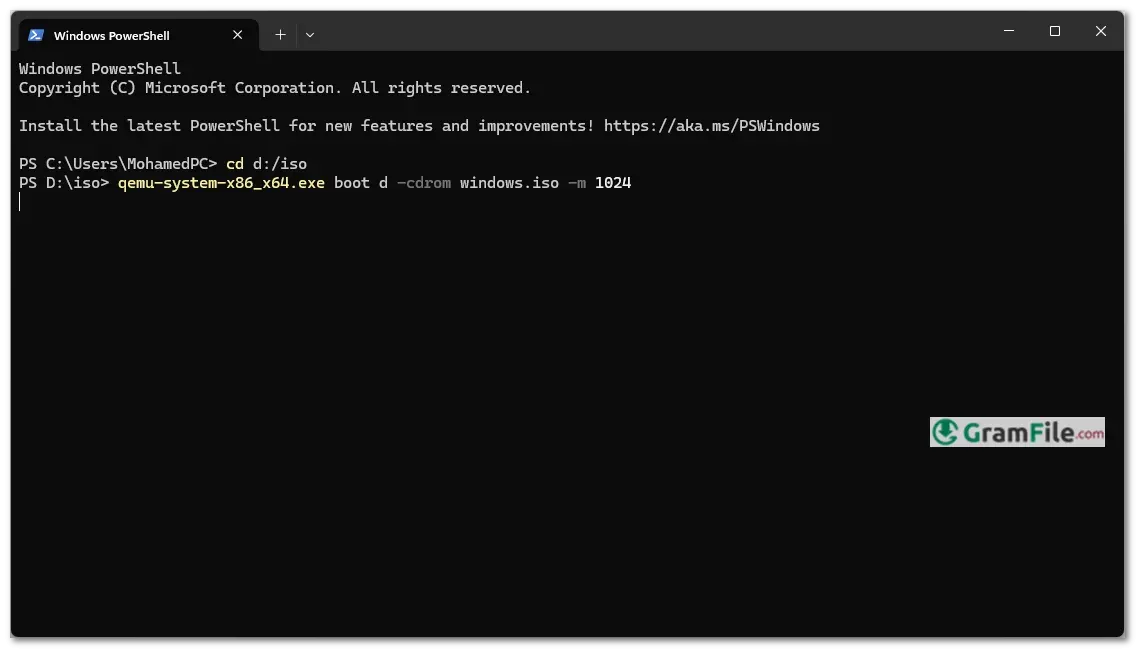
qemu-imgto allocate storage (e.g.,qemu-img create -f qcow2 disk.qcow2 20Gfor a 20GB drive). - Run QEMU via Command Line (PowerShell) – Launch a VM with a command like:
-
qemu-system-x86_64.exe -boot d -cdrom ReactOS.iso -m 2048
(This assigns 2GB RAM, uses the virtual disk, and boots from the ISO.)
- Enable KVM (Linux Only) – Add
-enable-kvmfor near-native speeds if your CPU supports virtualization. - Configure Networking – Use
-netdev userfor basic internet or-net nic -net tapfor bridged networking. - Adjust Display & Input – Add
-display gtkfor a GUI window or-nographicfor headless mode. - Save & Manage VMs – Script common setups or use front-ends like Virt-Manager for easier control.
Tip: Check qemu-system-x86_64 --help for more options—QEMU is highly customizable for different needs!
QEMU stands out as one of the most versatile emulation solutions available for Windows users, offering capabilities that go far beyond typical virtualization software.
What makes QEMU special is its unique combination of features that cater to both developers and power users:
Cross-Platform Emulation
Unlike simpler virtualization tools, QEMU can emulate entire computer systems, letting you run operating systems designed for ARM, MIPS, or RISC-V processors right on your x86 Windows PC.
This is invaluable for developers testing software across different architectures.
Hardware-Level Virtualization
When paired with Windows Hyper-V or WSL2, QEMU achieves near-native performance for x86 guests.
It supports advanced features like multi-core CPUs, hardware acceleration, and GPU passthrough for demanding workloads.
Dynamic Disk Management
The qcow2 disk format saves space by only using physical storage when needed. You can create 100GB virtual drives that only consume actual disk space as files are added.
Flexible Networking Options
From simple NAT for internet access to complex bridged networks, QEMU provides enterprise-grade networking. It even supports virtual switches and custom firewall rules for advanced configurations.
Snapshot Capabilities
Instantly save and restore complete system states – perfect for testing unstable software or experimenting with system configurations without risk.
Minimal Resource Footprint
Unlike bulky virtualization suites, QEMU runs efficiently even on modest hardware, making it ideal for older Windows systems.
Extensive Device Emulation
QEMU can virtualize everything from standard USB controllers to obscure legacy hardware, complete with customizable BIOS settings.
Command-Line Precision
While this requires some learning, the terminal interface allows for scripting and automation that GUI-based tools can’t match.
How to Download & Install
1. Download: Click on the above Green Download Button for official and direct download. This ensures you get a legitimate copy and avoid any potential malware.
2. Install: Run the installer and follow the setup prompts. Ensure you select optional components like GTK+ for a graphical interface if needed.

3. Set Up: After installation, QEMU can be used via command line or with a front-end like QEMU Manager for easier control.

4. Test: Verify the installation by running a simple command like qemu-system-x86_64 –version in Command Prompt.
For beginners, additional setup (like configuring virtual disks and networking) may require some technical knowledge, but online guides can help simplify the process.
Pros & Cons
What we liked
- Free
- Runs any OS
- Fast with Hyper-V
- Lightweight
- Snapshots
What we didn't like
- Complex CLI (Command Line)
- No easy GUI
- Slower without KVM
Best QEMU Alternatives
-
 VirtualBox
A free, powerful tool that lets you run multiple operating systems on your computer at the same time.
-
 VMware Workstation Pro
Transforms your PC into a multi-OS hub, perfect for development and testing.


Conclusion
4.6out of 5 · 78 user ratings
QEMU stands out as the ultimate choice for tech professionals and enthusiasts who need raw virtualization power.
Unlike consumer-friendly tools like VirtualBox, QEMU offers unparalleled flexibility, running everything from legacy systems to cutting-edge ARM builds on your Windows PC.
Why Choose QEMU?
- Unmatched Versatility: Emulate any CPU architecture (x86, ARM, RISC-V)
- Enterprise-Grade Features: Snapshots, hardware passthrough, and dynamic disk allocation
- Lightweight Performance: Lower overhead than most alternatives
QEMU vs. The Competition
- VirtualBox: Easier but slower and limited to x86
- VMware: More polished but expensive and proprietary
- Hyper-V: Windows-native but lacks cross-platform emulation
The Bottom Line
Choose QEMU if you need professional-grade virtualization without limits. While the learning curve is steeper, the payoff is complete control over your virtual environments.
For casual users, simpler options exist, but for power users, QEMU remains in a class of its own.
Found a problem with this download? Report an outdated version, broken link, suspicious installer or incorrect information.
 Zoom Workplace
 Nitro PDF Pro
 Sumatra PDF
 IrfanView
 K-Lite Codec Pack
 WinRAR