

Epson Scan 2 for Windows is a streamlined scanning software designed to deliver high-quality document and image digitization with ease.
Developed by Epson, a leader in imaging technology, this application offers intuitive controls, customizable settings, and reliable performance for both casual users and professionals.
Building on Epson’s long-standing expertise in scanners, Epson Scan 2 serves as the successor to earlier versions, refining the user experience while maintaining compatibility with a wide range of Epson scanners.
Whether you’re archiving old photos, managing paperwork, or preparing high-resolution scans, this software balances simplicity and functionality effectively.
What is Epson Scan 2?
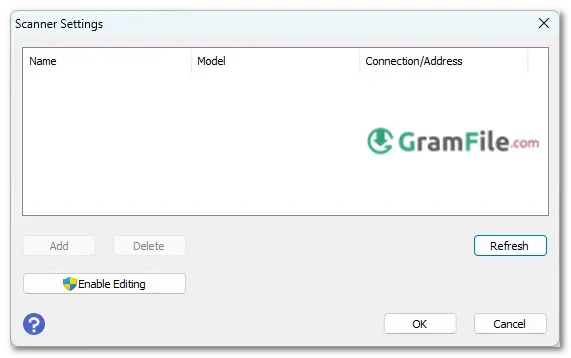
Epson Scan 2 is a free scanning software designed for Windows users who need a reliable way to digitize documents, photos, and other media.
It serves as the primary interface through which users interact with their Epson scanner hardware, enabling the conversion of physical documents, photographs, and other materials into digital formats.
More than just a basic driver, Epson Scan 2 offers a suite of controls and settings that allow users to customize their scans, adjusting parameters such as resolution, color depth, image type (document, photo, text), and destination format (PDF, JPEG, TIFF, etc.).
Its purpose is to provide a reliable and versatile platform for capturing high-quality digital images directly from the scanner, whether for archival, sharing, or editing purposes.
Epson Scan 2 for L3110: Is It Compatible?
Yes! The Epson L3110 printer-scanner combo works seamlessly with Epson Scan 2. After installation, the software automatically detects the scanner, allowing you to adjust settings like DPI, color mode, and file format before scanning.
Key Features & Highlights
- Simple interface – Easy to navigate for all users.
- Multiple scan modes – Full Auto, Home, and Professional options.
- Fast scanning – Quickly digitizes documents and photos.
- High-quality output – Sharp, clear scans every time.
- File format options – Save as PDF, JPEG, TIFF, or PNG.
- Custom settings – Adjust resolution, brightness, and contrast.
- Batch scanning – Scan multiple pages in one session.
- Auto-document detection – Smartly identifies scan area.
- Color correction – Enhances faded or dull images.
- Wide scanner support – Works with most Epson models.
- Quick preview – Check scans before finalizing.
- Text recognition (OCR) – Extract text from scanned documents.
- Direct saving – Export files to folders or cloud services.
- Low system load – Runs smoothly on most PCs.
- Free to use – No hidden costs or subscriptions.
How to Use it?
First, launch the software and ensure your Epson scanner is connected.
Place your document or photo on the scanner bed, then select your preferred scan mode, Full Auto for quick scans, Home for basic adjustments, or Professional for advanced settings.
Choose your output format (PDF, JPEG, etc.), adjust resolution and color options if needed, then click “Scan.” Preview the image to check quality, make final tweaks, and save the file to your desired location.
For multi-page documents, use the batch scanning feature to digitize everything in one go. It’s that simple, fast, precise, and hassle-free.
How to Download & Install
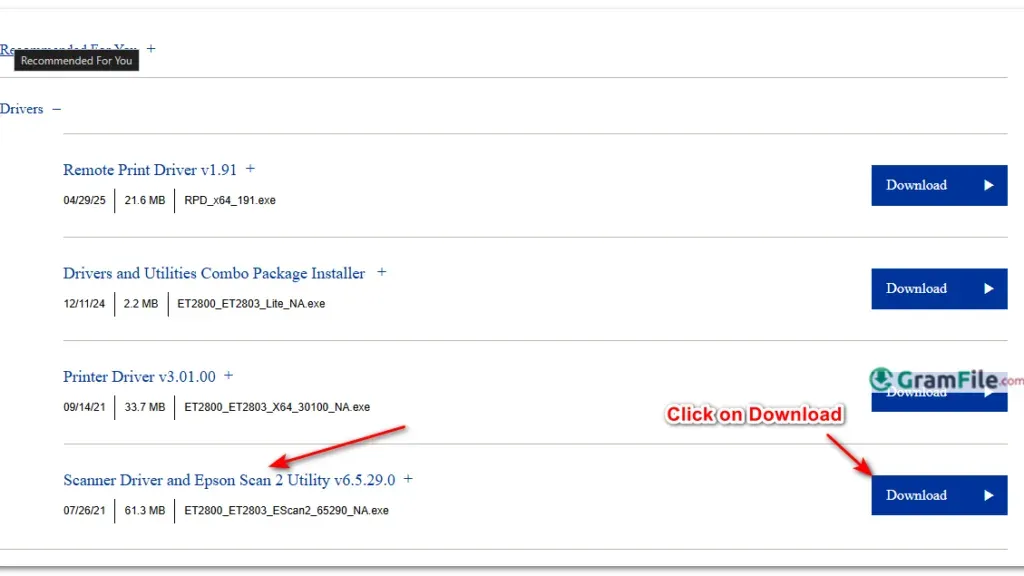
- Download the Offline Installer: The fastest way to download Epson Scan 2 is through our download page. Click on the above Green Download Button for official and direct download.
- Download the Software – Look for “Epson Scan 2” under drivers/utilities and download the Windows version.
- Run the Installer – Open the downloaded file and follow the on-screen instructions.
- Connect Your Scanner – Ensure your Epson scanner (like the L3110) is plugged in via USB or connected to the same network.
- Launch Epson Scan 2 – Open the software, select your scanner, and start scanning.