

Download Details
- Version
- 1 (latest)
- File size
- 1 MB
- License
- Free
- Developer
- Photopea
- Supported OS
- Windows 11, Windows 10, Windows 7, Windows 8.1
- Installers
- 64-bit (x64), 32-bit (x86), ARM (Arm64)
- Downloads
- 54929
- Rating
- 4.7 out of 5 · 113 reviews
 Reviewed by Eman Sakr
Tested on Windows 11 and 10 · · How we review
Screenshots
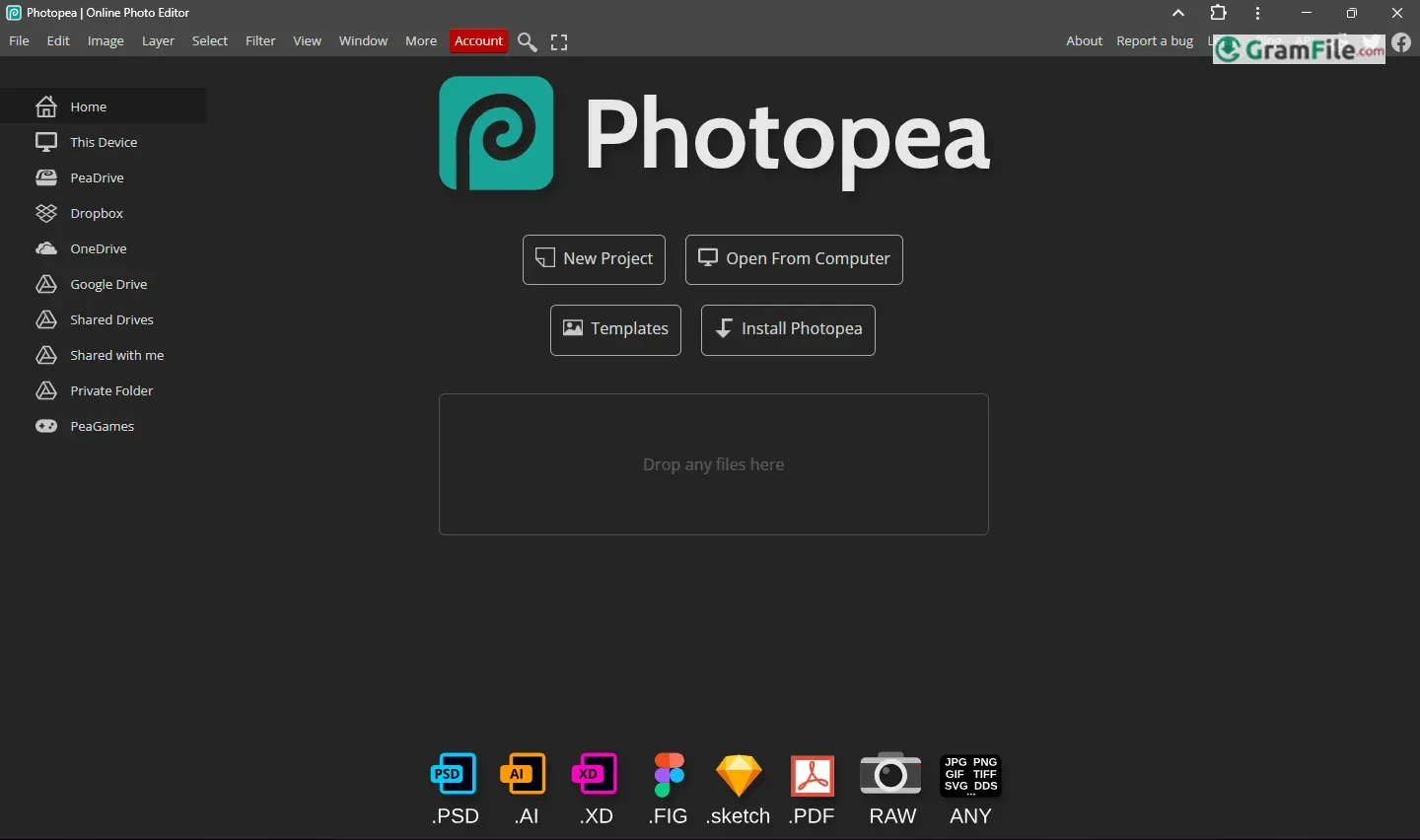
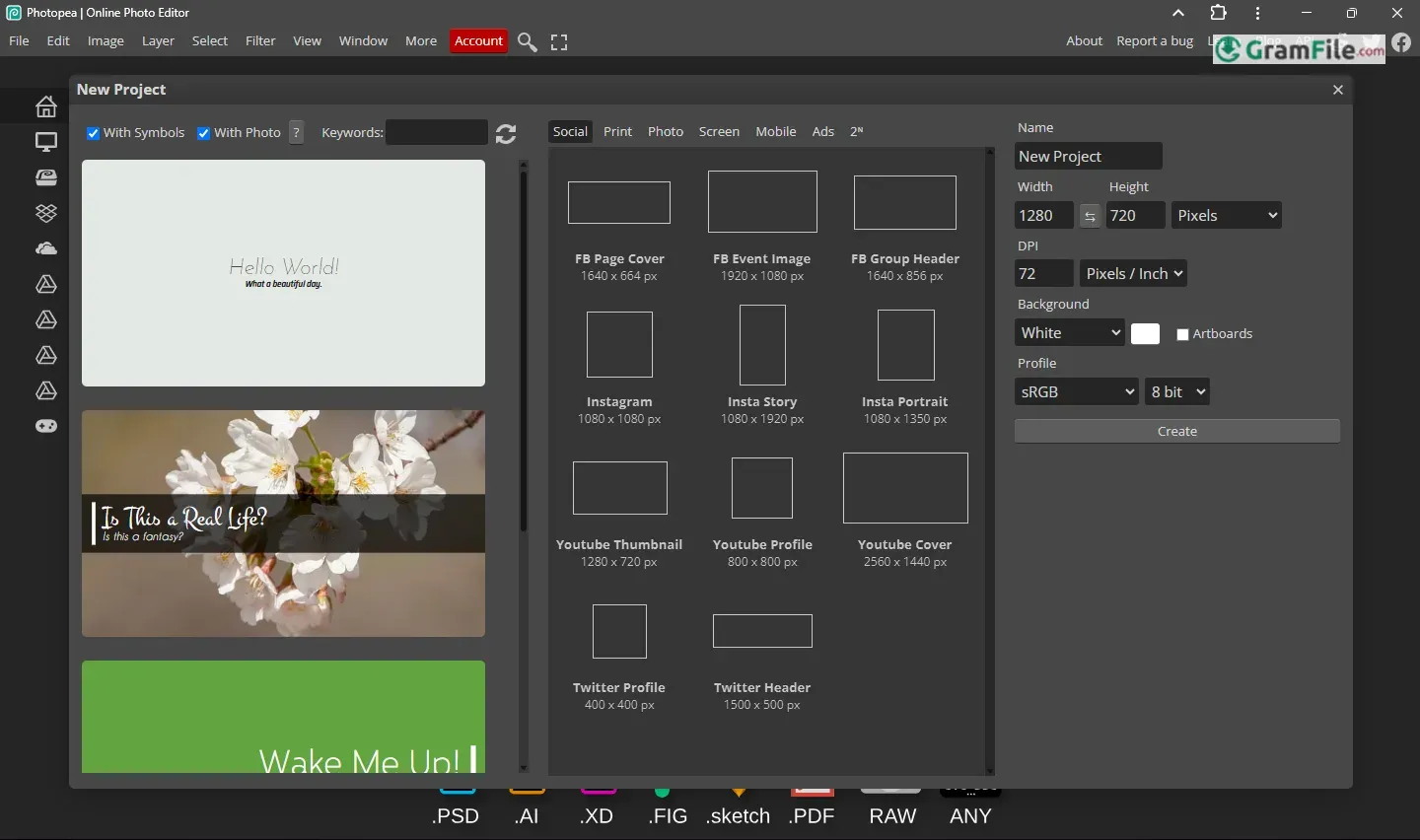
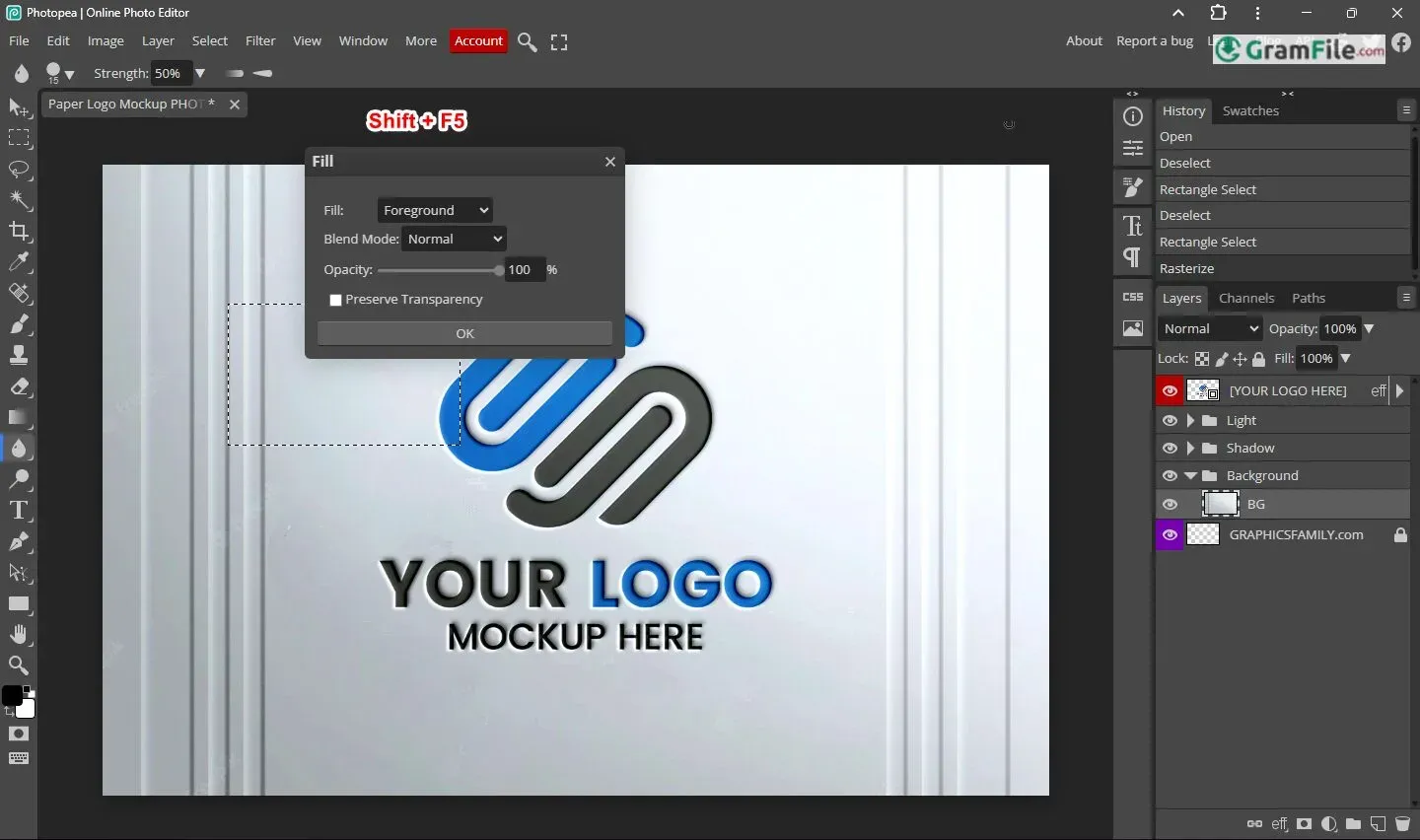
Photopea for PC Windows is a powerful, browser-based image editing tool that rivals premium software like Adobe Photoshop, offering a wide range of features for photo editing, graphic design, and file format support, all for free.
Developed by programmer Ivan Kutskir and launched in 2013, it was created to provide a accessible, no-cost alternative to expensive editing tools.
It quickly gained popularity for its user-friendly interface and compatibility with PSD files.
Over the years, it has evolved into a go-to solution for professionals and hobbyists alike, combining advanced capabilities with the convenience of working directly in your browser.
Let’s explore Photopea, a really handy tool if you’re working with images on your Windows computer.
What’s Photopea Anyway?
Think of Photopea as a free, online image editor that acts a lot like Photoshop. It runs right in your web browser, so you don’t need to download any heavy software.
It handles all sorts of image formats (like PSD, JPEG, PNG, you name it) and gives you a decent range of editing tools. It’s perfect for quick edits, or even more complex design tasks.
How to Zoom In on Photopea

Zooming in helps you work on fine details. Here’s how:
- Use the scroll wheel on your mouse to zoom in and out.
- Alternatively, press Ctrl + Plus (+) to zoom in or Ctrl + Minus (-) to zoom out.
- You can also select the Zoom Tool from the toolbar (magnifying glass icon) and click on the image to zoom.
Free and Accessible
Photopea is completely free to use, making it an excellent alternative to costly software like Adobe Photoshop.
There’s no need to sign up or subscribe, just open the website and start editing.
Browser-Based Convenience
Since Photopea runs directly in your browser, there’s no installation required. It works on all major browsers like Chrome, Edge, and Firefox, and even supports offline use once the page is loaded.
Photoshop-Like Interface
Photopea’s interface is designed to feel familiar to Photoshop users, with a similar layout, tools, and shortcuts.
This makes it easy for beginners to learn and for professionals to transition seamlessly.
Supports Multiple File Formats
Photopea can open and edit a wide range of file formats, including PSD (Photoshop), AI (Illustrator), SVG, JPEG, PNG, and more.
This makes it a versatile tool for various design and editing tasks.
Advanced Layer and Masking Tools
Like Photoshop, Photopea supports layers, layer masks, and blending modes, allowing for complex edits and creative designs. You can organize your work efficiently and apply effects with precision.
Comprehensive Editing Tools
Photopea includes all the essential tools you’d expect: brushes, erasers, selection tools, and text tools. Whether you’re retouching photos or creating graphics, you’ll find everything you need.
Image Adjustments and Filters
The editor offers a variety of adjustments (like brightness, contrast, and hue) and filters (such as blur, sharpen, and noise) to enhance your images. These tools are simple to use but deliver professional results.
Text Tools for Typography
Adding and editing text is straightforward with Photopea’s text tools. You can customize fonts, sizes, colors, and alignment to create eye-catching typography.
Regular Updates
Photopea is actively developed, with new features and improvements added regularly. This ensures the tool stays up-to-date with the latest design trends and user needs.
Saves Directly to Your Device
Once your work is complete, you can save files directly to your computer in various formats, including PSD, PNG, and JPEG. You can also export files for web or print.
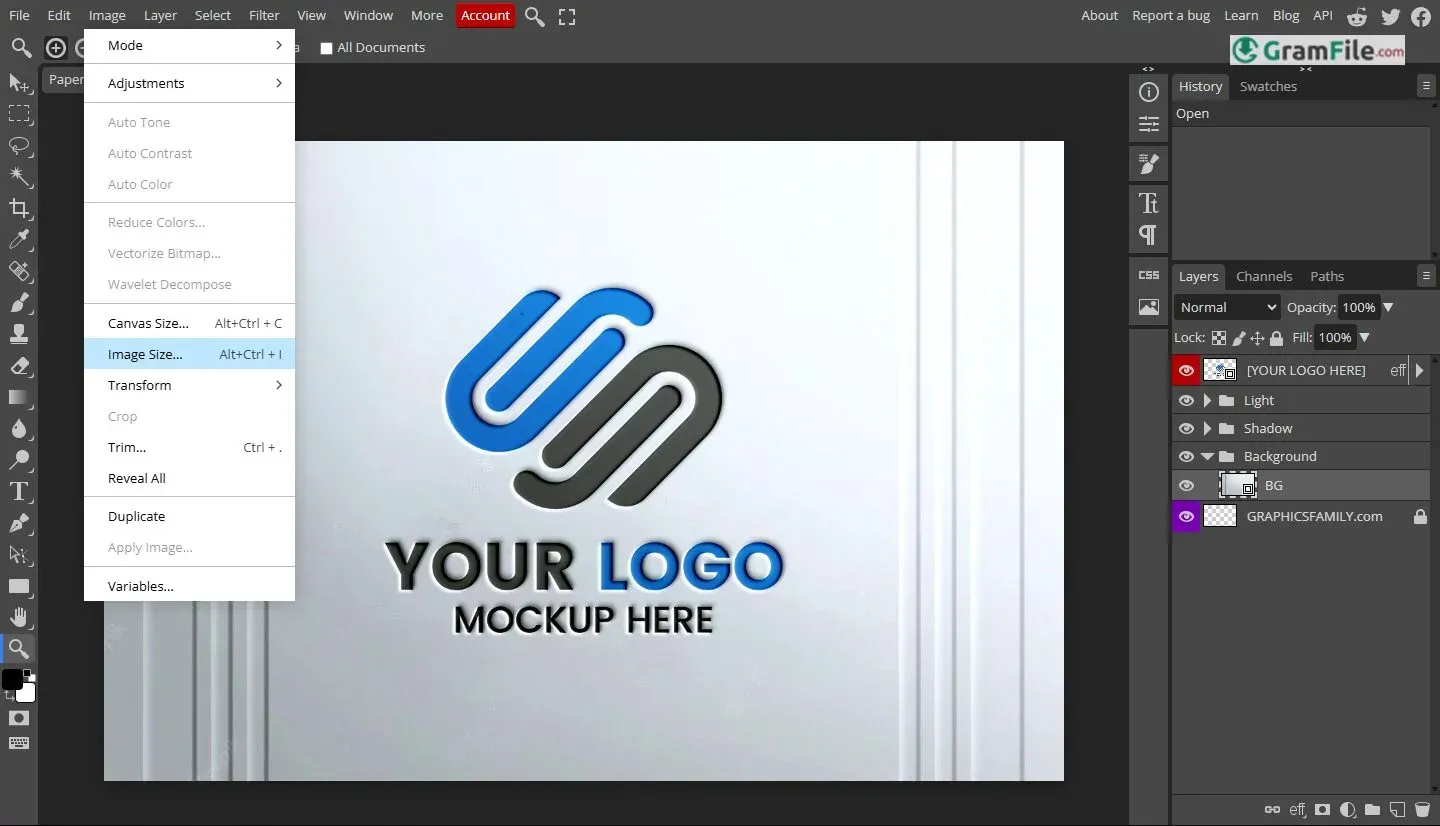
How to Resize an Image in Photopea

Photopea makes it simple to resize, crop, and transform images. You can adjust dimensions, rotate, or skew elements to fit your project’s needs.
Resizing is simple and useful for adjusting dimensions or file size:
- Go to the top menu and click Image > Image Size.
- A dialog box will appear. Enter your desired width and height in pixels or percentages.
- Make sure “Constrain Proportions” is checked to maintain the aspect ratio.
- Click OK to apply the changes.
How to Undo on Photopea

Made a mistake? No problem. Photopea’s undo/redo feature lets you correct errors quickly, ensuring a smooth editing process.
- Press Ctrl + Z to undo the last action.
- To redo, press Ctrl + Shift + Z.
- For multiple undos, keep pressing Ctrl + Z to step back through your changes.
How to Use the Fill Tool in Photopea

The Fill Tool is perfect for coloring large areas or backgrounds:
- Select the Paint Bucket Tool from the toolbar (it looks like a spilling paint bucket).
- Choose your desired color from the color picker at the top.
- Click on the area you want to fill. The tool will fill all connected pixels of the same color.
- For more control, you can adjust the tolerance level in the top options bar to determine how similar colors need to be to get filled.
Key Features and Highlights
- Web-Based: Runs in your browser. No downloads needed.
- Free to Use: Full features, no cost.
- PSD Support: Opens Photoshop files. Works with many formats.
- Layer Editing: Like Photoshop, it has layers.
- Tool Variety: Has brushes, pens, selections, and more.
- Text Tools: Add and edit text easily.
- Filters: Many effects for images.
- History Panel: Undo and redo steps.
- Simple Interface: Easy to learn and use.
- Shortcut Friendly: Uses common keyboard shortcuts.
How to Download & Install

Photopea doesn’t require installation because it’s entirely web-based. Here’s how to get started:
- Click on the above Green Download Button at the top of this page, it will take you to the official tool webpage: www.photopea.com.
- The editor will load instantly, no downloads or installations needed.
- For easier access, you can bookmark the site or create a desktop shortcut for quick launching.
Pros & Cons
What we liked
- Free: no subscriptions.
- Browser-based: no downloads.
- Supports PSD, AI, SVG.
- Photoshop-like interface.
- Works offline after loading.
What we didn't like
- Needs internet to start.
- Fewer advanced features than Photoshop.
- Slows with large files.
- No official support.
- Fewer export options.
Best Photopea Alternatives
-
 Photoshop
Layer-based photo editing and retouching with AI selection tools for serious creators.
Conclusion
4.7out of 5 · 113 user ratings
So, wrapping it up, Photopea on Windows is a bit of a surprise package. You get a lot more than you’d expect from a free, browser-based editor.
It’s not trying to be a full-on Photoshop replacement for hardcore professionals, but it absolutely nails the “quick, powerful, and accessible” thing.
Why Choose Photopea?
- Free and Accessible: No subscriptions, no hidden fees, just open your browser and start editing.
- No Installation Needed: Works directly in your browser, saving time and storage space.
- Professional Tools: Offers features like layers, masks, and advanced editing tools comparable to Photoshop.
- User-Friendly: Easy to learn for beginners, yet powerful enough for professionals.
- Versatile File Support: Opens and saves PSD, AI, SVG, JPEG, and more.
- Regular Updates: Constantly improved with new features and enhancements.
Photopea vs Others
Photopea vs Photoshop
Photopea provides similar functionality for free, but Photoshop offers more advanced features and integrations for professionals.
Photopea vs GIMP
While GIMP is a downloadable, open-source editor, Photopea’s browser-based approach makes it more accessible and easier to use.
Photopea vs Canva
Canva is great for quick designs and templates, but Photopea offers more advanced editing tools and flexibility for detailed work.
Photopea vs Online Editors
Unlike many online editors, Photopea supports complex file formats like PSD and AI, making it a better choice for professional workflows.
Final Thoughts
Photopea is an excellent choice for anyone needing a free, reliable, and professional-grade image editor.
Whether you’re a beginner exploring photo editing or a professional looking for a cost-effective alternative, Photopea delivers impressive results without the hassle.
Its browser-based convenience, robust tools, and compatibility with various file formats make it stand out in the crowded world of image editors.
Give it a try, it might just become your go-to tool for all your design needs!
Found a problem with this download? Report an outdated version, broken link, suspicious installer or incorrect information.
 Zoom Workplace
 Nitro PDF Pro
 Sumatra PDF
 IrfanView
 K-Lite Codec Pack
 WinRAR