WordPad is a reliable tool built directly into Windows which helps you create documents needing basic formatting. It offers more features than simple Notepad.
However, it’s much simpler than programs like Microsoft Word, it provides an easy way to write letters, notes, or basic reports. You can change fonts and text styles. You can also align paragraphs and add simple pictures.
First appeared with Windows 95, it took the place of the older Microsoft Write program.
Since then, WordPad has consistently been included with Windows. This gives users a readily available tool.
It’s great for tasks needing more polish than plain text. You get these features without the complexity or cost of a full office suite.
For decades, WordPad has been a familiar, no-frills text editing tool included with Microsoft Windows.
It’s been the go-to application for countless users needing something more capable than basic Notepad, but without the extensive features (and often, cost) of Microsoft Word.
Think of it as the reliable middle ground, a place to quickly draft a letter, jot down formatted notes, or create simple documents right out of the box.
What Is WordPad?
WordPad is Microsoft’s built-in text editor for Windows, offering a middle ground between Notepad’s simplicity and Microsoft Word’s advanced features.
It supports basic formatting (bold, italics, fonts, colors), images, and document saving in .RTF, .TXT, and .DOCX formats.
While not as powerful as Word, it’s perfect for quick notes, simple letters, and formatted documents without bloat.
WordPad lets you:
- Apply formatting like bold, italics, and underline.
- Change fonts and text sizes.
- Create bulleted or numbered lists.
- Adjust paragraph alignment (left, center, right).
- Insert simple images and basic drawings (via Paint).
- Work natively with Rich Text Format (.rtf) files, and open (with sometimes limited fidelity) other formats like Office
- Open XML (.docx) and OpenDocument Text (.odt).
Limitations
- No Spell Check: Unlike Word, it won’t highlight typos.
- No Advanced Layouts: Tables, columns, and complex formatting are missing.
- No Cloud Sync: Documents save locally unless manually backed up.
Latest Version Update & The Future (Important!)
WordPad doesn’t really have independent version numbers like standalone software. Its updates are tied directly to major Windows updates or builds.
However, the most significant “update” concerning WordPad came in late 2023/early 2024: Microsoft announced that WordPad is being deprecated.
This means it will no longer receive new features or updates and is scheduled to be completely removed from Windows in a future release.
As of early April 2025, while it might still be present in current installations (often as an “Optional Feature”), its days are numbered.
Microsoft now recommends using Microsoft Word for rich text documents (.rtf, .docx) and Windows Notepad for plain text (.txt).
Offline and 64-Bit Support
- WordPad is fully offline. No internet or login required.
- It runs natively as a 64-bit application on modern Windows versions, ensuring smooth performance.
How to Download & Install
To get WordPad installed in your PC, follow these steps:
Download
The fastest way to download WordPad is through our download page.
Click on the above Green Download Button for official and direct download. This ensures you get a legitimate copy and avoid any potential malware.
Installation
1. Double-click the downloaded file WordpadSetup.exe.
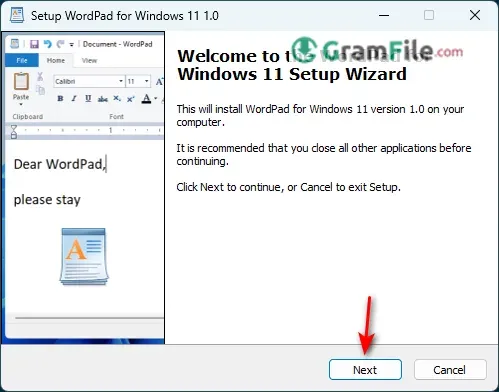
2. Click Next
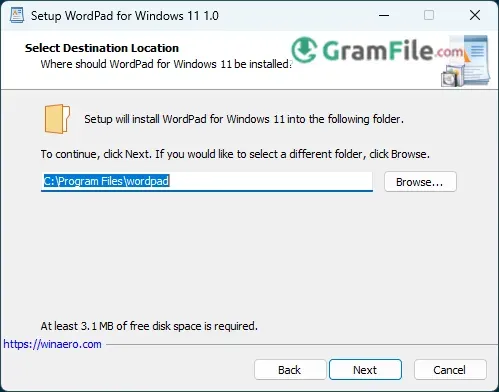
3. Select Destination Location – Click Next
4. Select Additional Tasks – Click Next

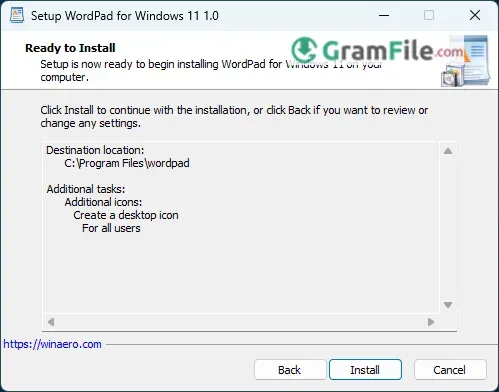
5. Click Install
6. Finally, Click Finish. Mark (Run WordPad) checkbox if you want to run WordPad immediately.
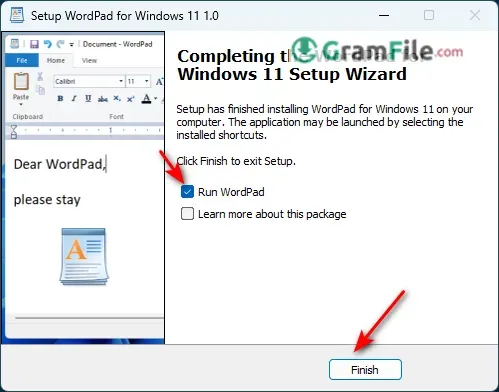
Now, you have WordPad App installed and ready for use.