

Download Details
- Version
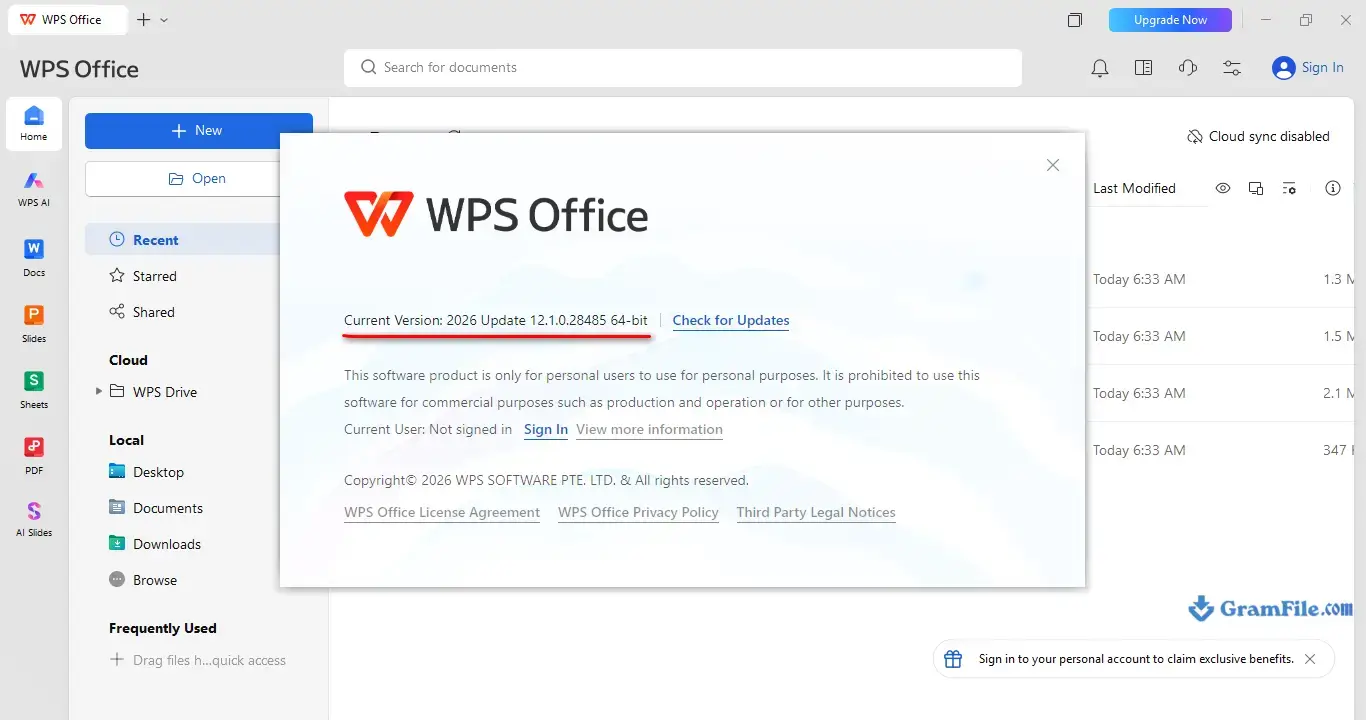
- 12.2.0.23196 (latest)
- File size
- 254.9 MB
- License
- Free
- Security scan
- VirusTotal: 47 of 47 engines say OK (0 flagged)
- SHA-256 checksum
12417429e8a02e43cb089ab4a2cb449a9f15ad428af69f1f2f5277571046ddbd- Developer
- Kingsoft Corp.
- Supported OS
- Windows 11, Windows 10
- Installers
- 64-bit (x64), 32-bit (x86), Offline
- Downloads
- 15308
- Rating
- 4.7 out of 5 · 42 reviews
- File name(s)
- WPSOffice_23196.exe
 Reviewed by Mohamed Zaki
Tested on Windows 11 and 10 · · How we review
Screenshots
WPS Office is a free Word, Excel, PowerPoint, and PDF suite that opens and saves in the same formats Microsoft Office uses.
It’s a solid pick if you need a full office suite without paying for one, especially on an older PC where the lighter install matters.
The free version carries ads and occasional upgrade prompts, which is the main trade-off you’re accepting.
For students, home users, or anyone who just needs to write documents and build spreadsheets without a subscription, it’s worth the download.
If you specifically need zero ads or heavy VBA macro support, that’s where it falls short.
What Is WPS Office?
WPS Office is developed by Kingsoft, a Chinese software company that has built office software since the late 1980s, long before Kingsoft adopted the WPS name for its international release.
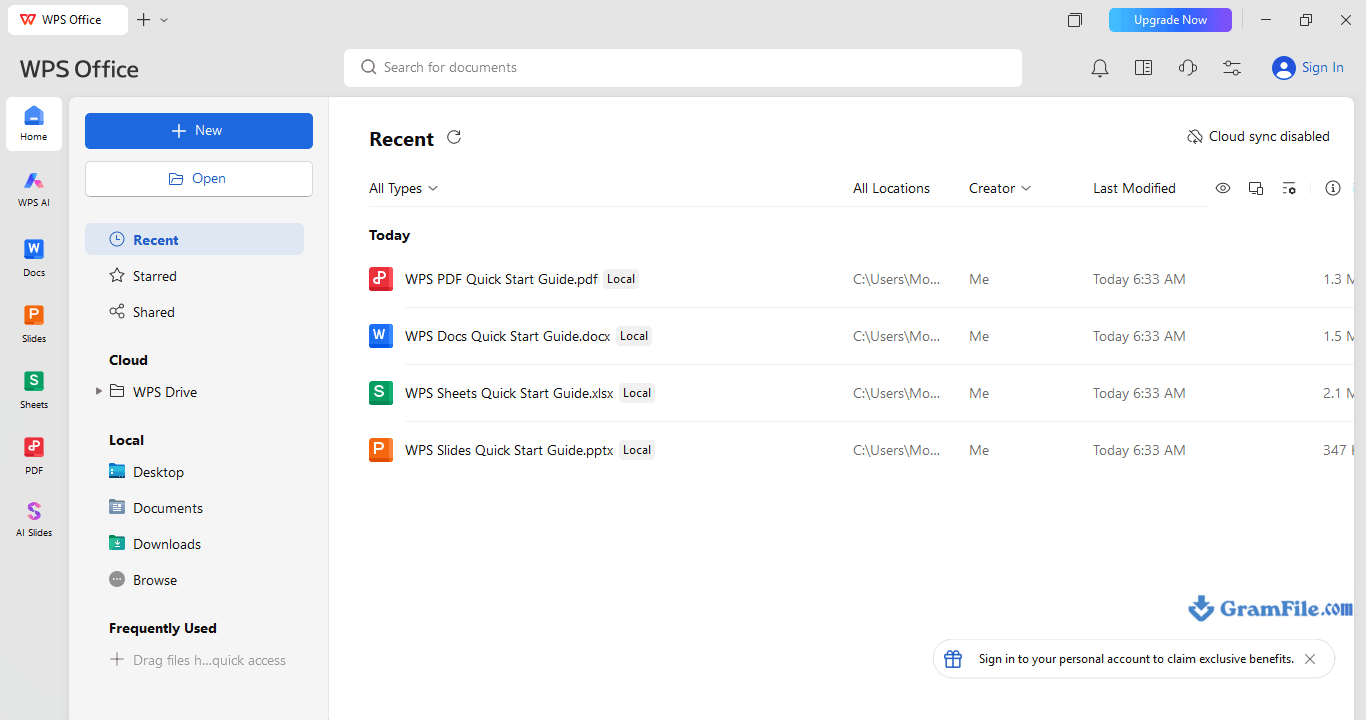
The suite bundles four core applications: WPS Writer for documents, WPS Spreadsheet for numbers, WPS Presentation for slides, and a built-in PDF tool that reads and edits PDF files without a separate app.
All four share one ribbon-style interface, so switching between a report and its supporting spreadsheet doesn’t mean relearning a layout.
Every app saves and opens Microsoft’s native formats: .docx, .xlsx, and .pptx, alongside WPS’s own file types.
WPS Office Download for Windows 11 and 10
WPS Office installs the same way on Windows 11 and Windows 10, using a single installer that detects your system architecture and sets up the right build automatically.
Here’s what to check before you download.
- Windows 11: fully supported, including newer ARM-based Windows 11 devices through emulation, though native x86/x64 hardware runs it best.
- Windows 10: fully supported on both the Home and Pro editions, with no separate build required.
- 64-bit: the default install on any modern 64-bit Windows PC, and the version most new downloads receive.
- 32-bit: still available for older 32-bit Windows installs, though newer feature updates land on the 64-bit build first.
- Installer information: WPS ships as a small online installer (a few megabytes) that downloads the full application during setup, rather than one large offline package.
- Official and free availability: the personal edition is free to download and use indefinitely, with no trial period on the core apps.
- Version information: Kingsoft updates WPS Office on a rolling basis, with builds in the 12.x series shipping through 2026. The installer always pulls the current release, so a version number printed on any download page (including this one) can be a build or two behind what actually lands on your machine.
Every download listed on GramFile goes through a manual review before it’s published: someone on our team installs the file, confirms it matches the vendor’s official release, and checks it for bundled toolbars or third-party installers before it goes live.
We don’t accept paid placement to rank a download higher, and we don’t bundle our own installer wrapper around the software.
WPS Office Features
The marketing page will tell you WPS Office does everything Microsoft Office does. That’s roughly true for daily work, and worth breaking down by app rather than taking on faith.
WPS Writer
WPS Writer opens and saves .docx files with formatting intact in the vast majority of documents, including tables, headers, footnotes, and tracked changes.
It includes a built-in PDF-to-Word converter, a paragraph-level word count, and a “Roaming Documents” recovery feature that keeps a working copy if your PC loses power mid-edit.
Where it falls short of Word is in deeply nested styles and advanced mail-merge workflows, where formatting can shift slightly on a round trip.
WPS Spreadsheet
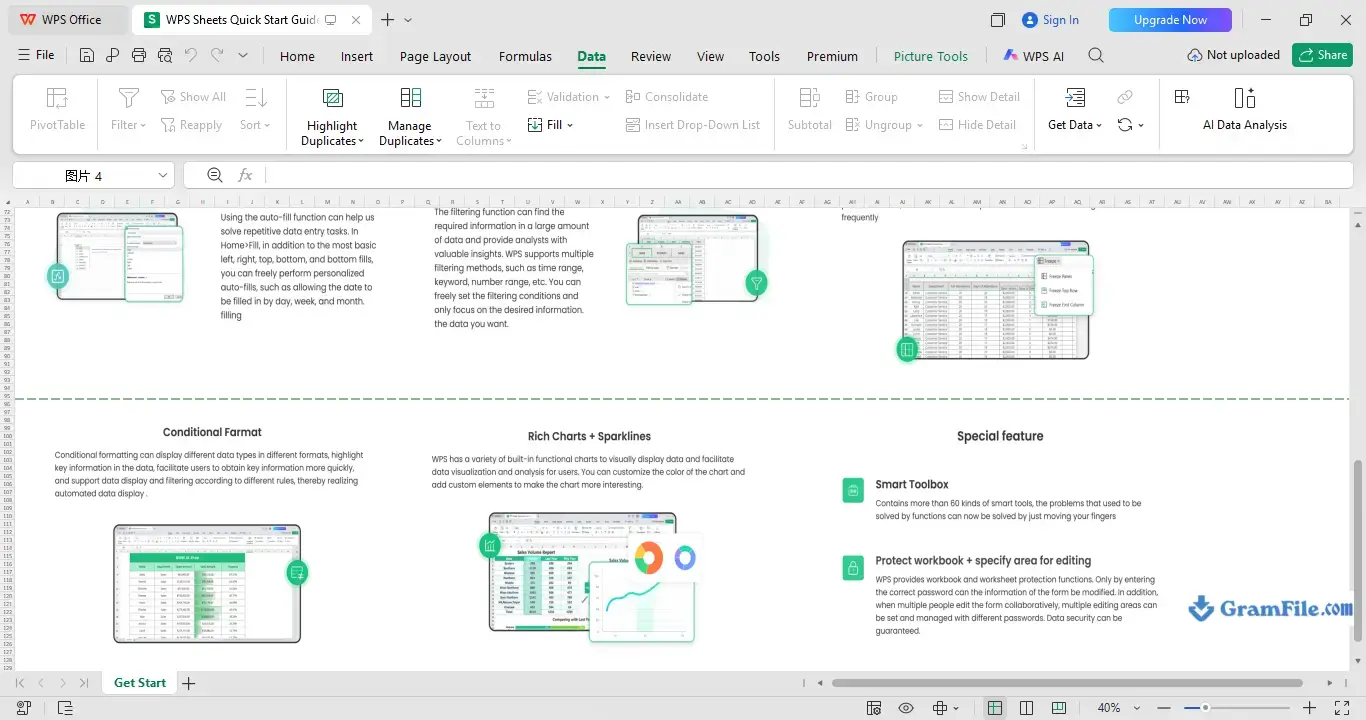
WPS Spreadsheet supports the standard function library, pivot tables, conditional formatting, and chart types most Excel users rely on day to day.
Formula compatibility with .xlsx is strong for common formulas (VLOOKUP, SUMIF, IF statements) but thinner for newer dynamic-array functions Excel introduced in recent years, so heavy Excel users building complex models should test their specific workbook before switching over fully.
WPS Presentation
WPS Presentation reads and writes .pptx files, supports most slide transitions and animation types, and includes a slide-design assistant that suggests layout adjustments.
It handles embedded video and audio less reliably than PowerPoint when a presentation is heavy on multimedia, so it’s worth previewing a slide-heavy deck before presenting live from it.
WPS PDF Tools
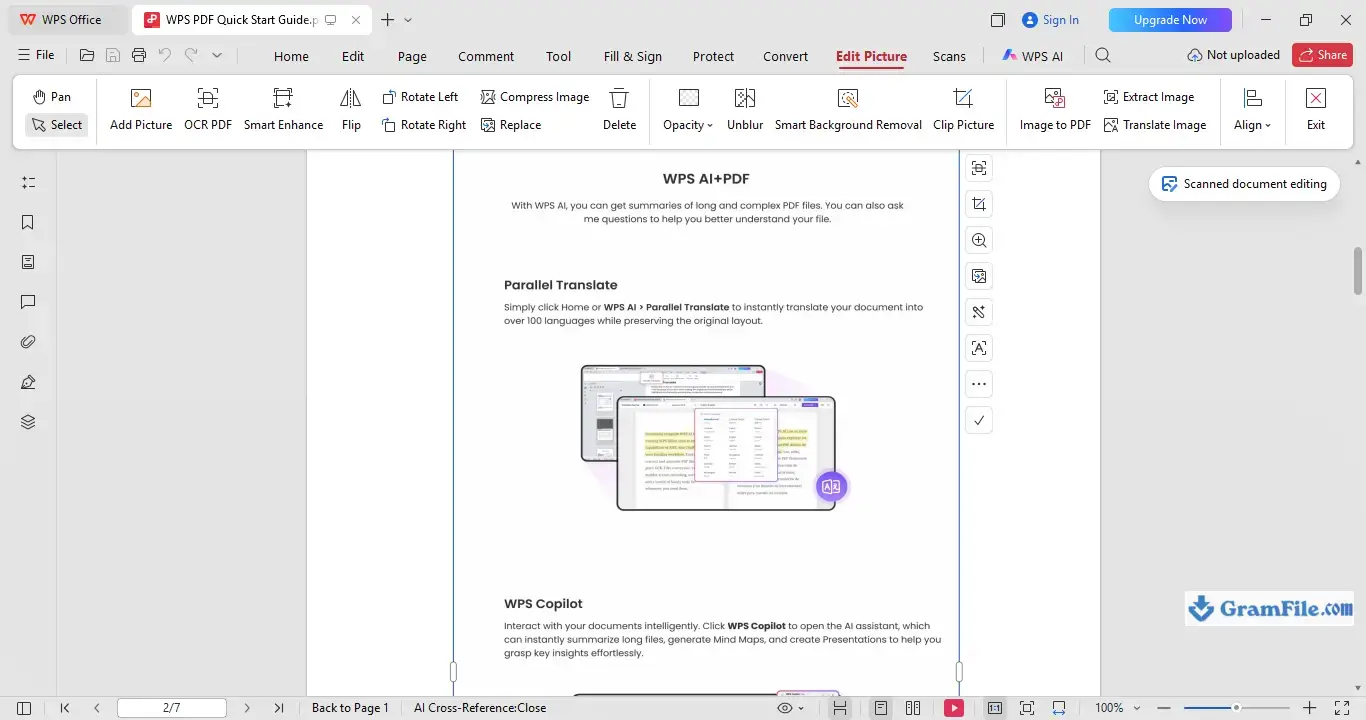
This is where WPS Office earns its keep for a lot of users. The built-in PDF tool converts PDFs to and from Word, Excel, and image formats, merges and splits PDF files, adds watermarks and page numbers, and lets you fill and sign forms without leaving the suite.
Editing existing PDF text is a Premium feature, but viewing, converting, and basic markup are not.
Cloud and Document Sharing
A free WPS Cloud account gives you 1GB of storage for syncing documents across devices and sharing a link instead of an email attachment.
It’s enough for active project files, not for archiving years of documents, and larger allowances come with the paid tiers.
64-Bit vs 32-Bit
Almost everyone should install the 64-bit version. It handles larger spreadsheets and longer documents without hitting memory ceilings the 32-bit build runs into, and it’s what the installer defaults to on any 64-bit copy of Windows, which is the vast majority of PCs sold since 2010.
The 32-bit build exists for older machines still running a 32-bit edition of Windows 7 or Windows 10, and for a small number of legacy plugins that haven’t been updated for 64-bit systems.
If you’re not sure which your PC runs, check under Settings > System > About in Windows, and match the installer to what’s listed there.
Is WPS Office Free?
Yes, with real limits worth knowing before you install it.
The free personal edition includes full document creation and editing in Writer, Spreadsheet, and Presentation, PDF viewing and conversion, and 1GB of cloud storage, permanently, with no trial countdown.
What it doesn’t include: editing text directly inside an existing PDF, removing the occasional ad banner and upgrade prompt in the free interface, some AI writing and design tools, and cloud storage beyond the free 1GB.
Those sit behind WPS Premium, sold as a monthly or annual subscription. If your main need is opening and editing Office documents, the free tier covers it.
If you plan to lean on PDF editing specifically, budget for Premium or a dedicated PDF tool instead.
WPS Office vs Microsoft Office
| WPS Office | Microsoft Office | |
|---|---|---|
| Price | Free core suite, paid Premium tier | Subscription (Microsoft 365) or one-time license |
| File compatibility | Strong for .docx/.xlsx/.pptx, weaker on advanced formulas | Native, full compatibility by definition |
| PDF editing | Built in, basic editing on Premium | View-only unless paired with Acrobat |
| System resources | Lightweight, runs on older hardware | Heavier, benefits from modern hardware |
| Cloud storage | 1GB free, more on paid tiers | 1TB with a Microsoft 365 subscription |
| Interface | Familiar ribbon layout, tabbed documents | Ribbon layout, separate app windows |
| Best for | Budget users, students, lighter workflows | Teams already on Microsoft 365, complex documents |
How to Download & Install
For Online Installer
- Download the installer. Use the verified download link on this page rather than a search-result mirror, since third-party mirrors are the most common source of bundled adware for free office software.
- Run the setup file. Double-click the downloaded WPSOffice.exe and approve the Windows User Account Control prompt.
- Choose your install folder. The default location works for most users; change it only if you’re short on space on your system drive.
- Wait for the online components to download. Since the installer is small, it fetches the rest of the suite during setup, so keep your internet connection active until it finishes.
- Skip optional offers. Uncheck any bundled toolbar or third-party offer shown during setup before continuing.
- Launch WPS Office. The suite opens to a home screen listing Writer, Spreadsheet, Presentation, and PDF tools.
- Sign in or skip sign-in. An account unlocks cloud sync and some AI features, but the core desktop apps work without one.
For the Offline Installer
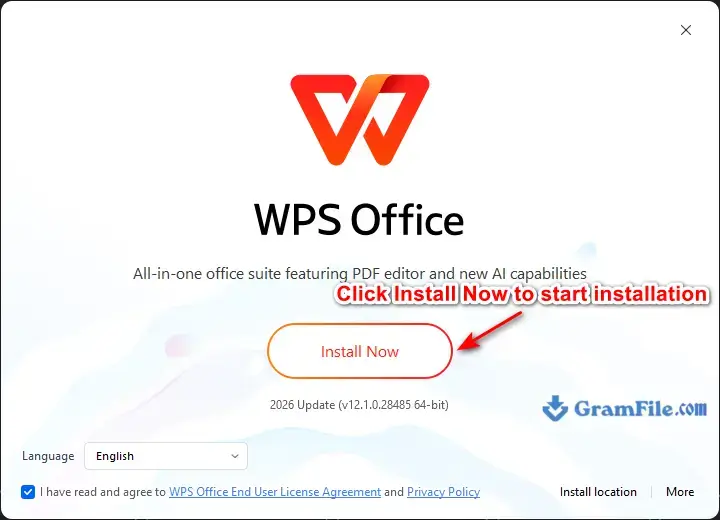
Same as the above mentioned easy steps, without the need to wait for the online components to download, you already have the full setup package in the offline setup file.
System Requirements
| Requirement | Minimum | Recommended |
|---|---|---|
| Operating system | Windows 7 SP1 | Windows 10 or Windows 11 |
| CPU | 1 GHz processor | Dual-core 2 GHz or better |
| RAM | 1 GB | 4 GB or more |
| Storage | 200 MB free space | 1 GB free space (for updates and cache) |
| Display | 1024 x 768 | 1920 x 1080 |
| Internet | Required for install and activation | Recommended for cloud sync and updates |
| 32-bit / 64-bit | Both supported | 64-bit for best performance on modern PCs |
Pros & Cons
What we liked
- Free version covers most tasks.
- Opens Word and Excel files.
- Runs light on older hardware.
- Built-in PDF tools included.
- Familiar ribbon-style interface.
What we didn't like
- Free tier shows occasional ads.
- PDF text editing needs Premium.
Best WPS Office Alternatives
-
 Microsoft 365 (Office)
Rents you the latest Office apps with cloud storage for always-on access.
-
 Microsoft Office 2024
A one-time purchase offline installer - Pro Plus 64-bit office suite.
-
 Microsoft Office 2016
A stable desktop office suite with smart cloud sharing and collaboration features.
-
 Microsoft Office 2021
A one-time purchase offline setup of Word, Outlook, and PowerPoint (2021).
Conclusion
4.7out of 5 · 42 user ratings
WPS Office is the right call if you need a real office suite without a monthly bill, and your work is mostly documents, spreadsheets, and slides rather than heavy PDF editing or advanced Excel modeling.
It installs fast, opens Microsoft’s file formats without much friction, and doesn’t strain an older laptop the way a full Microsoft 365 install can.
If your job depends on editing PDFs directly or building complex spreadsheet models with the newest Excel functions, either budget for WPS Premium or stick with Microsoft Office.
For everyone else, especially students and small teams watching costs, WPS Office does the job well.
WPS Office vs Free Alternatives
Microsoft Office isn’t the only alternative worth comparing against WPS.
LibreOffice, OnlyOffice, Google Docs and Sheets, and SoftMaker FreeOffice all compete for the same “I don’t want to pay for Office” search, and each trades off differently on file compatibility, PDF handling, and offline use.
| WPS Office | LibreOffice | OnlyOffice | Google Docs & Sheets | FreeOffice | |
|---|---|---|---|---|---|
| Price | Free core, paid Premium tier | Free, open source | Free desktop app, paid cloud tiers | Free with a Google account | Free for personal use |
| File compatibility | Strong with .docx/.xlsx/.pptx | Good, occasional formatting drift on complex layouts | Strong, close to Microsoft formats | Fine for basic docs, drift on complex layouts | Good for straightforward .docx/.xlsx files |
| PDF editing | Built in, full text edit on Premium | View and basic annotation only | View and annotate, no full text edit | View only, no native PDF editor | View and light annotation |
| Offline use | Full offline after install | Full offline after install | Full offline (desktop app) | Needs setup, mainly browser-based | Full offline after install |
| Cloud storage | 1GB free, more on paid tiers | None built in, pairs with your own cloud | Varies by plan | 15GB shared with Gmail and Drive | None built in |
| Interface | Ribbon layout, familiar to Office users | Traditional toolbar, dated look | Modern, close to the Microsoft ribbon | Minimal, browser-based | Simple, dated interface |
| Best for | Budget users who want an Office-like feel | Privacy-focused, open-source users | Teams already doing cloud collaboration | Real-time collaboration on simple docs | Very old or low-spec PCs |
WPS Office lands closest to Microsoft Office on look and file compatibility while staying free, which is the gap LibreOffice and FreeOffice don’t quite close with their older interfaces, and the gap Google Docs doesn’t close for offline or PDF-heavy work.
FAQ
Is WPS Office free for Windows?
Yes, WPS Office’s personal edition is free for Windows with no trial period. It covers document creation, editing, and basic PDF viewing and conversion. Editing text inside a PDF and extra cloud storage require the paid Premium tier.
Can I download WPS Office for Windows 11?
Yes, WPS Office installs directly on Windows 11, including ARM-based devices through emulation. The same installer handles Windows 10, so there’s no separate Windows 11 build to look for.
Is WPS Office safe to download?
Yes, when it comes from the official WPS site or a mirror that verifies the file against that release. Third-party mirrors are the most common source of bundled adware for free office software, so the source matters more than the software itself.
Is there a 64-bit version of WPS Office?
Yes, the installer sets up the 64-bit build automatically on any 64-bit Windows system. A 32-bit build stays available for older PCs still running 32-bit Windows.
Can WPS Office open Microsoft Word and Excel files?
Yes, WPS Writer opens and saves .docx and .doc files, and WPS Spreadsheet handles .xlsx and .xls with most standard formulas. Formatting holds up well for typical documents, though very new Excel functions can behave differently.
Does WPS Office include PDF tools?
Yes, a built-in PDF tool handles viewing, converting, merging, splitting, and filling forms without a separate app. Editing text inside an existing PDF is the one PDF feature reserved for WPS Premium.
How do I uninstall WPS Office on Windows?
Go to Windows Settings, then Apps, then Installed apps, find WPS Office, and select Uninstall. This removes it the same way any Windows program is removed, with no separate cleanup tool needed.
Found a problem with this download? Report an outdated version, broken link, suspicious installer or incorrect information.
 Zoom Workplace
 Nitro PDF Pro
 Sumatra PDF
 IrfanView
 K-Lite Codec Pack
 WinRAR