
Download Details
- Version
- 6.3 (latest)
- File size
- 70.66 MB
- License
- Free
- Security scan
- VirusTotal: 62 of 62 engines say OK (0 flagged)
- SHA-256 checksum
9EA2F0237E5C72D485F9FA29DEF3F0A11C51F8B252F650BE533E09A5E2ADA247- Developer
- Embarcadero Technologies Inc.
- Supported OS
- Windows 11, Windows 10, Windows 7, Windows 8.1
- Installers
- 64-bit (x64), 32-bit (x86), Portable, Offline
- Downloads
- 12750
- Rating
- 4.6 out of 5 · 47 reviews
- File name(s)
- Embarcadero_Dev-Cpp_6.3_TDM-GCC_9.2_Setup.exe, Embarcadero_Dev-Cpp_6.3_TDM-GCC_9.2_Portable.7z
 Reviewed by Ali Mohamed
Tested on Windows 11 and 10 · · How we review
Screenshots
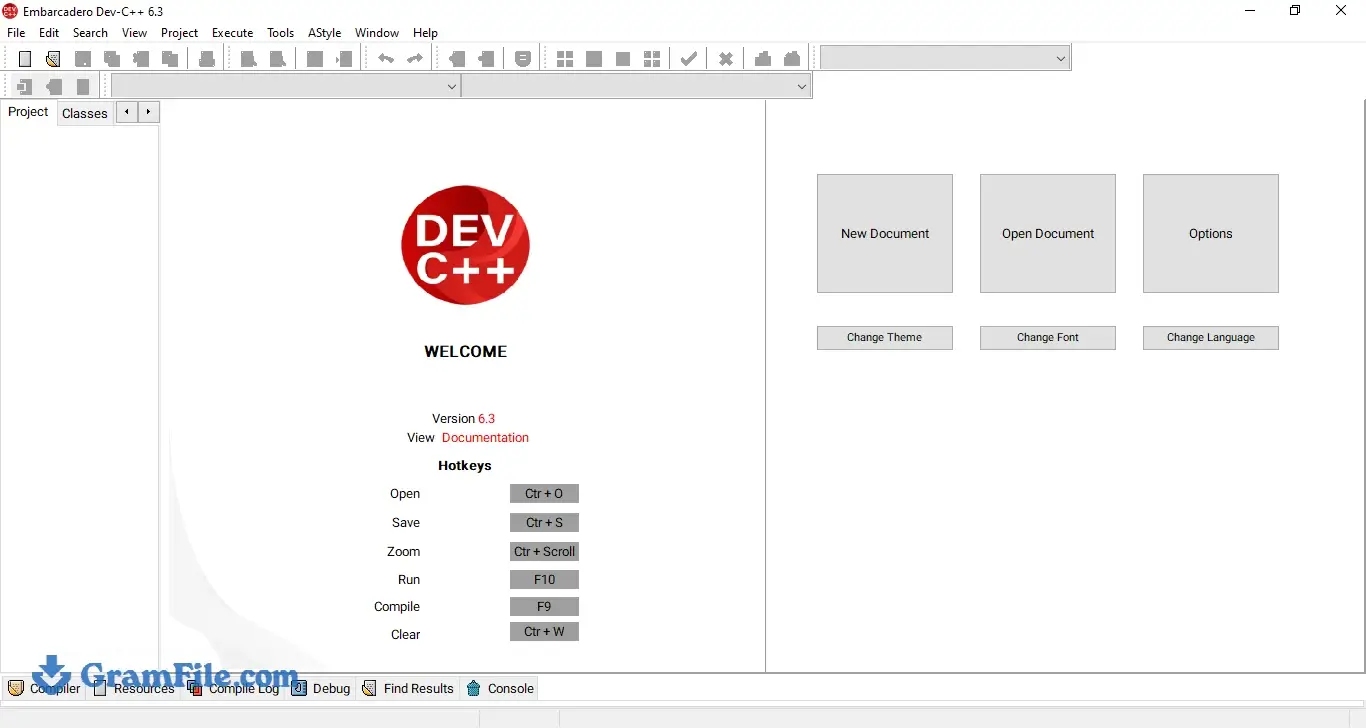
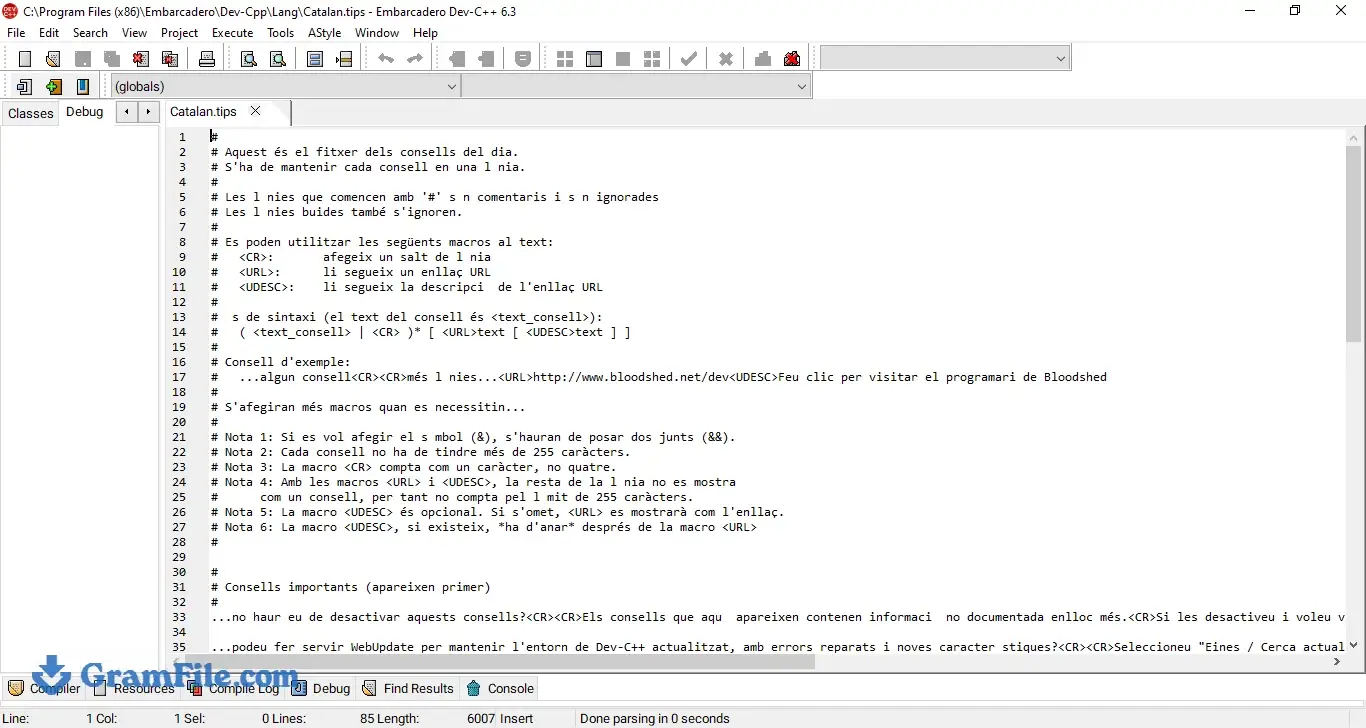
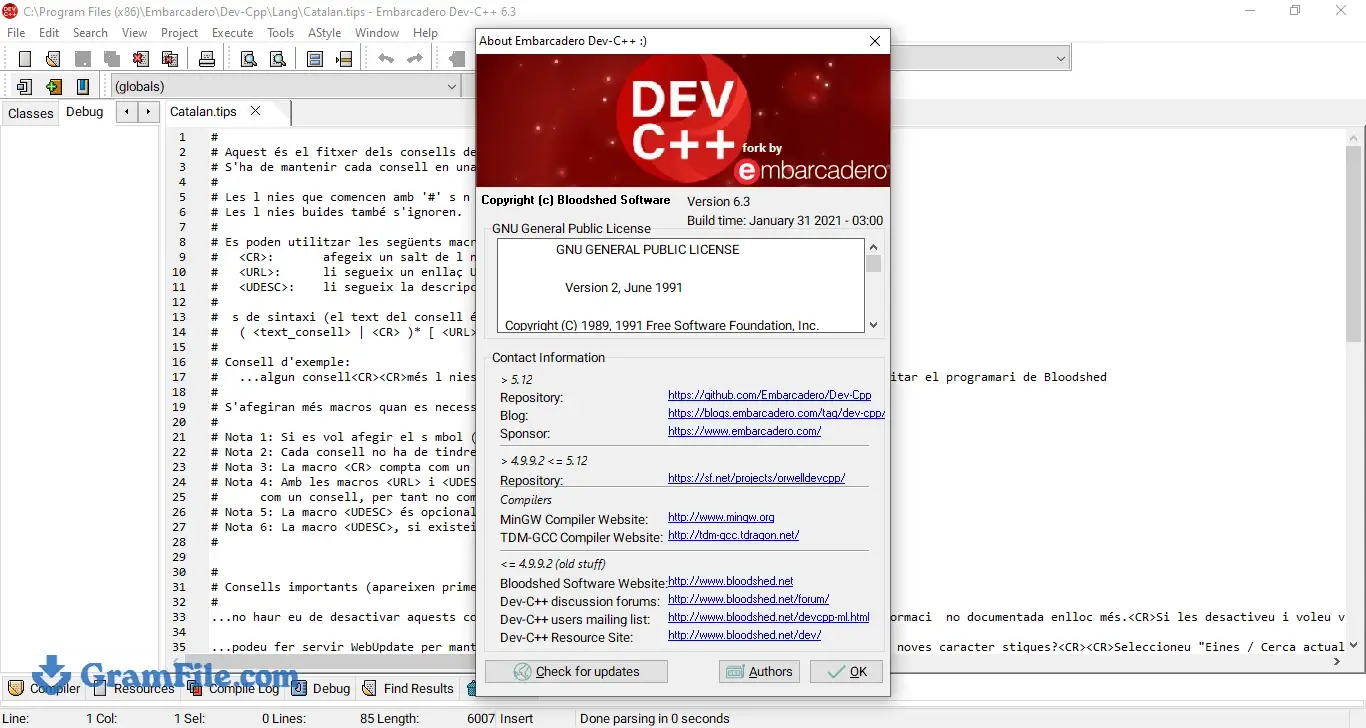
Dev-C++ is a small, free C and C++ IDE for Windows that leans on the GCC compiler to build your code.
It is a native Windows app with a low memory footprint, which suits students, coursework and quick console programs where a heavy IDE only gets in the way.
It is worth downloading for that: the installer on this page includes the GCC compiler, so you can write and run a program right after setup.
The editor is plain and the newest release dates from January 2021, so pick Code::Blocks or Visual Studio for larger projects.
What is Dev-C++?
Dev-C++ is a free integrated development environment (IDE) for C and C++ on Windows.
Colin Laplace released the first version in 1998, later forks (Orwell, then Embarcadero) kept it going, and Embarcadero, the company behind Delphi, now sponsors the current line.
The program bundles a code editor, project manager, class browser and debugger front end, and it hands the actual compiling to GCC.
It is built with Delphi as a native Windows application and does not use Electron, so the memory footprint stays small. The newest Embarcadero release dates from January 2021.
Editor and code completion
The editor handles syntax highlighting, tabbed files, code completion and a built-in formatter (Artistic Style). It keeps up with the single-file programs most people write.
Code completion is basic next to a modern IDE, and there is no rename refactoring, so renaming a function across a project means find and replace.
Tip: open Environment Options for the interface theme and Editor Options for the color scheme. The bundled Monokai schemes and the dark interface styles are easier on the eyes in a long session.
Compiling and running code
Press F11 to compile and run the current file. Errors and warnings land in the compile log at the bottom, and double-clicking one jumps to the offending line.
The compiler flags in version 6 cover C++17 and the C++2a draft, and parallel builds (several make jobs at once) are on by default for release builds, which helps in projects with many source files.
Tip: after any change to the compiler setup, run a Hello World with F11. It takes ten seconds and tells you whether the toolchain works before you debug your own code.
Debugger
Dev-C++ drives GDB through a graphical front end. Click the gutter to set a breakpoint, add watches for variables and step through the code line by line. A CPU window shows the assembly view for lower-level digging.
The catch: debugging only works when the program is built with debug info. Switch on debugging information in the linker settings of Compiler Options before you start a session, or the debugger has no symbols to work with.
Projects and the class browser
Project templates cover console apps, Windows GUI apps, static libraries and DLLs. The class browser lists the functions and classes in your files, and the project manager builds through generated Makefiles.
That works well for small programs and coursework. A project that relies on CMake has to be built from the command line, because Dev-C++ has no CMake support of its own.
Tip: start with File > New > Project and choose Console Application, so the compiler settings travel with the project instead of a single file.
Built-in CMD and PowerShell tabs
Version 6 added CMD and PowerShell tabs inside the IDE, plus buttons for setting up your own shell tabs. You can run git, test a program with command-line arguments or call make without leaving the window.
Tip: run the compiled program from the CMD tab, which also avoids the console window that closes the moment a program ends.
Themes, fonts and high-DPI screens
Version 6 added a high-DPI icon set, several interface styles (including a Visual Studio Dark look), Monokai editor colors and the Source Code Pro font with optional ligatures.
The interface still looks dated next to Visual Studio Code, though the icons scale properly on high-DPI screens.
Dev-C++ compiler not found: the fix
This means the IDE cannot find the GCC it should call. It usually happens after the compiler folder is moved or deleted, after a custom compiler set is added with wrong paths, or when a no-compiler build was installed instead.
Open Tools > Compiler Options, check that the folders in the Directories and Programs tabs still exist, or reinstall from the setup on this page to restore the bundled compiler.
Dev-C++ console window closes immediately
A console program ends as soon as it finishes, so double-clicking the compiled .exe shows a brief flash.
Run it from the IDE or from a CMD tab, or end main with std::cin.get(); to hold the window open.
Errors about C++ standards or unsupported features
Code that uses newer language features fails with errors that do not look like a settings problem.
Set the language standard in Compiler Options (the code generation settings) to C++17 or whatever your code expects, then rebuild.
Who should skip Dev-C++
Skip it if you work on large multi-file projects, rely on CMake or integrated Git, or want a rename refactoring tool and frequent updates.
It also runs on Windows only, so macOS and Linux users need another IDE. Code::Blocks and Red Panda C++ cover that case, and Visual Studio fits big Windows projects.
Bloodshed vs Embarcadero Dev-C++: What Changed
Two projects share the Dev-C++ name. Bloodshed Dev-C++ is the original, written by Colin Laplace and abandoned after a release in February 2005.
Embarcadero Dev-C++ is a fork that picked up the code in 2020, after the Orwell fork had gone quiet (its last SourceForge update was in 2016).
The Bloodshed build still circulates on old tutorial sites, so check the publisher before you install anything with this name.
| Feature | Bloodshed Dev-C++ | Embarcadero Dev-C++ |
|---|---|---|
| Developer | Bloodshed Software (Colin Laplace), 1998 to 2005 | Embarcadero, since 2020 |
| Last release | February 2005 (4.9.9.2, also labeled 5 beta 9.2) | January 2021 (6.x line) |
| Status | No longer developed | Sponsored, updates are rare |
| Bundled compiler | MinGW with GCC 3.4.2 | TDM-GCC 9.2 bundled, or your own GCC |
| C++ standards | C++98 and C++03 | Flags for C++17 and the C++2a draft |
| Supported Windows | Windows 98, NT, 2000 and XP era | Windows 7, 8.1 and 10 (also runs on 11) |
| Interface | Classic look from 2005 | High-DPI icons, dark styles, Monokai colors, CMD and PowerShell tabs |
| License | GPL | GPL v2 |
| Pick it if | You maintain an XP-era machine or follow a tutorial written for it | You want Dev-C++ on a current Windows PC |
For anything written after 2011, take the Embarcadero edition.
A 2005 compiler cannot build code that uses range-based for loops, auto or smart pointers, which is why old Bloodshed installs produce confusing errors on modern examples.
How to Download & Install
Click the green download button at the top of this page and save the setup file. It is a standard Windows installer (.exe), so nothing needs unpacking.
Online, offline and portable versions
Dev-C++ has no web installer that fetches files during setup. The setup file here is a complete offline installer, so you can copy it to a USB drive and install on a PC without internet access.
Embarcadero also publishes a portable 7z build: extract it to any folder and run devcpp.exe.
Embarcadero ships the installer in two flavors, one with the TDM-GCC compiler bundled and one without a compiler.
The file on this page is the bundled one, so the download is larger but you can compile code straight after installing. TDM-GCC 9.2 builds both 32-bit and 64-bit programs.
System requirements
Embarcadero lists Windows 7, 8.1 and 10 as supported, and Dev-C++ also runs on Windows 11 as a normal desktop app.
The IDE itself is a 32-bit program, and it runs fine on both 32-bit and 64-bit Windows. It builds Windows programs only.
No RAM or CPU minimums are published, and any PC that runs a supported Windows version handles it.
License and activation
Dev-C++ is free and open source under the GNU GPL v2. There is no activation, license key, account or trial period.
Install Dev-C++ step by step
1. Click the download button at the top of this page and run the setup file.
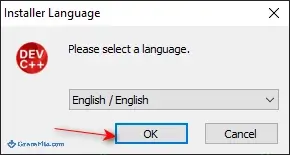
2. Pick the installer language.
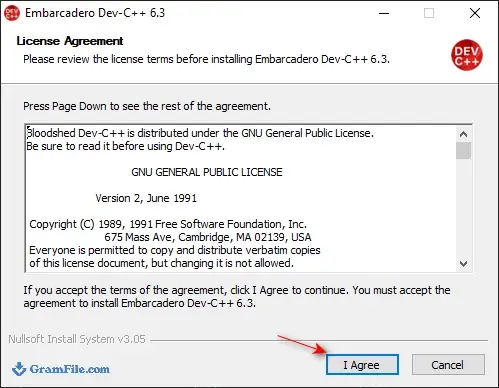
3. Accept the license agreement.
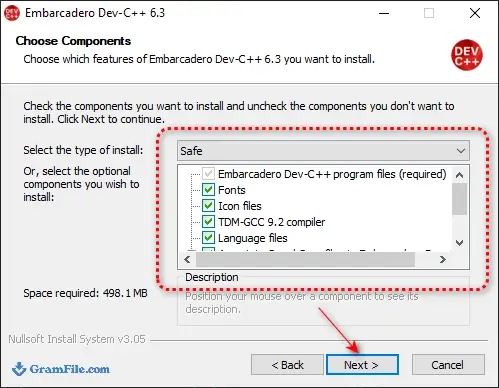
4. Choose the components to install. The defaults work for most people.
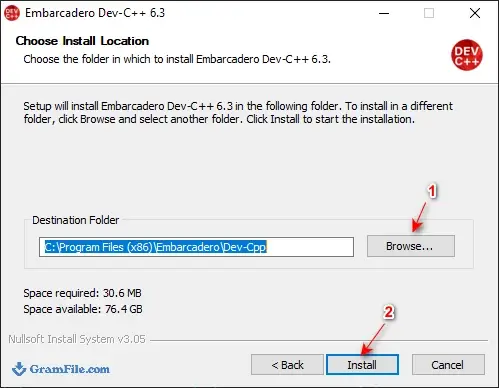
5. Pick the install folder and click Install.
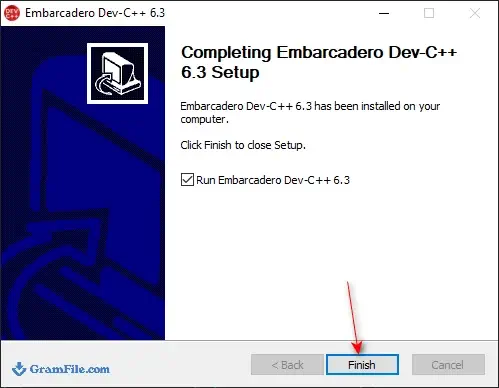
6. Press Finish when setup completes.
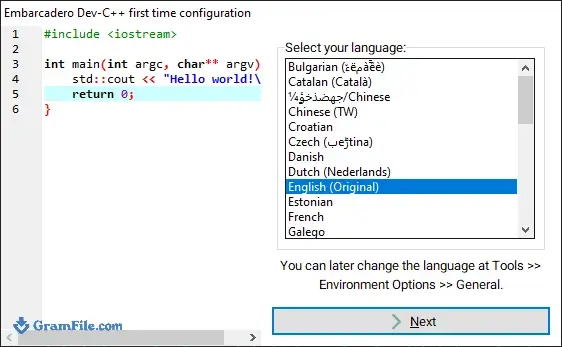
6. On the first launch, Dev-C++ opens a first-time configuration window. Choose your language and interface theme, then confirm.
Test the compiler after installing
Dev-C++ edits and organizes your code, and GCC does the compiling. This installer includes TDM-GCC, so there is nothing to configure.
Create a new source file with a short Hello World and press F11 (Compile & Run) to confirm the toolchain works.
Use a newer GCC instead (optional)
The bundled TDM-GCC 9.2 dates from 2020. If you need a newer C++ standard, install a newer GCC such as MinGW-w64, open Tools > Compiler Options and add a compiler set that points to its folder.
The Directories tab takes the bin, lib and include paths, and the Programs tab takes gcc, g++, make and gdb.
How to update Dev-C++
Dev-C++ has no built-in updater. When a newer build appears on this page, download it with the button and run the installer over your current copy.
Your settings live in the Documents folder under Embarcadero\Dev-Cpp, outside the program folder, so back that folder up first if you have customized themes or shortcuts.
Pros & Cons
What we liked
- Free and open source (GPL)
- Small download, light on memory
- Simple layout for beginners
- Built-in GDB debugger
- Optional custom GCC support
- Compiler included in the setup
What we didn't like
- Bundled GCC is dated
- Basic completion, no refactoring
- Slow development since 2021
Best Dev-C++ Alternatives
-
 Anaconda Navigator
A data science environment packed into a single installer.
-
 Arduino IDE
Free code editor for writing, compiling and uploading sketches to microcontroller boards.
-
 Visual Studio 2019
Free Microsoft IDE for C#, C++ and Python with a built-in debugger.
-
 Eclipse IDE
Free open-source IDE for Java, C++ and PHP with plugin-based customization.
Conclusion
4.6out of 5 · 47 user ratings
Dev-C++ remains a sensible starting point for C and C++ on Windows. It installs from a small file, the interface fits on one screen and the debugger handles coursework-size programs.
The trade-offs are an old interface, basic code completion and an update history that stops in January 2021. The table shows where the alternatives pull ahead.
| App | Best For | Price | Platform | Standout Feature |
|---|---|---|---|---|
| Dev-C++ | Beginners and quick console programs | Free (GPL) | Windows | Small native IDE with a GDB debugger |
| Code::Blocks | Beginners who want cross-platform | Free (open source) | Windows, Linux, macOS | Extensible and highly configurable |
| Red Panda C++ | Dev-C++ users who want better completion | Free (GPL) | Windows, Linux | Dev-C++ style IDE with modern symbol completion and rename refactoring |
| Visual Studio Community | Large Windows C++ projects | Free (eligibility limits apply) | Windows | Full-featured debugger and code analysis |
Final verdict: download Dev-C++ if you are learning C or C++ or want a light Windows IDE, and add a GCC compiler first.
Move to Code::Blocks or Visual Studio when your projects outgrow it. GramFile also has pages for Visual Studio 2019 and Eclipse IDE if you want something heavier.
FAQ
Is Dev-C++ free to download and use?
Yes, Dev-C++ is free and open source under the GNU GPL v2. There is no trial period, license key or account, and you can use it at school or at work.
Is Dev-C++ safe to download?
Yes, the installer here carries no bundleware, and the SHA-256 in Download Details lets you check that your copy is untouched. In our latest scan, 62 of 62 VirusTotal engines reported it clean, and the full report is linked in Download Details.
Does Dev-C++ come with a compiler?
Yes, the installer on this page includes the TDM-GCC compiler, so you can compile right after setup. Embarcadero also publishes a smaller build without a compiler, and you can add a different GCC under Tools > Compiler Options.
Is there a 64-bit version of Dev-C++?
The IDE is a 32-bit program, but it runs normally on 64-bit Windows. The bundled TDM-GCC compiler builds both 32-bit and 64-bit programs.
Does Dev-C++ work on Windows 11?
Yes, Dev-C++ runs on Windows 11 as a normal desktop app. Embarcadero’s own supported list stops at Windows 10, so Windows 11 is not officially named there.
Is Dev-C++ still being updated?
Updates are rare: the newest Embarcadero release dates from January 2021. The source stays on GitHub, and the program still works for learning and small projects.
What is the best alternative to Dev-C++?
Code::Blocks is the closest free replacement. If you like the Dev-C++ layout, Red Panda C++ keeps it with better code completion, and Visual Studio Community is the pick for larger projects.
What is the difference between Bloodshed Dev-C++ and Embarcadero Dev-C++?
Bloodshed Dev-C++ is the original 2005 release, while Embarcadero Dev-C++ is the maintained fork. The Embarcadero edition supports modern Windows, a far newer GCC with C++17 flags, dark themes and high-DPI screens, and the Bloodshed edition handles only C++98 and C++03.
Is there a Dev-C++ for Mac or Linux?
No, Dev-C++ is Windows only. Code::Blocks runs on Windows, Linux and macOS, and Red Panda C++ runs on Windows and Linux.
Found a problem with this download? Report an outdated version, broken link, suspicious installer or incorrect information.
Changelog - What's new in version 6.3
Version 6.3 - 30 January 2021- Added: Parallel compilation enabled by default for release builds through MAKE Jobs.
- Added: 3 Buttons for setting up custom shell command line tabs.
- Updated: Code completion and menues for dark themes.
- Updated: CTRL-TAB editor tab selection wrapping.
- Fixed: Make clean file deletion issue.
- Fixed: Status bar not showing all text.
- Fixed: Debug/CPU Window hex column issue.
- Fixed: Closing tabs in editor side by side view.
 Zoom Workplace
 Nitro PDF Pro
 Sumatra PDF
 IrfanView
 K-Lite Codec Pack
 WinRAR