

Download Details
- Version
- 0.40.10 (latest)
- File size
- 1584.7 MB
- License
- Free
- SHA-256 checksum
051556bec8d51d65a5e81e46aa9c238fff4fff0d47ce164fb25203ae48ed1c99- Developer
- Ollama Inc.
- Supported OS
- Windows 11, Windows 10
- Installers
- 64-bit (x64), 32-bit (x86), Offline
- Downloads
- 9233
- Rating
- 4.9 out of 5 · 42 reviews
- File name(s)
- OllamaSetup.exe
 Reviewed by Mohamed Zaki
Tested on Windows 11 and 10 · · How we review
Screenshots
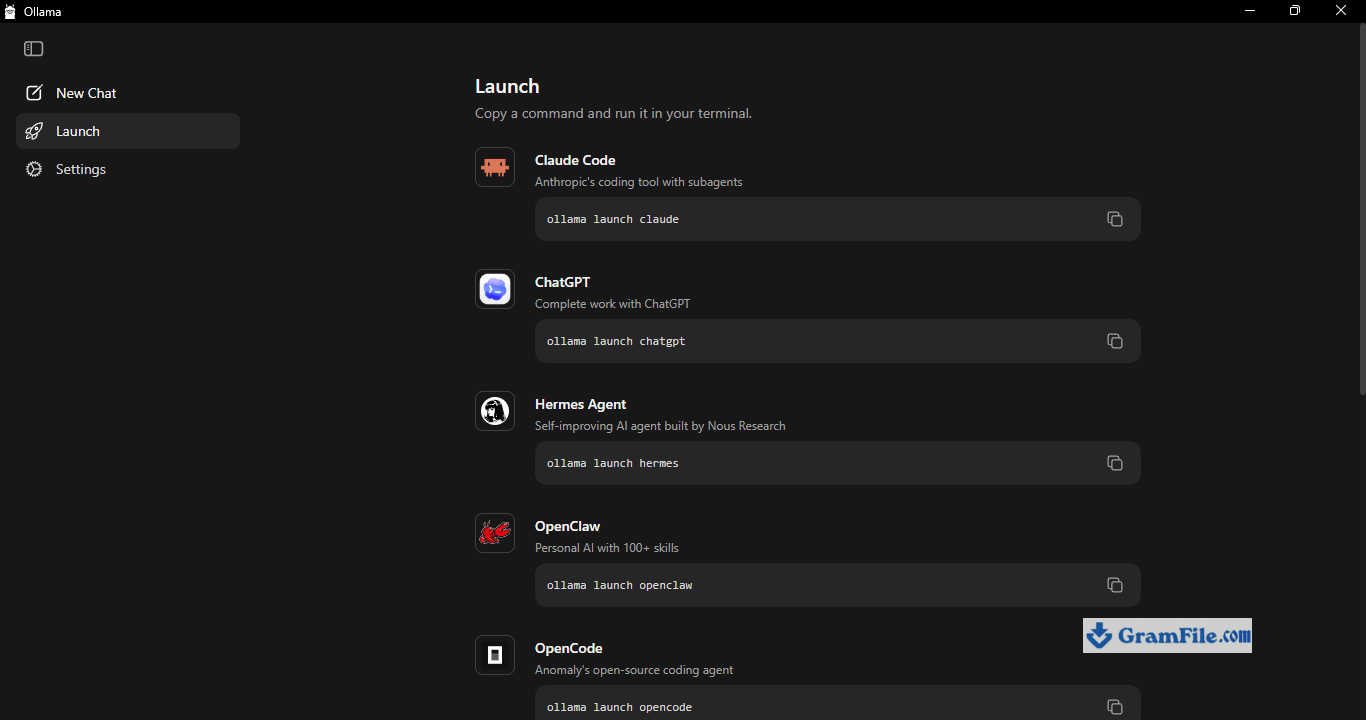
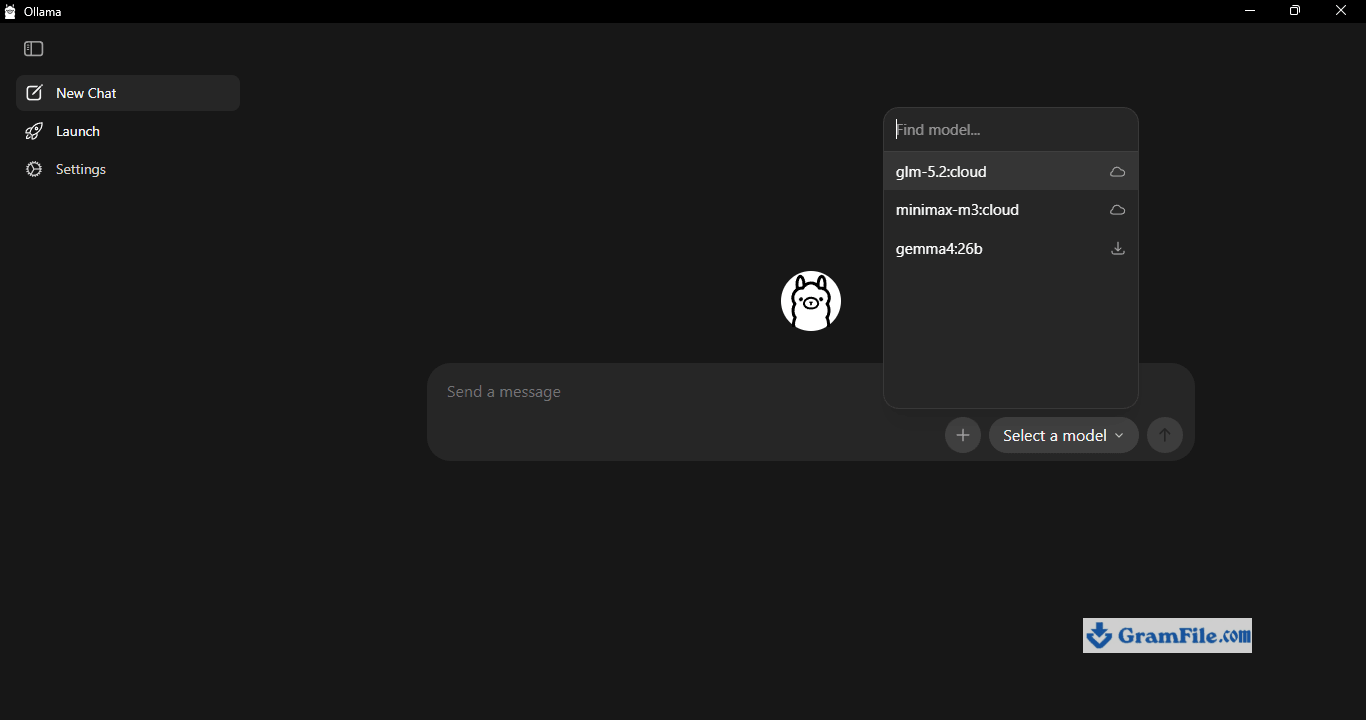
Ollama turns your own computer into a private AI lab, no subscription, no data leaving your machine, no internet required once a model is downloaded.
It’s built for developers, tinkerers, and anyone who wants to run models like Llama 3 or Mistral without paying per token. If you’re comfortable typing a command or two, it’s absolutely worth installing.
The catch: you’ll need decent RAM, and there’s no polished chat window out of the box, that part’s on you or a companion app.
What is Ollama?
Ollama is a free tool that lets you download and run large language models directly on your own hardware instead of through a cloud API.
Once installed, it works from the command line: you type ollama run llama3, it downloads the model on first use, and you’re chatting with it locally, no internet needed afterward, no per-message billing, and nothing you type ever gets sent to a third-party server.
It’s less a single app and more of a local model server. It handles the messy parts of running an LLM – memory management, GPU detection, model formats – so you don’t have to compile anything or wrestle with Python dependencies just to get a model talking back.
Running Models Locally: How It Actually Works
Every model in Ollama’s library ships in a compressed format that gets unpacked and loaded into RAM (or VRAM, if you’ve got a GPU) the first time you run it. After that first pull, everything happens offline.
That’s the whole appeal, your prompts, your documents, your code snippets, none of it leaves your machine.
For anyone handling sensitive client data or just uncomfortable feeding proprietary code into a cloud chatbot, that alone is worth the install.
Supported Models
Ollama supports a long list of open models – Llama 3, Mistral, Gemma, Phi, Qwen, CodeLlama, and dozens more – each available in multiple sizes and quantization levels.
Smaller quantized versions trade a bit of accuracy for a much smaller memory footprint, which matters a lot if you’re on a laptop rather than a workstation with 64 GB of RAM.
Hardware and GPU Acceleration
You don’t need a graphics card to use Ollama, but you’ll feel the difference if you have one. NVIDIA GPUs get CUDA acceleration out of the box, no separate CUDA toolkit install required, since Ollama bundles what it needs.
AMD cards work through ROCm, though that support is more reliable on Linux than Windows right now.
Apple Silicon Macs benefit from unified memory, meaning a 32 GB M-series machine can comfortably run models that would otherwise demand a dedicated GPU on a PC.
On a CPU-only setup with the 8 GB RAM minimum, expect a 7B model to feel usable but not fast — think a few tokens per second, fine for testing, a bit slow for long conversations.
Command Line Interface
Ollama lives in the terminal by design. A handful of commands cover most of what you’ll do day to day:
- ollama pull — download a model
- ollama run — start chatting with it
- ollama list — see what’s installed
- ollama rm — delete a model to free up disk space
- ollama serve — run the background server so other apps can connect to it
If the terminal isn’t your thing, that’s where the ecosystem picks up the slack — see below.
API and Third-Party Integrations
Ollama runs a local server (default port 11434) that’s compatible with the OpenAI API format, which means most tools built for ChatGPT’s API can point at Ollama instead with a small config change.
This is how it plugs into IDE extensions like Continue and Aider for AI-assisted coding, and into third-party chat front-ends and mobile apps that want a proper interface instead of a terminal window.
If you want a graphical chat UI, you’ll be pairing Ollama with one of these rather than relying on Ollama alone.
Docker and Server Deployment
For anyone running Ollama on a home server or a headless Linux box, there’s an official Docker image, which makes it straightforward to keep the model server isolated and running in the background, restart it automatically, and access it from other devices on the network.
How to Download & Install
Direct download: Grab the verified installer from the GramFile Ollama page, every file is SHA-256 checked before it goes live, no bundled toolbars, no sponsored installers. Click on the download button at top of this page
Installation in just 2 steps
1. Double click the setup file OllamaSetup.exe

2. Click Install and wait for the installer to finish

System requirements
- RAM: 8 GB minimum, 16 GB recommended for anything past a small model
- Disk space: roughly 200 MB–1.6 GB for the app itself depending on platform, plus 2–40+ GB per model you pull
- GPU: optional. NVIDIA (CUDA), AMD (ROCm, best supported on Linux), and Apple Silicon (Metal) are all accelerated automatically — Ollama runs fine on CPU alone, just slower
- OS: Windows 10/11 (x86_64 and ARM64), macOS 12 or later, most modern Linux distributions
License
Free and open source (MIT license). No account, no activation key, no trial period.
How to update
Windows and Mac installers check for updates automatically and prompt you when one’s ready. On Linux, re-run the install script or pull the latest Docker image. Models update independently — run ollama pull again to fetch the newest version.
Pros & Cons
What we liked
- Free and open source
- Fully offline after download
- No data leaves your machine
- Works without a GPU
- Large, frequently updated model library
- OpenAI-compatible API
What we didn't like
- No built-in chat UI
- Heavy RAM use on big models
- Weak AMD support on Windows
Best Ollama Alternatives
-
 ChatGPT
The original AI assistant, now right on your desktop, ready to help anytime.
-
 DeepSeek
Brings powerful AI capabilities directly to your Windows computer.
-
 Microsoft Copilot
Smart AI assistant that helps you work faster and smarter right from your PC.
Conclusion
4.9out of 5 · 42 user ratings
Ollama is the most straightforward way to get a real language model running on your own machine without signing up for anything or handing your prompts to a cloud provider.
It’s not going to hold your hand – you’re in the terminal, and the interface is whatever you choose to bolt on top of it – but for developers and privacy-conscious users, that trade-off is worth it.
If you want something with a chat window ready to go on first launch, pair it with a front-end, or look at an alternative built for that out of the box.
Ollama vs. Others
| App | Best For | Price | Platform | Standout Feature |
|---|---|---|---|---|
| Ollama | Developers, API integration, offline privacy | Free | Windows, macOS, Linux, Docker | OpenAI-compatible local server |
| LM Studio | Users who want a built-in chat UI | Free | Windows, macOS, Linux | Polished GUI, no terminal needed |
| GPT4All | Lightweight local chat on older hardware | Free | Windows, macOS, Linux | Runs well on modest specs |
FAQ
Is Ollama free to use?
Yes, Ollama is completely free and open source under the MIT license. There’s no subscription, no per-token cost, and no account required to download or run models.
How much RAM do I need to run Ollama?
8 GB of RAM is the minimum, but 16 GB is recommended for smoother performance with anything beyond the smallest models. Larger models like a 34B or 70B parameter version need significantly more, often 20-40+ GB.
Do I need a GPU to run Ollama?
No, Ollama runs fine on CPU alone, though a GPU speeds things up considerably. NVIDIA (CUDA), AMD (ROCm), and Apple Silicon (Metal) are all supported automatically without extra driver installs.
Can Ollama run without an internet connection?
Yes, once a model has been downloaded, Ollama runs entirely offline. Internet access is only needed to initially install the app and pull new models.
What models can I run with Ollama?
Ollama supports a large library of open models including Llama 3, Mistral, Gemma, Phi, Qwen, and CodeLlama, each available in multiple sizes and quantization levels to fit different hardware.
Does Ollama have a graphical user interface?
Not by default, Ollama is command-line based. A graphical chat experience requires pairing it with a third-party front-end, since Ollama itself only runs the local model server.
Is Ollama safe and private?
Yes, all processing happens locally on your machine, and prompts are never sent to an external server unless you deliberately connect Ollama to a remote tool. This makes it a solid choice for sensitive or proprietary data.
How do I update Ollama to the latest version?
On Windows and Mac, the app checks for updates automatically and prompts you when one is available. On Linux, re-run the install script or pull the latest Docker image to get the newest release.
Found a problem with this download? Report an outdated version, broken link, suspicious installer or incorrect information.
Changelog - What's new in version 0.40.10
## NVIDIA Nemotron 3.5 Bolt E4B[Nemotron 3.5 Bolt E4B](https://ollama.com/library/nemotron-3.5-bolt) is NVIDIA’s smaller, Gemma 4-based vision-language model for fast local conversations, image understanding, and tool use. It supports a 128K-token context window.
The model includes a DFlash draft for speculative decoding.
ollama run nemotron-3.5-bolt:e4b
**Full Changelog**: https://github.com/ollama/ollama/compare/v0.40.9...v0.40.10
 Zoom Workplace
 Nitro PDF Pro
 Sumatra PDF
 IrfanView
 K-Lite Codec Pack
 WinRAR