
For decades, OpenSSL has been the silent powerhouse behind secure internet connections, encrypting data, authenticating websites, and keeping online communications safe from prying eyes.
Originally developed in 1998 as an open-source implementation of SSL/TLS protocols, it quickly became the backbone of internet security, powering everything from web servers to VPNs.
The Windows version brings this same reliability to PC users, offering robust encryption tools for developers, businesses, and security-conscious individuals.
If you’ve ever visited a website starting with “https://” or used a secure app, chances are OpenSSL was working silently in the background.
This open-source toolkit is the unsung hero of internet security, handling encryption, digital certificates, and secure connections for millions of systems worldwide.
The Windows version brings that same power to your PC, whether you’re a developer, IT admin, or just someone who values privacy.
What is OpenSSL?
Think of OpenSSL as the internet’s locksmith. It’s the behind-the-scenes software that handles encryption for websites (that “https://” padlock), secure emails, VPNs, and even some messaging apps.
When data needs to be scrambled so hackers can’t read it, OpenSSL is often the tool doing the scrambling.
Core Features
- Free and open-source
- Military-grade encryption
- HTTPS/TLS support
- Certificate generation
- Powerful command line tools
- Portable version available
- 64-bit optimized performance
- Industry standard security
- Offline functionality
- Frequent security updates
How to Download & Install
OpenSSL doesn’t come with a fancy installer or big “WELCOME” screen, but setting it up takes just minutes. Here’s how to do it without the tech headache:
Download OpenSSL
The fastest way to download OpenSSL is through our download page. Click on the above Green Download Button for official and direct download.
This ensures you get a legitimate copy and avoid any potential malware.
Run the Installer
1. Double-click the downloaded Win64OpenSSL.exe file.
2. Follow the prompts:
-
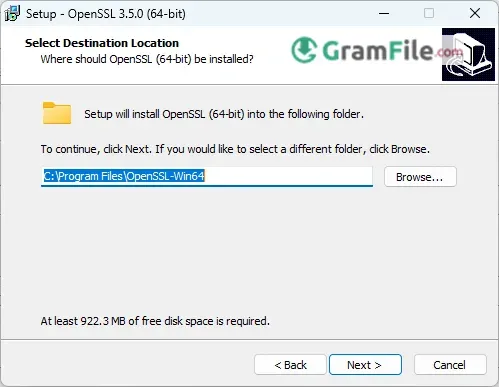
- Where to install? Stick to the default path (
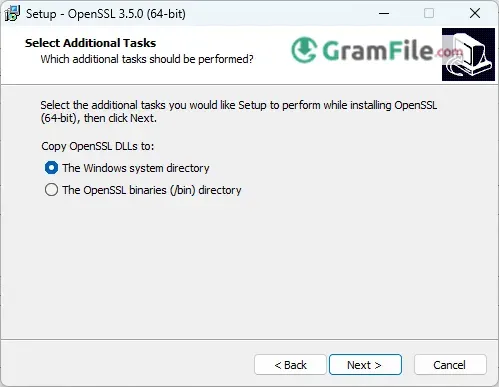
C:\Program Files\OpenSSL) unless you have a reason to change it. - Copy DLLs to…? Check “The OpenSSL binaries (/bin) directory” (helps avoid “missing DLL” errors later).
- Where to install? Stick to the default path (
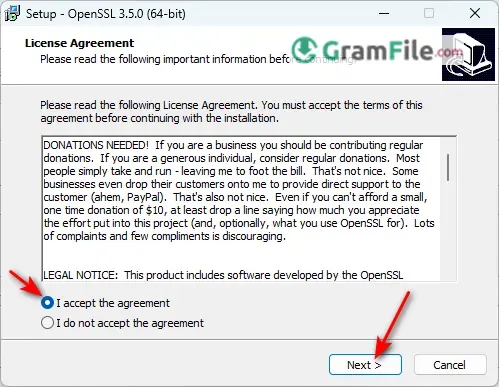
3. Accept the Agreement and Click Next
4. Select Destination Location
5. Select Additional Tasks
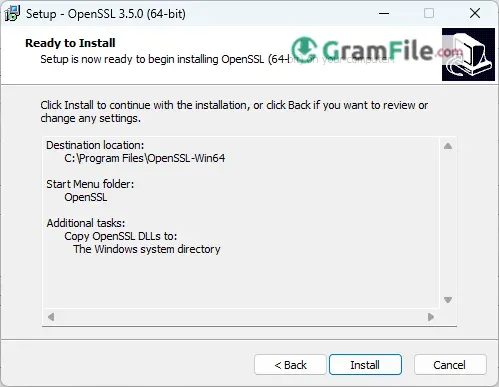
6. Click Install and wait few minutes for the installer to complete the process.
7. Click Finish
Remember: in the last final step, the developer is offering you to make a donation. If you don’t want to proceed with donation, just uncheck the checkbox.
Done! Now you can generate certificates, encrypt files, or test website security. No wizardry required, just a few clicks and you’re in.