

Download Details
- Version
- 1.142.0 (latest)
- File size
- 240.1 MB
- License
- Free
- Security scan
- VirusTotal: 59 of 59 engines say OK (0 flagged)
- SHA-256 checksum
9b9e7305bc5f2d9176dff8263ba146fc7b0d65ce1fb499271fd7746ec53d66ed- Developer
- Microsoft Corporation
- Supported OS
- Windows 11, Windows 10
- Installers
- 64-bit (x64), ARM (Arm64), Offline
- Downloads
- 16378
- Rating
- 4.3 out of 5 · 72 reviews
- File name(s)
- VSCodeUserSetup-x64-1.141.2.exe, VSCodeUserSetup-arm64-1.141.2.exe
 Reviewed by Ahmed Madbouli
Tested on Windows 11 and 10 · · How we review
Screenshots
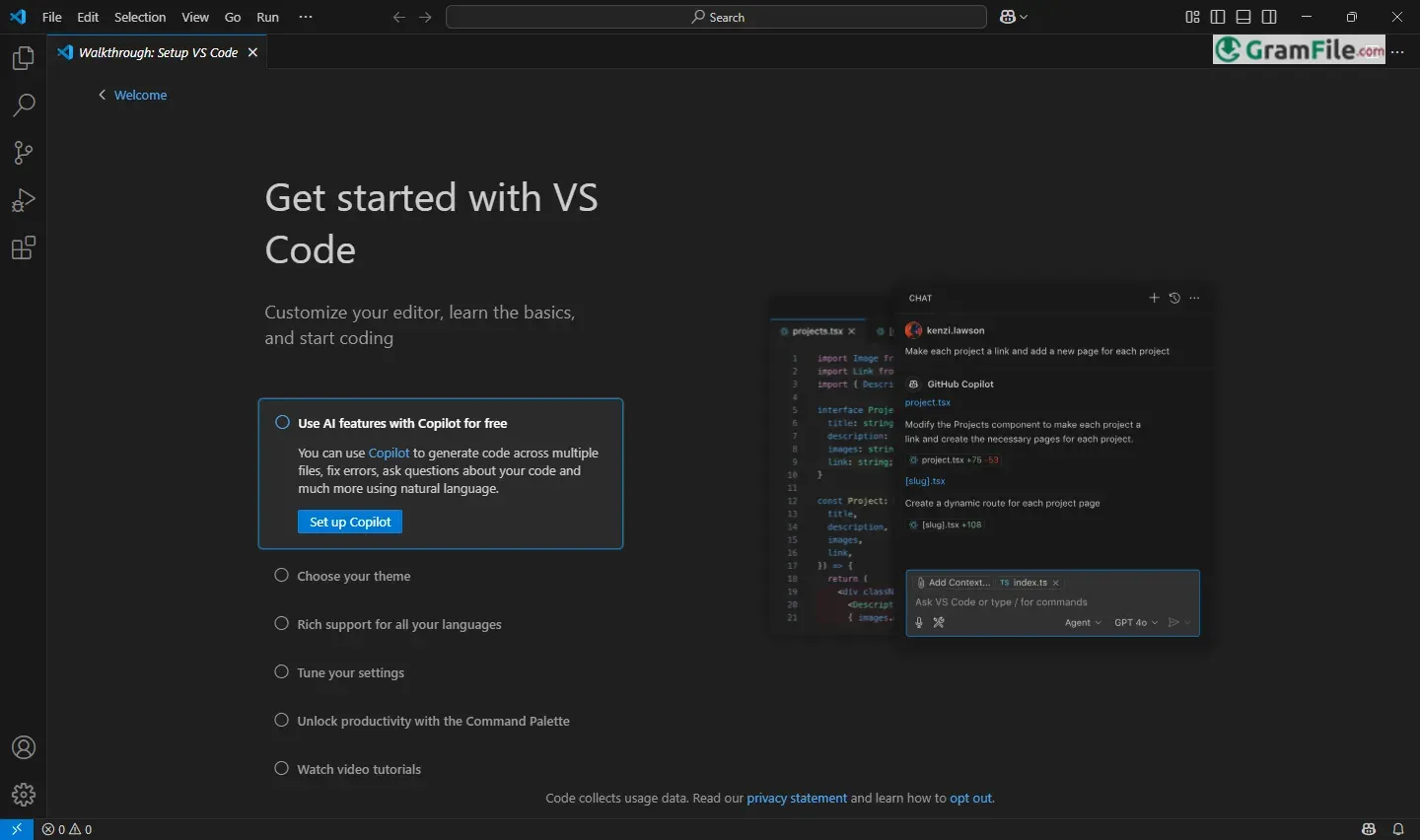
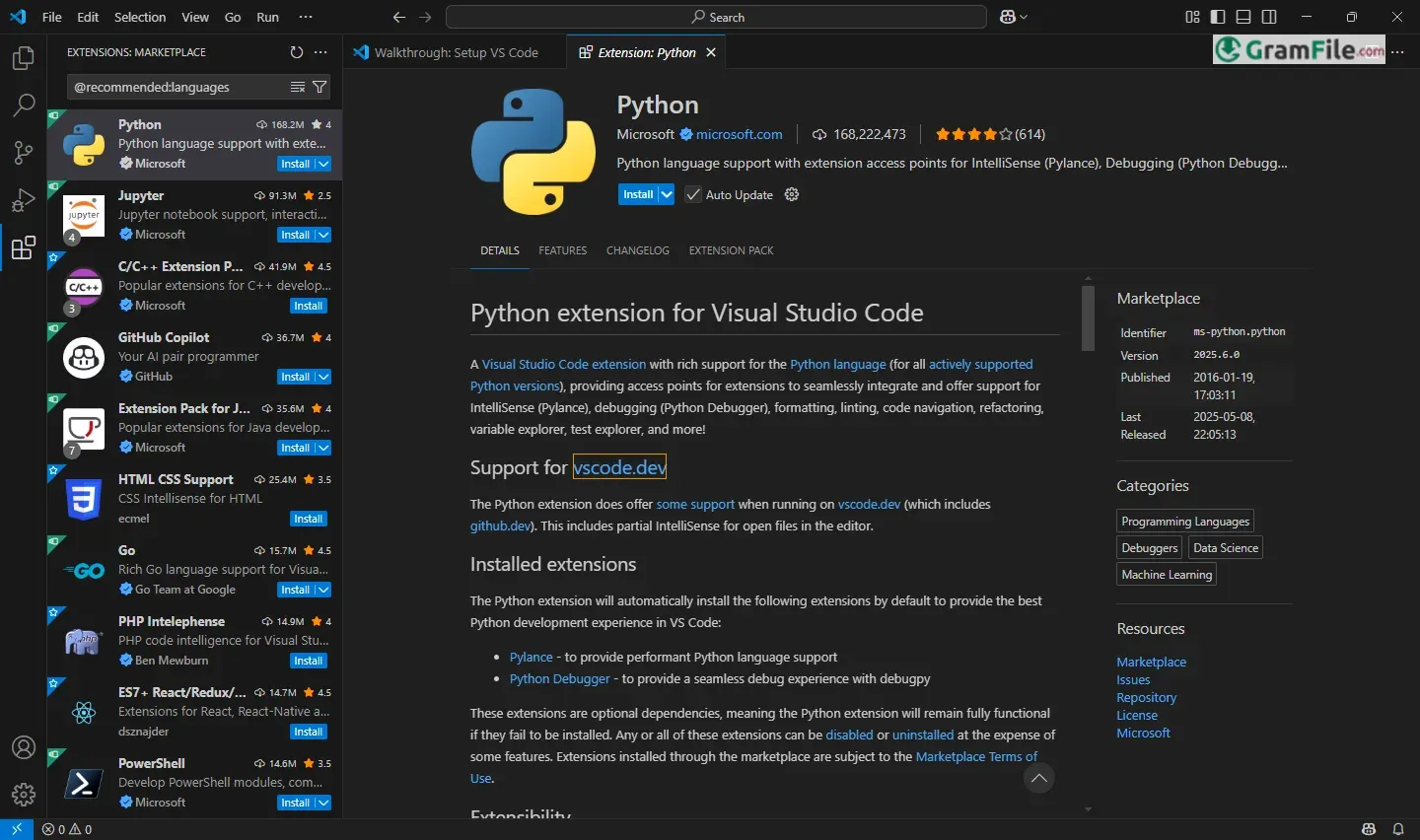
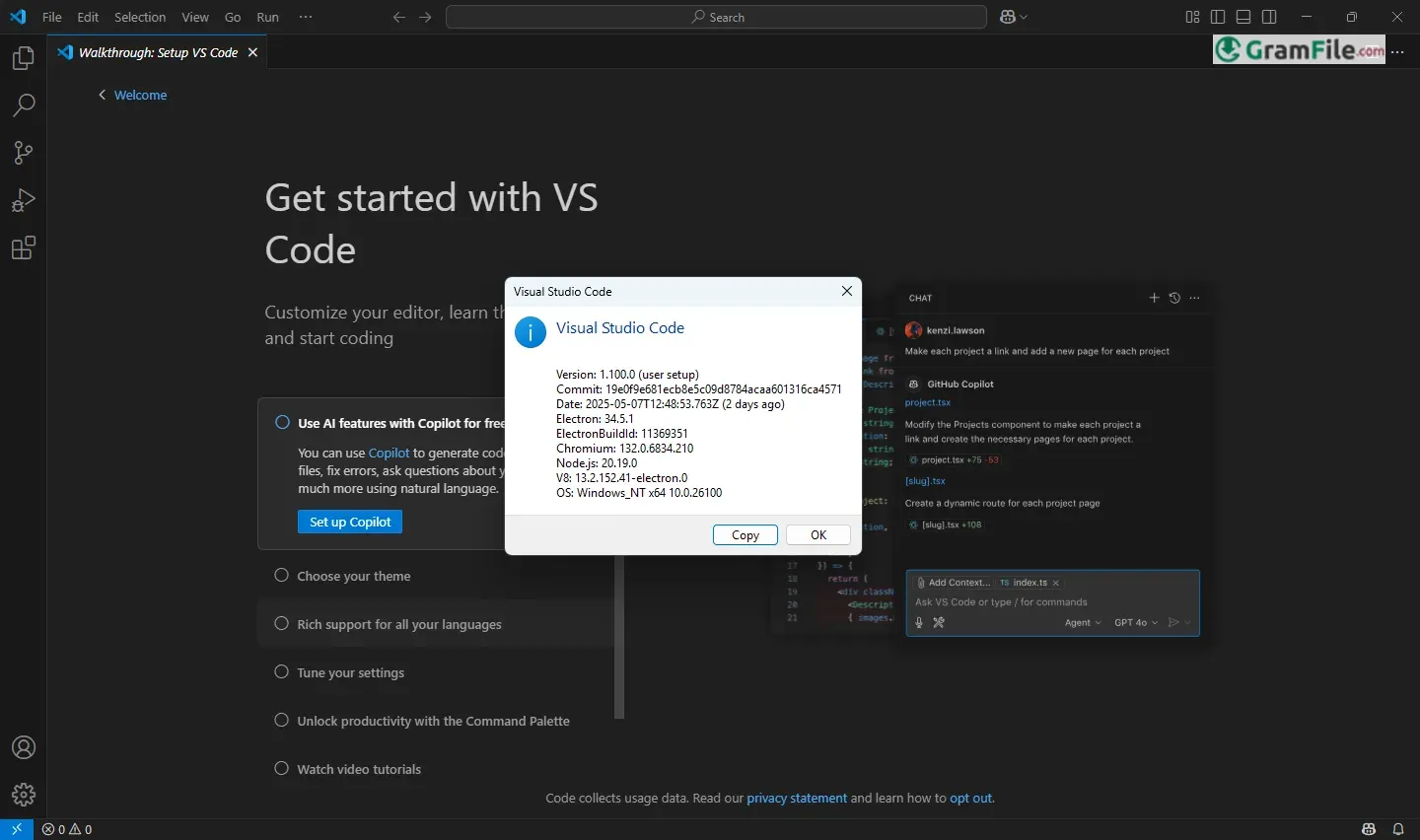
Visual Studio Code for Windows is a versatile, free source-code editor celebrated for its streamlined interface, robust customization, and seamless integration with development tools, making it a top choice for coders of all skill levels.
Originally launched by Microsoft in 2015, it rapidly evolved from a lightweight alternative to feature-rich IDEs, blending cross-platform flexibility with Windows-specific optimizations, all while prioritizing speed and an ever-expanding ecosystem of extensions driven by global developer contributions.
Visual Studio Code (VS Code) is a free, open-source code editor designed by Microsoft for Windows, combining simplicity with powerful features like debugging, syntax highlighting, and Git integration.
It supports countless programming languages through extensions, making it ideal for developers, designers, and hobbyists seeking a fast, customizable workspace.
Latest 64-bit Update: What’s New?
The latest release enhances performance and usability:
- Faster Startup: Optimized loading for large projects.
- Accessibility Upgrades: Improved screen reader support and keyboard navigation.
- Editor Tweaks: Smoother scrolling, smarter IntelliSense (code suggestions), and pinned editor tabs.
- Security Patches: Critical fixes for vulnerabilities, ensuring safer development.
Why Developers Love It
VS Code balances lightweight design with professional-grade tools. Its extension marketplace (think: themes, linters, live collaboration) lets you tailor the editor to your workflow.
Whether coding a website, app, or script, it adapts effortlessl, no clutter, just results.
Key Features & Highlights
- Free & open-source (MIT licensed).
- Windows-optimized cross-platform editing.
- Built-in Git & live collaboration.
- Smart code suggestions (IntelliSense).
- Integrated debugger with breakpoints.
- Vast extensions marketplace (40,000+).
- Fast, lightweight performance.
- Fully customizable UI/themes.
- Terminal & command-line tools.
- Multi-language support (Python, JS, C++, etc.).
- Regular updates & security patches.
- Built-in accessibility tools.
- Automated task workflows.
- Remote coding (SSH/containers).
- Minimal resource consumption.
How to Download & Install
- Click on the above Green Download Button for official and direct download. This ensures you get a legitimate copy and avoid any potential malware.
- Run the installer, follow prompts, and choose optional features like adding to PATH or creating shortcuts.
- Launch VS Code, ready to code in seconds.
System Requirements
VS Code for Windows runs smoothly on most setups:
- OS: Windows 8, 10, or 11 (64-bit).
- Processor: 1.6 GHz or faster (modern Intel/AMD).
- RAM: 1 GB minimum (2+ GB recommended).
- Storage: 200 MB free space (extra for extensions).
- Display: 1280×720 resolution or higher.
- Internet: Optional for updates/extensions.
- Hardware acceleration: Optional for smoother UI.
Lightweight yet powerful, it scales from basic laptops to high-end workstations.
Pros & Cons
What we liked
- Free, open-source.
- Fast, lightweight.
- Massive extensions library.
- Smart code suggestions (IntelliSense).
- Built-in Git, debugger, terminal.
- Fully customizable.
What we didn't like
- Not a full IDE.
- Extensions slow performance.
- Occasional update bugs.
- Requires extensions for niche languages.
Best Visual Studio Code Alternatives
-
 Anaconda Navigator
A data science environment packed into a single installer.
-
 Arduino IDE
A coding playground for turning ideas into blinking lights and buzzing sensors.
-
 Visual Studio 2019
A versatile tool for building apps and software efficiently with smart coding features.
-
 Eclipse IDE
A development environment, and a structured space, where software engineers create applications.
Conclusion
4.3out of 5 · 72 user ratings
Visual Studio Code is a no-brainer for developers seeking a balance of speed, flexibility, and power.
Its lightweight design, combined with a vast extensions library and built-in tools (Git, debugging, IntelliSense), makes it ideal for everything from quick scripting to complex projects.
Unlike bulkier IDEs like JetBrains or Eclipse, VS Code launches instantly and sips system resources, yet outperforms minimalist editors (Notepad++, Sublime) with deep customization and collaboration features like Live Share.
Why Choose It?
- Free & Open-Source: No licensing hassles.
- Customizable: Tailor it to any workflow.
- Cross-Platform Sync: Settings follow you across devices.
- Community-Driven: Updates reflect real developer needs.
VS Code vs. Others
- VS Code vs. Full IDEs: Lacks advanced compiler/debugger tools but wins with speed and simplicity.
- VS Code vs. Sublime/Atom: More features out-of-the-box, plus better extension support.
For coders who value efficiency without compromise, VS Code hits the sweet spot between simplicity and capability. It’s not just an editor, it’s a productivity catalyst.
Found a problem with this download? Report an outdated version, broken link, suspicious installer or incorrect information.
 Zoom Workplace
 Nitro PDF Pro
 Sumatra PDF
 IrfanView
 K-Lite Codec Pack
 WinRAR