



For years, managing cloud storage on Microsoft Azure meant deal with web portals or command-line tools, until Azure Storage Explorer arrived.
This free, standalone application brings the power of Azure’s storage services right to your desktop, offering an intuitive way to handle blobs, files, queues, and tables with the familiarity of Windows Explorer.
Originally launched by Microsoft as part of its broader push to simplify cloud workflows, it has evolved from a basic utility into a must-have tool for developers, IT admins, and businesses alike.
Over time, it’s integrated deeper with Azure’s ecosystem, adding features like multi-account support, enhanced security, and seamless Azure AD authentication.
Whether you’re troubleshooting storage issues or migrating data, it remains one of the most efficient ways to interact with Azure, without the overhead of a full portal.
If you work with Microsoft Azure, you’ve probably wished for an easier way to manage files, blobs, and tables without constantly logging into the Azure Portal.
That’s where Azure Storage Explorer comes in, a free, powerful desktop app that puts your cloud storage at your fingertips, just like File Explorer but for Azure.
What Is Azure Storage Explorer?
Azure Storage Explorer is a free, standalone app from Microsoft that gives you a graphical way to manage your Azure cloud storage resources.
Think of it as a file manager, but for your stuff in the Azure cloud. It lets you easily work with things like blobs, files, queues, and tables, without needing to be a coding whiz.
It’s perfect for developers, IT admins, and businesses who need quick access to their cloud storage without the hassle of a web browser.
Latest 64 bit Version Updates
The most recent updates have made Storage Explorer even more efficient:
- Improved performance – Faster load times, especially for large datasets.
- Enhanced security – Smoother Azure Active Directory (AAD) authentication.
- Better debugging – Clearer error messages when something goes wrong.
- Dark mode – Finally, a much-requested feature for late-night cloud management.
Key Features That Actually Matter
- Blob Management Made Painless
- View, upload, and organize blobs (files) as easily as dragging and dropping in Windows Explorer
- No more wrestling with Azure Portal just to check a file
- File Shares That Feel Local
- Access Azure file shares like they’re on your own PC
- Edit documents directly from the cloud without download/upload hassles
- Queue and Table Superpowers
- Peek inside message queues without writing code
- Browse table storage with a proper UI instead of cryptic commands
- Multi-Account Mastery
- Switch between different Azure subscriptions in seconds
- Manage work and personal accounts without constant login/logout
- Security Done Right
- Azure AD login with modern authentication
- Role-based access control that actually makes sense
- The Little Things That Save Hours
- Bulk operations (upload 100 files at once? No problem)
- Quick search to find needles in cloud haystacks
- Snapshot management for when you need to roll back
Why This Beats the Azure Portal
While the Azure Portal is great for overall management, Storage Explorer gives you that “working with local files” feeling.
Need to quickly check a log file? Preview an image? Move a bunch of documents between containers? This is where Storage Explorer shines.
Perfect for:
- Developers who need frequent access to cloud storage
- IT teams managing multiple Azure subscriptions
- Anyone tired of web portal lag when handling files
How to Download & Install
Getting Azure Storage Explorer set up on your Windows PC is easier than you might think. Follow these simple steps, and you’ll be managing your cloud storage like a pro in no time.
Step 1: Download the Installer
The fastest way to download Azure Storage Explorer is through our download page.
Click on the above green download button for official and direct download. This ensures you get a legitimate copy and avoid any potential malware.
Step 2: Run the Installer
- Once downloaded, open the .exe file (usually in your “Downloads” folder).
- If Windows asks, “Do you want to allow this app to make changes?” click Yes.
-
- This just lets the installer do its job—nothing shady!
Step 3: Follow the Setup Wizard
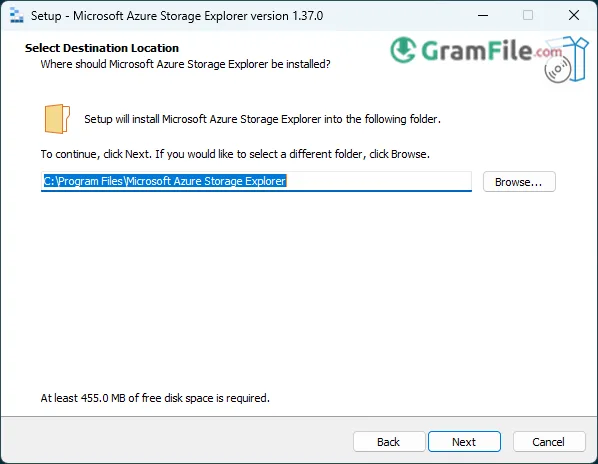
The installer will guide you through:
Accepting the license terms (just click “I Agree”).
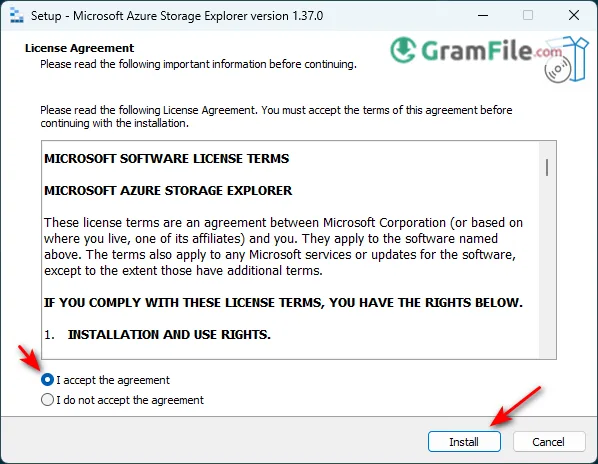
Choosing an install location (stick with the default unless you have a reason to change it).
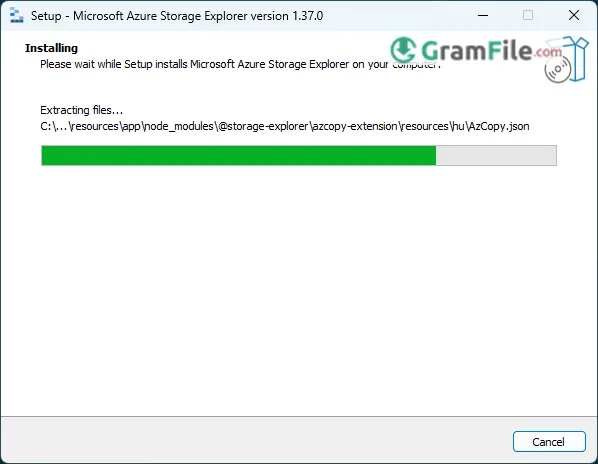
Picking a start menu folder (again, default is fine). Click Install and let it work its magic.
Step 4: Launch & Sign In
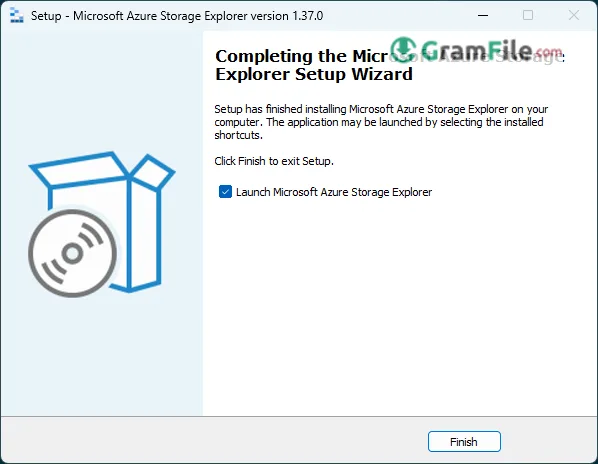
- Once installed, open Azure Storage Explorer (check your desktop or Start menu).
- When prompted, sign in with your Azure account (work, school, or personal).
-
- This connects the app to your cloud storage automatically.
Step 5: Start Managing Your Storage!
You’ll now see all your Azure subscriptions and storage accounts.
- Blobs, files, queues, and tables are just a click away.
- Drag-and-drop files like you would in File Explorer.
Troubleshooting Tips (Just in Case)
- Installation stuck? Try closing other apps and running the installer as admin.
- Can’t sign in? Double-check your Azure credentials or firewall settings.
- Missing features? Ensure you have the latest version from Microsoft’s site.
And that’s it! You’re ready to work with Azure storage without the headache of the web portal. Happy cloud managing!