

Download Details
- License
- Free Trial
- Developer
- Microsoft Corporation
- Supported OS
- Windows 11, Windows 10
- Installers
- 64-bit (x64), 32-bit (x86), ARM (Arm64), Offline
- Downloads
- 11793
- Rating
- 4.3 out of 5 · 52 reviews
 Reviewed by Ahmed Madbouli
Tested on Windows 11 and 10 · · How we review
Screenshots
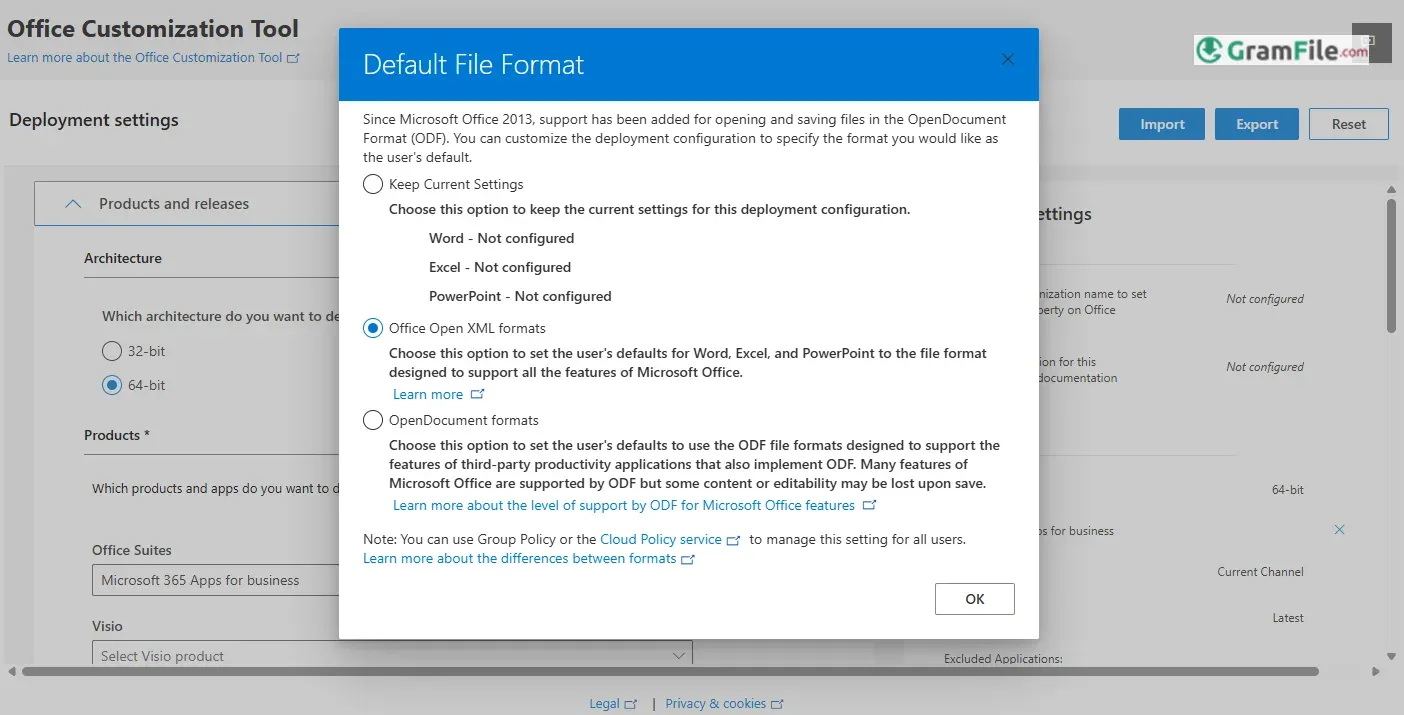
The Office Customization Tool (OCT) is a web-based Microsoft utility that empowers IT teams to preconfigure Office installations with tailored settings, apps, and updates for bulk enterprise deployments.
Introduced in 2018 to modernize large-scale Office 365 (now Microsoft 365) rollouts, it replaced clunky XML scripting with an intuitive interface, enabling standardized configurations, cloud-based management, and granular control over licensing, languages, and features.
Designed for hybrid or on-premises environments, it balances automation with flexibility, ensuring compliance while minimizing deployment friction.
So, What is the Office Customization Tool?
The Office Customization Tool (OCT) is a free, web-based Microsoft utility for IT teams to preconfigure Microsoft 365 or Office installations.
It replaces complex XML scripting with a user-friendly interface, letting admins define settings like:
- Apps to Install: Include or exclude programs like Word, Excel, or Teams.
- Languages: Add primary and secondary language packs.
- Updates: Set update schedules (Monthly or Semi-Annual) and sources.
- Licensing: Configure activation for volume licenses (KMS, MAK).
- Preferences: Customize defaults like file-saving locations or security policies.
Introduced in 2018, the OCT simplifies large-scale deployments, ensuring consistency across hybrid or on-premises setups while maintaining security and compliance.
Deploying Office with the Office Deployment Tool (ODT)
The OCT pairs with the Office Deployment Tool (ODT), a command-line utility for installations.
Download the ODT
- Get the latest ODT from the Microsoft Download Center.
- Run the downloaded file to extract
setup.exeand sample XML files.
Run the Installation
- Open Command Prompt as Administrator.
- Navigate to the ODT folder and execute:
setup.exe /configure config.xml
This triggers a silent install using your preconfigured settings.
Verify Installation
- Check system logs in the
%temp%folder. - Confirm activation in any Office app under File > Account.
Key Features and Advantages
- Preconfigure Office installations with tailored settings.
- Select specific apps (Word, Excel, Teams) to include/exclude.
- Add primary and secondary language packs.
- Define automatic update schedules and sources.
- Configure volume licensing (KMS, MAK) activation.
- Silent, user-free installation for enterprise rollouts.
- Customize file save paths and security defaults.
- Web-based interface (no XML coding required).
- Integrates with Office Deployment Tool (ODT).
- Cloud or local network installation sources.
- Centralized compliance and telemetry controls.
- Supports Microsoft 365 and Office LTSC.
- Export reusable XML configuration files.
- Cross-platform compatibility (hybrid environments).
- Free for volume license holders.
How to Download & Install
Step 1: Access the Tool
- Visit the Microsoft 365 Apps Admin Center and sign in with admin credentials.
- Navigate to Customization > Device Configuration to start building your configuration.
Step 2: Configure Settings
- Products: Choose between 32-bit or 64-bit versions (e.g., Microsoft 365 Apps or Office LTSC 2021).
- Languages: Select primary and proofing languages.
- Installation: Opt for cloud or local sources; enable silent installs to hide setup from users.
- Updates: Define update paths (e.g., automatic or network-shared sources).
- Activation: Input KMS keys for volume licenses.
Step 3: Export the Configuration File
- Click Export to generate an XML file (e.g.,
config.xml). Save it to a shared network folder.
Pros & Cons
What we liked
- Free for enterprise use.
- Web-based, no software installs.
- Mass Office deployments simplified.
- Silent, user-free installations.
- Centralized compliance control.
- Integrates with ODT for execution.
What we didn't like
- Enterprise-only (no small teams).
- Requires admin expertise.
- Relies on ODT/command-line.
Best Office Customization Tool Alternatives
-
 Microsoft 365 (Office)
Rents you the latest Office apps with cloud storage for always-on access.
-
 Microsoft Office 2024
A one-time purchase offline installer - Pro Plus 64-bit office suite.
-
 Microsoft Office 2016
A stable desktop office suite with smart cloud sharing and collaboration features.
-
 Microsoft Office 2021
A one-time purchase offline setup of Word, Outlook, and PowerPoint (2021).
Conclusion
4.3out of 5 · 52 user ratings
The Office Customization Tool (OCT) is the gold standard for IT teams managing large-scale Microsoft 365 deployments.
Its web-based simplicity cuts through the chaos of manual scripting, letting admins preconfigure apps, updates, and licenses in minutes, not hours.
While alternatives like PDQ Deploy offer broader third-party app support, OCT’s native integration with Microsoft’s ecosystem ensures seamless updates and compliance.
For smaller teams, tools like WPS Office provide plug-and-play ease, but lack OCT’s granular control over enterprise security or silent rollouts.
Why Choose OCT?
- Enterprise-First: Built for bulk deployments (100+ devices), not one-off setups.
- Cost-Free: Included with Microsoft volume licenses—no extra fees.
- Standardization: Enforce uniform settings, languages, and updates across teams.
OCT vs. Alternatives
- OCT vs. Manual XML: Less error-prone, faster, and no coding skills needed.
- OCT vs. Third-Party Tools: Tighter Microsoft integration, but fewer cross-platform features.
- OCT vs. WPS Office: OCT wins for compliance; WPS wins for simplicity.
If your organization prioritizes security, scale, and speed, the OCT is unmatched. For casual users? Stick to standard installers. But for enterprises, it’s not just a tool—it’s a deployment lifeline.
Found a problem with this download? Report an outdated version, broken link, suspicious installer or incorrect information.
 Zoom Workplace
 Nitro PDF Pro
 Sumatra PDF
 IrfanView
 K-Lite Codec Pack
 WinRAR